To shave a few seconds off their times in competition, speed skaters slip into tight-fitting skin suits, cyclists wear aerodynamic helmets, and marathoners might don carbon-soled running shoes.
While we didn’t conduct wind tunnel tests, we’re confident that our new one-click access to the WordPress administrative interface from the MyKinsta dashboard can save you at least a dozen seconds every time you log in.
But this WordPress Admin auto-login feature isn’t just about saving time: it’s another way we’re making website hosting simpler and more secure.
Accessing WordPress Admin with one click
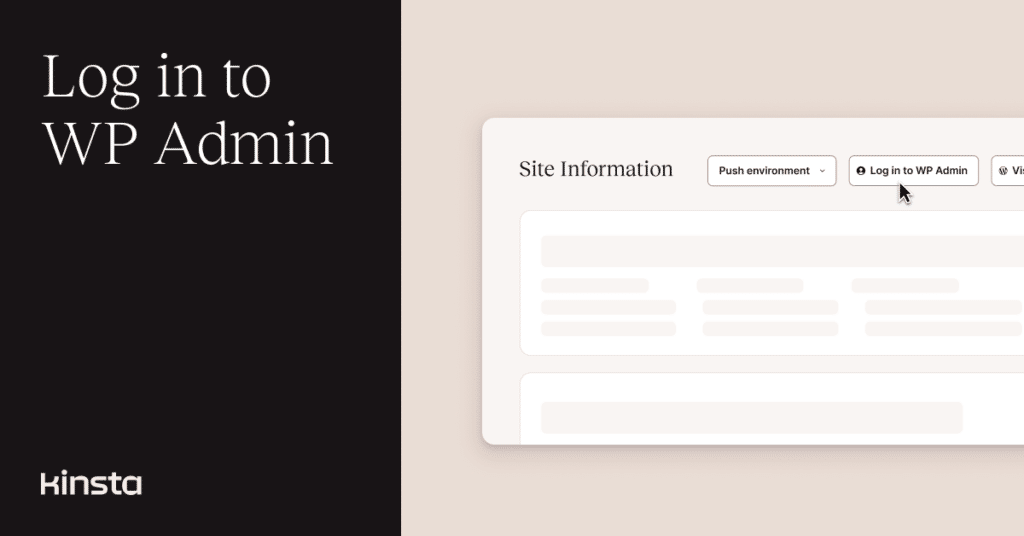
Enabling WordPress auto-login has changed the row of buttons at the top of the Site Information page in MyKinsta. When you navigate to that page for a specific WordPress environment (whether that be a live site or a staging site), you see options to Log in to WP Admin and Visit WP login:

The Visit WP login button gets you to the WordPress administration interface the old-fashioned way: where you enter a username or email address and a password in the form served up by wp-login.php.
The Log in to WP Admin button sends you directly into the WordPress administrative interface by matching the email address you use in MyKinsta with an email address among the WordPress user accounts.
These options mean you don’t have to store WordPress login credentials somewhere else, continually type, or copy, or paste passwords. Simpler and more secure.
If the address associated with your account in MyKinsta isn’t already linked to a user in WordPress, MyKinsta can auto-generate a WordPress user with administrator permissions for future one-click logins.
You are asked if that’s what you want to do:
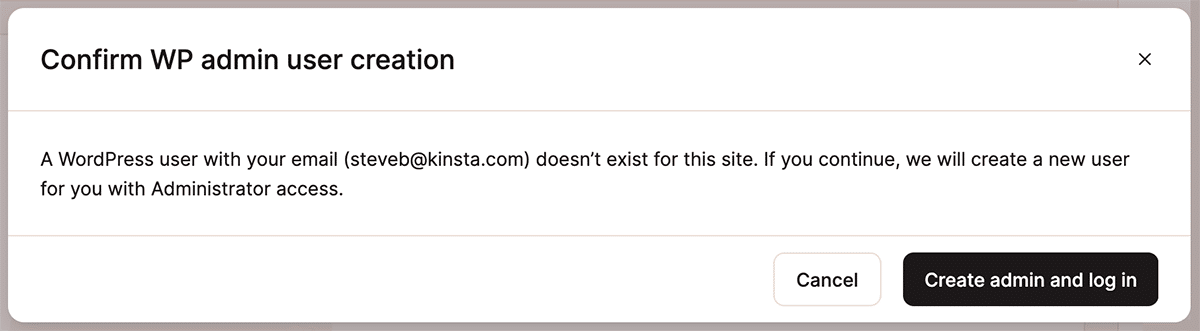
A WordPress Admin user created by MyKinsta in this way will be assigned an auto-generated username. The first and last names found in your MyKinsta Account Settings are used to create a user-friendly display name in WordPress.
Enabling and disabling WP Admin auto-login
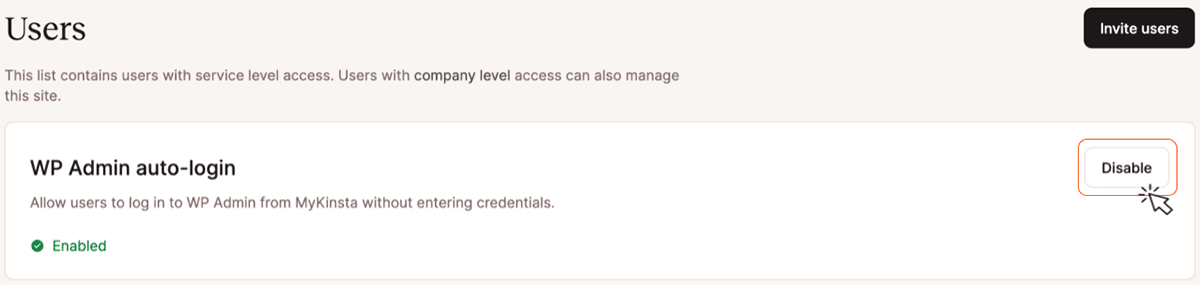
The WP Admin auto-login feature is enabled by default for all sites. Company Owners, Company Administrators, and Company Developers can disable (and re-enable) the capability for any environment by navigating to Sites > sitename > User management > WP Admin auto-login and clicking the Disable (or Enable) button:
Questions about WP Admin auto-login?
Here are some answers to likely questions about the MyKinsta auto-login feature for WordPress Admin:
Is this all part of MyKinsta’s SSO capabilities?
In late 2025, we unveiled single sign-on (SSO) functionality for MyKinsta, supporting the Security Assertion Markup Language (SAML) standard. The functionality allows organizations to mediate their teams’ access to MyKinsta using their preferred identity provider, but it does not extend to the WordPress Admin dashboard.
Kinsta’s one-click access to WordPress Admin is available to all of our customers, whether or not their organization uses SAML SSO to access MyKinsta. For users of SSO access to MyKinsta, one-click logins to WordPress Admin dashboards help organizations meet their need for simplicity and security.
Can I access WordPress directly using one of those auto-generated accounts?
When MyKinsta creates a new WordPress user account for auto-login (because it couldn’t find a matching email address in the WordPress database), it creates a strong password along with the randomly generated username for that new account.
Once created, that account can be used for manual access via wp-login.php (often accessed at /wp-admin/). However, you won’t know the password.
Two solutions are to auto-login to WordPress through MyKinsta and update the password in your user profile, or follow the “Lost your password?” procedure using your email address and WordPress’s own login form.
Changing your password in WordPress does not affect MyKinsta’s ability to log you in with one click.
What if I change my name or email address in MyKinsta?
An email address is the key to matching user accounts in MyKinsta with those in the WordPress user database. If you’re using the auto-login feature and change your email address in MyKinsta’s Account Settings, MyKinsta will attempt to log in to WordPress using that new address. If an account with that email address is not already in WordPress, MyKinsta will ask if you want to generate a new WordPress administrator’s account on the fly.
The first name and last name found in your MyKinsta Account Settings are used only when auto-generating a new WordPress user account for one-click login. That information becomes the user-friendly display name in WordPress. If you later change your name in MyKinsta without changing your email address, the display name in WordPress will remain unchanged.