WordPress is primarily known by people for its powerful blogging features. RSS Feeds are used by people to subscribe to your new content that you post and also to feed into third-party reader applications such as Feedly.
This way they can read your fresh content on the go. However, not everyone uses the blogging portion of WordPress and for some businesses, in fact, might simply want to in WordPress disable RSS feeds altogether. This is then one less thing they have to worry about.

By default WordPress generates all kinds of RSS feeds that are built in, such as:
http://example.com/feed/
http://example.com/feed/rss/
http://example.com/feed/rss2/
http://example.com/feed/rdf/
http://example.com/feed/atom/
It also generates them for your categories, tags, comments, etc.
This guide shows you how to disable RSS feeds in WordPress safely and cleanly, without causing server errors or unexpected issues.
1. Disable RSS feed with a plugin
The first way to disable a WordPress RSS feed is to use a free plugin like Disable Everything. This plugin disables all RSS/Atom feeds and feed links on your WordPress website by redirecting all the requests.
You can download Disable Everything from the WordPress repository or by searching for it within your WordPress dashboard under Add New plugins.
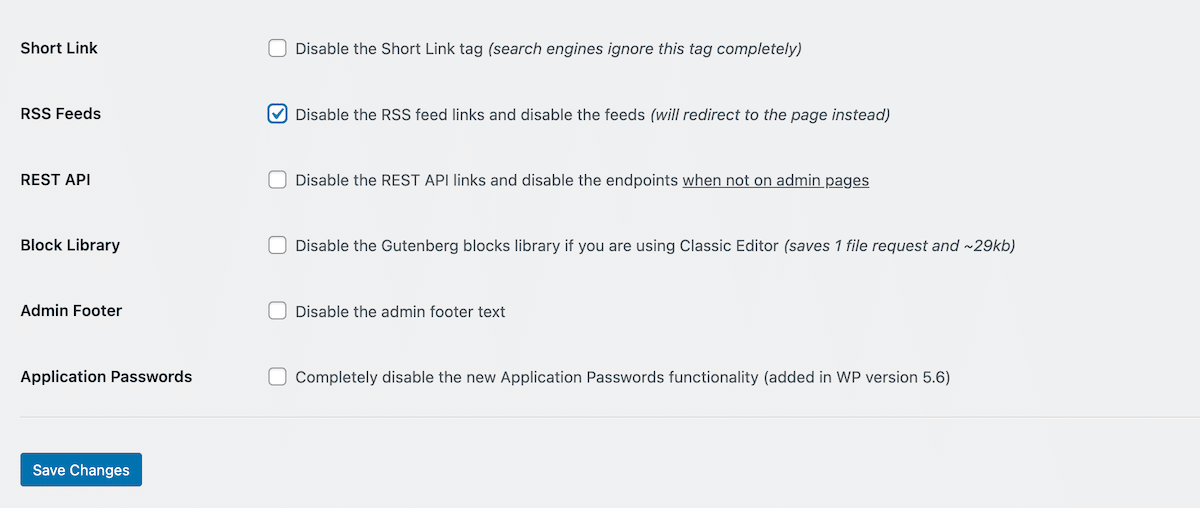
Once the plugin has been installed and activated, head over to the Disable Everything “settings” area and check the checkbox to disable all RSS feeds and feed links.
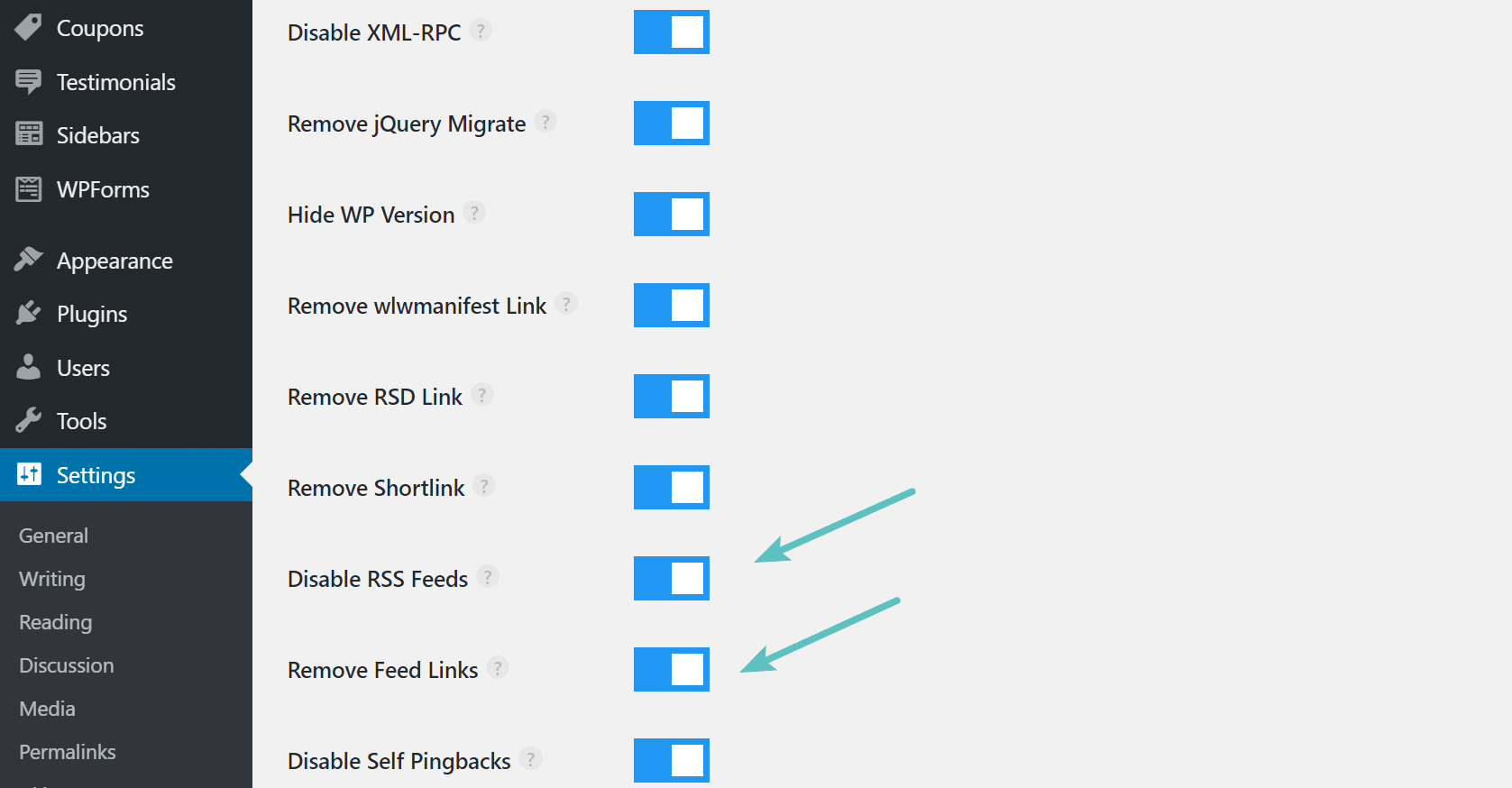
You could also use a premium plugin like perfmatters (developed by a team member at Kinsta), which allows you to both disable RSS feeds and disable RSS feed links, along with other optimizations for your WordPress site.
2. Disable RSS feed with code
If you prefer not to use a plugin, you can disable RSS feeds using code.
There are a few ways to disable RSS feeds with code. The cleanest approach is to redirect feed requests instead of terminating them, which can sometimes result in server errors.
Option A (recommended): Redirect RSS feeds to the homepage
Add the following code to your child theme’s functions.php file:
function kinsta_disable_feed_redirect() {
	wp_redirect( home_url( '/' ), 301 );
	exit;
}

add_action( 'do_feed', 'kinsta_disable_feed_redirect', 1 );
add_action( 'do_feed_rdf', 'kinsta_disable_feed_redirect', 1 );
add_action( 'do_feed_rss', 'kinsta_disable_feed_redirect', 1 );
add_action( 'do_feed_rss2', 'kinsta_disable_feed_redirect', 1 );
add_action( 'do_feed_atom', 'kinsta_disable_feed_redirect', 1 );
add_action( 'do_feed_rss2_comments', 'kinsta_disable_feed_redirect', 1 );
add_action( 'do_feed_atom_comments', 'kinsta_disable_feed_redirect', 1 );
Now, if someone visits yourdomain.com/feed/, they are redirected to your homepage instead. If you prefer a temporary redirect, you can change 301 to 302.
Option B: Return a 404 for RSS feeds
If you would rather have feed URLs behave as though they don’t exist, you can force WordPress to return a 404 response.
Add this code to your functions.php file:
function kinsta_disable_feed_404() {
	global $wp_query;
	$wp_query->set_404();
	status_header( 404 );
	nocache_headers();
	include get_query_template( '404' );
	exit;
}

add_action( 'do_feed', 'kinsta_disable_feed_404', 1 );
add_action( 'do_feed_rdf', 'kinsta_disable_feed_404', 1 );
add_action( 'do_feed_rss', 'kinsta_disable_feed_404', 1 );
add_action( 'do_feed_rss2', 'kinsta_disable_feed_404', 1 );
add_action( 'do_feed_atom', 'kinsta_disable_feed_404', 1 );
add_action( 'do_feed_rss2_comments', 'kinsta_disable_feed_404', 1 );
add_action( 'do_feed_atom_comments', 'kinsta_disable_feed_404', 1 );
This ensures feed URLs return a proper 404 status instead of a server error.
Remove RSS feed links from the WordPress header
WordPress generates links to the RSS feeds within your webpage’s header, as seen in the screen below. You can go one step further and remove these links from within your pages HTML code.

Copy the following code into your functions.php file to remove the header links to your RSS feeds.
remove_action( 'wp_head', 'feed_links_extra', 3 );
remove_action( 'wp_head', 'feed_links', 2 );
This removes RSS feed references from your site’s HTML.
What disabling RSS feeds means for SEO and subscribers
Disabling RSS feeds makes sense for many business websites that don’t rely on blogging or content syndication. It reduces unnecessary endpoints, limits bot traffic to /feed/ URLs, and keeps your site structure cleaner.
However, RSS feeds are still used in a few important ways. Some email marketing tools and content automation services rely on RSS to pull new posts. And if your site already has RSS subscribers, disabling feeds break those subscriptions immediately.
From an SEO perspective, RSS feeds aren’t usually a direct ranking factor, but they can still affect how your content gets discovered, shared, and republished. For sites that publish regularly, keeping RSS enabled (or at least handled properly) may still be beneficial.
If you don’t need RSS, the safest approach is to disable it cleanly by redirecting feed URLs or returning a proper 404 response.

Brian has a huge passion for WordPress, has been using it for over a decade, and even develops a couple of premium plugins. Brian enjoys blogging, movies, and hiking. Connect with Brian on Twitter.