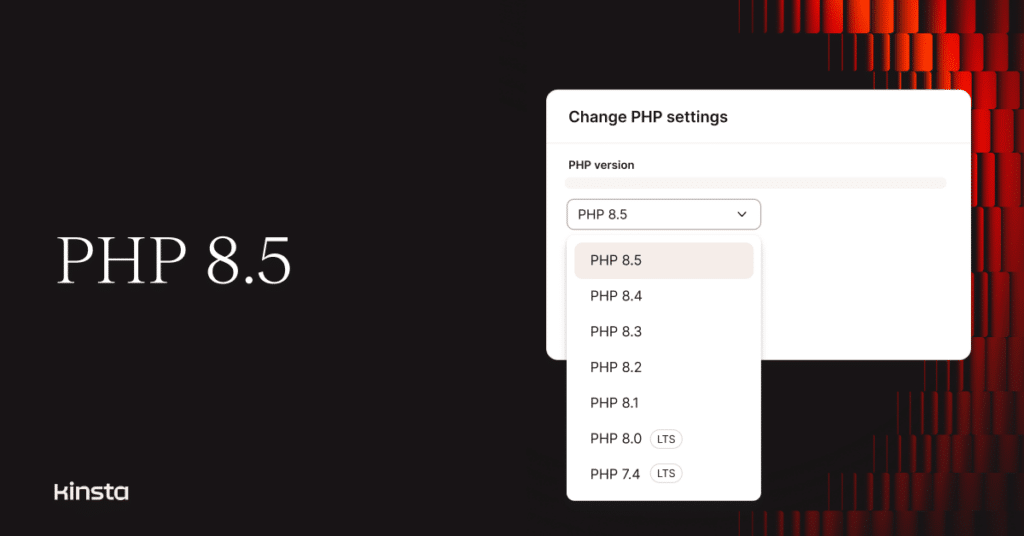
Following the release of PHP 8.5 in November, this latest version of the server-side scripting language is now available to customers on our Managed Hosting for WordPress platform.
Those who want to adopt PHP 8.5 can make the move within the MyKinsta dashboard or via the Kinsta API. We’ve already put the release through its paces across several CMS platforms in our annual PHP benchmarking tests.
Here’s what you need to know about making the switch here at Kinsta.
Think twice (or more) before adopting a new PHP release
Changing the PHP version on your WordPress website is simple with Kinsta. But incompatibilities between a new PHP engine and old PHP code can have serious ramifications for a site, including knocking it offline altogether.
That’s why we recommend testing your website and any new PHP release in a staging environment. Make the switch on your live site only after confirming that the staged environment performs without errors.
We also recommend backups. As you should before any major change to your WordPress site, create a backup in case something goes wrong. The solution to a broken website after moving to a new PHP engine is usually reverting to the release you were using before the change.
PHP and WordPress release matchups
Many website owners would describe the relationship between their WordPress installations and PHP releases as “complicated.” We provide long-term support for PHP releases (as old as 7.4) that the PHP Group deems past end-of-life. We do this because so many WordPress users have significant applications (usually found in the code of themes or plugins) that break on more recent releases of PHP.
Life is easier for site owners who stay up to date. WordPress 6.9 is scheduled for release and has already been tested successfully with PHP 8.5. However, this compatibility with new PHP releases is always considered “Beta” by WordPress developers until at least 10% of all known instances of the CMS are running on that PHP engine or a newer version.
How to switch to PHP 8.5 in MyKinsta
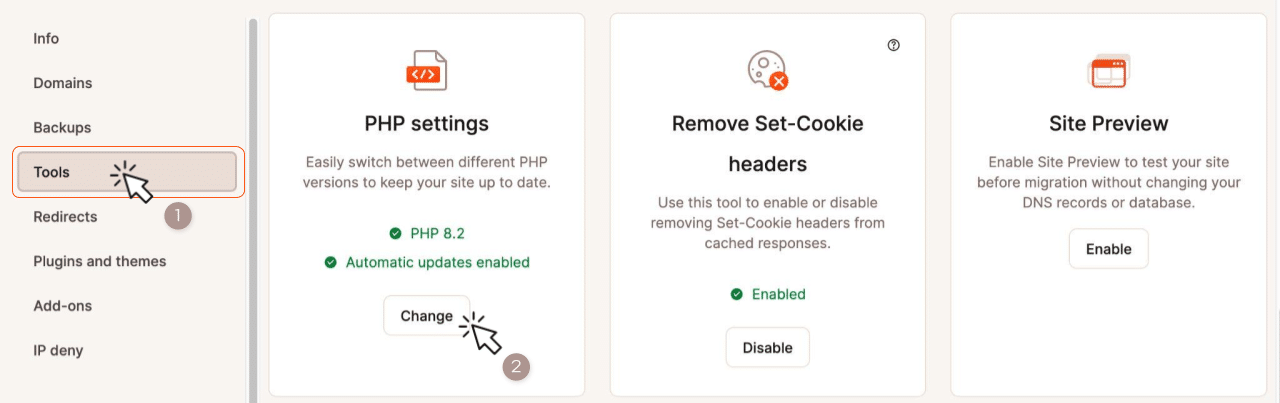
To upgrade a WordPress environment to PHP 8.5, log in to MyKinsta and navigate to WordPress Sites > environment name > Tools, then click the Change button on the PHP settings card:
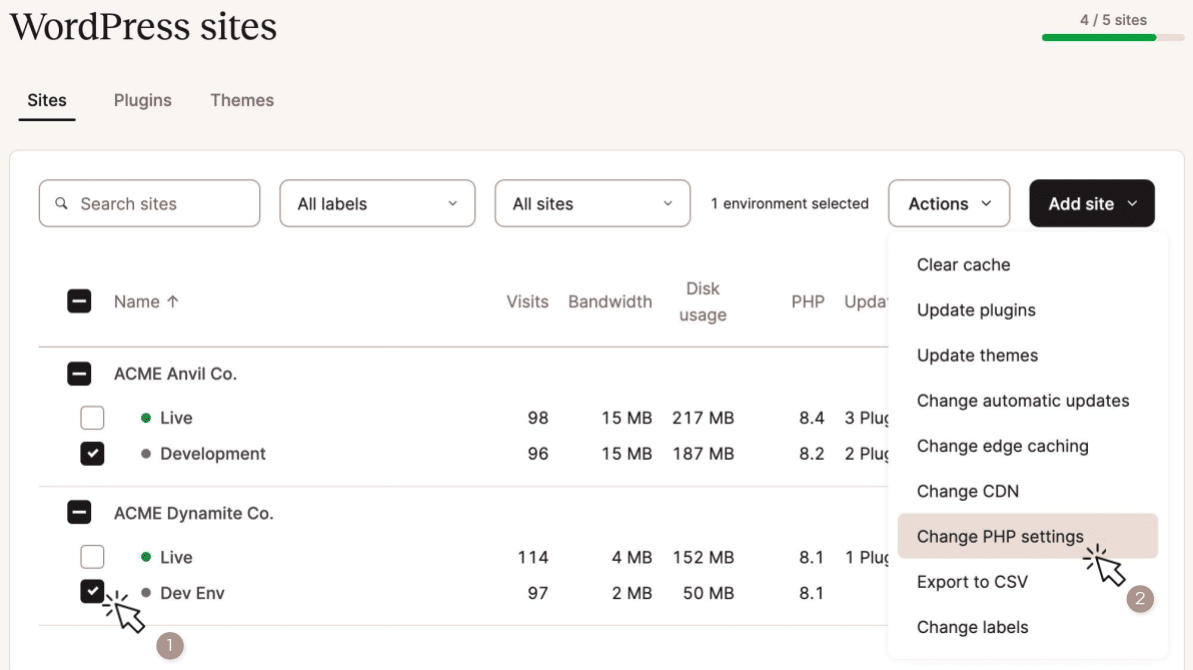
You can perform a PHP update in bulk for multiple environments from the WordPress sites page. In the example below, we’ve selected the checkboxes beside the names of staging environments for two sites and are choosing Change PHP settings from the Actions dropdown menu:
Whichever path you choose, the next step is to select the PHP version you want to adopt and click the Change PHP version button:
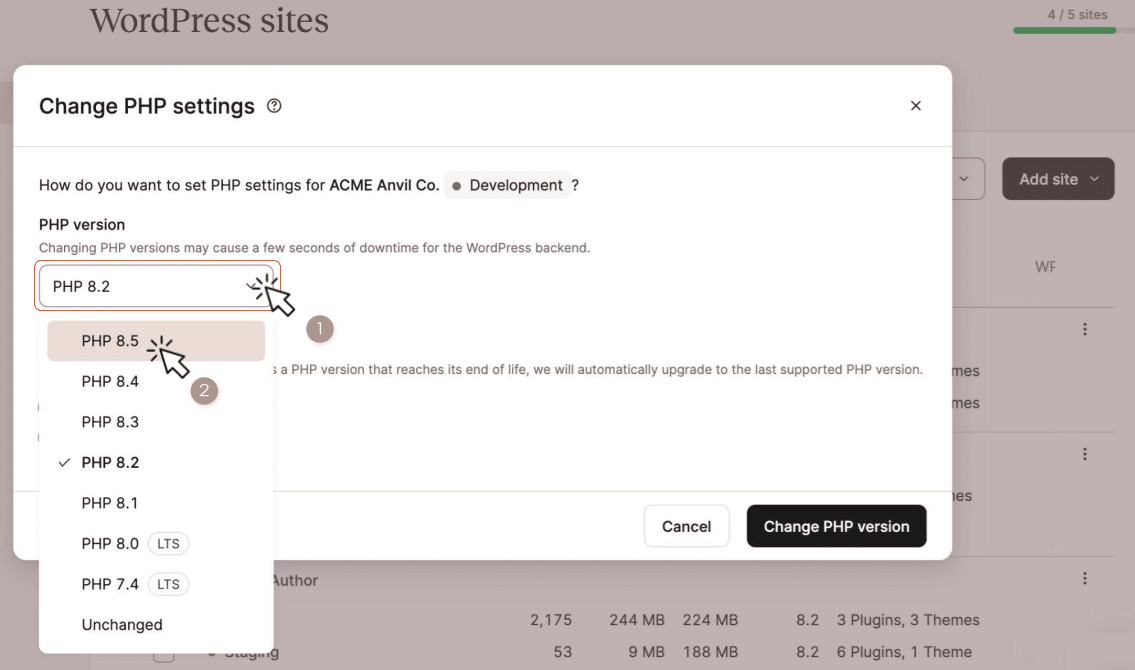
While updating the version of PHP behind your website, you have the option to enable Automatic PHP updates. This feature ensures that your website never runs on a release of PHP that has reached end of life. It will not automatically upgrade from a PHP release that is still supported by PHP’s developers.
Switching to a different PHP engine takes a few minutes. The change requires a PHP restart, which will make the admin dashboard in WordPress briefly unavailable. The MyKinsta dashboard will report when the process is complete.
How to switch to PHP 8.5 using the Kinsta API
The Kinsta API’s /tools endpoint can be used to update the version of PHP running on an environment and also enable or disable the automatic PHP updates feature.
Here’s an example using the cURL tool along with a Kinsta API access key (token) and an environment’s ID:
curl -i -X PUT
  https://api.kinsta.com/v2/sites/tools/modify-php-version
  -H 'Authorization: Bearer <YOUR_TOKEN_HERE>'
  -H 'Content-Type: application/json'
  -d '{
    "environment_id": "{env_id}",
    "php_version": "8.5",
    "is_opt_out_from_automatic_php_update": false
  }
A successful request for a PHP version update will return a 202 status code.
And check this out: Austin Ginder of Anchor Hosting has a useful article on bulk updating PHP on Kinsta websites using the API.