Add as a preferred source on Google
When a client reports slow admin screens, failed checkouts, or random timeouts, agencies don’t have the luxury of digging through dozens of tables or reverse-engineering plugin behavior. You need to recognize the likely failure points quickly and focus your attention where it matters.
In practice, most serious performance and stability issues trace back to a small number of database tables that grow unchecked over time. These tables don’t cause problems on new or low-traffic sites, but with years of content, plugins, and user activity, they’re responsible for a disproportionate number of crashes, slow queries, and emergency support tickets.
This article focuses on five WordPress database tables (and table patterns) that maintenance agencies should actively monitor because they are the most likely to cause real-world performance issues as sites grow.
Why agencies only need to monitor 20% of the database
The Pareto principle helps explain many operational patterns, and it also applies to WordPress database maintenance. Agencies don’t run into issues evenly across the entire database. Instead, a small subset of tables accounts for most of the database-related slowdowns, crashes, and urgent support tickets.
Standard WordPress installations create 12 default tables. Some, such as wp_users, wp_links, and taxonomy tables, can operate for years without causing issues. These don’t typically trigger the slower queries that crash sites during traffic spikes.
However, the high-risk tables share one characteristic: they can break sites at scale. A site with 100 posts might run fine with unlimited revisions. That same site, with 10,000 posts and 300,000 revision entries, will likely time out on every edit screen. An e-commerce store with 50 products should perform well, but scaling to 5,000 products can cause pages to take seconds to load.
Five database patterns that cause WordPress sites to fail at scale
Let’s review five patterns that frequently appear in agency maintenance work.
They’re not immediately dangerous on small sites, but as content, traffic, and plugin activity increase, they become the most common sources of slow queries, timeouts, and stability issues.
wp_options: autoload bloat could crash high-traffic sites
The wp_options table stores site settings and plugin configurations and determines which options WordPress loads on every page request (including cached pages). Among the columns, autoload is the most important:
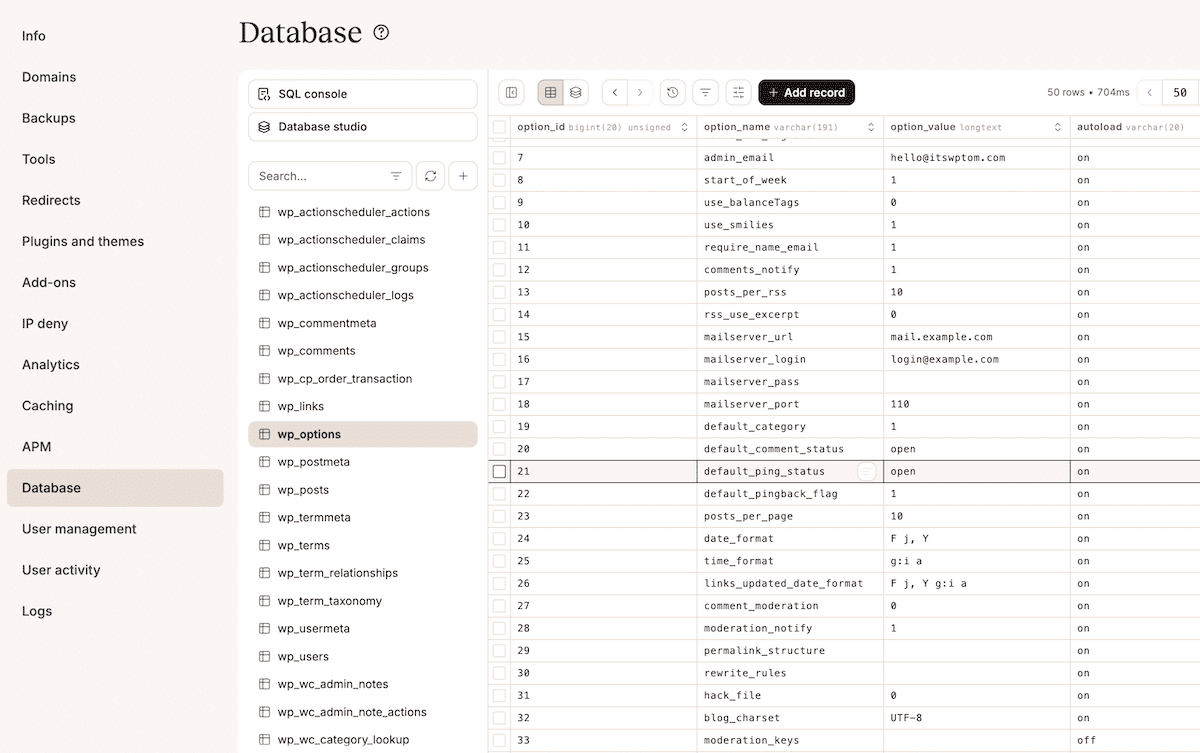
WordPress first loads all autoloaded options into memory on every request. Sites with smaller autoload footprints can handle traffic normally, although as autoload grows, each visitor consumes more memory than your server allocates per PHP process.
If autoload size gets too high (say, exceeding around 3MB or greater), you see slow admin screens, checkout failures during sales, and 502 errors.
The culprit is almost always orphaned plugin settings or temporary cache entries known as transients. With autoload enabled, some plugin options you delete could remain in the wp_options table, which means they load on every request. Across dozens of plugins over months or years, this accumulates abandoned data that loads on every page view.
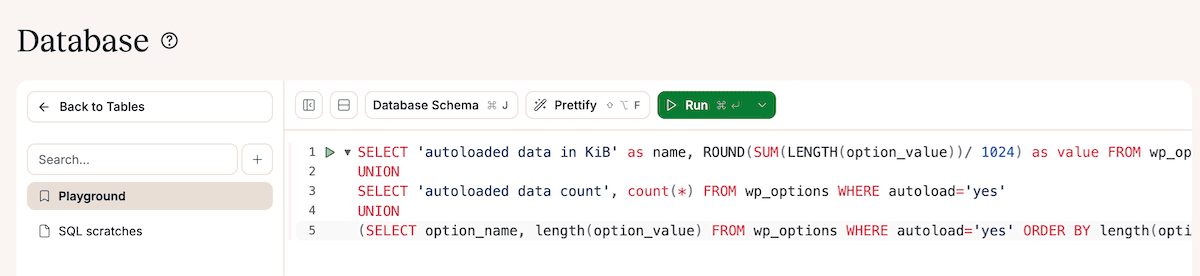
The SQL Console within Database Studio shown above lets you run a query to check the autoloaded data size in bytes:
SELECT 'autoloaded data in KiB' as name, ROUND(SUM(LENGTH(option_value))/ 1024) as value FROM wp_options WHERE autoload='yes'
UNION
SELECT 'autoloaded data count', count(*) FROM wp_options WHERE autoload='yes'
UNION
(SELECT option_name, length(option_value) FROM wp_options WHERE autoload='yes' ORDER BY length(option_value) DESC LIMIT 10)
You can use the console to carry out any other queries you need too, such as sorting the results of the initial query.
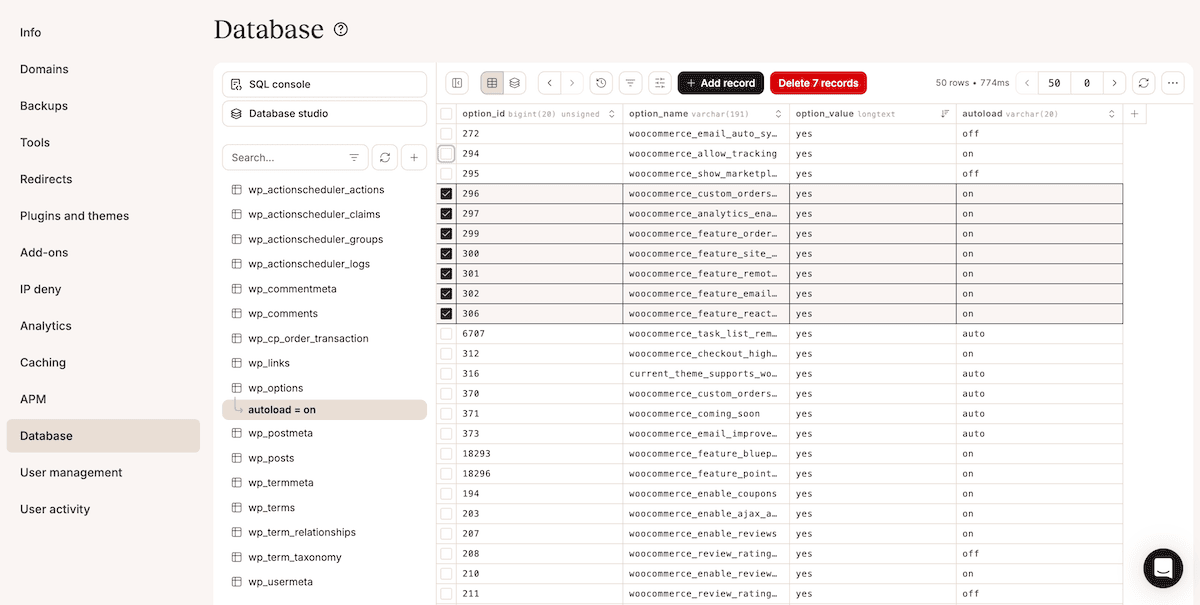
Your plan here should be to review the results, identify which large autoload entries relate to, and clean them up (i.e., delete the rows).
wp_postmeta: E-commerce sites can crash from metadata bloat
The wp_postmeta table stores custom fields for posts, pages, and products. Every time content is saved, new metadata entries can be added. Plugins, in particular, often attach dozens of fields to a single post or product.
For instance, WooCommerce stores product data in postmeta: variations, inventory, shipping details, and attributes. A single product with variations can generate dozens of metadata entries. Large product catalogs create potentially millions of postmeta rows.
The result of a ballooning wp_postmeta table is edit screens struggling to load data, product filters slowing to a crawl, and searches timing out while trying to query across massive tables. In general, errors during high-traffic periods are typically due to wp_postmeta bloat.
Using the SQL console, you can run queries to select and delete superfluous data similar to wp_options. You’re looking for aspects such as multi-gigabyte postmeta tables, lots of duplicate meta_keys, and general orphaned metadata. The filtering options within Database Studio are also helpful here:
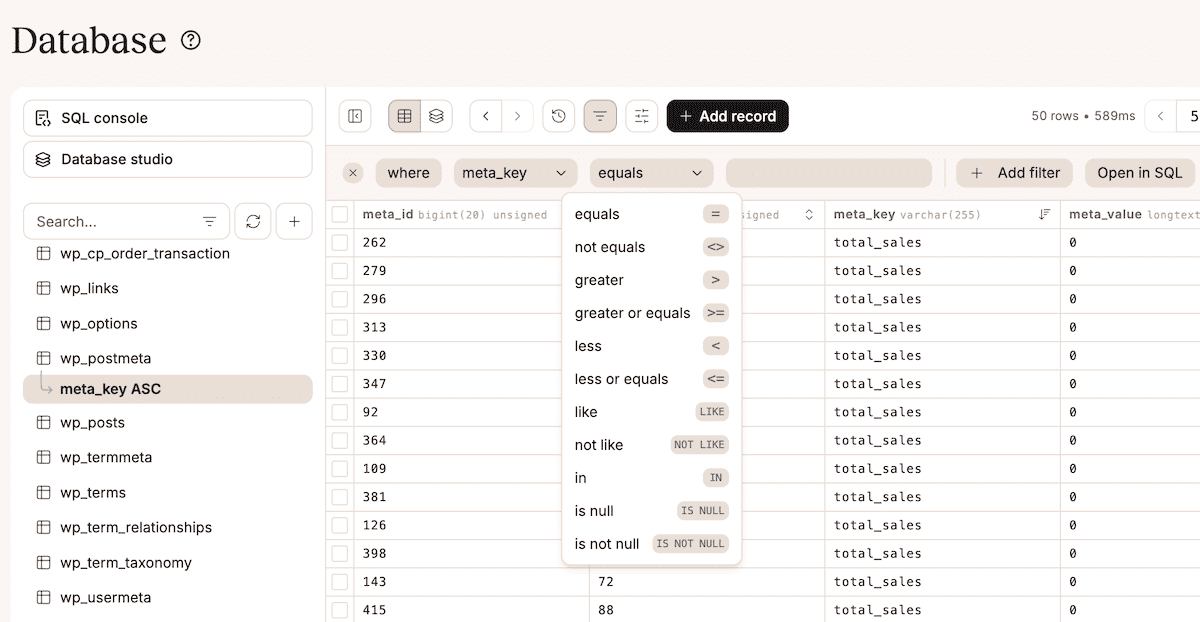
For instance, you can sort by meta_key by clicking the column arrow. This groups identical keys together so you can spot patterns, such as keys from deleted plugins or unused custom fields.
wp_posts: unlimited revisions crash edit screens
The wp_posts table stores content and revision history. By default, WordPress saves every change as a separate database entry, so regular content editing generates a significant amount of extra data. Sites with extensive content and editing histories can accumulate thousands of revision entries.
Initially, your sites run fine, but having many stored revisions can cause your admin screens to load slowly when editing posts. WordPress saves every 60 seconds during editing; autosaves can also have a negative impact because long editing sessions creates dozens of autosave entries.
You can quickly prune the wp_posts table of revisions (for instance):
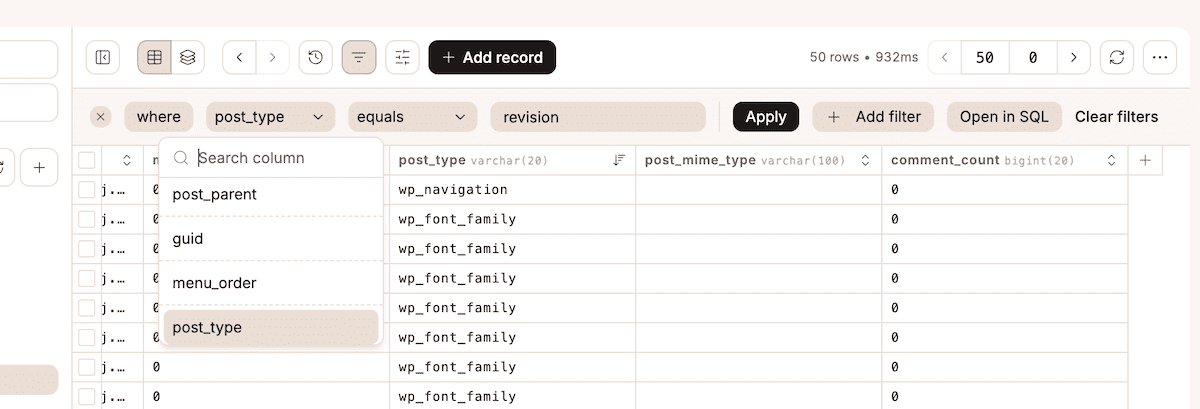
You can then switch over to the SQL console to run a query and delete the revisions:
DELETE FROM wp_posts WHERE post_type="revision";
It’s a good idea to compare the number of revisions to your published posts: single-digit ratios are reasonable. Also, look whether the revisions represent more than half the total entries, as this indicates likely bloat. Revisions that grow month-over-month suggest a need for implementing limits, which you can achieve through a quick edit of wp-config.php.
Plugin tables: forms and logs grow until your sites crash
Almost every plugin creates custom database tables, but it’s more common with form, search, and security plugins. These can continue to grow without requiring built-in maintenance.
In particular, form plugins by default typically store every submission permanently. As such, if your sites receive steady submission traffic over years, you accumulate thousands of form entries. What’s more, tables related to logs grow even faster. Security plugins log visitor actions, analytics plugins track page views, and debugging tools record errors.
As with many database table issues, pages time out, but you also see slow database backups and degraded performance that doesn’t correlate with traffic. The connection to database bloat won’t always be obvious because the symptoms appear in unrelated areas.
You’ll want to look for plugin tables that match or exceed WordPress’ core table sizes; the bigger they are, the more important it is to reduce them. An SQL query can root these out for you:
SELECT
  TABLE_NAME AS `Table`,
  ROUND((DATA_LENGTH + INDEX_LENGTH) / 1024 / 1024) AS `Size (MB)`
FROM
  information_schema.TABLES
WHERE
  TABLE_SCHEMA = "{database_name}"
ORDER BY
  (DATA_LENGTH + INDEX_LENGTH)
DESC;
If any of these are orphaned, you can safely delete them. However, while it’s beyond the scope of this post, if any tables are large enough to warrant reducing but they are still required on your site, you’ll want to do some research into one – potentially contacting the developer for advice.
Action Scheduler: failed tasks pile up and crash checkout
Action Scheduler essentially runs background tasks for WordPress. It queues tasks, processes them asynchronously, and stores completion records permanently by default.
Using WooCommerce is a great way to understand how Action Scheduler can cause problems. For instance, payment gateway timeouts result in failed actions that persist in the database and are queried on every page load to check for pending work. You can extrapolate just one failed action from the thousands a typical WooCommerce store generates per month.
Database Studio’s Views can help you delete these failed actions:
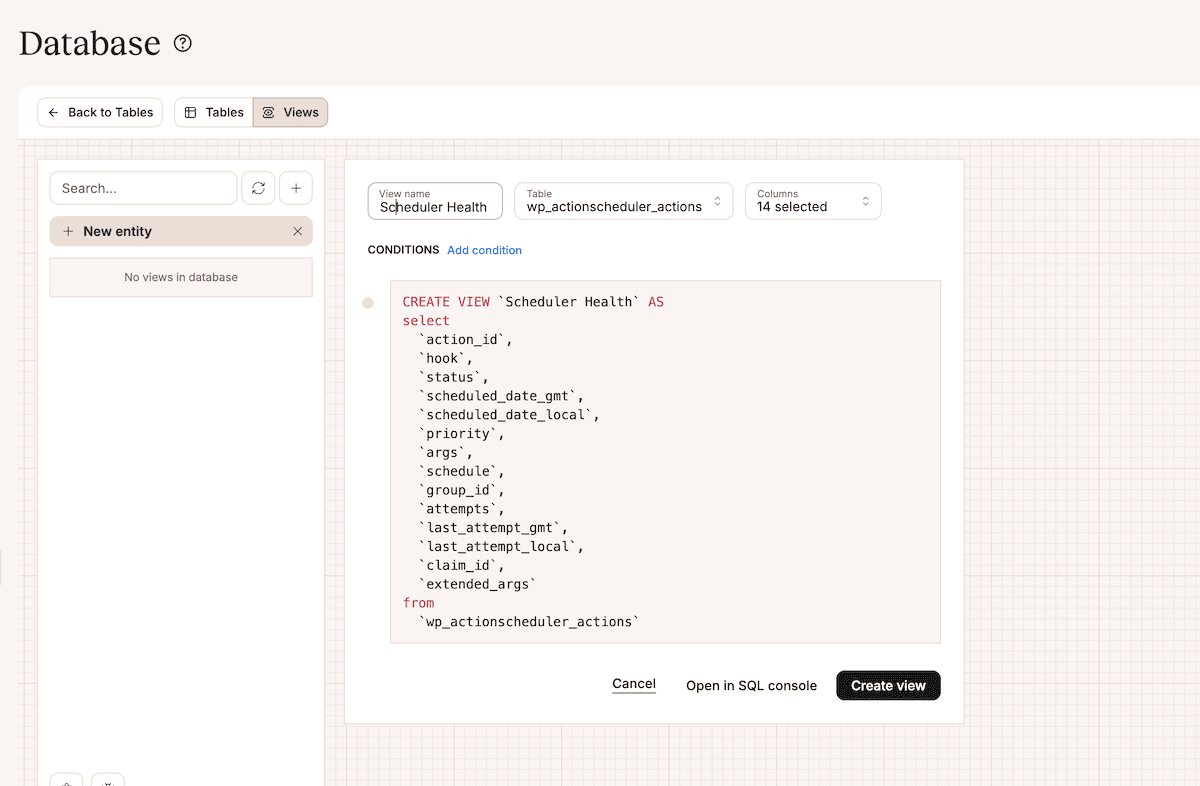
Here, give the view a title, choose the wp_actionscheduler_actions table, then click the Add condition link. This lets you show only failed actions, making it much simpler to remove them from the database.
How to manage your important WordPress database tables in 10 minutes per month
For the cost of a few minutes every month, you can undertake less database management over the course of a year. Of course, you don’t have to monitor or manage many of the tables within your database:
- The
wp_userstable rarely causes problems unless you manage membership sites with millions of accounts. User data typically grows linearly without accumulating any bloat. - Taxonomy tables (such as
wp_terms,wp_term_taxonomy,wp_term_relationships) often remain stable regardless of site size.
Among the five problem tables, large wp_posts tables on content sites are typical and expected. Remember: actual content is not bloat.
Setting up your monitoring workflow
Exporting your database tables lets you work with the data in other applications. You can do this through the More Items ellipsis drop-down menu for any table:
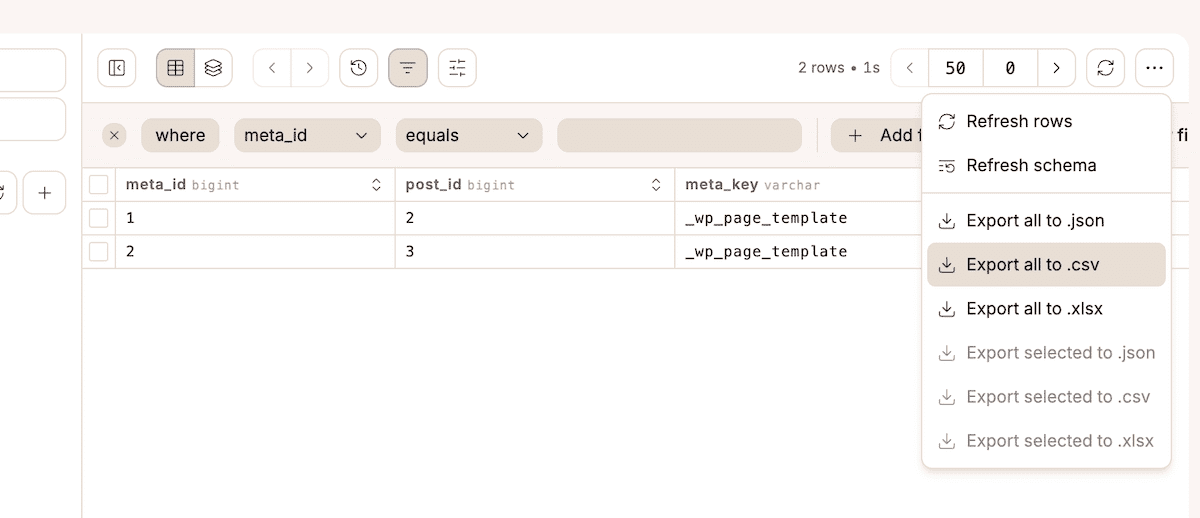
However, you can accomplish a lot in MyKinsta without exporting. The best use of your time is to automate cleanup and manually review your database metrics. Database Studio’s views can help you set up your analysis.
For instance, you could create a custom view that monitors wp_postmeta and add filters for specific meta_key patterns you want to track:
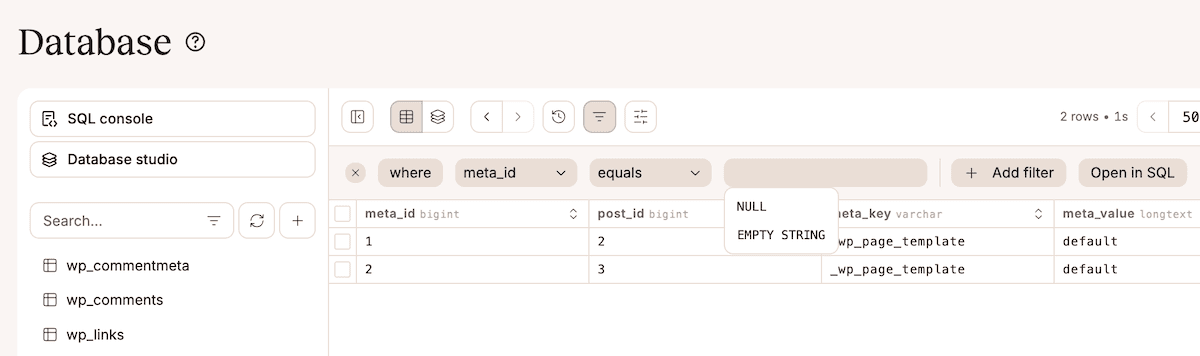
Database Studio lets you create and save snippets in the SQL Console, so you can set up an SQL query to sort all tables by size and access it whenever you need:
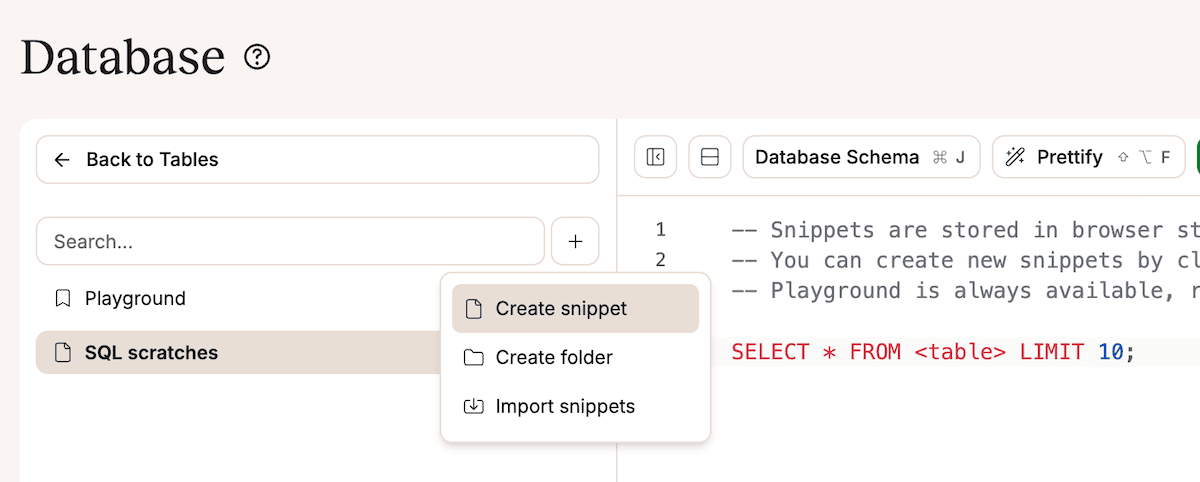
Some of the largest tables should be wp_posts, wp_postmeta, and wp_options. You’ll want to investigate any tables that rank higher.
The exact monitoring you set up depends on your sites and needs. However, here are some areas to look into:
- Filter
wp_optionsfor active autoloads, then check the total size (either through SQL queries or exporting to CSV). Anything higher than 1MB should be investigated. - Check the
wp_postmetatable size against last month’s, specifically for huge size increases. - You can filter post_type within
wp_poststo compare revisions to posts. If you need to, set up a limit withinwp-config.php. - For Action Scheduler, the completed actions should outnumber those pending or failed.
In summary, use Database Studio to create the views, filters, and query snippets you’ll often use. Next, look for ‘danger’ metrics, then use other tools to automate any cleanup. For example, the wp transient delete WP-CLI command can help you clear out unwanted transients within the database.
From reactive fixes to proactive database maintenance
The database issues agencies deal with most often aren’t rare or unpredictable. They’re the result of familiar patterns. The difference between reacting to these problems and preventing them comes down to focus.
You don’t need to inspect every table or audit every query. You need to know which parts of the database deserve ongoing attention and how to spot early warning signs before they turn into outages or emergency support requests.
For maintenance agencies, this changes how database work fits into your workflow. Instead of treating database cleanup as a one-off fix after something breaks, it becomes a lightweight, repeatable check.
If you do run into a database issue you can’t resolve, especially one that only surfaces under load, having the right support matters. For sites hosted on Kinsta, our support team is available 24/7 to help you.