 Add as a preferred source on Google

A WordPress website can look fine to visitors while running years-old plugins, carrying unnecessary database overhead, or hiding compatibility problems that surface only under specific conditions.
That’s what we found when we used Claude Code to investigate a three-year-old WooCommerce storefront.
The site was working, products appeared in the store, customers could browse the catalog, and the existing theme handled the layout. But an initial audit uncovered outdated dependencies, a plugin filling the error logs, a pending WooCommerce database update, and a PHP fatal error in the theme’s Elementor integration.
We wanted to see how far AI could go in modernizing the site without rebuilding it or disrupting its existing functionality.
Using Kinsta’s staging environment, Visual Studio Code over SSH, and Claude Code, we investigated the problems, removed unnecessary plugin activity, updated the theme, and refreshed the storefront’s appearance.
Here’s how the process worked, what changed, and what developers can learn from it when maintaining older WordPress installations.
Starting with an existing WordPress storefront
For this experiment, we used a demo WordPress store built several years ago to sell beauty and hair products.
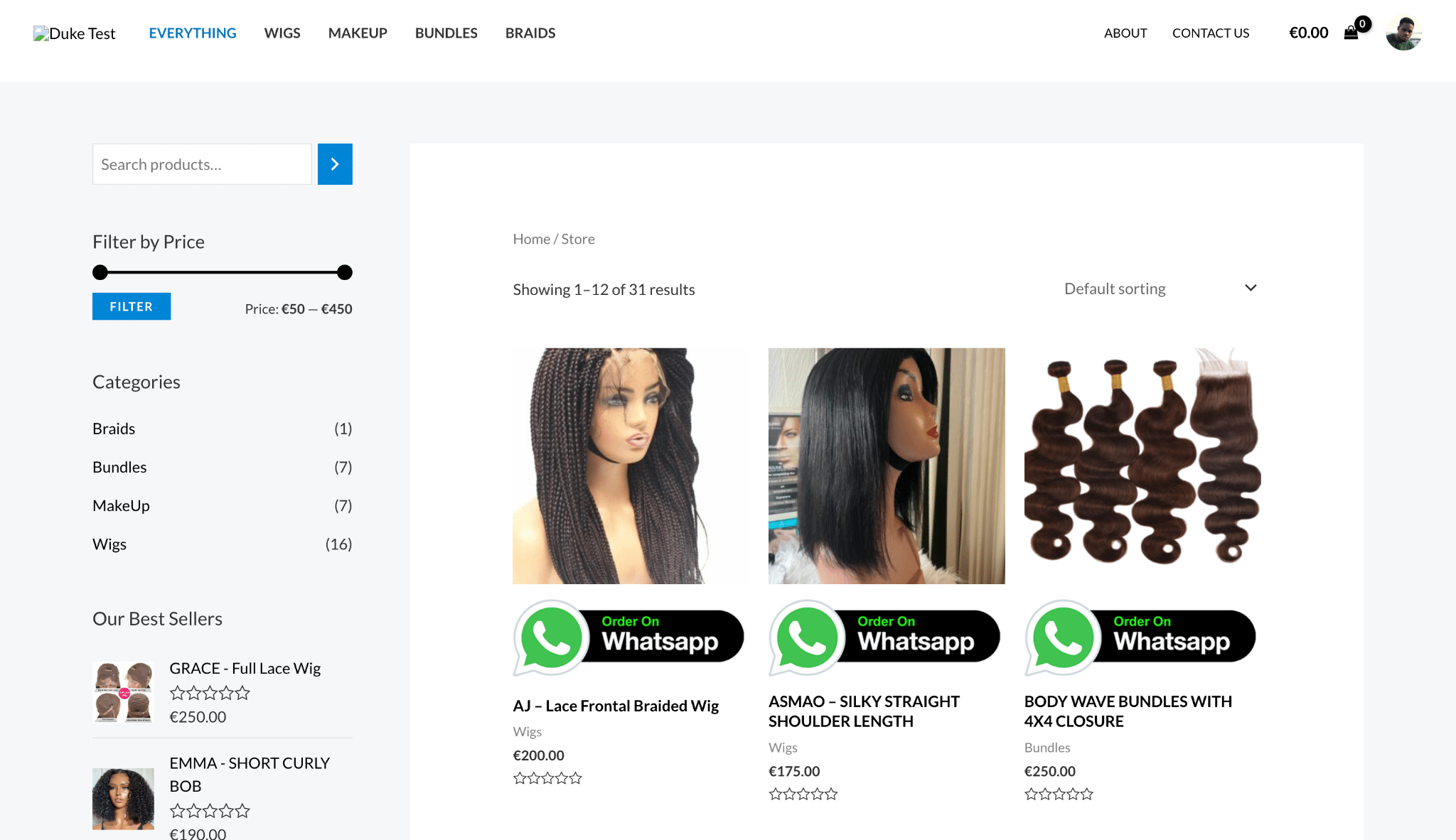
The storefront runs WooCommerce with Astra, Elementor, CartFlows, and several other plugins that handle everything from product presentation to contact forms and checkout.
This is a common situation for agencies maintaining established WordPress sites. Over time, plugins accumulate, the original design looks dated, and updates become harder because changing one component can affect another.
We didn’t want to rebuild the site or replace its existing commerce functionality. Our objective was to understand what we could improve and make changes incrementally.
At the beginning of the experiment, the staging installation had this configuration:
| Component | Version or state |
| WordPress | 7.1.4 |
| PHP | 8.2.35 |
| Astra | 4.1.5 |
| Elementor | 3.18.3 |
| WooCommerce | 8.5.5 |
| CartFlows | 2.1.5 |
| Active plugins | 15, with updates available for 14 |
| Custom theme or plugin code | No child theme or custom plugins found |
The absence of custom code was important. This wasn’t a project where we could hand Claude a legacy PHP class and ask it to refactor the implementation. Most of the site’s behavior came from third-party plugins and their configuration.
That meant modernization required understanding dependencies, checking compatibility, and deciding which components we could change without affecting the rest of the site.
Using Claude Code to audit the website
We started by connecting to the Kinsta staging environment over SSH from Visual Studio Code. We also installed the Claude Code extension in VS Code and signed in, allowing Claude to inspect WordPress files, run WP-CLI commands, and investigate the installation directly.
Before making changes, we created a backup of the staging environment and recorded the site’s existing settings, page responses, and error logs to establish a baseline.
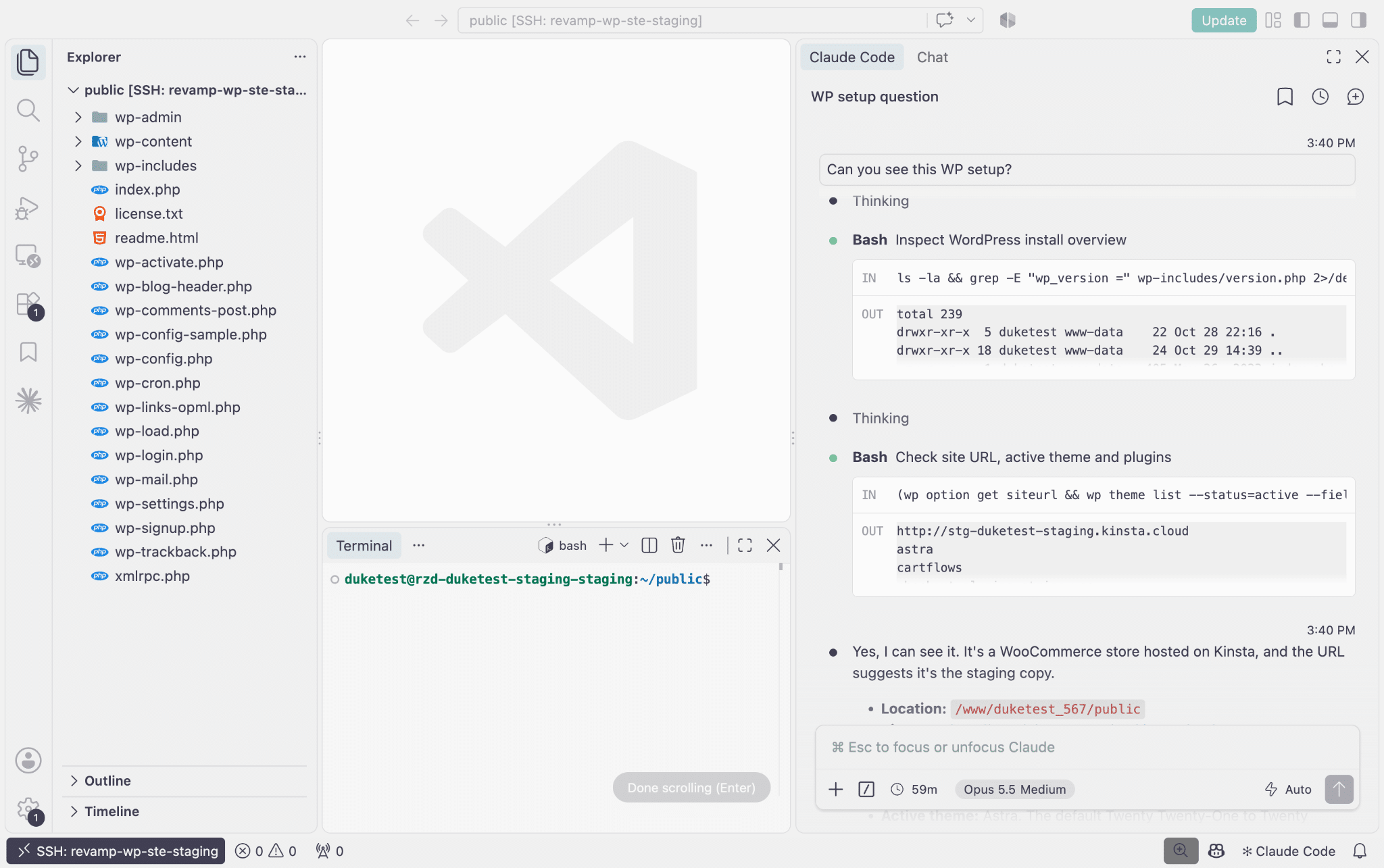
Once connected, Claude Code could inspect the WordPress installation, examine theme and plugin files, and run commands within the staging environment.
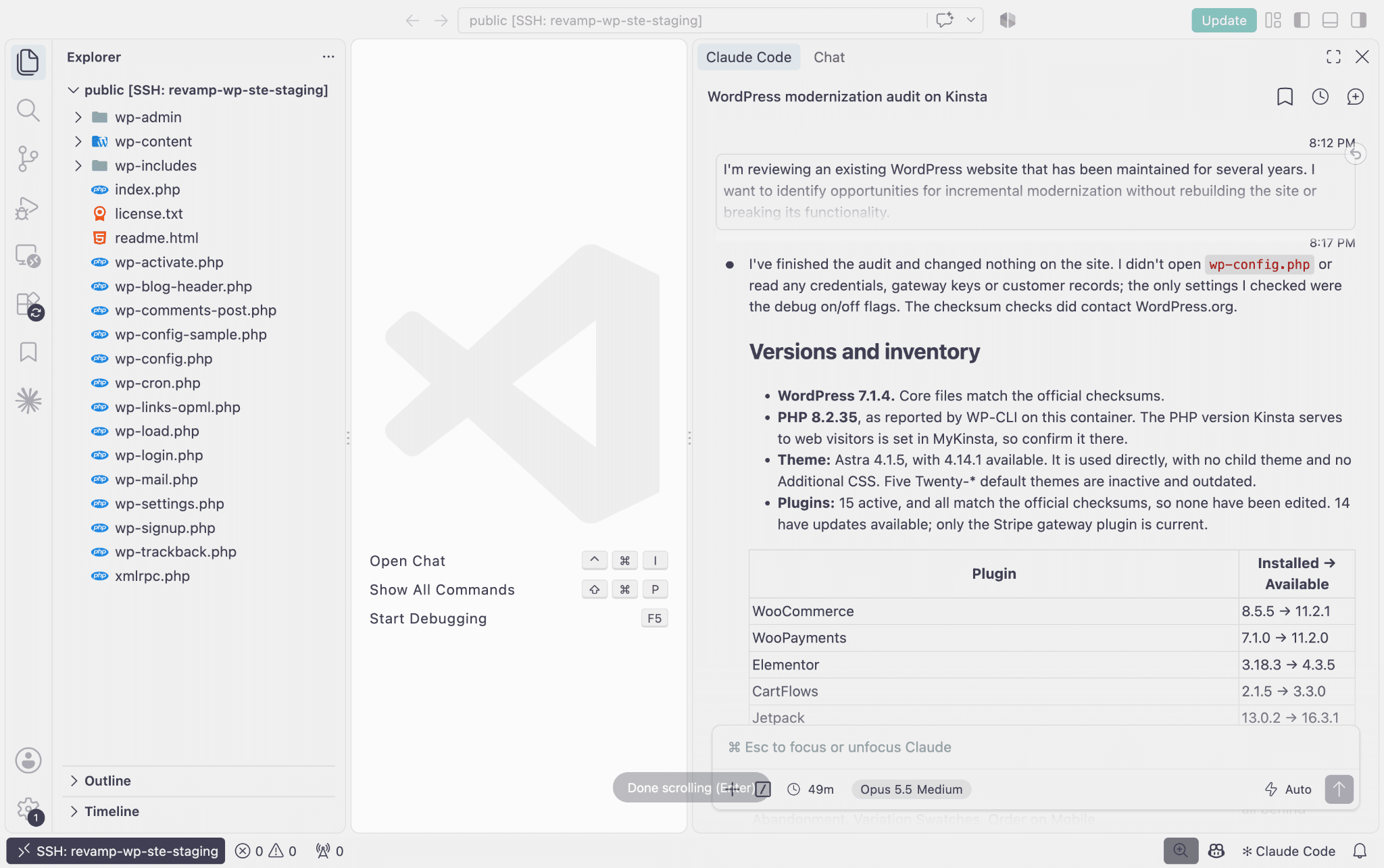
Instead of asking Claude to update the site immediately, we began with a read-only audit:
Inspect the WordPress installation and identify outdated dependencies, custom code, compatibility concerns, recurring errors, and opportunities for incremental modernization. Provide supporting evidence for each finding and distinguish confirmed problems from potential risks. Do not modify files, update plugins, or change the database.
This produced an inventory of the installation, but the more interesting findings came from examining the logs and database.
What the audit uncovered
Claude identified several maintenance issues that weren’t obvious from browsing the storefront.
| Finding | Evidence |
| Repeated error-log messages | Starter Templates, a plugin for importing prebuilt WordPress designs, repeatedly wrote messages to the PHP error log during our test requests. |
| Unnecessary frontend JavaScript | Starter Templates loaded a template-preview script on public pages. |
| Excessive autoloaded options | Approximately 2.9 MB of options loaded automatically, with two documentation-data options accounting for most of the total. |
| Pending WooCommerce maintenance | The stored WooCommerce database version was 7.7.0, while the installed plugin was 8.5.5. |
| Failed background jobs | CartFlows had 122 recorded failures for a knowledge-base update action. |
| Outdated dependencies | Several plugins and the Astra theme were multiple releases behind their available updates. |
These findings gave us several possible directions. We could update everything, but that would make it hard to determine which change caused the problem. It would also increase the risk of affecting checkout, CartFlows, or Elementor content.
Instead, we selected a small issue we could isolate and measure.
Removing unnecessary plugin activity
The first problem involved Starter Templates, a plugin commonly used to import prebuilt WordPress designs.
On this installation, the plugin had already served its original purpose. The storefront was built, and the importer wasn’t needed to display its existing pages.
However, its installed version still executed code that wrote to the PHP error log. Claude traced the messages to a call in:
wp-content/plugins/astra-sites/inc/lib/class-astra-sites-zip-ai.phpThe relevant statement was:
error_log( $zip_ai_path );The investigation found that the same message accounted for all 281 lines in five sampled error logs.
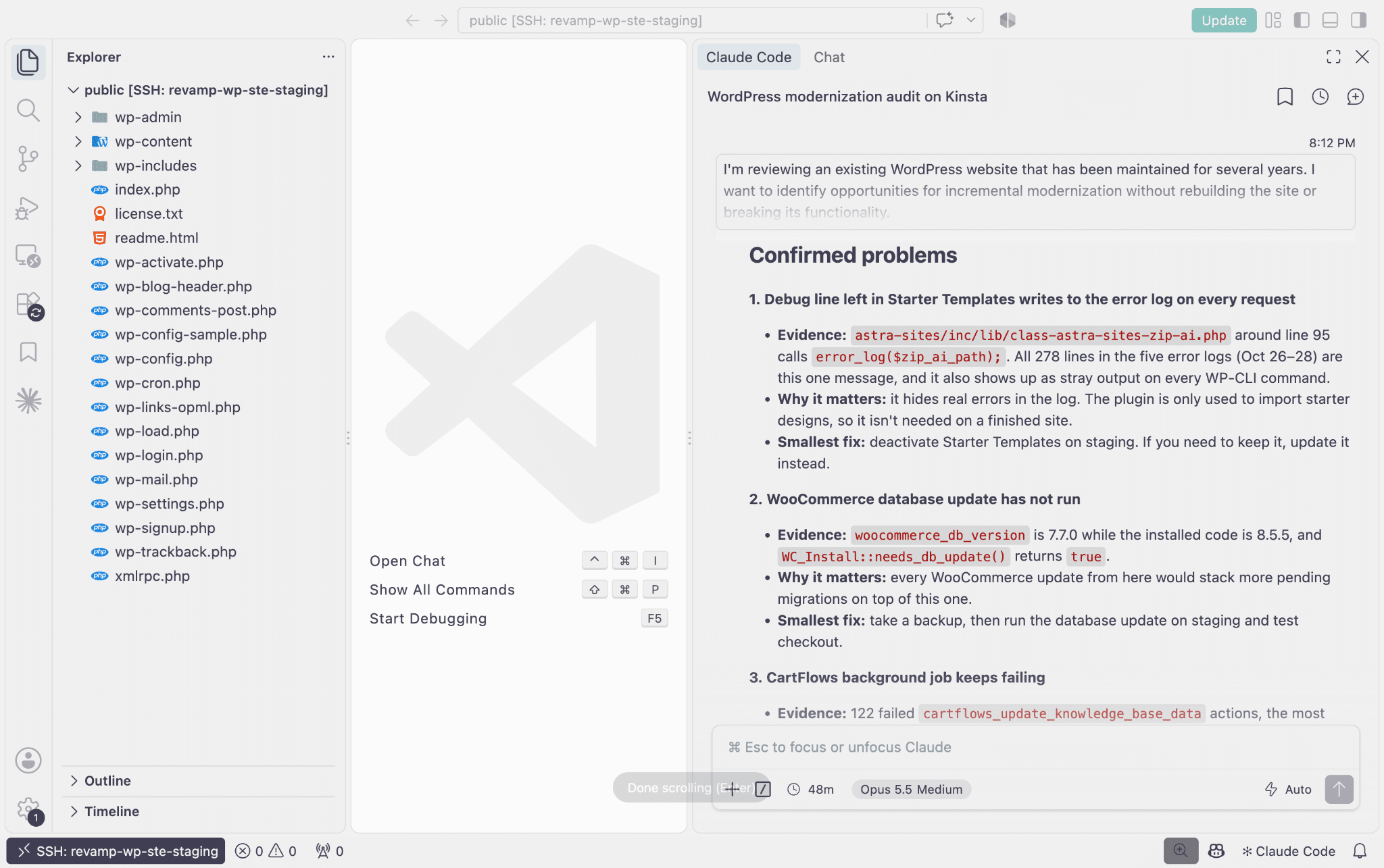
The plugin also enqueued a 6.5 KB JavaScript file used by its template-preview functionality, even on ordinary storefront pages.
Neither issue was catastrophic. But the repeated messages made the error logs less useful, while the frontend script served no apparent purpose for visitors.
Choosing between updating and deactivating
A newer Starter Templates release removed the logging statement, so an update could have solved that part of the problem.
Further inspection showed that the newer release still loaded the preview script. Deactivating the plugin would remove both. Before making that change, Claude checked whether other plugins or the active theme depended on Starter Templates at runtime. It found no dependency required to display the existing storefront.
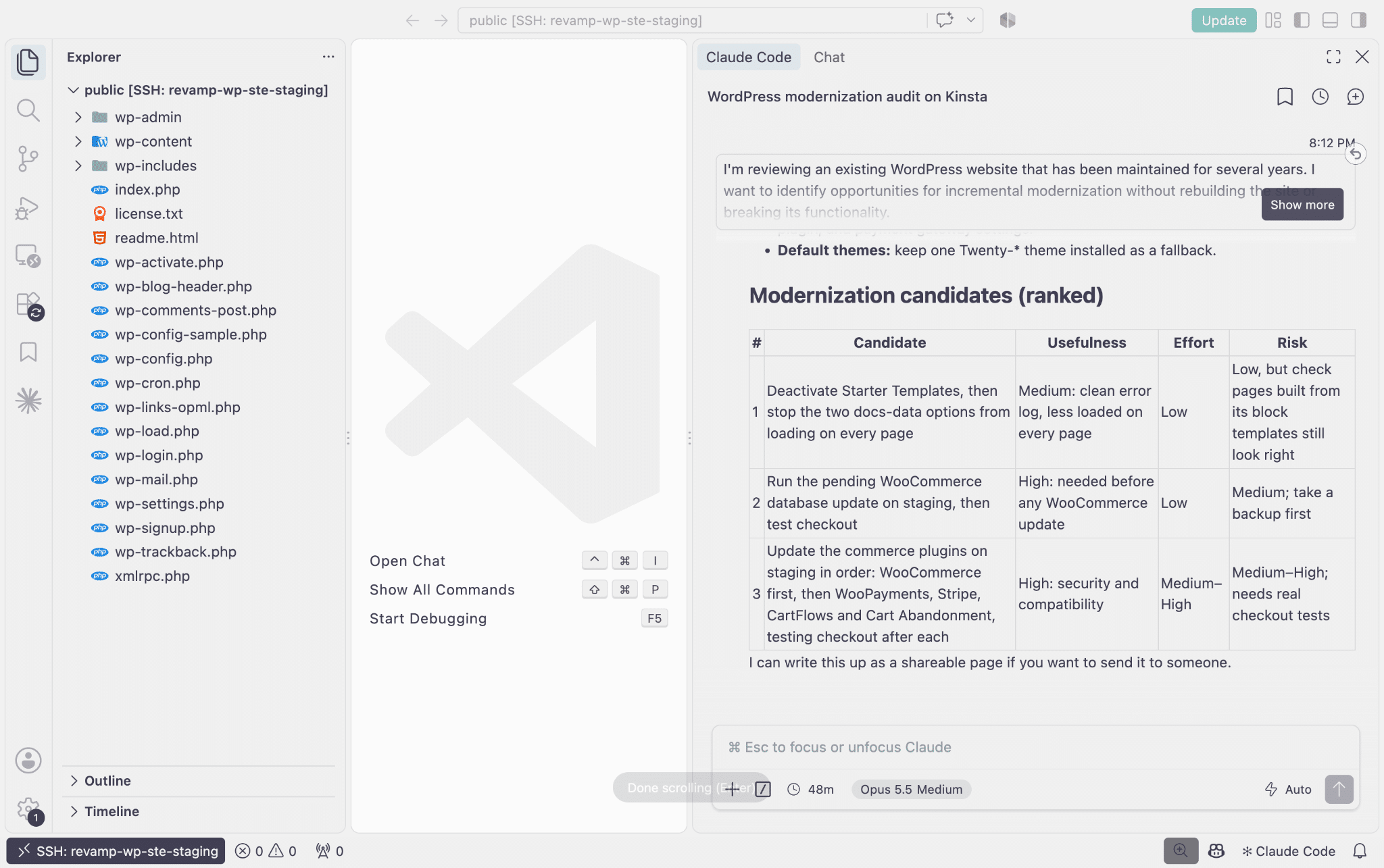
One trade-off: deactivation would remove the Starter Templates library from Elementor and the block editor. That mattered if editors still used the library to create new sections, even though the existing pages would continue working.
After reviewing that impact, we deactivated Starter Templates on staging using MyKinsta > Sites > Plugins and themes.
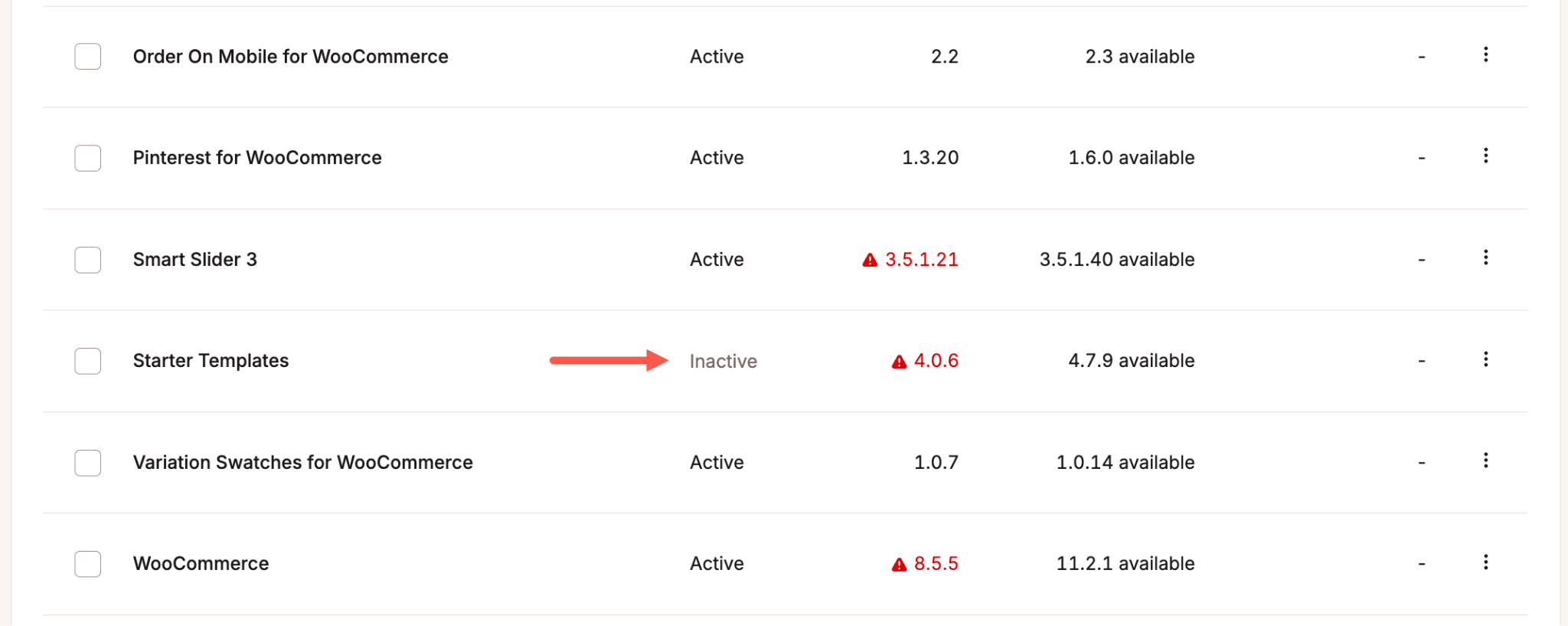
The results
We compared the staging environment before and after deactivation.
| Check | Before | After |
| New error-log entries during 10 uncached requests | 10 | 0 |
| Starter Templates preview script | Loaded on 10 of 11 tested pages | No longer loaded |
| Stray output in WP-CLI | Present | Gone |
| Storefront response statuses | Baseline established | Unchanged |
| Elementor content output | Baseline established | Unchanged |
The expected plugin-specific editor controls also disappeared. This gave us our first verified improvement without touching the storefront’s product data, checkout configuration, or existing page content.
It also showed why the audit mattered. The solution wasn’t to write more code. It was to identify a component the site no longer needed and remove its unnecessary activity.
Fixing a PHP compatibility error through a theme update
During the investigation, Claude discovered something more substantial. An anonymous request to Elementor’s global settings endpoint returned an HTTP 500 error:
/wp-json/elementor/v1/globalsThe PHP log pointed to the Astra theme’s Elementor compatibility code:
astra/inc/compatibility/class-astra-elementor.phpThe error was:
Call to undefined method WP_Error::get_data()The issue came from an assumption in the older Astra implementation. The Elementor endpoint restricts access based on permissions. When a request doesn’t have the required permissions, WordPress can return a WP_Error object.
Astra’s compatibility function then processes the response through WordPress’s rest_request_after_callbacks filter. In Astra 4.1.5, the code attempted to call get_data() without first verifying that the response was a successful REST response.
But WP_Error doesn’t provide that method, so the request resulted in a PHP fatal error.
Finding the fix without patching the theme manually
We asked Claude to compare the installed Astra version with the newer release available through WordPress. It identified this guard in Astra 4.14.1:
if ( is_wp_error( $response ) || ! $response instanceof \WP_REST_Response ) {
    return $response;
}
The condition checks whether WordPress returned an error or another unexpected response type before attempting to access REST response data.
That was the appropriate fix for the failure we’d reproduced. We could have modified the old theme’s compatibility file directly, but that would create a local change inside third-party theme code. A future theme update could overwrite it.
We chose the official Astra update instead.
Did the update fix the error?
Yes, for the requests we reproduced.
| Test | Astra 4.1.5 | Astra 4.14.1 |
| Anonymous Elementor globals request | HTTP 500 with PHP fatal | HTTP 401, rest_forbidden |
| Logged-in user without the required capability | PHP fatal | HTTP 403 |
| Authorized administrator | HTTP 200 | HTTP 200 |
| New PHP errors during the REST checks | Fatal error recorded | None recorded |
The anonymous request still couldn’t access the endpoint, which is expected. The difference was that WordPress returned the appropriate authorization error instead of crashing.
Modernizing the storefront without rebuilding WooCommerce
With the theme updated, we turned to the site’s appearance. The original design used Astra’s blue accents, Lato typography, square buttons, and a basic WooCommerce product grid. It also displayed oversized WhatsApp ordering badges that didn’t fit the site’s branding.
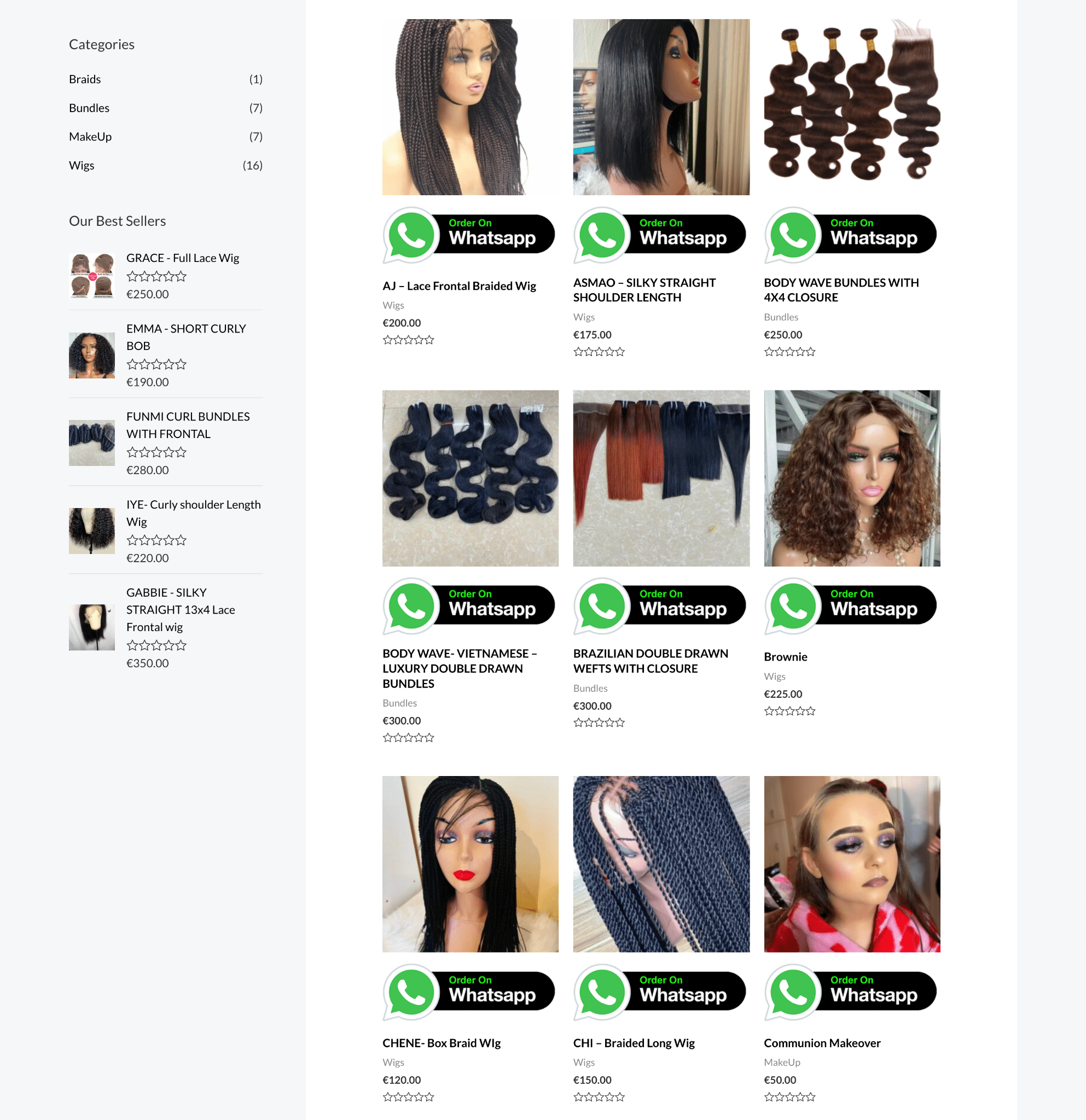
We asked Claude to refresh the design without changing the product catalog or existing commerce functionality.
Claude first reviewed the Astra and Elementor settings to identify existing color dependencies. We then introduced a new palette: burgundy (#7B2342), espresso (#211A16), and ivory (#F7F2EC), along with Cormorant Garamond for headings and Jost for body text. The changes also introduced rounded buttons and improved color contrast. For example, white text on the primary accent improved from a contrast ratio of 3.98:1 to 9.72:1, exceeding WCAG AAA requirements for normal text.
Claude created a small must-use plugin under wp-content/mu-plugins/ to load custom CSS without modifying Astra or WooCommerce files.
The new styles introduced rounded product cards, consistent image proportions, subtle hover effects, clearer category labels, serif product titles, and burgundy prices. Because the CSS targeted WooCommerce’s existing product-grid markup, the changes applied across the store and other product listings.
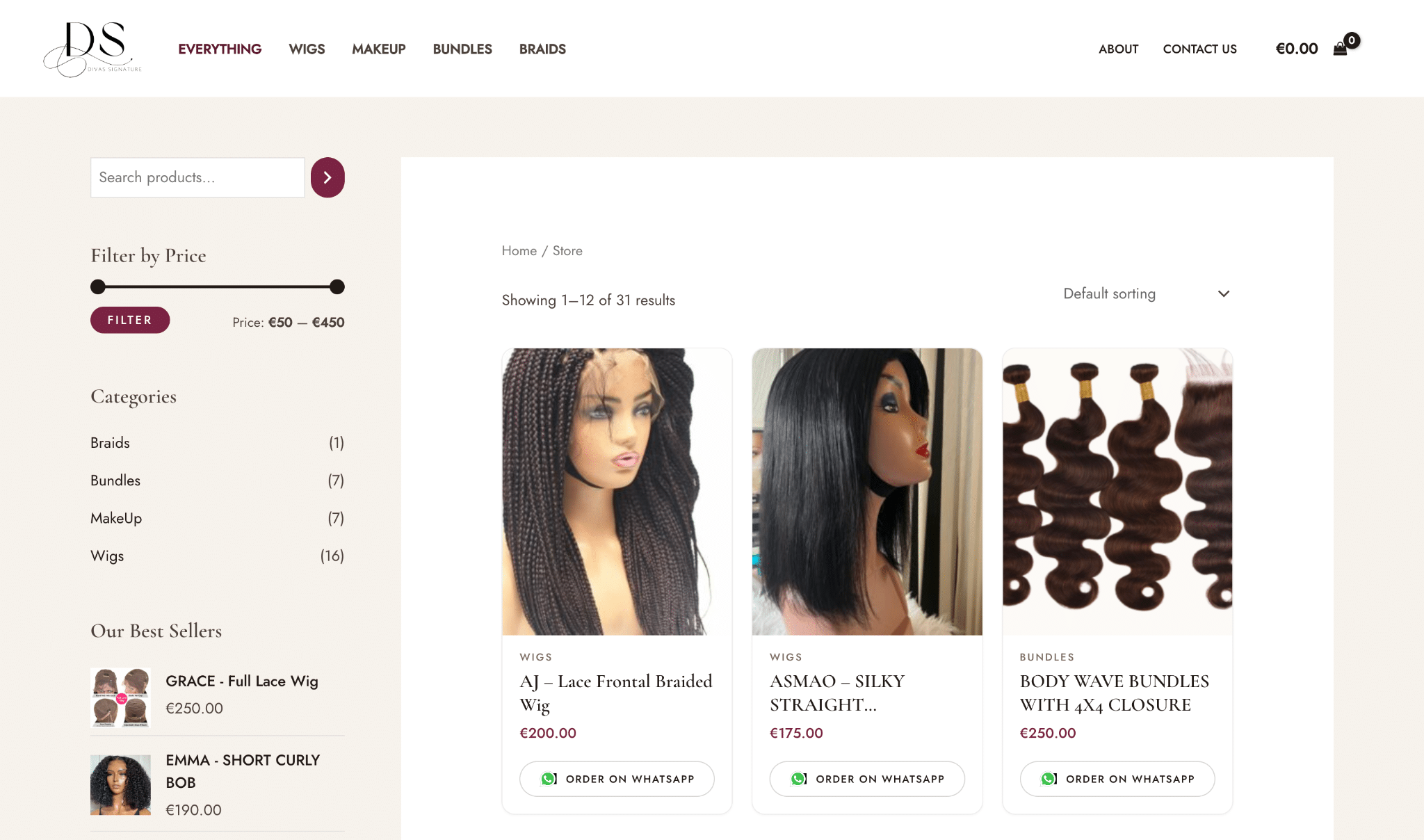
The first attempt wasn’t entirely successful. When Claude restyled the WhatsApp ordering buttons, the original black-and-green badges remained visible alongside the new design.
After reviewing a screenshot, Claude found that WooCommerce’s existing CSS was overriding its rule to hide the image. It also discovered that the plugin placed the WhatsApp link between the product image and product information.
Claude adjusted the CSS selectors and card layout, moving the button beneath the product details and replacing the large badge with a smaller, pill-shaped control.
Applying this approach to other WordPress sites
Our experiment focused on an older storefront, but the same approach applies to other WordPress maintenance projects.
For developers and agencies, the approach is straightforward: audit the existing installation, prioritize specific improvements, prepare backups, make changes on staging, and test the affected functionality before proceeding.
The prompts matter, too. Instead of asking an AI agent to modernize an entire website immediately, start by asking it to identify confirmed problems, examine dependencies, and propose changes you can test individually.
With Kinsta, staging environments, SSH access, MyKinsta’s plugin and theme management, and backup tools provide a practical setup for this workflow without experimenting directly on the live site.