
Migrating a website involves two facets: the site’s files and databases, and your email servers. A common issue is email servers failing due to a misunderstanding of how your MX records and web hosting work independently, yet in unison.
Having this architectural independence means your emails flow to your mail provider regardless of where your website files live or which hosting platform serves your pages to visitors.
As such, your migration to Kinsta won’t interrupt any email service if you configure everything correctly.
Your MX records and web hosting operate independently
The Domain Name System (DNS) manages every record type separately during hosting transitions.
When you change your hosting, you update A records that direct browsers to the new server IP address. Your MX records remain unchanged unless you deliberately modify them, so mail servers continue to route email to your existing email provider without any configuration changes.
Kinsta’s migration process clones your site while your original host continues serving traffic. This allows both environments to run the same content simultaneously. During DNS propagation, some visitors see different versions of your site based on the connection query to the DNS server. TTL values determine how long this window lasts (typically up to a few hours).
Throughout this window, your MX records direct email to your mail server without interruption: in a nutshell, email routing operates on a separate DNS lookup path from web traffic.
3 migration scenarios and the MX record implications
Email hosting configurations determine how MX records behave during migrations. You have to take a different approach based on where your email currently resides and whether you plan to change email providers during the site migration.
1. Email hosted separately from your website (most common)
Email services such as Google Workspace or Microsoft 365 operate on infrastructure completely separate from web hosting. Your website runs on a single platform, while email runs through a specialized provider with dedicated mail servers.
During migration to Kinsta, only your A records change to direct visitors to your new hosting location. Your MX records continue pointing to Google Workspace or Microsoft 365 without modification. Email flows through your email provider’s infrastructure exactly as before, with no configuration changes needed during the transition.
Kinsta customer Cornershop Creative manages hundreds of client sites, which includes hundreds of site migrations without email disruptions. Its workflow keeps email on Google Workspace while moving websites to Kinsta.
This is Kinsta’s recommended configuration for all sites. It isolates emails from hosting, so when you migrate sites, update servers, or make infrastructure changes, email service continues without requiring further coordination.
2. Email and website on the same server
Kinsta does not provide email hosting as part of its managed WordPress hosting. This is optimal because it keeps email on a dedicated infrastructure designed for message delivery, spam filtering, and compliance with email authentication standards.
However, some hosts bundle email with web hosting, which creates complicated dependencies. Because your email accounts exist on the same server as your website files and databases, this ties the email service directly to your hosting provider’s infrastructure.
As such, you have a decision to make when you migrate from bundled email hosting: use a separate email provider before moving your site, or only move your website’s files to Kinsta.
Migrating email to a third-party provider before a site migration involves setting up new accounts, configuring MX records to point to the new provider, and testing email delivery before updating your A records. Once your email is reliable, you proceed with the site migration. The alternative is to maintain an account with your old host specifically for email, which is costly and inefficient.
3. Changing both web and email providers at the same time
You need to prepare in advance when transitioning email during a site migration. This involves running both email systems in parallel during a brief testing window before switching DNS records to make the new configuration live.
First, you set up an account with your new email provider and configure the MX records in your DNS management panel. These new MX records exist alongside your current configuration, initially with lower priority values that prevent production mail from getting through during testing.
Next, test the new email setup using a tool such as MXToolbox to verify the records exist and point to the correct mail servers:
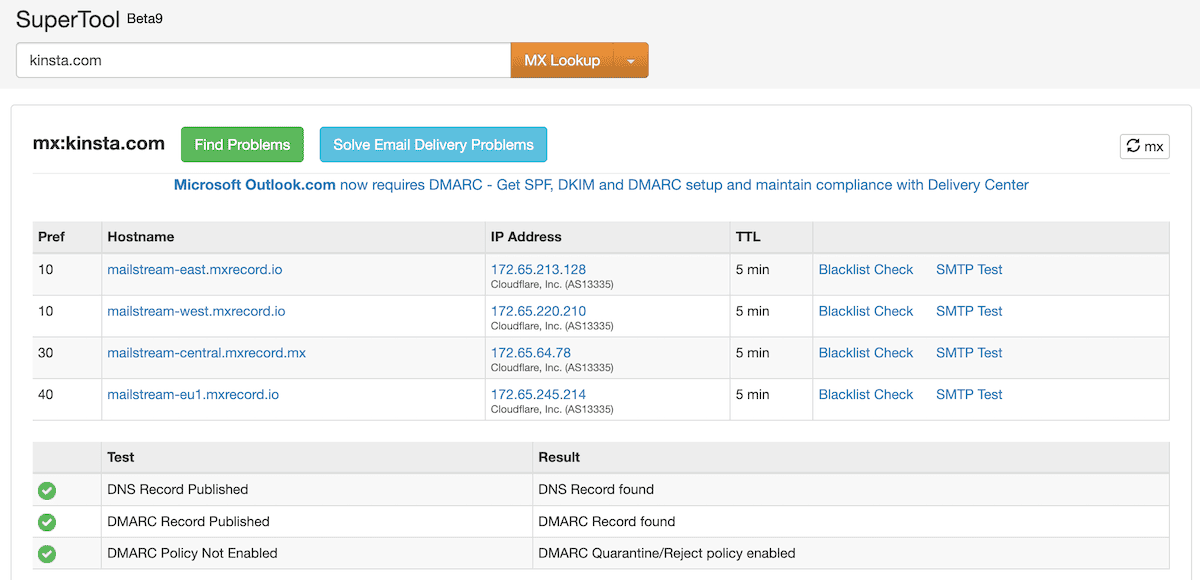
Here, send test messages, check delivery times, and confirm both sending and receiving work correctly through the new provider before making changes.
Once you confirm that the new email infrastructure is working properly, coordinate the DNS changes. This requires you to update the MX record priorities to direct mail to the new provider and the A records to point to Kinsta. Some mail may still route to your old provider based on cached DNS records, so keeping access to both email systems for up to 48 hours catches any delayed messages.
Managing MX records during Kinsta migrations
Each site on Kinsta receives a temporary kinsta.cloud domain. The Site Preview tool lets you access this temporary URL to test your migrated site before making any DNS updates.
The URL gives you full access to log in to WordPress, browse front-end pages, submit forms, and verify functionality while your production site continues serving traffic through the original host.
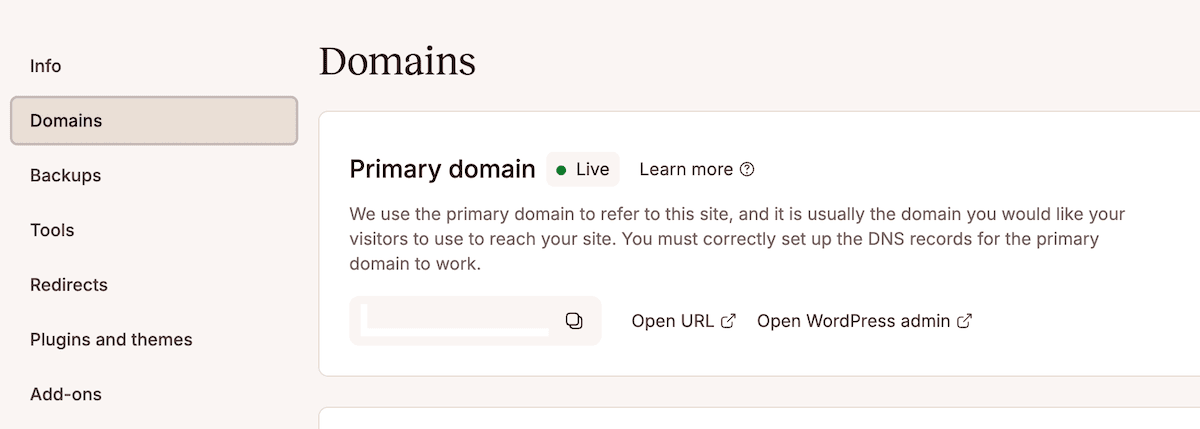
You should run a verification process to identify any issues before DNS propagation. If any issues arise, resolving them here keeps your production site unaffected. Only after confirming everything functions correctly do you proceed with DNS updates.
The Kinsta support team provides guidance and documentation for the complete post-migration process and is available around the clock to answer questions.
Kinsta DNS features for email management
Kinsta DNS provides optional DNS hosting if you want to manage domain records directly in MyKinsta rather than at your registrar or a third-party DNS provider. The service includes functionality specifically designed for email record management.
You can set up MX records with minimal clicks in Google Workspace. When adding a new domain from the DNS screen in MyKinsta, select the Add Gmail MX records checkbox. This automatically creates all five required MX records with correct priority values and hostnames.
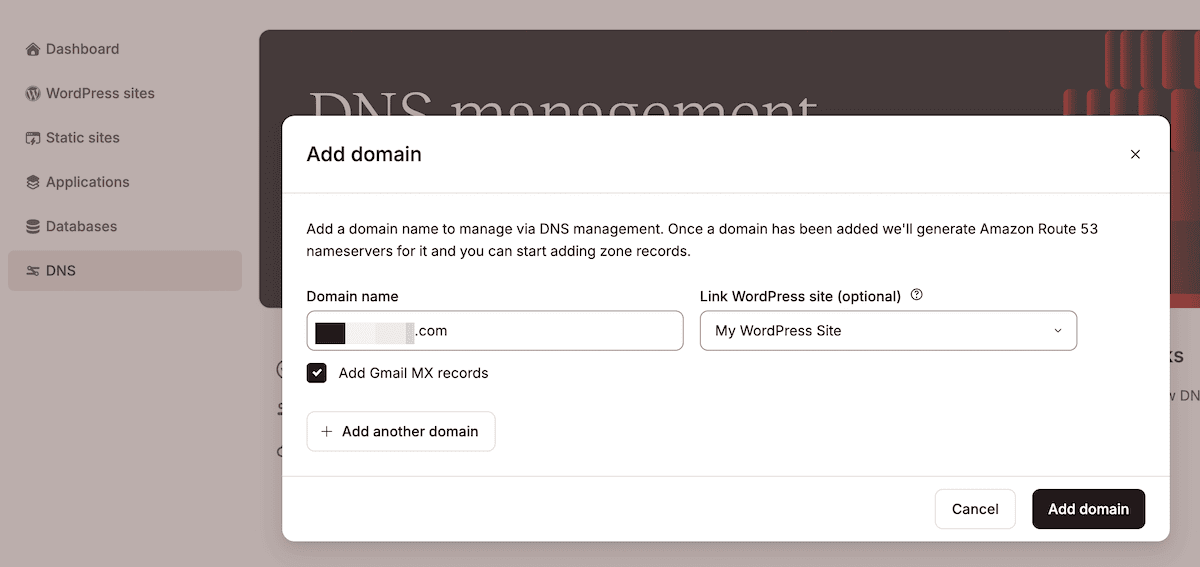
For domains already configured in Kinsta DNS, navigate to DNS, select your domain, and click the Add Gmail MX records button at the top of the page. This lets you see the five Google Workspace MX records before you complete the process:
aspmx.l.google.com(priority1)alt1.aspmx.l.google.com(priority5)alt2.aspmx.l.google.com(priority5)alt3.aspmx.l.google.com(priority10)alt4.aspmx.l.google.com(priority10)
TTL defaults to 3,600 seconds (one hour) for these records, which sets how long worldwide DNS servers cache information before checking for updates. This balances DNS caching efficiency with the ability to make changes when you need to.
Adding MX records for other email providers
For email providers other than Google Workspace, you need to set a manual MX record configuration. Your provider supplies these values, typically mail server hostnames and priority numbers.
In MyKinsta, click DNS, select your domain, and within Add a DNS record, click Add record. Select the MX record type and fill in the required fields:
- Hostname. Specify the hostname of your email address (often left blank for root domain configurations).
- Points To. Here, enter the hostname for your email provider’s mail server.
- Priority. Set the priority number where lower numbers indicate higher priority.
- TTL (Time to Live). Use the recommended, default one hour setting.
Finally, click Add DNS record to save the configuration.
Microsoft 365 typically uses a single MX record pointing to a regional mail server, while Zoho requires multiple MX records with different priority values. Most providers support multiple MX records; add each one separately using the same process.
You don’t have to use Kinsta DNS either. Instead, you can manage DNS through your domain registrar or another provider while hosting your site on Kinsta. This sometimes simplifies troubleshooting and streamlines updates for when you modify web hosting or email configurations.
Common MX record problems and how to resolve them
No matter what planning and mitigation you put in place, there is always a problem to resolve. Here are some of the most common MX record problems:
- Pointing to CNAME records.
- Setting the wrong priority values.
- Misconfiguring backup servers.
First, MX records that point to CNAME records create delivery failures. This is because mail servers query MX records and expect to find A or AAAA records that contain IP addresses. When an MX record points to a CNAME, the mail server cannot complete the lookup chain, which results in bounced messages.
The solution is to ensure your MX records point directly to hostnames that have A records. A correct configuration shows your MX record pointing to mail.example.com, which has an A record containing your mail server’s IP address.
Incorrect priority values can also cause mail-routing problems when multiple MX records exist for a domain. Lower priority numbers receive mail first, so your primary server should have a value such as 10, while backup servers use higher numbers (20 or 30). Mixing up these values causes delays if a backup server has to forward messages to the primary server.
If your primary email server goes offline, a misconfigured backup server fails to handle your emails. An MX record that points to non-existent or otherwise sub-optimal infrastructure creates a false sense of redundancy. To fix this, temporarily adjust priority values on the backup server to make it primary, then send test messages to verify delivery.
Planning your migration with email in mind
Migrating a site can take time, especially when you also need to consider managing your MX records. The optimal approach sees you document your records before migration, including any priority values, to create a complete backup of all DNS records.
In the MyKinsta dashboard, you can create MX records in a few clicks (for Google Workspace users). After the migration is successful, it’s a priority to test that everything works. The Kinsta support team has the right expertise to help you through the entire process.
Alongside that expert migration support, Kinsta’s managed WordPress hosting includes reliable infrastructure designed for sites of all sizes and DNS management tools that simplify email configuration.