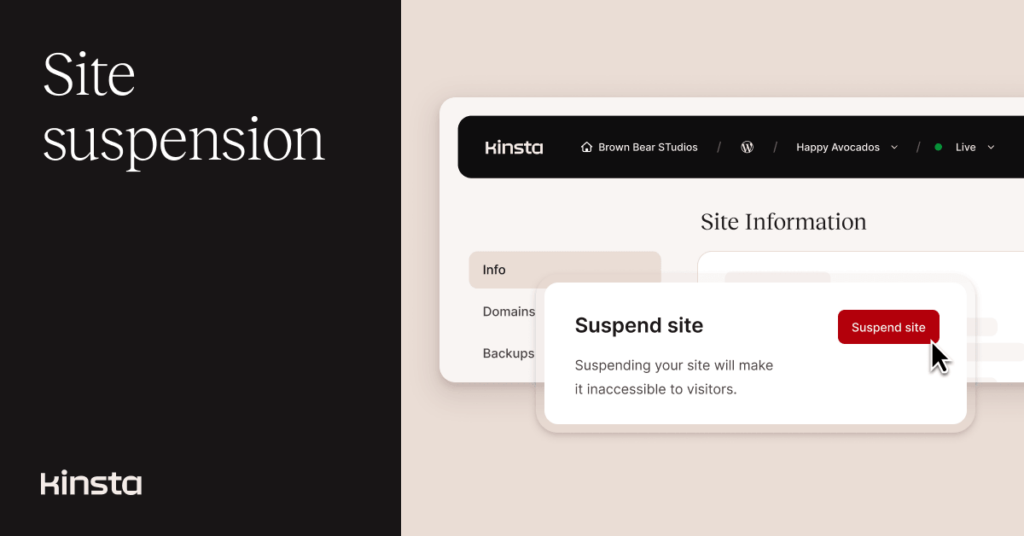
Releasing features we hope you never have to use isn’t our usual style, but we admit that the ability to rapidly take a site offline and make it inaccessible to visitors and administrators is one.
On the bright side, the new Suspend Environment feature is as easy — and quick — to undo as it is to enable in the first place.
If you’re asking, “What’s the point?” you might be lucky enough to have never had a billing dispute with your own customers. And, while it’s not the only possible reason to suspend site access, requests for this feature have most often come from agencies and resellers who needed a way to get tough with customers without completely dismantling a website.
Suspending a WordPress environment
Visitors can’t view a suspended environment on the public-facing side, and site operators can’t log in to its WordPress admin dashboard. Users with only Site Administrator or Site Developer roles in MyKinsta will not have access to dashboard tools that help manage the environment or access its resources.
To enable a suspension, navigate to Sites > sitename to reach the Site Information page. Scroll down to reach the red Suspend Environment button:

After clicking the button, you will be asked to confirm the environment suspension and optionally provide a reason for the suspension that will be visible to anyone with access to MyKinsta:
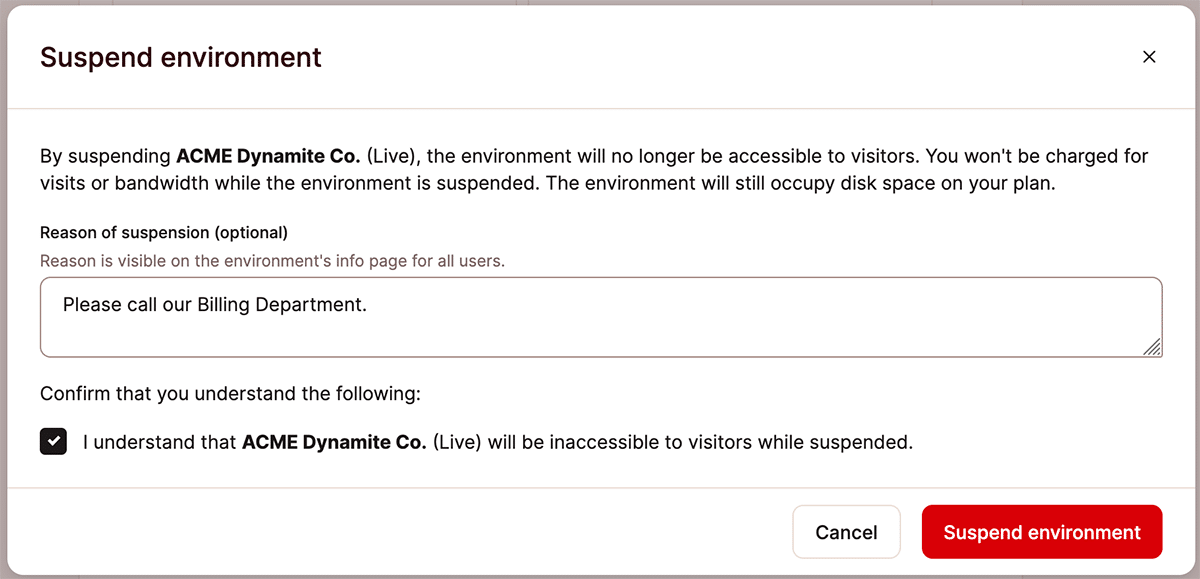
After suspension is enabled, visitors to the environment’s Site Information page in MyKinsta will see a banner like the one below:

MyKinsta users with access to reverse the suspension (Company Owners and Company Administrators) will see the Activate Environment button. Others will see only the notice text shown during suspension confirmation.
Meanwhile, anyone attempting to access the WordPress site will see a connection timeout message in their browser.
It’s as easy as that (and we hope you never have to use it!)