
If you’re trying to point your domain name to your web hosting, you’ve probably come across the term nameserver. So, what is a nameserver?
Nameservers help connect URLs with the IP address of web servers. Nameservers are an important part of the Domain Name System (DNS), which many people call the “phone book of the Internet”.
In this article, we’ll go deeper into the topic of what nameservers are, how they work, and how you can use them to manage your site’s domain name and other parts of your site.
What Is a Nameserver? Explained in More Detail
When a user enters a URL in their browser, like “kinsta.com, there needs to be some way to connect that URL with the underlying web server that powers the website at that domain name.
Think how difficult it would be if you had to enter the actual IP address of a web server every time you wanted to visit a website. You wouldn’t be able to remember whether it was 159.89.229.118 or 159.89.229.119 — it would be a mess!
Nameservers play an important role in connecting a URL with a server IP address in a much more human-friendly way.
Nameservers look like any other domain name. When you look at a website’s nameservers, you’ll typically see a minimum of two nameservers (though you can use more). Here’s an example of what they look like:
ns-380.awsdns-47.comNs-1076.awsdns-06.org
Only instead of serving up a website, those nameservers help direct traffic.
To illustrate the role that nameservers play in directing traffic on the Internet, let’s look at a real example.
Let’s say you want to visit the Kinsta homepage. On the surface, this action is simple: you type “kinsta.com” into your browser’s address bar and you see the Kinsta homepage. Easy, right?
But behind-the-scenes, the high-level process actually goes something like this:
- You type “kinsta.com” into the browser address bar and hit enter.
- Your computer issues a DNS query to obtain the IP address for the “kinsta.com” domain.
- The query is directed to a DNS server (a recursive resolver) that is associated with your PC’s local connection (typically on your corporate network or at your Internet service provider).
- The query is relayed upstream until a DNS server in the hierarchy has the answer to the query already cached, or the request reaches one of the authoritative nameservers associated with the “kinsta.com” DNS records.
- After receiving the IP address, your browser can request website content from that “kinsta.com” server via that IP.
- Your browser retrieves the content and renders it in your browser.
And that’s a slightly simplified version of what happens. That hierarchy of DNS servers in the query’s path can include machines dedicated to routing those requests between top-level domains like “.com” and “.org” and country code top-level domains like “.uk” and .ca.”
Nameservers vs DNS Records
DNS records are what contain the actual information that other browsers or services need to interact with, like the IP address associated with the address “www.kinsta.com.” Nameservers help store and organize those individual DNS records.
Earlier, we referred to DNS as the phone book of the Internet. But a more specific analogy would be that:
- Nameservers are the physical phone book itself.
- DNS records are the individual entries in the phone book.
If you wanted to find someone’s phone number (back when phone books existed!), you’d first grab the phone book itself. Then, you’d open the phone book and go through the entries to find the specific information that you need.
How to Use Nameservers in the Real World
In the real world, you’ll use nameservers and DNS records primarily to point your domain name towards your website.
You also might use the DNS records supplied by your nameservers in other ways, like setting up your email account with MX records or verifying your domain name with Google Search Console.
Where Are Your Domain’s Nameservers Located?
The answer to this question is that “it depends.”.\
When you register your domain name through a domain registrar, your domain is usually pointed towards your domain registrar’s nameservers at first. Your domain registrar is also where you can edit your domain’s nameservers.
If you wanted to, you could leave your nameservers at your domain registrar and just edit the DNS records to point your domain name towards your web hosting.
However, many web hosts recommend that you change your domain’s nameservers to nameservers provided by the host. For example, here at Kinsta, we provide premium nameservers powered by Amazon Route 53 that you can use (though you don’t have to).
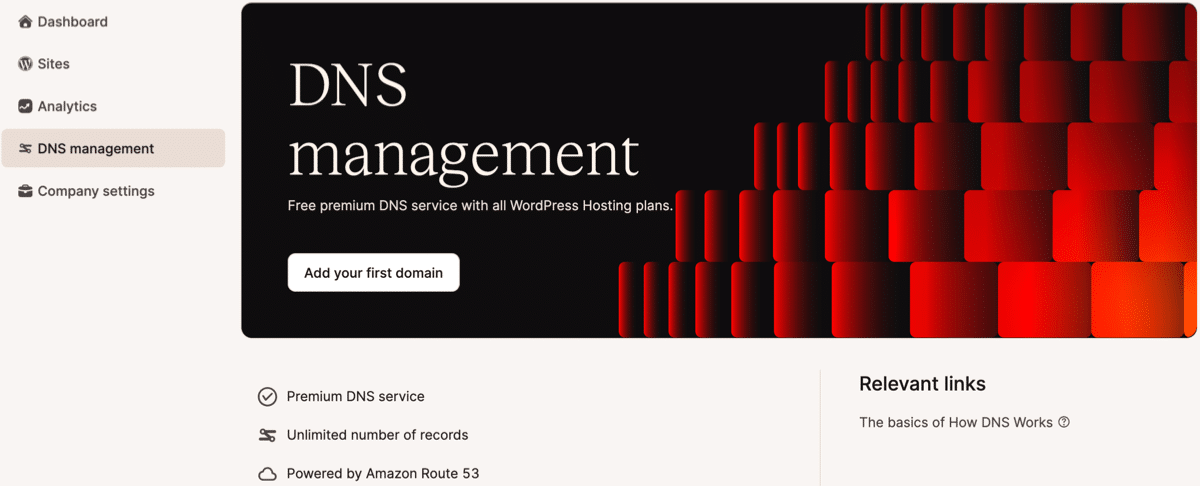
To change your nameservers, you’ll need to use the interface at the domain registrar where you purchased your domain name.
For example, here’s what it looks like to change the nameservers at a domain registered through DNSimple:
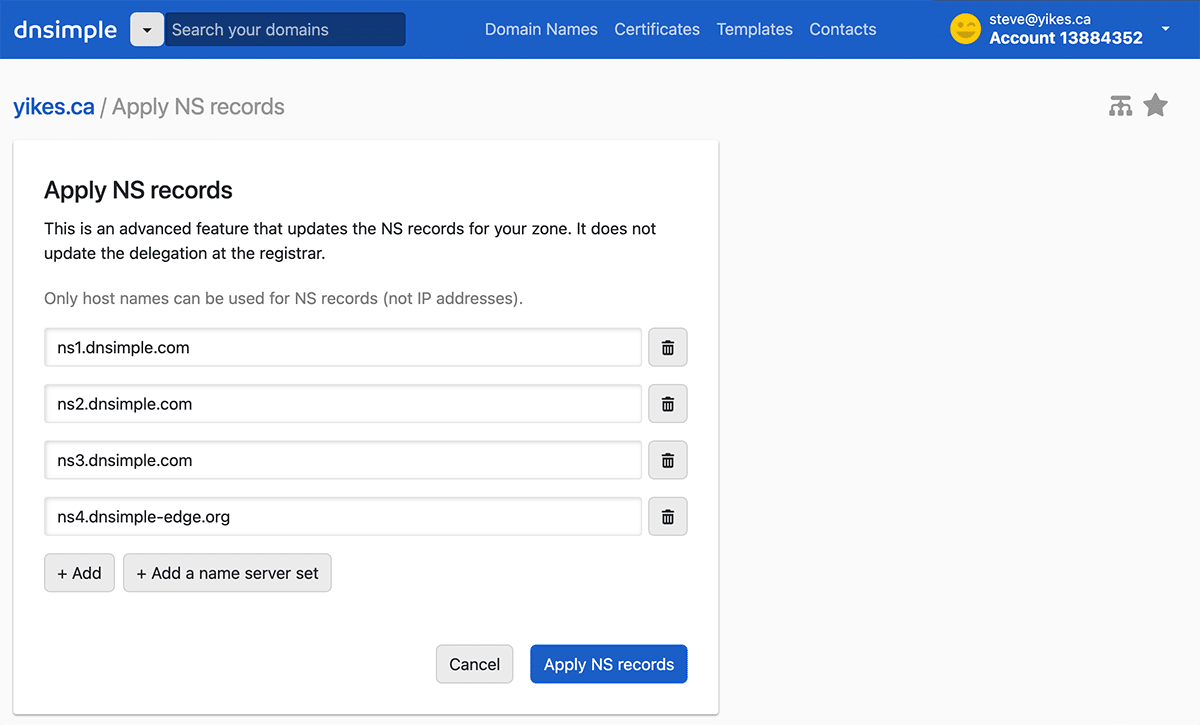
You can see above that the domain is configured to use four of DNSimple’s nameservers.
Each registrar has its own interface for the task of associating nameservers with a domain. The important thing is that your domain is known to the nameservers. That’s usually automatic when the nameservers are provided by the domain name registrar. But you can also use third-party nameservers.
The most popular example of third-party DNS here is Cloudflare. If you use the Cloudflare service, you’ll point your domain’s nameservers to Cloudflare, rather than your web host or your domain registrar.
You Manage Your DNS Records Through Your Nameservers
If you adopt nameservers other than the defaults at your domain registrar, you’ll control your domain’s DNS records at your nameserver provider.
For example, if you use the nameservers from Amazon Route 53 that Kinsta provides, you’d then edit your individual DNS records within your Kinsta dashboard, not your domain registrar:
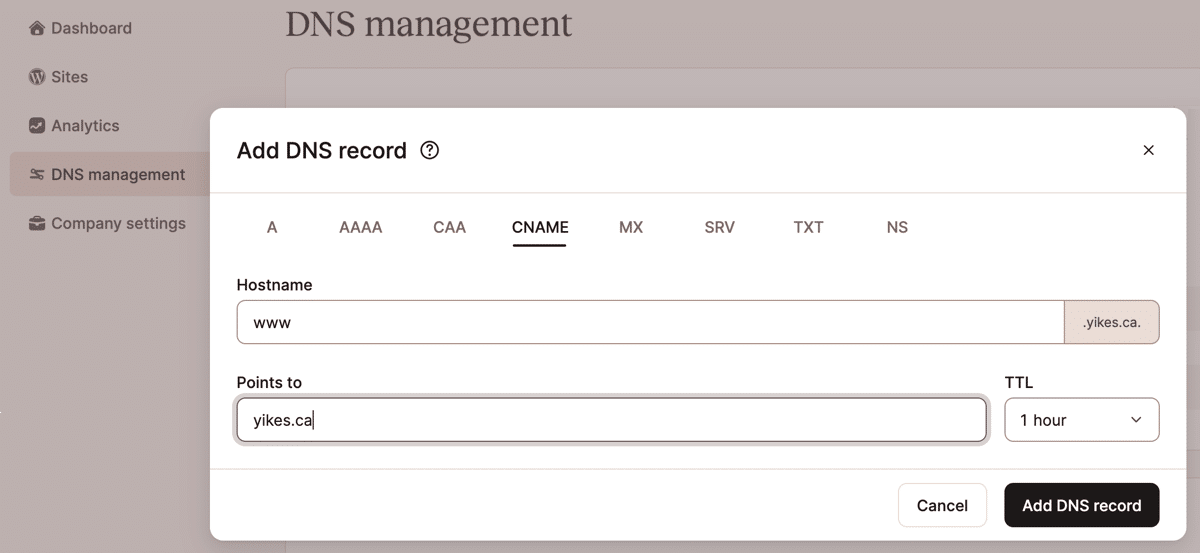
On the other hand, if you use Cloudflare’s nameservers, you’ll manage your DNS records through the Cloudflare interface (even if your website is hosted at Kinsta).
What are Kinsta’s Nameservers?
If you’re hosting at Kinsta, you can find your sites’ nameservers in the DNS Management section of your MyKinsta hosting dashboard:
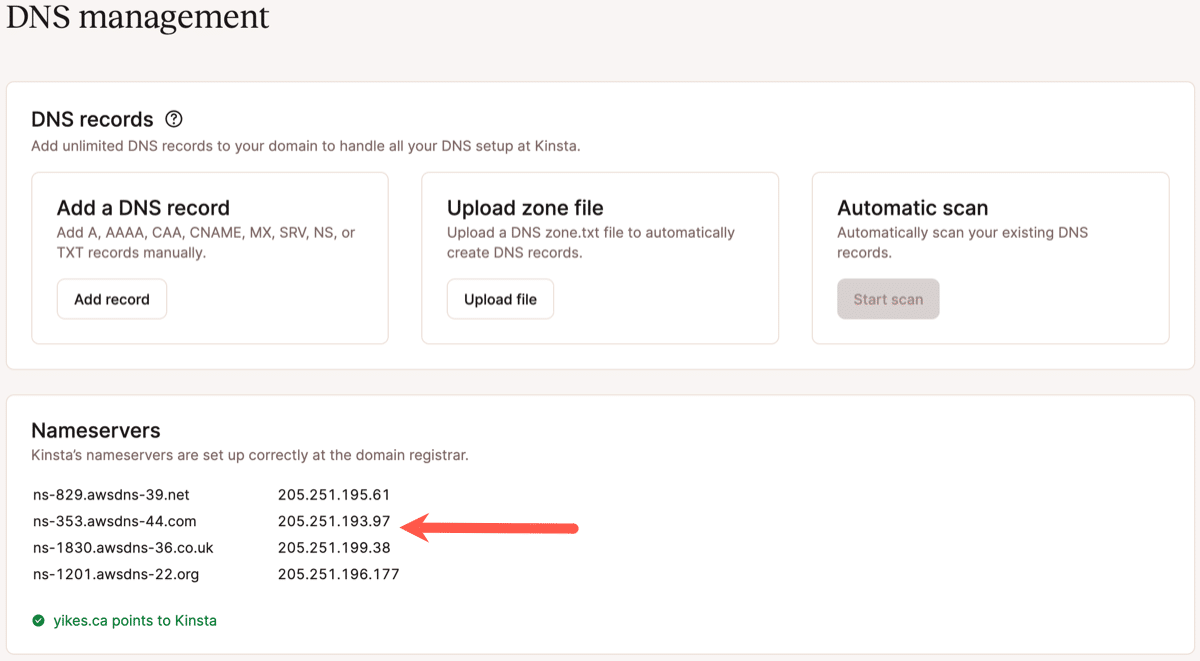
You also do not need to use Kinsta’s nameservers. You can point your domain name to Kinsta by editing DNS records (usually A and CNAME records) at your domain registrar’s nameservers or Cloudflare’s nameservers (or anywhere else).
To help you point your domain towards Kinsta, we have tutorials for how to edit the nameservers and A records at popular domain registrars:
- How to change Namecheap nameservers or add an A record at Namecheap
- How to change GoDaddy nameservers or add an A record at GoDaddy
- How to Change Bluehost nameservers
How to Check Which Nameservers Your Website is Using
If you’re not sure which nameservers you’re currently using, you can check by entering your domain name in one of the many Whois lookup tools. For example, Whois.com.
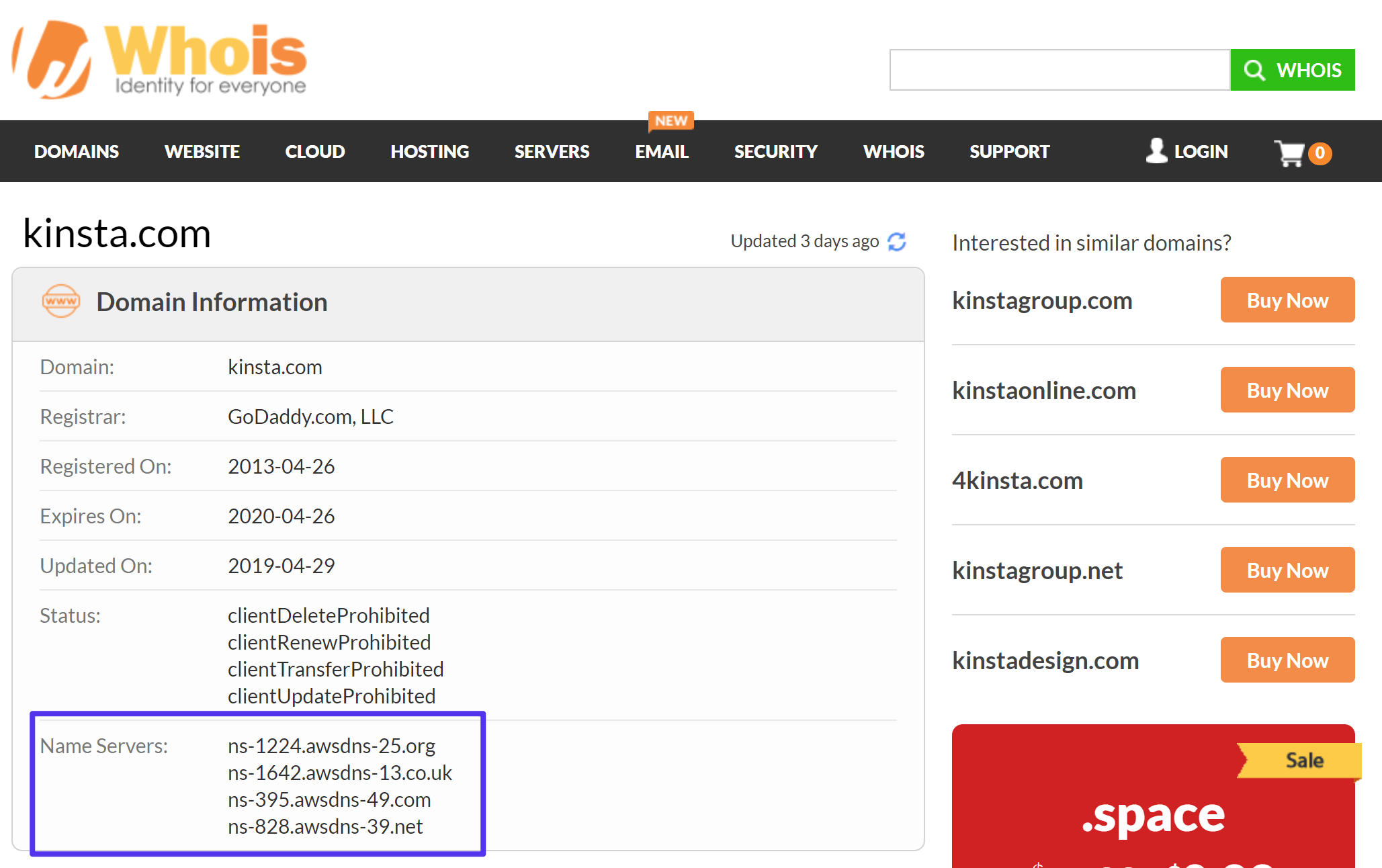
Alternatively, you can also run a simple test from your local computer.
On Windows, you can test your nameservers by following these steps:
- Open PowerShell (you can search for PowerShell in the Start bar to launch the program)
- Type
nslookupin the Powershell interface - Type set
q=NSand hit Enter - Enter your domain name and hit Enter again
You should then see your nameservers:
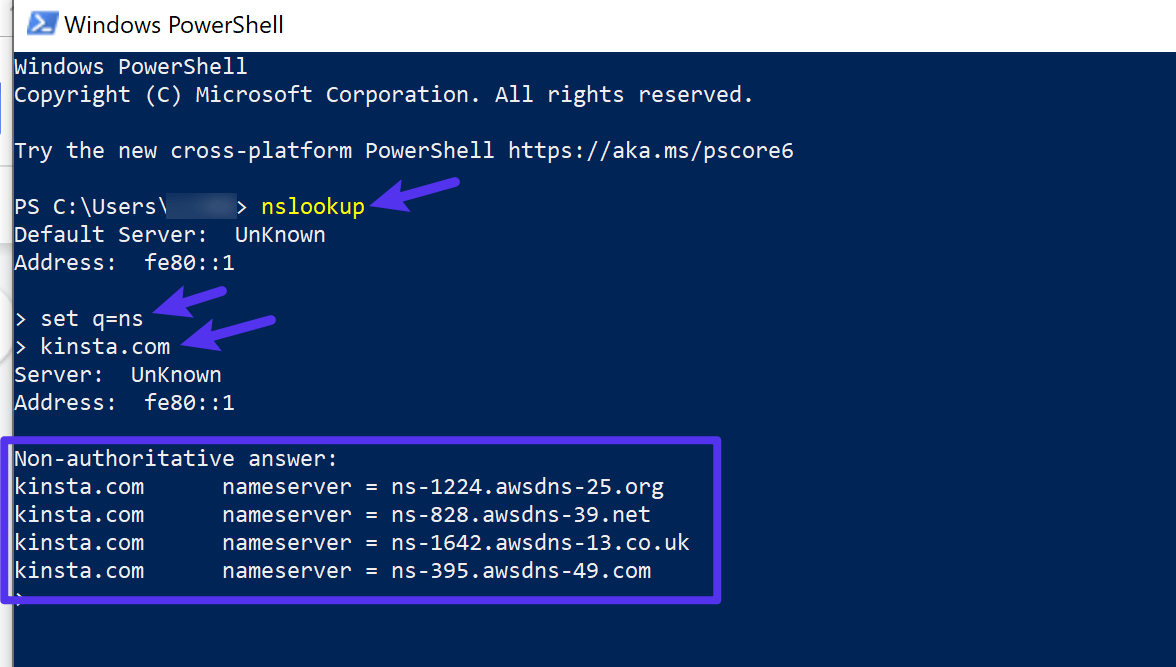
On Mac, you can open Terminal and run the following command:
host -t NS exampledomain.com
Summary
Nameservers play an essential role in directing traffic on the Internet by helping to connect your domain name with the IP address of your web server.
To do this, they help web browsers and other services access your domain’s DNS records.
You can edit your domain’s nameservers at the domain registrar where you purchased your domain name. Then, you’ll manage your individual DNS records at the nameserver “service” that you’re using. For example, the Kinsta dashboard if you’re using Kinsta’s nameservers or the Cloudflare dashboard if you’re using Cloudflare.
Finally, if you want to change your domain’s nameservers to use Kinsta’s nameservers, you can follow the steps in this help article.

Head of Content at Kinsta and Content Marketing Consultant for WordPress plugin developers. Connect with Matteo on Twitter.

