Add as a preferred source on Google
Multisite is a great way to manage all your WordPress sites from a single installation. However, a very common issue that WordPress multisite administrators face is how to set up domain mapping. By default, additional sites setup within your multisite network are created as either subdomains of the root site (e.g.subsite.network.com) or subfolders (e.g. network.com/subsite).
Naturally, these don’t look very good and so by implementing domain mapping, you can point a site to an external domain, such as domain.com. To other visitors, this will then appear as a normal website.
Prefer to watch the video version?
WordPress Multisite Domain Mapping
When it comes to setting up WordPress multisite domain mapping you do have a few options. We are going to walk you through the entire Multisite setup here at Kinsta as this can sometimes be confusing.
If you already have WordPress Multisite up and running, feel free to skip to Step 5 to start mapping your new subsite domains.
Below we will be setting up the following:
- kinstamulti.com (main subsite)
- kinstasub1.com (additional subsite)
- kinstasub2.com (additional subsite)
- kinstasub3.com (additional subsite)
Step 1 – Install WordPress Multisite
If you are doing a fresh installation of WordPress you can automatically configure WordPress multisite when you add a new site in MyKinsta. Simply select “This is a multisite installation” and choose either the subdirectory or subdomain option.
In this example, we’ll be using the subdomain multisite option. When adding a new site, select the Install WordPress option:
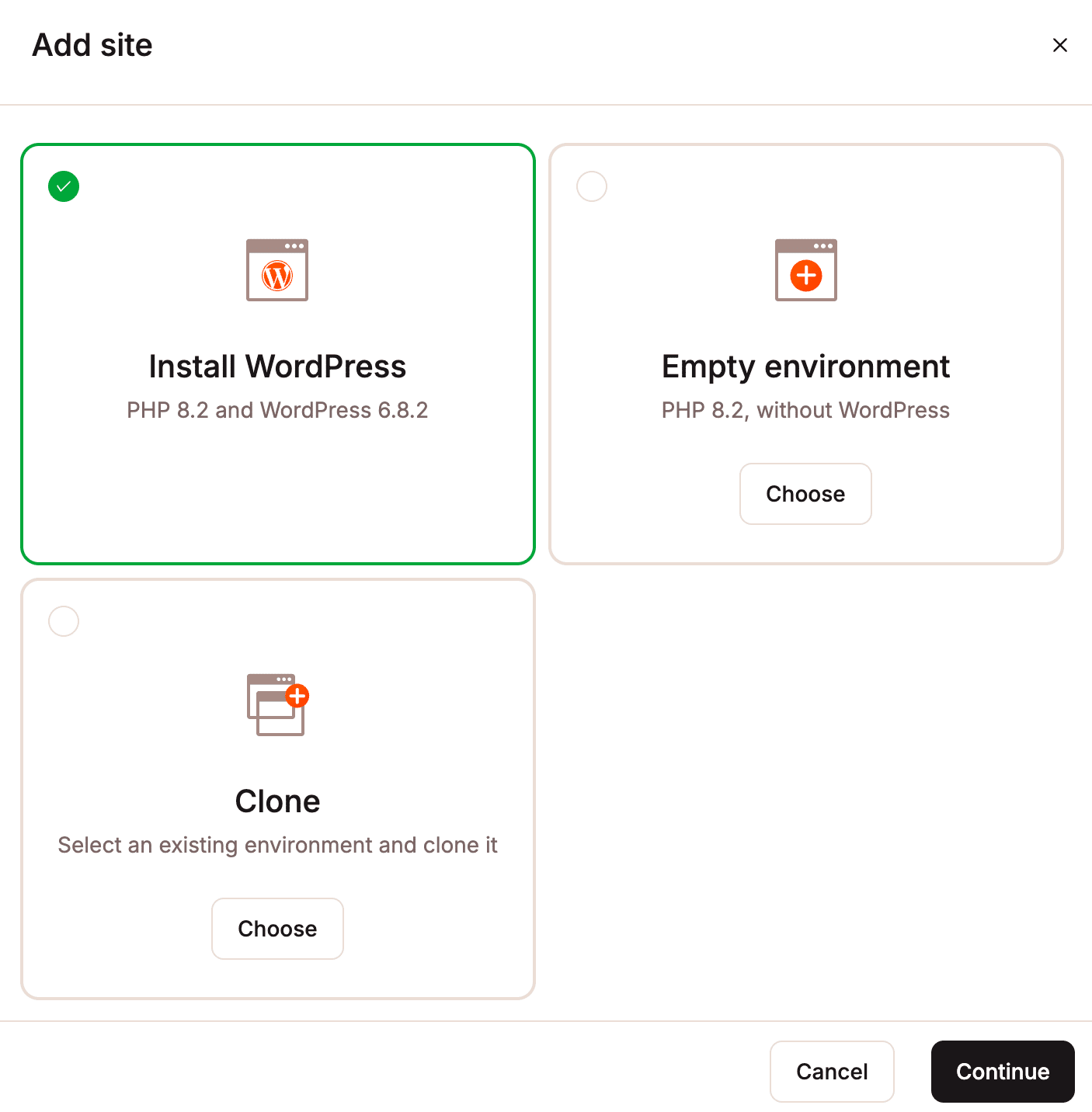
After filling in the Site options details (site name, data center location, and caching preferences), be sure to select Install WordPress multisite under the WordPress options tab and specify whether you want to create a Subdirectory or Subdomain multisite configuration:
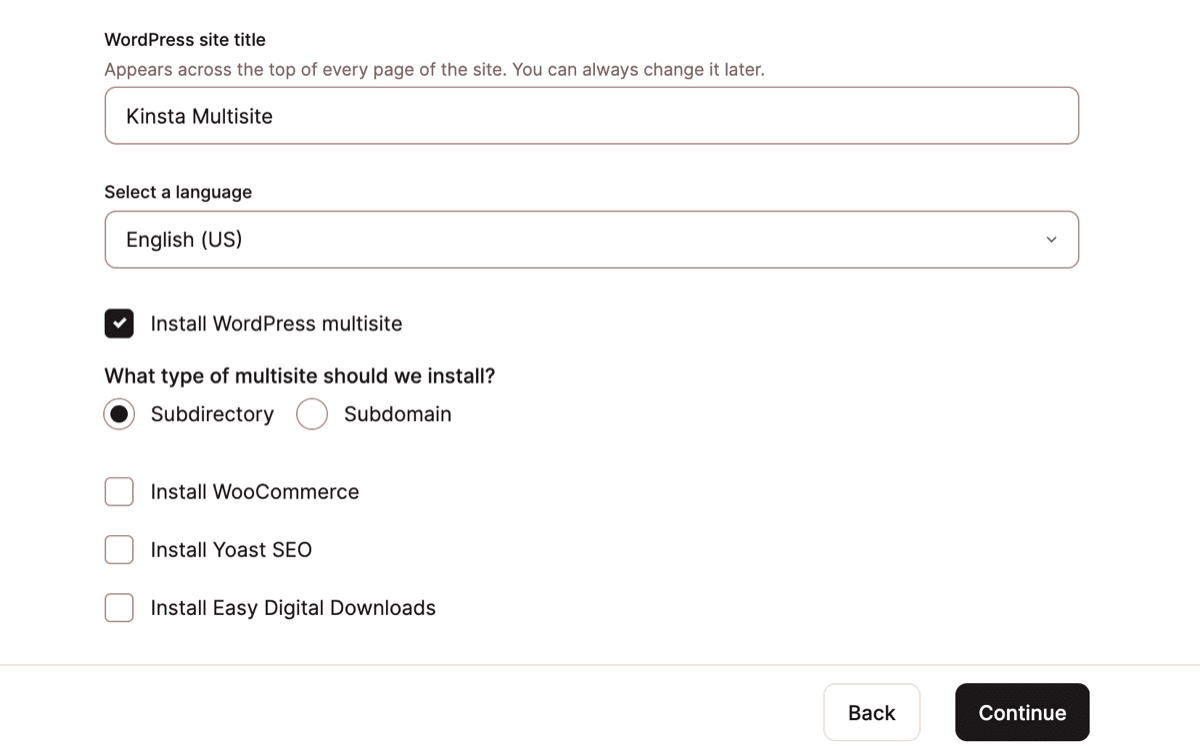
- A subdirectory multisite is one that’s loaded from a subdirectory of a root domain (e.g. domain.com/multisite/).
- A subdomain multisite is one that’s loaded from a unique subdomain (e.g. multisite.domain.com).
If you opt for a subdirectory multisite after creating a subdomain multisite, a rule will need to be added by the Kinsta support team for it to work properly.
As setting up multisite correctly is complicated and requires special attention, you should anticipate working with a qualified WordPress developer if you wish to switch an established site from single-site mode to multisite mode.
Step 2 – Add Domains to MyKinsta Dashboard and Point DNS
The next thing to do is add your main site’s domain to the MyKinsta dashboard. To do this for your new WordPress environment, select Domains in the left-hand menu and click the Add domain button. You can then provide a domain name (#1 below):
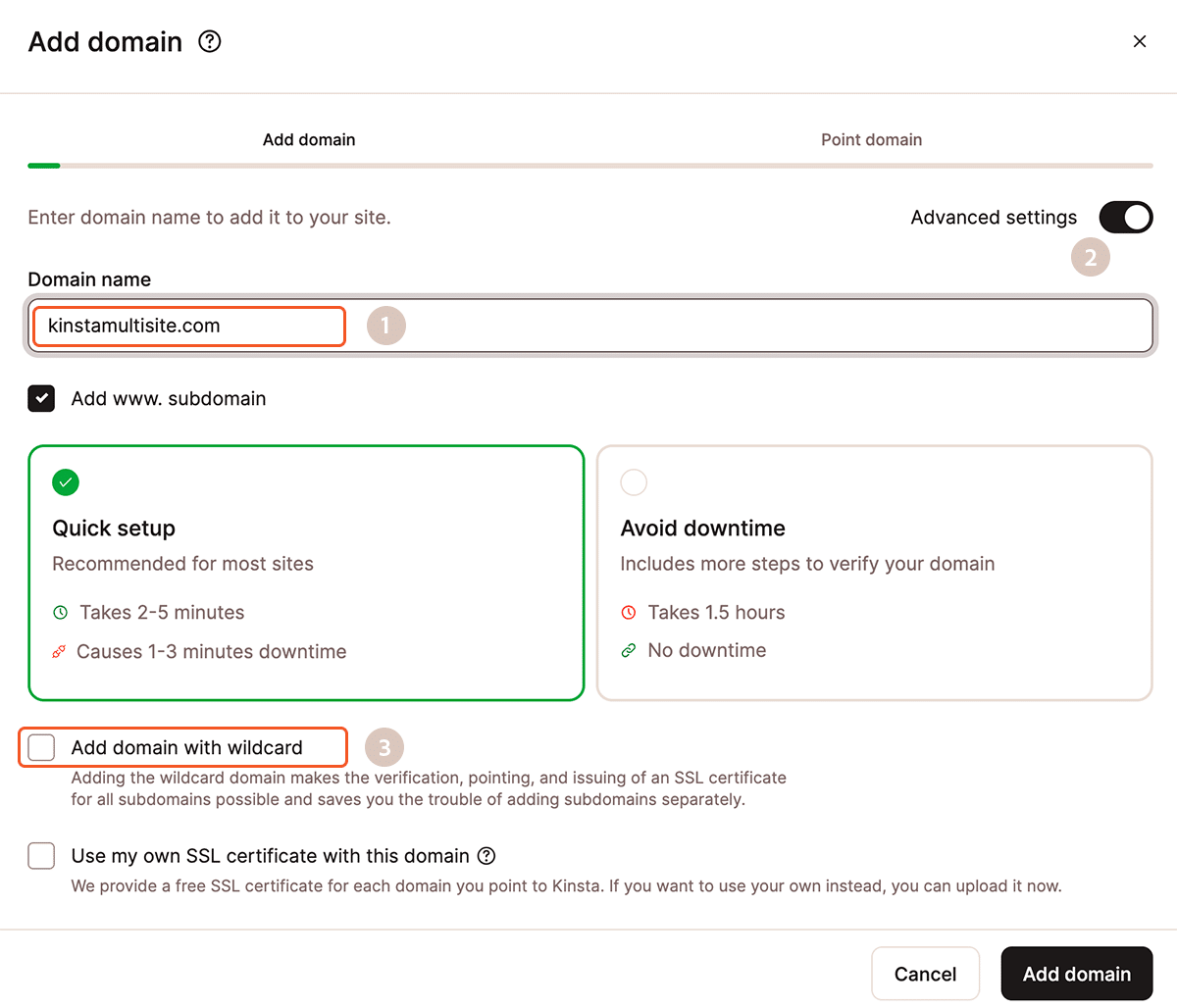
By default, Kinsta will configure your site to support the commonly used subdomain “www.” If you enable Advanced settings (#2 above), you can choose the option to Add domain with wildcard (#3). A wildcard supports any number of subdomains (including “www”) without the need for DNS configurations for each one. You might use the wildcard option if you are creating a subdomain-based multisite configuration.
After adding your domain(s) in MyKinsta, be sure to add the necessary DNS records to point your domain name to Kinsta. If you are using a third party to manage DNS, MyKinsta will display the details you’ll need to provide that service in order to point the domain at your new Kinsta server.
By default, the “kinsta.cloud” address assigned to your new WordPress environment is the primary domain for your new server. When DNS is confirmed for your new domain, you can set that as primary on the Domains tab through the kebab (three-dot) menu beside the domain’s entry:
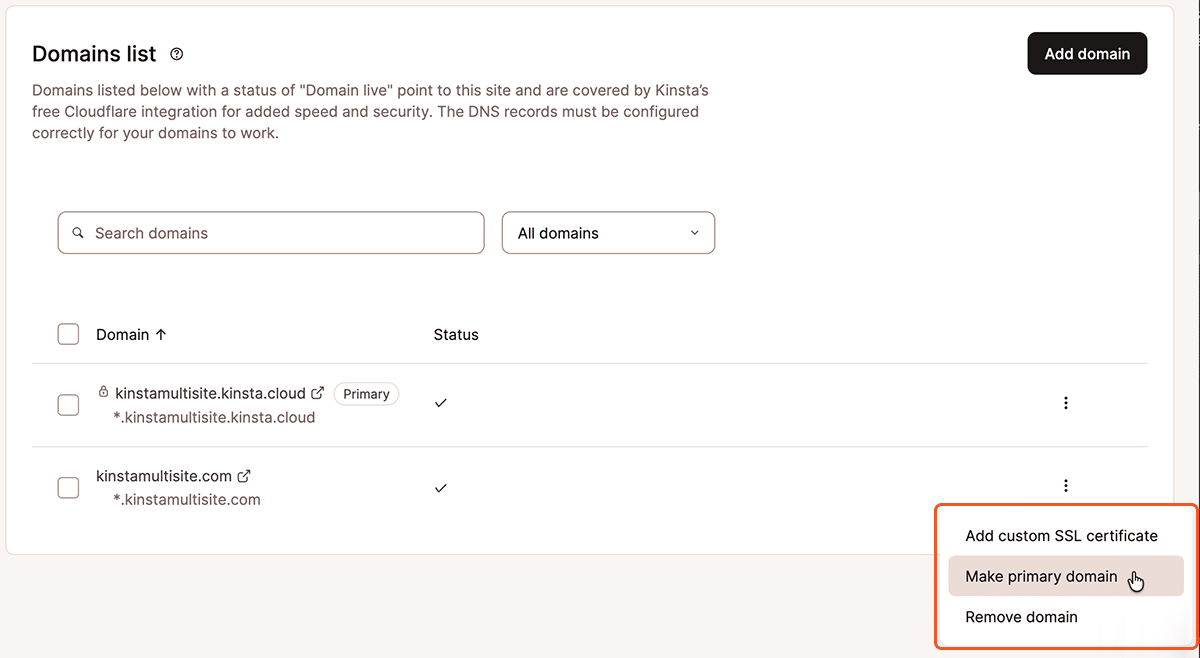
During the process of switching your primary domain, you’ll be asked whether you want to run a search and replace to change all instances of your old domain in your WordPress database to your new domain. We recommend checking this option to avoid having to manually run the search and replace later on.
If you need to run a manual search and replace to switch your domain, check out our knowledgebase article on how to use our search and replace tool in MyKinsta.
Step 3 – Update wp-config.php File
The next step is to update your wp-config.php file and add/update a few variables. The wp-config.php file is typically located at the root of your WordPress site and can be accessed via SFTP or SSH.
First, update 'DOMAIN-CURRENT_SITE' to your domain name (by default this will have a temporary kinsta.cloud URL on new installations).
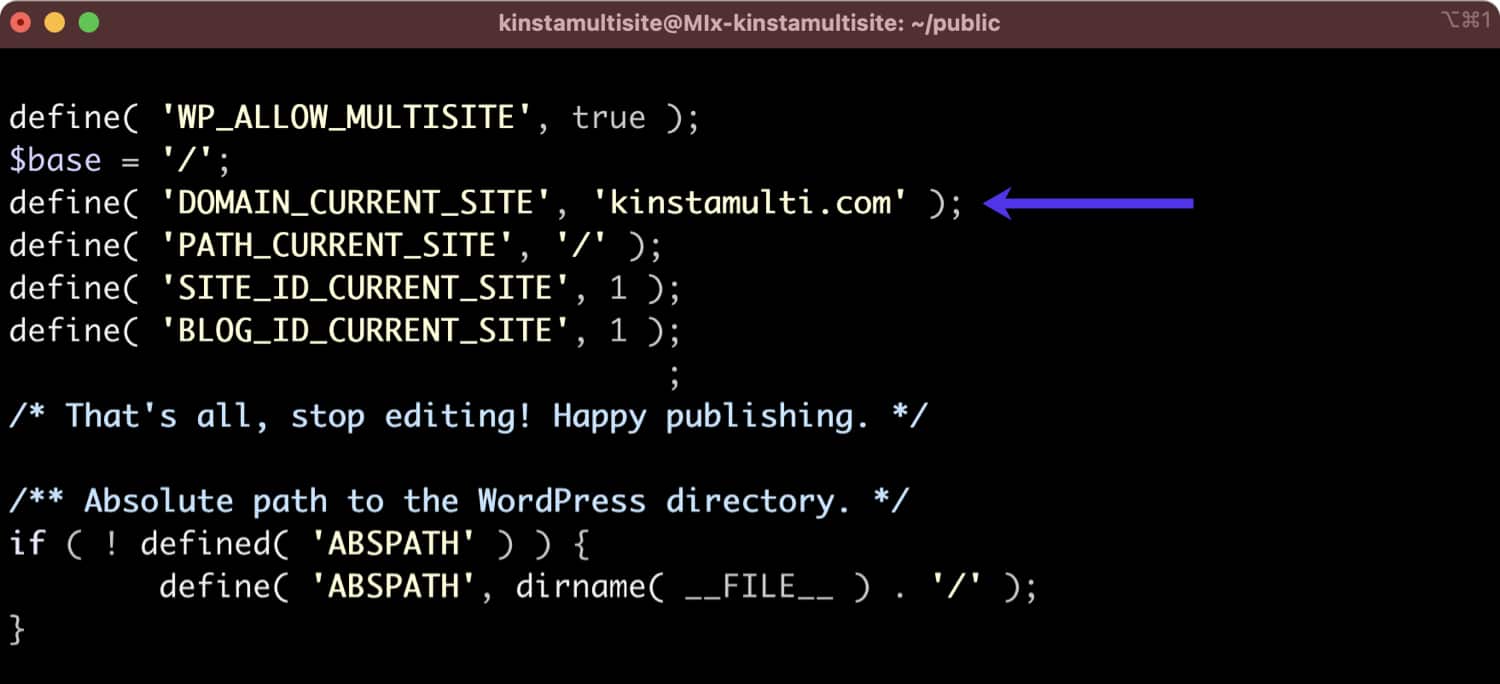
Next, add the line below to ensure logins work. We recommend adding it below the line containing the ‘BLOG_ID_CURRENT_SITE’ variable.
define('COOKIE_DOMAIN', $_SERVER['HTTP_HOST'] );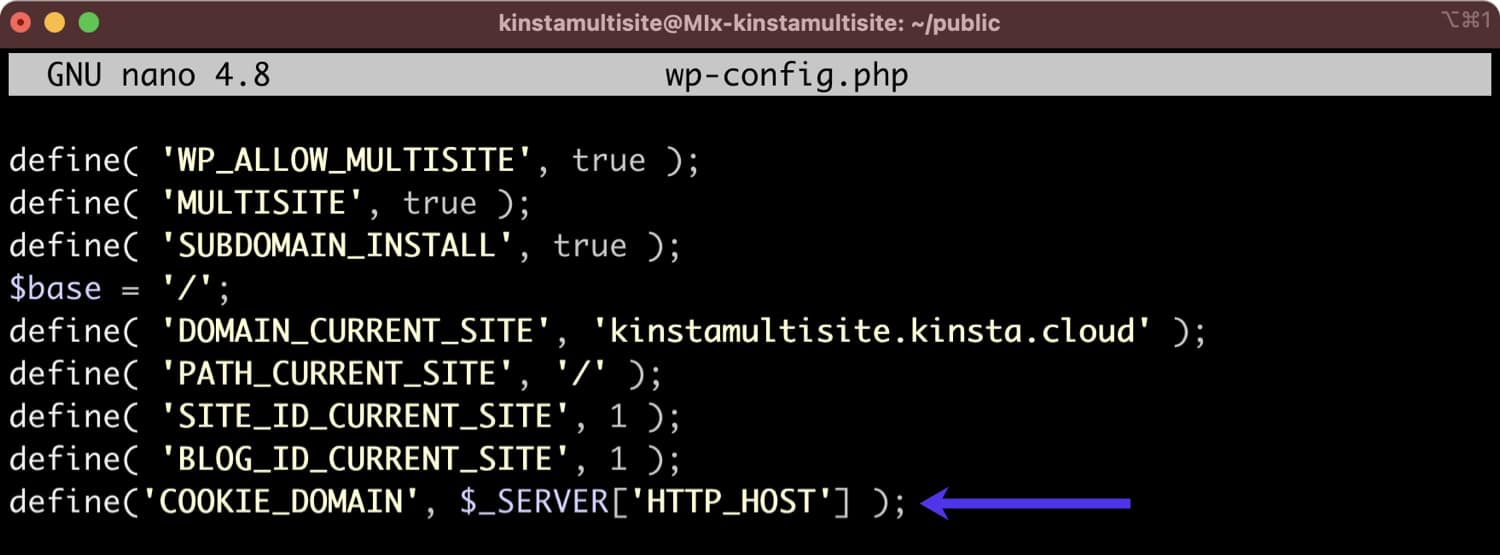
Step 4 – Create New Subsite Installs
You can then create new subsite installs. To do this, log in as the Network Admin (the user account you created during your Kinsta site creation). Under “My Sites” in the top left corner of the WordPress admin dashboard, navigate to Network Admin > Sites. On the Sites page, click on Add New to add a new subsite.
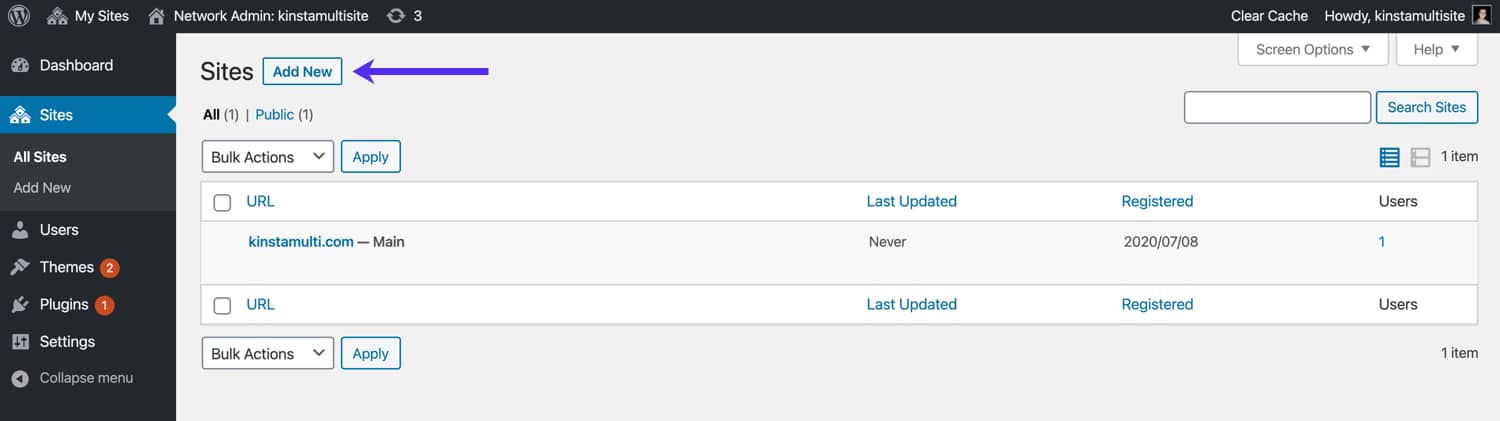
You’ll be prompted to specify the subsite’s site address, site title, site language, and admin email. As mentioned above, we want our first subsite to be kinstasub1.com. When creating a new subsite, the “Site Address” field only allows domains that are a subdomain of the main site’s domain. For now, we’ll just use “kinstasub1.kinstamulti.com” and change it to kinstasub1.com later on.
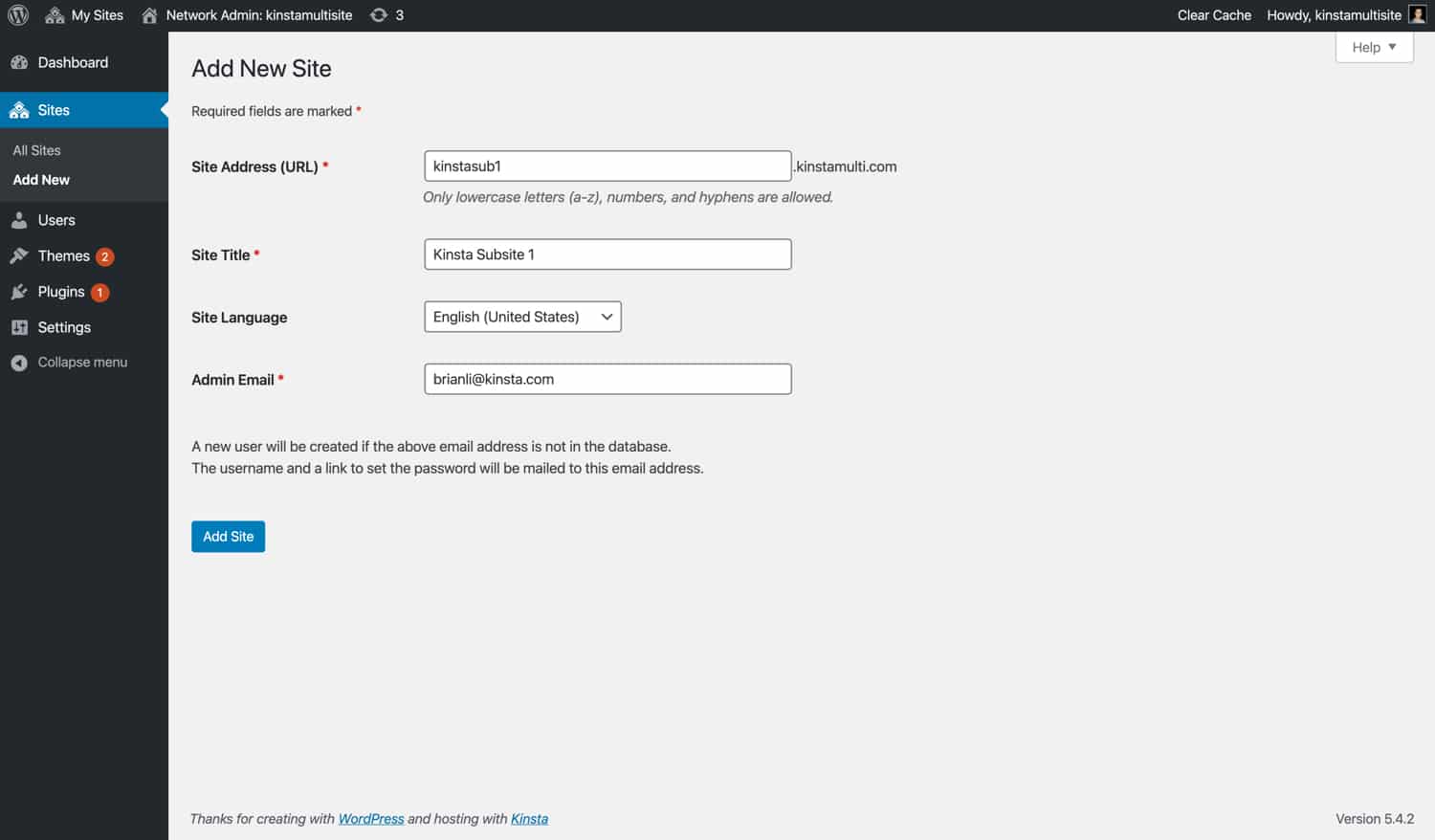
If needed, you can repeat this step to add additional subsites.
Step 5 – Map Domains To New Subsite Installs
Now that you have your new subsite setup, you need to map your live domain to it. To do this, go to Sites > All Sites in the WordPress admin sidebar, and click Edit under your subsite.
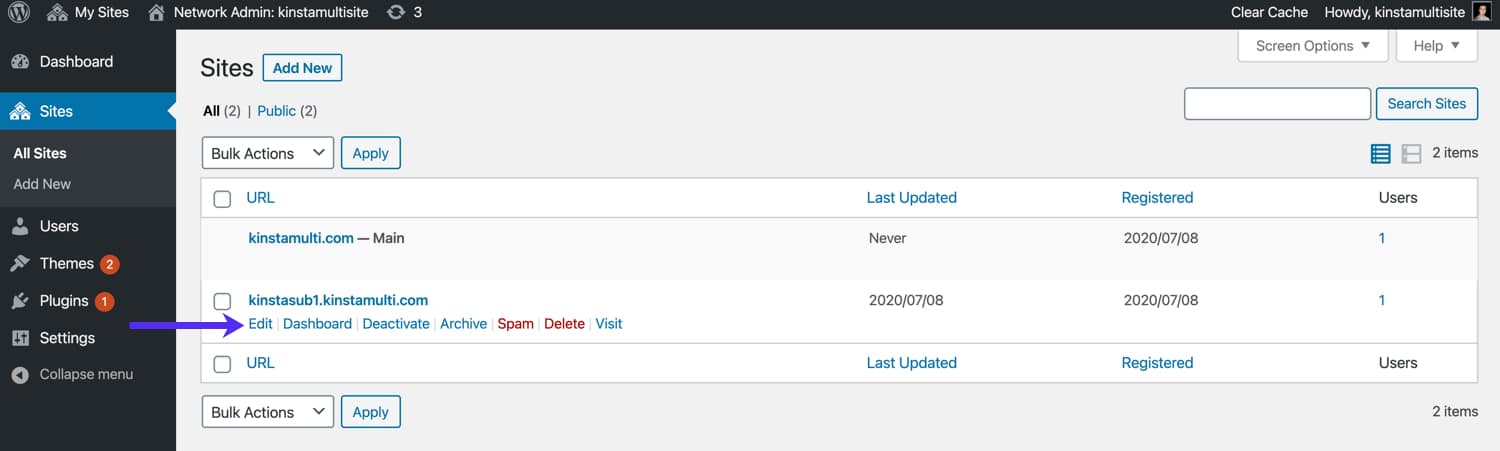
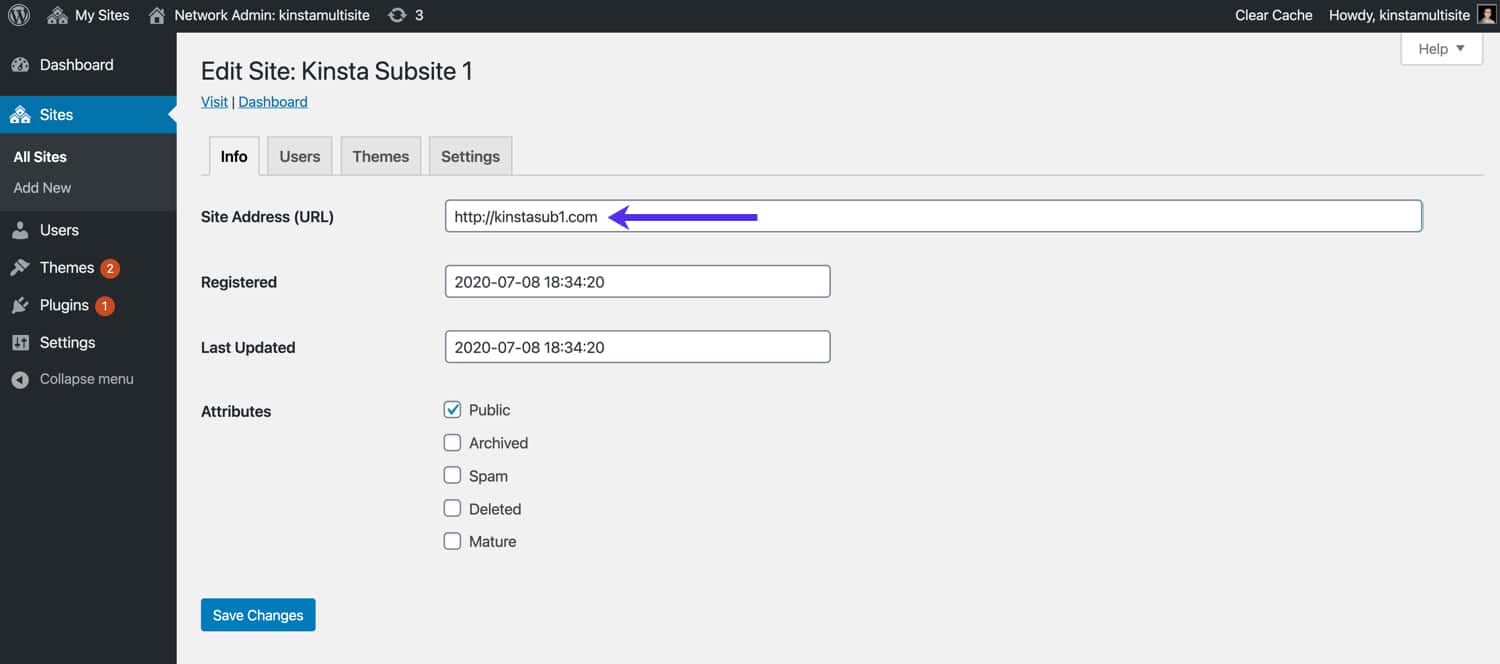
In the “Site Address (URL)” field, replace the existing subsite domain with your live subsite domain. In our case, our live subsite domain is kinstasub1.com.
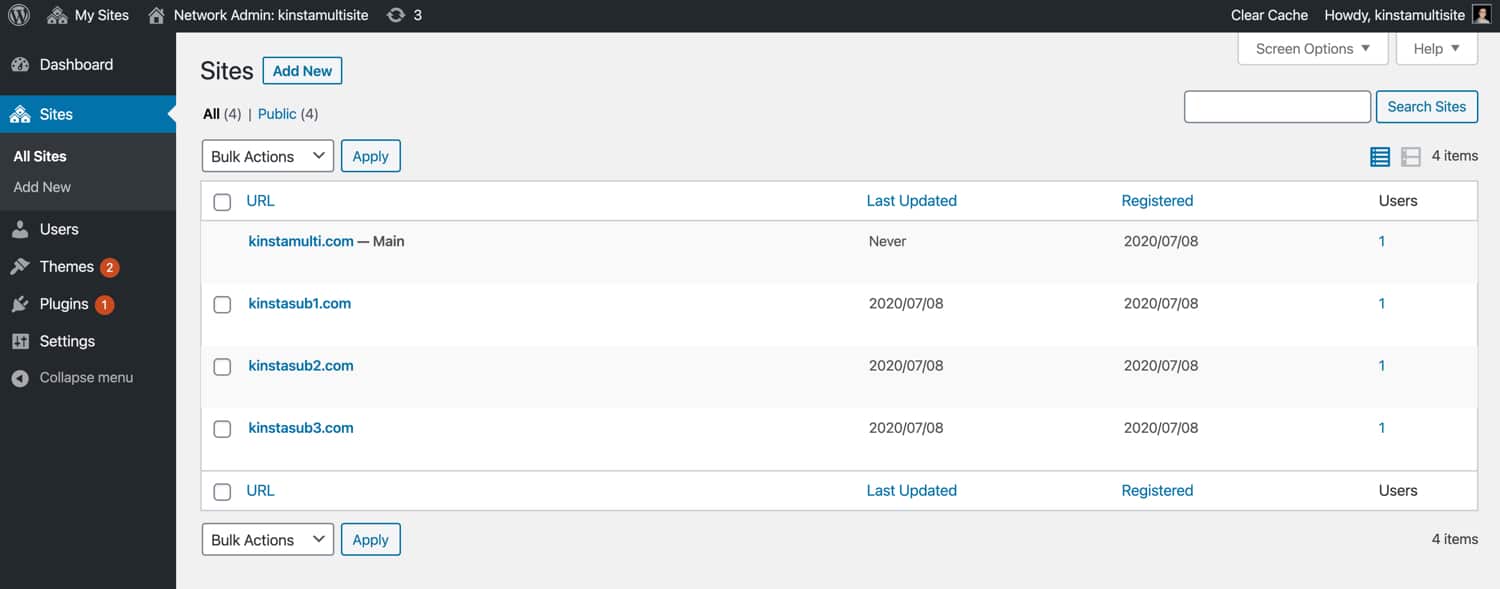
If needed, you can repeat this step to map domains for additional subsites. In our case, we wanted our main site with three subsites. Here’s what our completed subsite setup looks like.
Step 6 – Add Subsite Domains to MyKinsta and Point DNS
If you did not choose the Add domain with wildcard option when creating your primary domain in Step 2 above, you will need to add any additional subsite domains to MyKinsta. Return to the Domains page and click the Add domain button to add subsite details.
Step 7 – Generating an SSL Certificate for Your Multisite
At Kinsta, all verified domains are automatically protected by our Cloudflare integration, which includes free SSL certificates. If you’re running a multisite, just be sure to add and verify each subsite’s domain in MyKinsta or choose the Add domain with wildcard option when intially adding your primary domain.
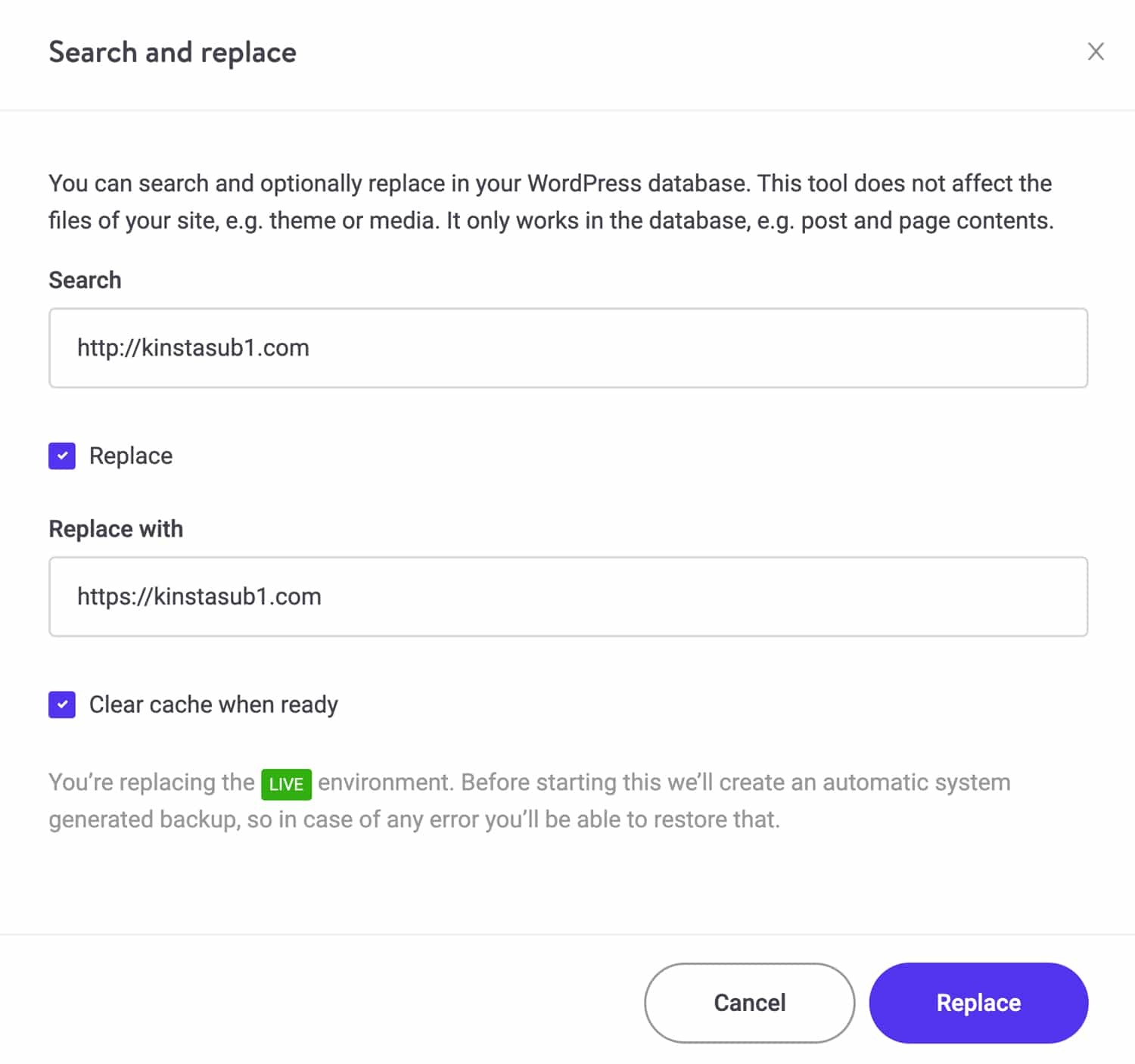
In case you have any HTTP URLs in your database, you’ll want to run a search and replace for your main site and each one of your subsites to replace HTTP URLs with HTTPS ones. To do this, go to your site’s Tools page in MyKinsta and click Search and replace. Be sure to select the Replace checkbox and specify your search term (HTTP URL) and replacement term (HTTPS URL).
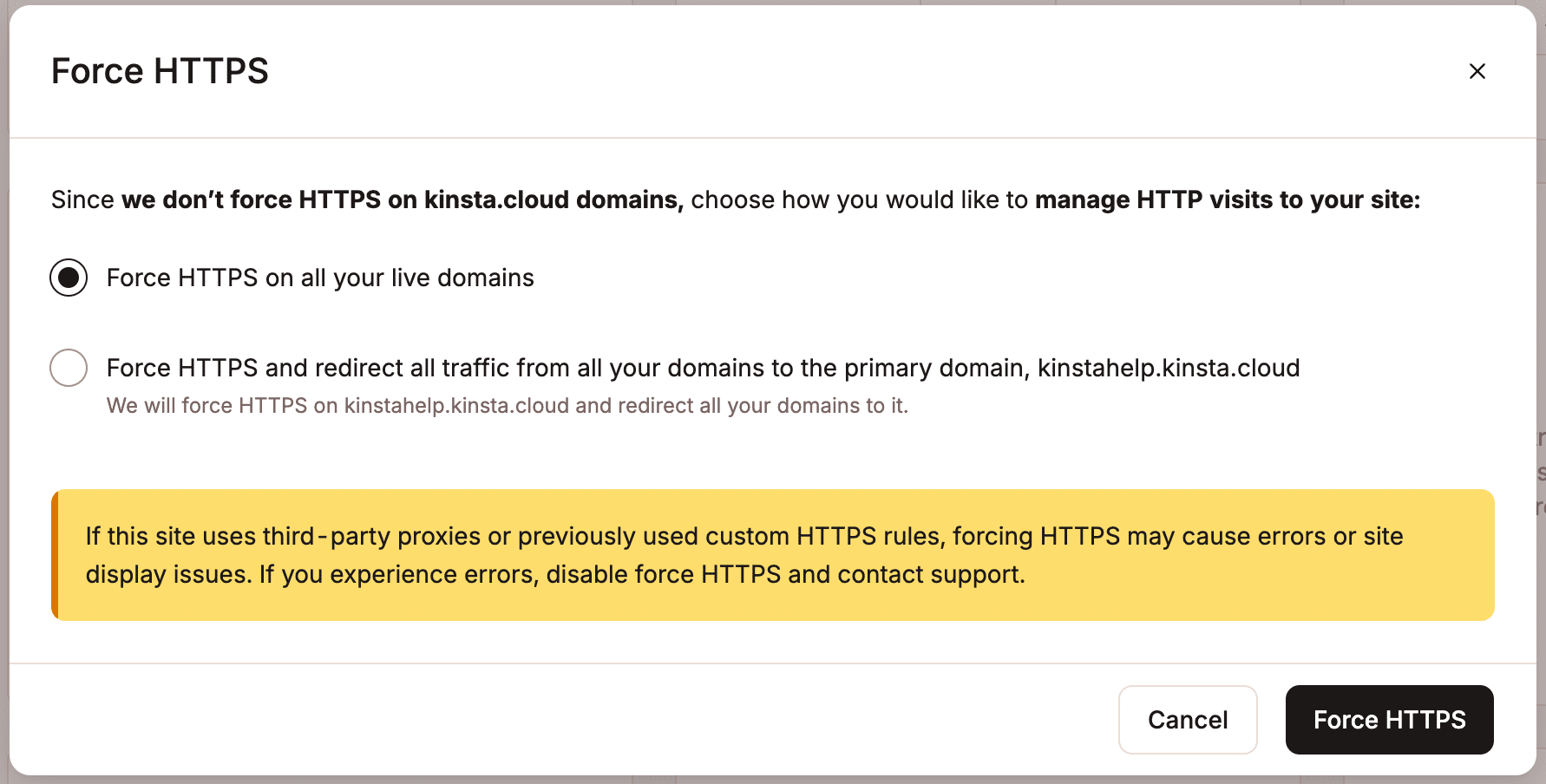
Next, you’ll want to enable Force HTTPS in MyKinsta to redirect all HTTP requests to HTTPS requests at the server level. To do this, click Enable under the Force HTTPS tool on your Tools page in MyKinsta. Be sure to select the Force HTTPS on all your live domains option. (If you select the option to redirect to your “primary domain,” other domains on the network will not be accessible.”
Summary
As you can see, setting up domain mapping for a WordPress multisite can be an involved and time-consuming process. If you require assistance in configuring any aspect of your multisite, we recommend working with an experienced WordPress developer. We hope you found this multisite walkthrough helpful, and let us know in the comments below if you have any questions!

Brian has a huge passion for WordPress, has been using it for over a decade, and even develops a couple of premium plugins. Brian enjoys blogging, movies, and hiking. Connect with Brian on Twitter.