Add as a preferred source on Google
A customer sees one checkout page. Behind it, your WordPress site may contact several services to process payment, check inventory, calculate shipping, and update your CRM. Plugins make those connections easy to set up. They don’t always make it obvious what happens when a service slows down or stops responding.
As you add integrations and AI features, more of your site’s everyday work depends on APIs. That makes those connections part of your hosting requirements, even if you think of the site as “just WordPress.”
In this article, we’ll look at how WordPress consumes APIs, why hosting affects integration performance, and how to keep a slow or failed request from disrupting the rest of your site. We’ll also cover what to monitor and what agencies should check before adding another dependency.
What it means for a website to consume APIs
When a website requests information from another system or asks it to carry out an action via its API, then it is functioning as an API consumer. For example, this may include getting a delivery quote from a shipping provider or instructing an email service to send an order confirmation.
You probably already connect APIs with the WordPress REST API, since it lets other programs retrieve content or perform actions permitted on your site. Using an API works the other way around: WordPress makes the request, and a different service provides the response. A website can do both.
Many familiar website features involve consuming external APIs:
- Payments: Submit a transaction to a payment processor.
- Inventory: Check stock levels in a warehouse system.
- Shipping and tax: Retrieve rates based on the customer’s location.
- Lead capture: Send details from user-submitted forms to a CRM.
- Email: Request a password reset or purchase confirmation email.
- Search and AI: Fetch search results, generate text, or analyze content.
Where and when these requests happen matters. A shipping quote may need to arrive before a customer can complete checkout. A CRM update can often wait until after the site confirms the form submission.
Some calls run directly in the visitor’s browser. Others run through WordPress on your server, either during a visitor’s request or through a scheduled background task. External services can also send webhooks to notify your site about an event, like a completed payment, which may trigger further API calls.
WordPress coordinates the services your site depends on
When you do most of your work in the WordPress dashboard, it’s easy to think the whole site runs there. But a plugin might check payment details with one service and subscription status with another before it lets somebody sign in. You manage those features in WordPress, even when outside services handle some of the work.
WordPress coordinates that work. It collects information, passes it to the appropriate service, and uses the response to decide what happens next. Look at where the site sends its work, and you’ll often find connections across the client’s business:
- Commerce: Taking payments, renewing subscriptions, getting shipping quotes, and checking stock.
- Marketing: Adding contacts to email lists, passing leads to the CRM, tracking visits, and filling in lead details.
- Content: Your site might use a separate search service, send pages out for translation, or rely on another platform to resize images and host videos.
- Identity: A visitor signs in with an account from another service, or WordPress checks an outside membership system before granting access.
- AI: A chatbot calls a model to answer a question. Other tools suggest products, flag inappropriate submissions, or draft content.
On a membership site, WordPress might manage accounts while a separate billing service collects subscription payments. The two need to stay in touch, though. When a payment goes through or fails, WordPress needs to know whether the visitor should still have access. Notably, that exchange happens throughout the subscription and not just at signup.
For an agency, this changes what counts as a “working website.” Pages can still load quickly, but a broken sync can leave people without access or send outdated inventory info to the storefront. Unfortunately, checking that WordPress runs properly only tells part of the story.
You also need to know which services the site relies on, what each connection does, and what happens when the expected response never arrives.
AI adds a further layer of API activity
Adding an AI feature often means connecting your site to another external service. A support assistant sends questions to a model API. A translation tool submits content and retrieves the translated version. An AI search feature may contact both a search service and a model before it returns an answer.
WordPress already handles outside connections for plenty of everyday tasks. But AI adds features that behave differently. Generating an answer may take longer than retrieving a shipping rate, and one question can trigger several requests. A support assistant, for example, might retrieve an order, look up a return policy, and pass that information to a model to prepare its response.
Automated workflows can also create bursts of activity. If a tool processes dozens of item descriptions at once, the site may make far more simultaneous requests than it does during routine browsing. Each provider has its own limits on how much work it accepts.
This actually illustrates the larger shift toward API-based development that’s already been quietly going on. Postman’s 2025 State of the API Report, based on more than 5,700 respondents, found that 82% of organizations had adopted some level of API-first development.
So, for your site, the practical question is: what happens while those calls run? Does WordPress wait for each answer? Can work still happen in the background? Can everyday site tasks like checking out and logging in still happen while the AI feature is busy?
Why hosting affects integrations
An API may run on someone else’s infrastructure, but your site still works to communicate with it. WordPress prepares the request, sends it, processes the response, and may save the result to your database. And all along the way, your hosting environment supports that work.
Consider a form that sends a lead to a CRM before showing a confirmation message:
- A visitor submits the form, and the server assigns the request to a PHP thread.
- The form plugin checks the submitted information and sends an API request to the CRM.
- If the call is synchronous, the PHP thread waits for the CRM’s response.
- The plugin processes the result, and WordPress returns an approval or an error message.
If the CRM takes several seconds to respond, that PHP thread remains occupied. It doesn’t necessarily use much CPU while waiting, but it can’t handle another request.
As Kinsta’s PHP documentation explains, each PHP thread processes one request at a time. When all available threads are busy, additional requests that need PHP have to wait. Several slow CRM calls can therefore affect unrelated activity, like customers opening their accounts or submitting checkout details.
That’s one reason monthly visitor counts don’t tell the whole story about a site’s hosting needs. But PHP threads are only part of the picture. Your hosting setup also affects how the site prepares requests, runs scheduled work, and tracks down problems:
- CPU and memory: WordPress needs both to assemble the data it sends, read the response, and update your records.
- Scheduling: A server-side schedule lets you run integrations at set times, even when nobody visits the site.
- Logs and monitoring: When a form takes ten seconds to submit, these tools help you see whether an outside call accounts for the wait.
- Room for busy periods: Several integrations may run alongside checkout, login, and other activity. The available resources determine how much of that work the site can handle at once.
Moving a CRM update into the background gets it out of the visitor’s way. The update still has to run, though, and your team needs to know if it fails.
Your host has no control over whether the CRM answers. What it provides is the capacity to run your integration and the tools to see what happens.
What happens when an API fails
An API problem doesn’t always take your website offline. Sometimes, the homepage loads normally while customers can’t get a shipping quote or new leads never reach your CRM. From a visitor’s perspective, the site is broken where they need it to work.
And what goes wrong depends on what the service is actually handling:
- Shipping: Your customer has to wait for delivery options to load because the shipping service takes too long to return a quote.
- Payments: A payment goes through, but the confirmation never reaches WordPress. Trying again without checking can charge the customer twice.
- CRM: A visitor fills out your form, but the CRM rejects the submission. You have the lead in WordPress, while your sales team has no record of it.
- AI: Your site hits the provider’s usage limit, and the AI feature stops accepting requests.
- Inventory: Stock updates stop coming through, so customers are left without knowing what’s actually available.
- Webhooks: The provider sends a notification twice, and your integration processes it both times, potentially duplicating an order update or email.
Some of these failures produce obvious errors. Others look similar to successful requests until you inspect the result.
A timeout leaves you with an unanswered question: did the action go through? WordPress stops waiting for a response, but the other service might still go ahead and process the request. Before you retry a payment or record update, check what actually happens on the other end.
Next, decide how your site should respond in each case. A CRM update can usually wait for another attempt. But something like a checkout error needs a useful message. Likewise, an uncertain payment may need someone to check its status.
Give your site a plan for slow or failed API calls
A customer shouldn’t have to wait for your email platform to add them to a mailing list before they see an order confirmation. Yet that can happen if a plugin tries to finish everything during checkout. Look through the calls your site makes and decide which ones need an immediate answer. You can often move the rest out of the customer’s way.
A few things to check as you go:
- Does this need to happen now? Send CRM updates and reporting tasks to a background queue when possible. Make sure you can see whether they finish. Moving a task into the background doesn’t help much if it quietly fails and nobody notices.
- How long does the site wait? Check the timeout settings in your plugins and custom code. Defaults don’t always make sense for the feature. Someone waiting for search suggestions has less patience than a scheduled import running overnight.
- Give retries a limit. A plugin can keep sending the same request long after there’s any point, so look at the error it gets back. If the service is busy or temporarily unavailable, space out the attempts, waiting longer each time and honoring any delay the provider specifies. Set a maximum so the job eventually stops retrying.
- A payment timeout gives you some checks to carry out. The provider might charge the customer even if the confirmation hasn’t reached WordPress, so you should look up that transaction before carrying out another charge. If the API supports idempotency keys, then use the original key each time you retry the same action. However, don’t overlook duplicate webhooks either. Keep a record of each event ID so that you can check your records when a notification comes through.
- Decide how old the data can be. Recommendations don’t necessarily need updating every time someone opens a page. Inventory might. Set your cache expiration around how quickly the information changes and how you use it.
- Plan what to show when a call fails. You can use a regular product list if the recommendation service doesn’t answer. With a payment, you need to tell the customer if you can’t confirm the outcome and show them how to check their order. Only display a success message when you know the action completes.
- Check how you handle credentials. Keep secret API keys on the server, with only the permissions the integration needs. They should never be stored in browser code or logs, and use different credentials for testing.
Test the changes in staging by making an API call take longer than usual or time out. While it waits, try checking out or signing in to see whether the delay affects anything else. Send the same webhook twice, too, and check that your site only acts on it once.
Follow the transaction through to its destination. You should find one order, not two, and the lead should show up in your CRM. When a background job fails, it needs to leave a useful trail so your team can track it down, see what went wrong, and retry it without duplicating the work.
More server capacity can help when the workload warrants it. First, though, check whether unnecessary calls, long waits, or repeated retries consume the capacity you already have.
Monitor the complete request path
When a client reports that checkout seems slow, you need to find out where the time goes. WordPress might spend it running plugin code, querying the database, or waiting for a shipping provider. Each cause calls for a different fix.
You can start by reproducing the affected action and checking the requests it triggers. You’ll want to include things like:
- Response times: Which services take the longest to respond?
- Errors and timeouts: Which calls fail, and what does the provider return?
- Rate limits and retries: Does the connected integration keep sending requests after the provider asks it to wait?
- Background jobs: Are any scheduled tasks actually finished, or do they fail?
- Webhooks: Does the site receive and process each event properly?
- Request origin: Which plugin, scheduled task, or visitor action starts the call?
Browser developer tools show requests made from the visitor’s browser. They can also reveal a long wait for your server, but they don’t explain everything WordPress does during that wait. For that, you need server-side monitoring.
Kinsta APM helps you investigate by recording PHP activity, database queries, and external HTTP calls. Its External tab highlights slow server-side requests, and transaction traces help you see where those calls fit into the WordPress operation.
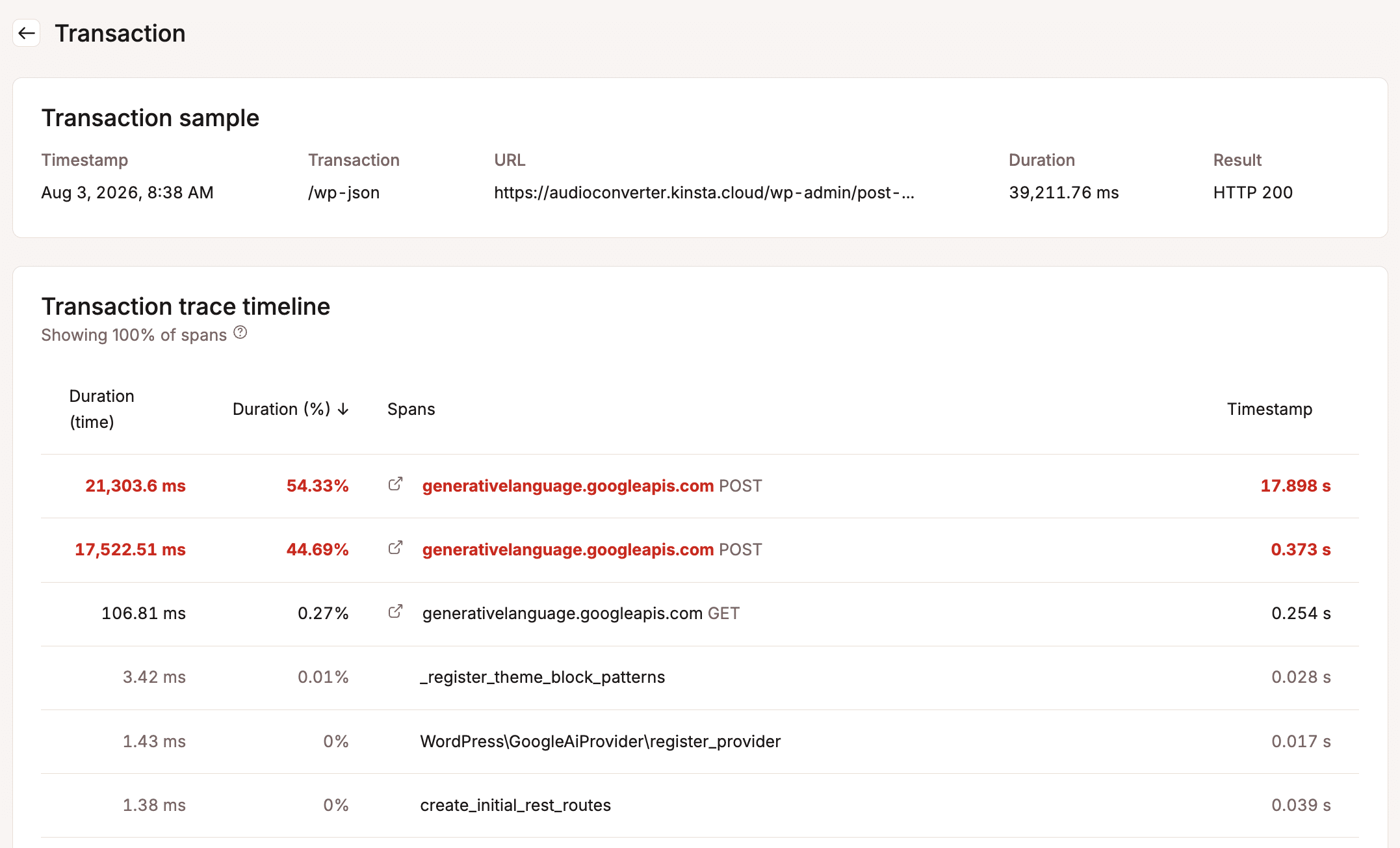
Compare those timings with your application logs and job records to get a look at the big picture. APM shows where a request slows down. The integration’s own records should show whether the data reaches its destination and whether a webhook changes the order.
After you swap out the connection you’re using, repeat the same workflow under similar conditions. Check both the response time and the result. A faster confirmation page is useful only if the work behind it still completes.
Look beyond the plugin list
A plugin list won’t tell you why an order never reaches fulfillment or a new lead disappears between the form and the CRM. So when you’re conducting site reviews and any other routine maintenance, take stock of the services behind those plugins, too.
For each client site, ask:
- What does WordPress hand off to outside services?
- Which calls hold up the visitor, and which jobs can wait until later?
- If a service slows down or goes offline, what happens on the site?
- How long does the integration wait before giving up on a request?
- Does it try again automatically? Could that create a second charge, record, or email?
- What data can you reuse, and when does it need refreshing?
- Where do the credentials live? Who can retrieve or replace them?
- Where can you check whether scheduled jobs and webhooks finish their work?
- If a request takes too long, can you find the plugin or process that sends it?
- Do your staging tests include failed calls and several requests running at once?
Save the answers in the site’s technical documentation, along with who’s responsible for each connection.
Kinsta’s staging environments, configurable PHP resources, server-side cron support, logs, and APM give agencies tools to test and investigate these workflows. Use them to assess what each site needs, then revisit that assessment when a client adds an integration or changes how an existing one works.
Your website is only as reliable as its connections
“Just WordPress” can involve a surprising number of handoffs. Follow a purchase, signup, or search from start to finish, and you may find several outside services along the way. Each sets its own pace and limits, and your site has to cope when one falls behind or stops answering.
You don’t have to overhaul the site. Instead, just pick a task your customers rely on, like checkout or signup, and see where it gets stuck. If an outside service never answers, does the customer at least get a useful message, or is your team informed that something needs attention? Those are problems you can start fixing now.
Hosting plays a part in that work. It provides the resources WordPress uses to process requests and the tools your team needs to investigate delays. Good integration design puts those resources to better use.
As your site takes on more business operations, plan for the services behind them. Explore Kinsta’s managed WordPress hosting for the infrastructure and developer tools to support that work.

Carlo is a passionate lover of webdesign and front-end development. He has been playing with WordPress for more than 20 years, also in collaboration with Italian and European universities and educational institutions. He has written hundreds of articles and guides about WordPress, published both on Italian and international websites, as well as on printed magazines. You can find him on LinkedIn.