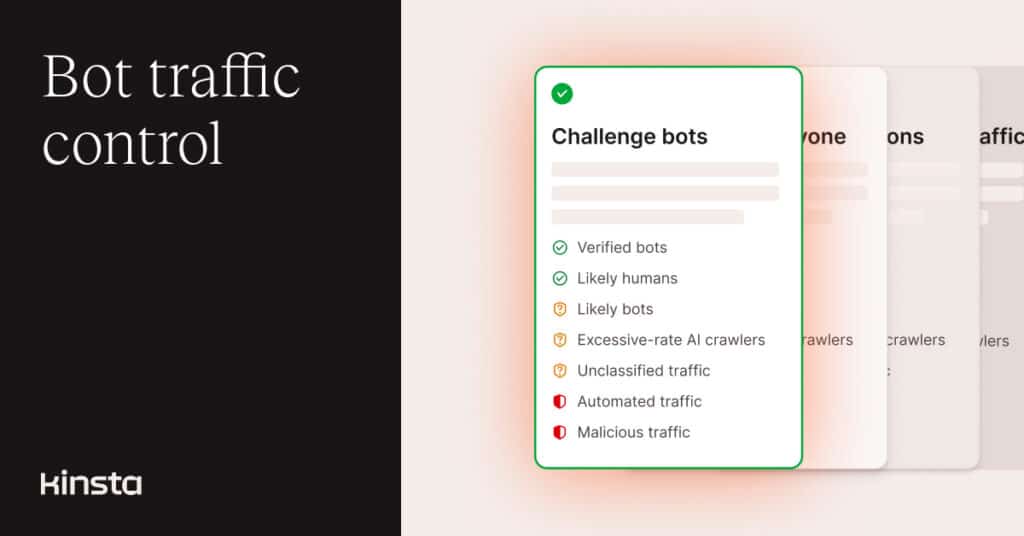
Remember those simpler days when there were “good” bots and ”bad” bots and everyone pretty much agreed on which were which? Today, the nature of automated web traffic is changing, and it’s changing fast.
Among those changes, the most visible to website owners is volume. In its 2026 Bad Bot Report, cybersecurity company Thales calculated that bots accounted for 53% of all web traffic the previous year, leaving humans to account for just 47%. Since the company’s 2025 report, automated traffic was up from 51%, while human traffic slipped from 49%.
The Thales report is subtitled “Bad Bots in the Agentic Age” because artificial intelligence is behind a new category of automated agents, many of which might be welcomed by some website operators but viewed as “bad” by others. And that’s not even counting the outright malicious bots made more effective by AI.
All this can affect websites in different ways, sometimes straining server resources, often skewing traffic metrics intended to capture human activity, and even leading to hosting-cost overages. That’s why Kinsta has launched new Bot protection tools in MyKinsta that help customers tailor automated traffic controls to their specific needs.
A Beta release for bot protection in MyKinsta
After feedback from some intrepid customers participating in a closed testing program, we are releasing the latest Beta version of Bot protection to everyone, making these defenses widely available while we work to make the tools even more effective.
You can get started for a single WordPress site by navigating to Sites > sitename > Bot protection:
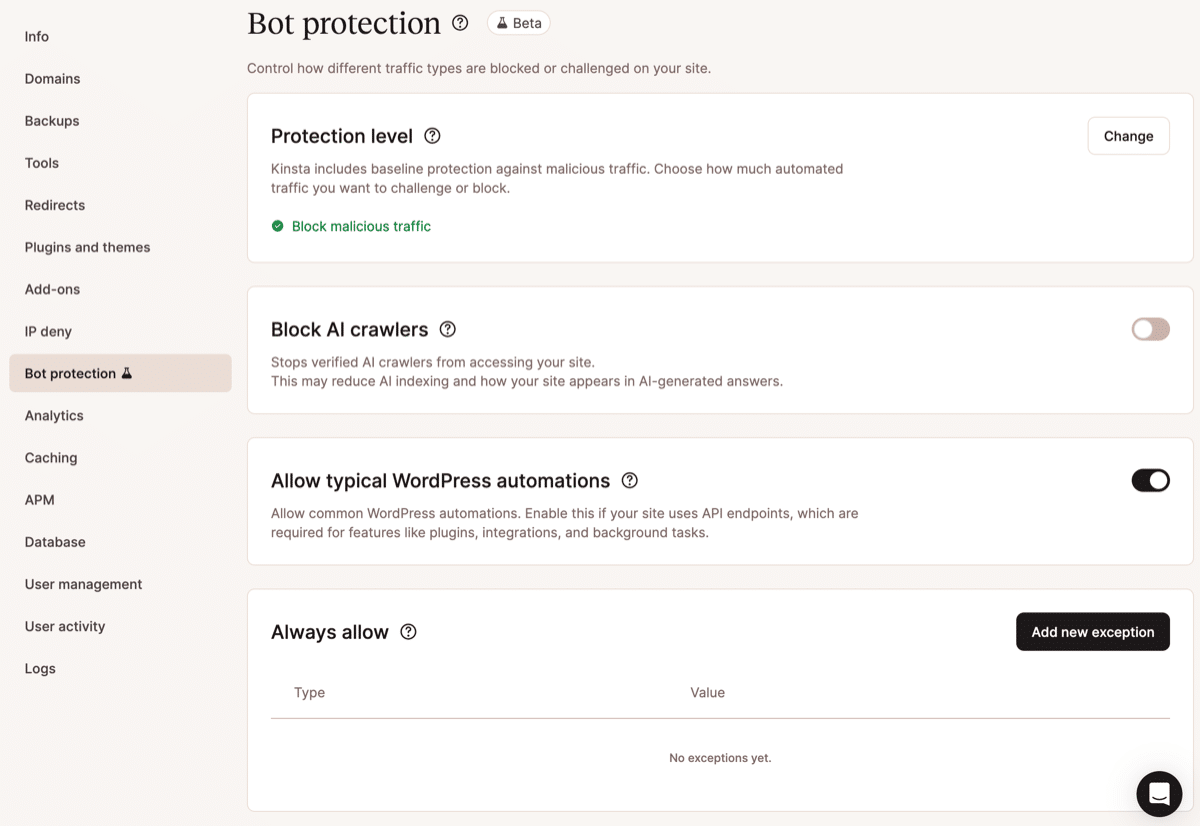
The new Bot protection page kicks off with the four tools that power the service:
- The Protection level chooser
- The Block AI crawlers toggle
- The Allow typical WordPress automations toggle
- An optional Always allow list of exceptions
We dig into each of these below, but if you continue to scroll down the page, you’ll see reporting on the previous 24 hours of automated traffic analysis and blocking:
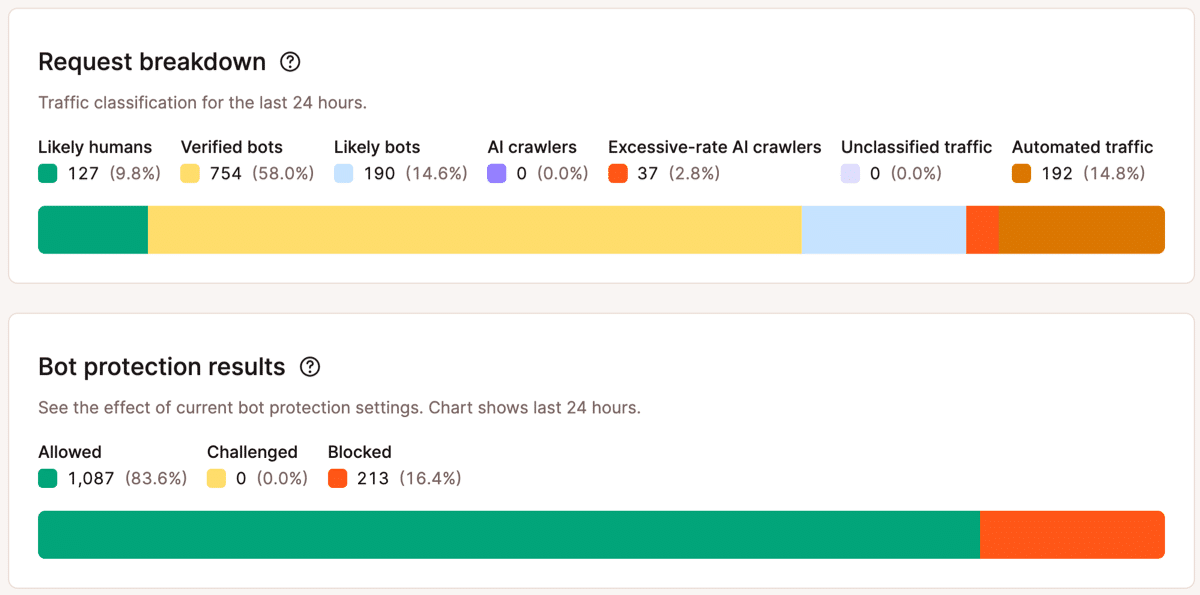
You can use the numbers in the Request breakdown chart to help you decide what bot traffic controls you might need, while the Bot protection results chart can help you determine if the current settings are effective.
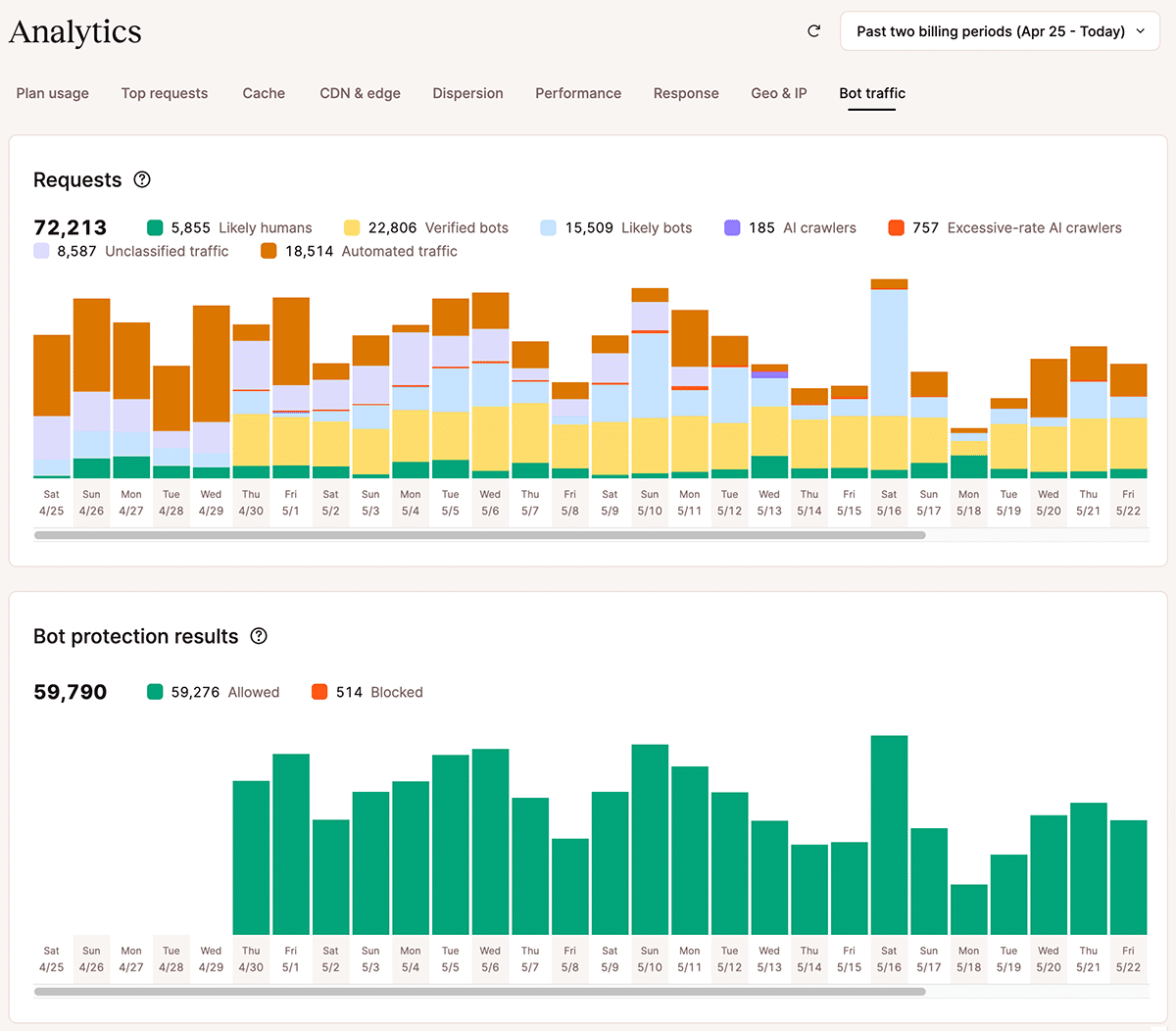
For a bigger picture, you can explore extended bot analysis data beyond the previous 24 hours by navigating to the analytics at Sites > sitename > Analytics > Bot traffic:
Choosing a bot protection level
When you click the Change button on the Protection level tool, you can choose from escalating levels of control over your website’s incoming traffic:
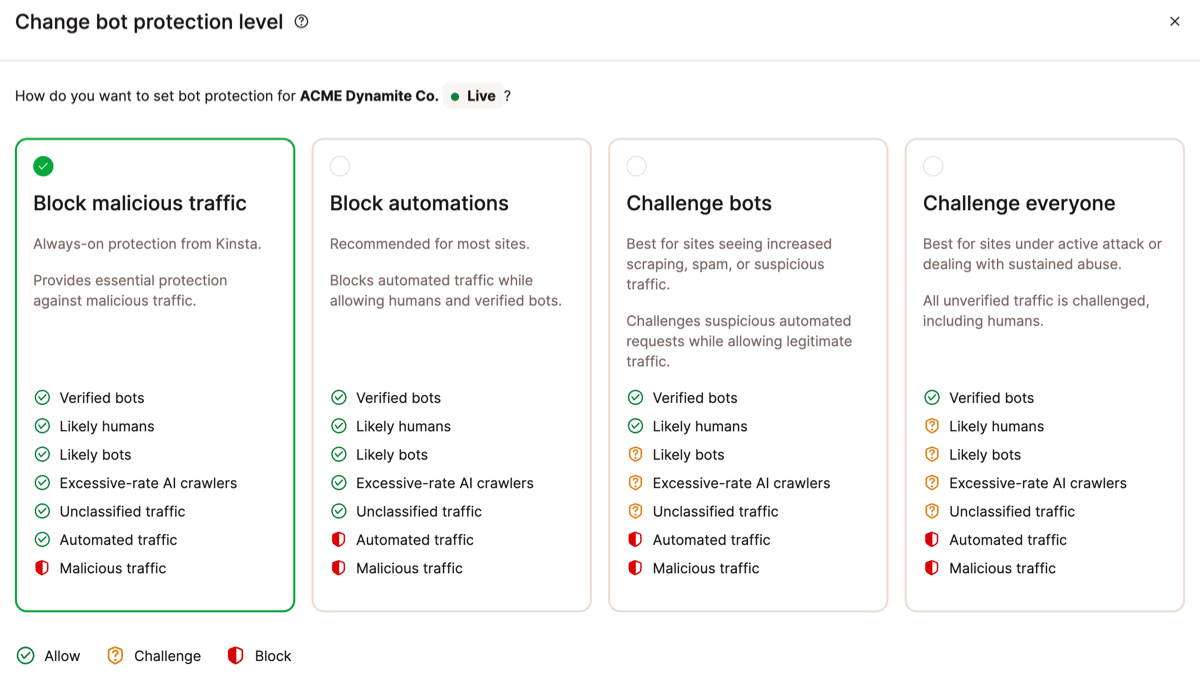
Here’s what those levels mean:
- Block malicious traffic: This is what we already do for all sites hosted on Kinsta’s platform. Malicious traffic includes DDoS mitigation and global rules for IPs and endpoints used exclusively by malicious traffic.
- Block automations: Adds automated traffic to the blocking. This does not include verified bots or even aggressive AI crawlers, but it can include legitimate tools like some WordPress management plugins, custom API integrations, uptime monitors, deployment scripts, or third-party services that make automated requests without proper identification.
- Challenge bots: Blocks automated and malicious traffic, and challenges likely bots and unclassified traffic. Verified bots like search-engine crawlers continue to be allowed, as are browsers that seem to belong to humans.
- Challenge everyone: “In case of fire, break glass” is one way to think of this selection. Website owners would be unlikely to choose this level for long-term use, but it can be an effective way to bring excessive traffic under control while the exact source of the problem is investigated.
Two of the levels above involve “challenges,” which can range from a quick test of the requesting device’s support of JavaScript to a full-blown CAPTCHA test.
Managing AI crawlers, automations, and adding exceptions
The Block AI crawlers and Allow typical WordPress automations toggles provide quick on/off switches for entire classes of bot traffic. Meanwhile, the Always allow exceptions means you can fine-tune even strict rules to permit access to your site for crawlers or tools you deem essential.
One site’s welcome AI crawler can be another site’s bad bot. If you decide AI crawlers bring no value, you can stop them using the Block AI crawlers toggle. If there are just certain AI crawlers you would like to permit, you can use the toggle in combination with entries in the Always allow exceptions for these.
If you Allow typical WordPress automations, Kinsta won’t block access to trusted WordPress endpoints and known third-party tools that integrate with sites through the REST API or perform other background tasks. Alternatively, you can block automations widely and provide specific exceptions in the Always allow list.
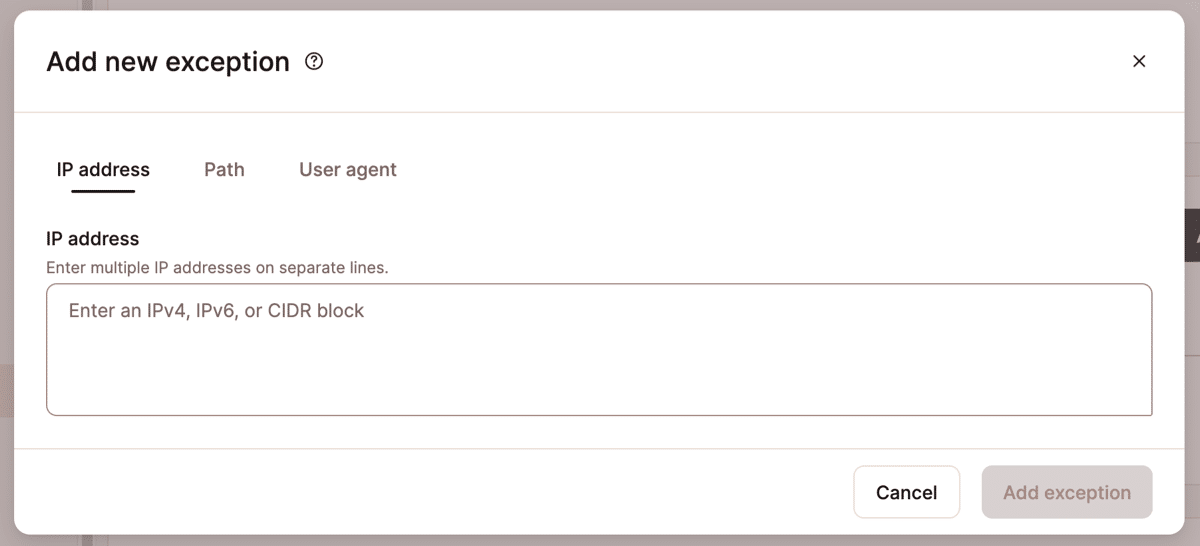
When adding a new Always allow exception, you can provide the IP address or user-agent name of the traffic source, or a target path on your website.
Bot protection in bulk
In addition to managing bot protection for individual sites, you can manage settings for multiple sites at once by selecting WordPress environments on the Sites page and then clicking the Actions button.
You can then choose to modify protection levels or enable and disable AI crawler blocking and WordPress automations:
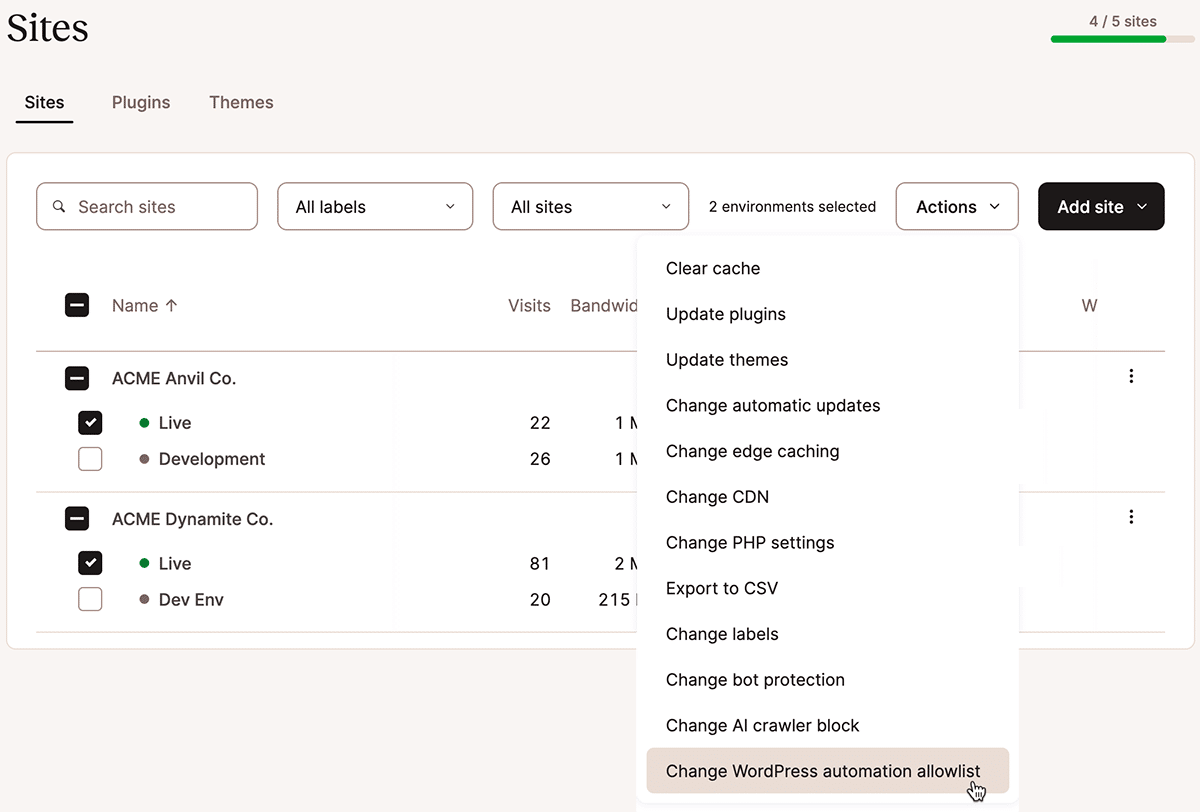
Making bot protection work for you
That’s just a quick tour of Kinsta’s new Bot protection tools. We have extensive documentation to help you learn more.
We recommend that you test your protection settings carefully to ensure you aren’t blocking important traffic. And don’t forget that this is a Beta release: we appreciate feedback that can help us make these tools even more useful to you.