Bot Protection
With Kinsta’s bot protection, you can control how different traffic types are blocked or challenged on your site.
Kinsta’s bot protection adds another layer to our built-in platform security. Our default protection blocks malicious traffic; this automatically filters malicious traffic aimed at specific endpoints and traffic coming from IPs linked to known threats. In addition to Kinsta’s internal security controls, Cloudflare’s enterprise-level firewall stops many attacks before they ever reach your server, using a strict ruleset to filter incoming traffic and block IPs associated with hacking attempts and DDoS attacks.
Kinsta also proactively monitors daily inbound traffic to detect threats and potential infections across the platform. To further protect your data, we employ hardware firewalls alongside active and passive security measures and other advanced safeguards to prevent unauthorized access. On WordPress sites, Kinsta’s Vulnerability protection plugin, powered by Patchstack, also blocks attempts to exploit known vulnerabilities in WordPress core, plugins, and themes.
By default, Kinsta’s platform-level defenses stop about 15–20% of traffic classified as malicious before it impacts your site. This foundational layer targets clearly harmful requests and known threat sources across the network. Because traffic behavior and business requirements differ from site to site, additional flexibility can be important. Kinsta’s bot protection enhances this baseline by allowing you to fine-tune how different categories of traffic are handled, whether to reduce load during peak activity or to apply stricter security controls.
Kinsta automatically excludes traffic from well-known and clearly identifiable bots from plan usage calculations. User agents that confidently identify themselves as bots or crawlers are filtered from analytics and do not count toward your usage.
Bot Protection, on the other hand, is designed to detect potentially automated, abusive, or suspicious traffic, even when it cannot be confirmed with absolute certainty. It analyzes traffic behavior and classifies requests into categories. For more information about these categories, refer to How traffic is classified in MyKinsta.
Because these classifications are based on probability and behavior analysis, traffic categorized as “Likely automated” may still count toward usage if the requests successfully reach your site. Only traffic that can be confidently identified as automated is automatically excluded from usage calculations.
If you notice large volumes of suspicious or likely automated traffic, enabling stricter Bot Protection settings, such as challenging or blocking likely bots, can help reduce the number of automated requests reaching your site and minimize their impact on performance and resource usage.
For a deeper look at bot traffic and its impact on WordPress sites, read Kinsta’s bot traffic reality check, which explores current trends and practical ways to manage unwanted bot traffic.
What is a bot?
Bots are requests identified as coming from automated software instead of human users. Kinsta maintains its own bot classification system, built on traffic patterns observed across our platform and industry standards, to identify and categorize automated traffic, particularly bots that generate large volumes of requests or place increased load on sites.
We complement this with Cloudflare’s machine learning based, real-time bot classification, which assigns visitors a score from 1 to 99, indicating how likely a request is automated. A score of 1 indicates that it is highly likely the request was automated, while a score of 99 indicates that the request most likely originated from a human.
How traffic is classified in MyKinsta
In MyKinsta, traffic is classified by the following categories:
- Verified bots: Automated traffic from legitimate, verified companies, such as Google, Bing, monitoring, and SEO tools. Kinsta allows most verified bots, regardless of the selected bot protection level. Verified bots include those listed on Cloudflare’s official verified bot list, such as the Kinsta uptime bot, major search engine crawlers, many API bots (including WordPress management tools), and AI bots.
In addition, Kinsta applies its own classification rules on top of this list. AI crawlers and excessive-rate crawlers may be reclassified even if they are verified bots, ensuring automated traffic that generates significant load is categorized and managed appropriately.
The verified bots we do allow ensure your SEO, search rankings, and visibility in AI-driven tools are never negatively affected. - Likely humans: Real visitors who are most likely human with normal browsing behaviour. These have bot scores between 30 and 99.
- Likely bots: Unverified automation detected; these visitors are most likely bots, with bot scores between 2 and 29.
- Unclassified traffic: Traffic that could not be confidently classified, a very small amount of traffic, and typically harmless. This traffic usually consists of internal service requests that do not impact the origin server, such as requests generated when your site returns an error page. This represents less than 0.07% of total traffic, and only about one-third of that traffic is ultimately served.
- Automated traffic: Confirmed automated requests generated by software rather than human users. This traffic is definitively identified as bot activity with a bot score of 1. When you set Kinsta’s bot protection to anything higher than block malicious traffic, it blocks automated traffic.
This category may include legitimate tools and services that connect to your site but are not classified as verified bots, such as certain WordPress management tools, custom API integrations, uptime monitors, deployment scripts, or third-party services that make automated requests without proper identification.
If you rely on any of these tools for your WordPress site and increase Kinsta’s bot protection above block malicious traffic, we recommend checking that they are listed on Cloudflare’s Verified Bots list. If the service is not listed, the service vendor can register it for verification to prevent it from being blocked; this registration may take some time. - Malicious traffic: Attack, DDoS, and abuse traffic. Traffic that is automatically blocked for all sites as part of Kinsta’s default security protection. This includes DDoS mitigation and global rules for IPs and endpoints used exclusively by malicious traffic. Kinsta combines these protections with continuous monitoring, hardware firewalls, and advanced security measures to keep your site safe. While baseline security filters approximately 15-20% of malicious traffic before it reaches your site, evolving bots that mimic real users may still require additional protections, such as a higher level of Kinsta’s bot protection.
- AI crawlers: An AI crawler is a bot that scans and collects content from websites to be processed by AI systems. They are similar to traditional search engine crawlers, but instead of only indexing pages for search results, they gather data to train, analyze, or power AI models. Some AI crawlers clearly identify themselves and their purpose when accessing your site, such as Cloudflare-verified bots and GPTBot. Others may generate significant traffic by making frequent requests, including to uncached assets, which can impact site performance.
- Excessive rate AI crawlers: AI crawlers generating unusually high volumes of requests that may negatively impact server performance or resource usage. This traffic may come from users interacting with legitimate verified bots or AI tools, as well as automated systems spoofing user agents to appear legitimate. In some cases, poorly configured or unsupervised AI agents may unintentionally generate excessive requests. If you set Kinsta’s bot protection to Challenge bots or Challenge everyone, excessive-rate AI crawlers are challenged automatically. This allows legitimate users or verified services generating high volumes of requests to confirm they are human by successfully completing the challenge.
What is a challenge?
A challenge adds a verification step that helps determine whether incoming traffic comes from a real user or automated software. Rather than immediately allowing or blocking a request, challenges act as a filter, allowing legitimate visitors through while stopping many unwanted bots.
When a visit is challenged, the request is temporarily held while the visitor completes a verification step to prove they are legitimate. This approach helps reduce abusive or automated traffic while minimizing disruption for real users.
The verification step can include:
- A browser-based challenge (for example, JavaScript checks)
- A CAPTCHA or interactive test
- Background validation that runs automatically without user interaction
If the challenge is completed successfully, the request is allowed, and the visitor can continue to the site. If the challenge fails or cannot be completed, the request is blocked. Legitimate human visitors typically pass these checks with little to no visible interruption, while the vast majority of automated requests are unable to complete the verification process.
If a visitor completes the challenge successfully, they won’t be challenged again for at least 10 days as long as they continue using the same browser and IP address.
When to enable a higher level of Kinsta’s bot protection
You have full control over when and how to use Kinsta’s bot protection, and you may enable a higher level of protection at any time, including continuously, if it meets your site’s needs. That said, because bot protection can affect how visitors and integrations interact with your site, it’s best used intentionally and with awareness of potential trade-offs.
We recommend enabling a higher level of bot protection in the following situations:
- During a traffic spike: If your site experiences a sudden surge in traffic, enabling a higher level of Kinsta’s bot protection can quickly reduce malicious load without blocking all visitors. To identify spikes in traffic, you can use the Visits chart within Sites > sitename > Analytics > Plan usage.
- Performance issues: If your site experiences performance problems, enabling a higher level of Kinsta’s bot protection can help determine whether automated traffic is contributing to the increased load on your site. To identify performance issues, use the Performance charts within Sites > sitename > Analytics > Performance.
- Evaluating suspicious traffic: If you’re seeing unusual behavior but don’t want to fully block it yet, enabling a higher level of Kinsta’s bot protection allows you to observe whether traffic can pass verification before taking stricter action.
Example use cases
You may want to enable a higher level of bot protection in scenarios such as:
- An e-commerce site receiving fake checkout attempts or cart spam: You may notice unusually high numbers of abandoned carts, fake orders, spam registrations, or repeated requests to checkout and cart pages from unknown locations or IP addresses.
- A membership site experiencing login brute-force attacks: You may see repeated failed login attempts, locked user accounts, spikes in traffic to the login page, or security plugin alerts about suspicious authentication activity.
- A content-heavy site being aggressively scraped by AI crawlers: You may notice sudden spikes in traffic, unusually high bandwidth or server resource usage, increased requests to articles or documentation pages, or crawler activity in your logs and analytics.
- A marketing site seeing excessive bot traffic inflate analytics data: Analytics may show unusually high visitor counts, unrealistic engagement metrics, suspicious referral traffic, or large volumes of visits with little or no real user interaction.
- A high-traffic launch or sale event where you want stricter protection against abusive traffic: You may want to proactively reduce the impact of bots attempting to scrape inventory, abuse forms, overwhelm the site, or gain unfair access during periods of increased traffic.
Considerations for long-term or continuous use
While a higher level of bot protection can be left enabled long-term, doing so may introduce side effects, including:
- User experience: If you challenge everyone, even lightweight challenges add a brief verification step for visitors. For most users, this happens smoothly and only once within a longer period, allowing subsequent requests to pass without interruption. While a small percentage may notice a slight delay, particularly on mobile devices or slower connections, this approach can significantly reduce hidden bot traffic while maintaining a balanced user experience.
- Accessibility concerns: Some challenges (particularly CAPTCHAs) can be difficult or impossible for users relying on assistive technologies.
- Legitimate automation: Non-verified APIs and automated services will be blocked or challenged, potentially disrupting integrations. You should review your business-critical integrations and any third-party tools that connect to your site to ensure they are listed on Cloudflare’s Verified Bots list. If your service is not on the list, it can be registered for verification. Common examples include custom integrations, self-hosted monitors, or deployment automation.
- SEO and performance considerations: Widely recognized search engine bots, including Google and Bing, are part of the verified bot directory and are not affected. However, lesser-known SEO crawlers or specialized tools that are not verified could be subject to challenges.
Ultimately, deciding when to use bot protection and what level of protection is up to you. We recommend testing changes carefully and adjusting settings based on your site’s traffic patterns, performance, and user experience goals.
If bot protection interferes with plugins, integrations, or API functionality, enable Allow typical WordPress automations or add a custom exception in Exceptions.
Kinsta bot protection with external security layers
Cloudflare can be used alongside Kinsta’s bot protection, as long as you do not enable Cloudflare’s WAF or bot protection features. When both are in place, Cloudflare evaluates traffic first. Any requests blocked at that layer will never reach Kinsta, meaning Kinsta’s bot protection only applies to traffic that passes through Cloudflare.
We do not recommend combining Kinsta’s bot protection with additional custom bot protection rules. Running multiple bot protection layers can lead to conflicting classifications, where legitimate traffic may be incorrectly flagged as bots and blocked. In some cases, this can disrupt normal traffic or even prevent access to your site entirely.
Kinsta’s bot protection cannot be used with third-party platforms such as AWS, Microsoft Azure, Sucuri, Fortinet, another CDN, or a reverse proxy setup. This is because the original source of the traffic cannot be reliably identified, and therefore, it is unable to determine if the request is automated or human.
Kinsta bot protection and custom WAF rules
If you have Kinsta-managed custom rules configured by Kinsta Support, the following notice appears in Bot Protection:

Both Kinsta’s managed bot protection rules and any Kinsta-managed custom rules or Exceptions are evaluated for incoming requests.
In most cases, Kinsta’s bot protection rules are evaluated first. If a request matches one of these rules, the corresponding action (allow, block, or challenge) is applied. If the request doesn’t match a managed rule, any applicable Kinsta-managed custom rules are then evaluated and may allow or block the request.
In some cases, a Kinsta-managed custom rule can be configured to run before Kinsta’s bot protection rules. When this happens, the custom rule takes precedence. For example, a rule that allows all traffic and bypasses the WAF prevents Kinsta’s bot protection and other managed security rules from being applied to those requests.
If you’d like more information about the Kinsta-managed custom rules applied to your site, or you need to modify your custom rules or exceptions, contact our Support Team.
Change the bot protection level
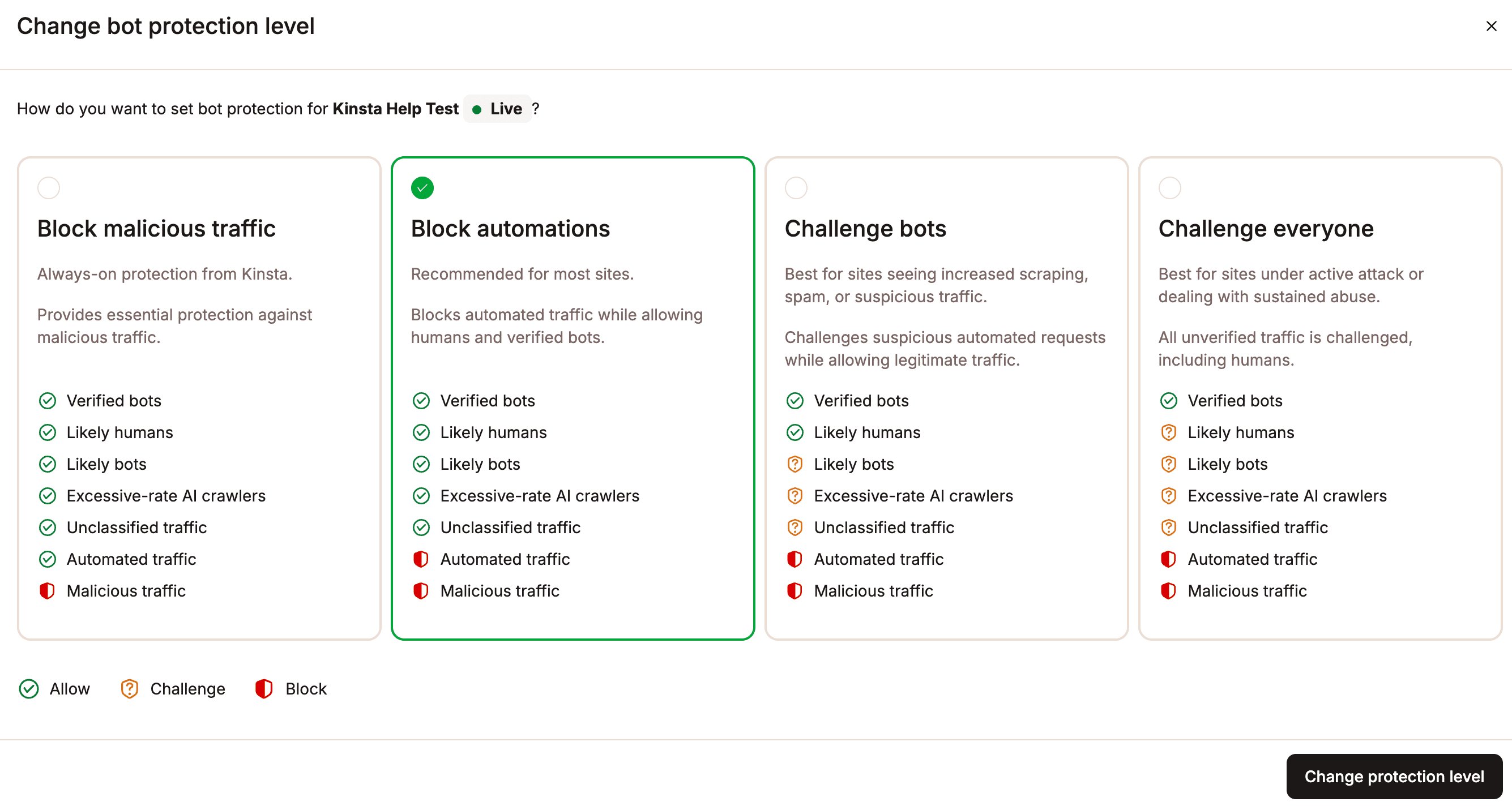
To change your level of bot protection for a single site, go to Sites > sitename > Bot protection, and within Protection level, click Change.
To change the protection level for multiple sites at once, go to the Sites page, select the checkboxes next to the sites you want, click Actions, then Bot protection, and choose Change bot protection level.
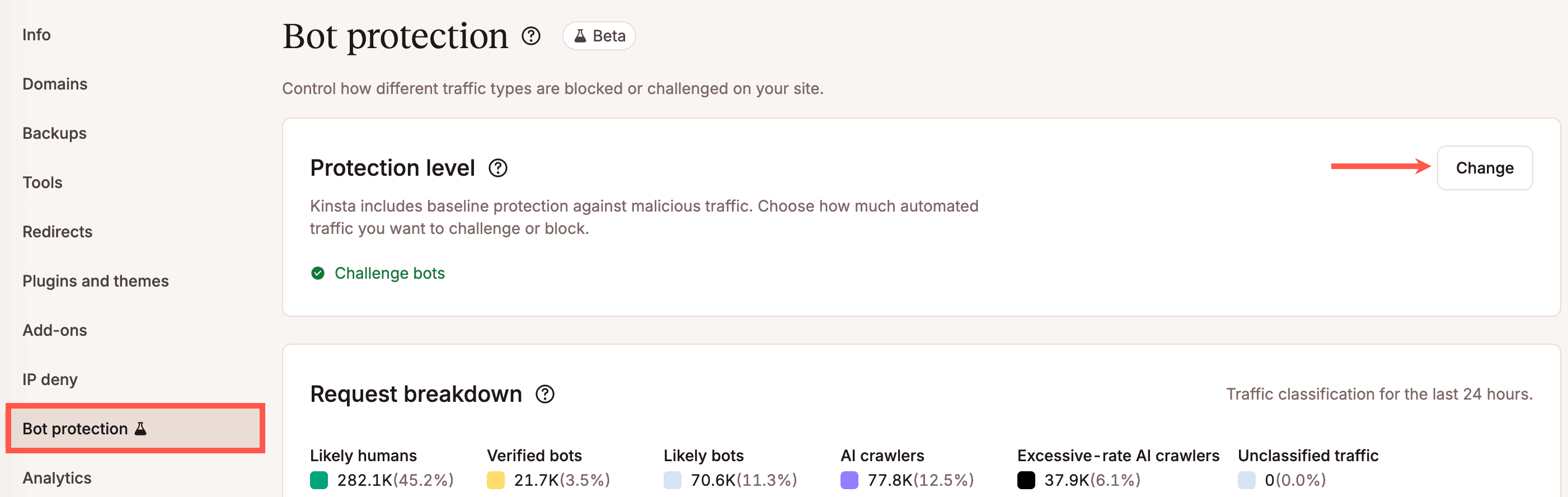
You can then choose from the following:
- Block malicious traffic: This is the default protection provided by Kinsta. Malicious traffic is automatically blocked for all sites as part of Kinsta’s baseline security protection. This includes DDoS mitigation and global rules for IPs and endpoints used exclusively by malicious traffic.
- Block automations: Blocks both automated and malicious traffic.
- Challenge bots: Blocks automated and malicious traffic, and challenges likely bots and unclassified traffic.
- Challenge everyone: This is the highest level of protection. It blocks automated and malicious traffic, and it challenges likely humans, bots, and unclassified traffic.
For a breakdown of each traffic type, refer to How traffic is classified in MyKinsta.
The icons within each section represent the following:
 Allow: This traffic is allowed with no challenges.
 Challenge: This traffic is challenged and only allowed if it passes the challenge. To find out more about challenges, refer to What is a challenge?
 Block: This traffic is blocked.
Once you select the protection level, click Change protection level.
Request breakdown
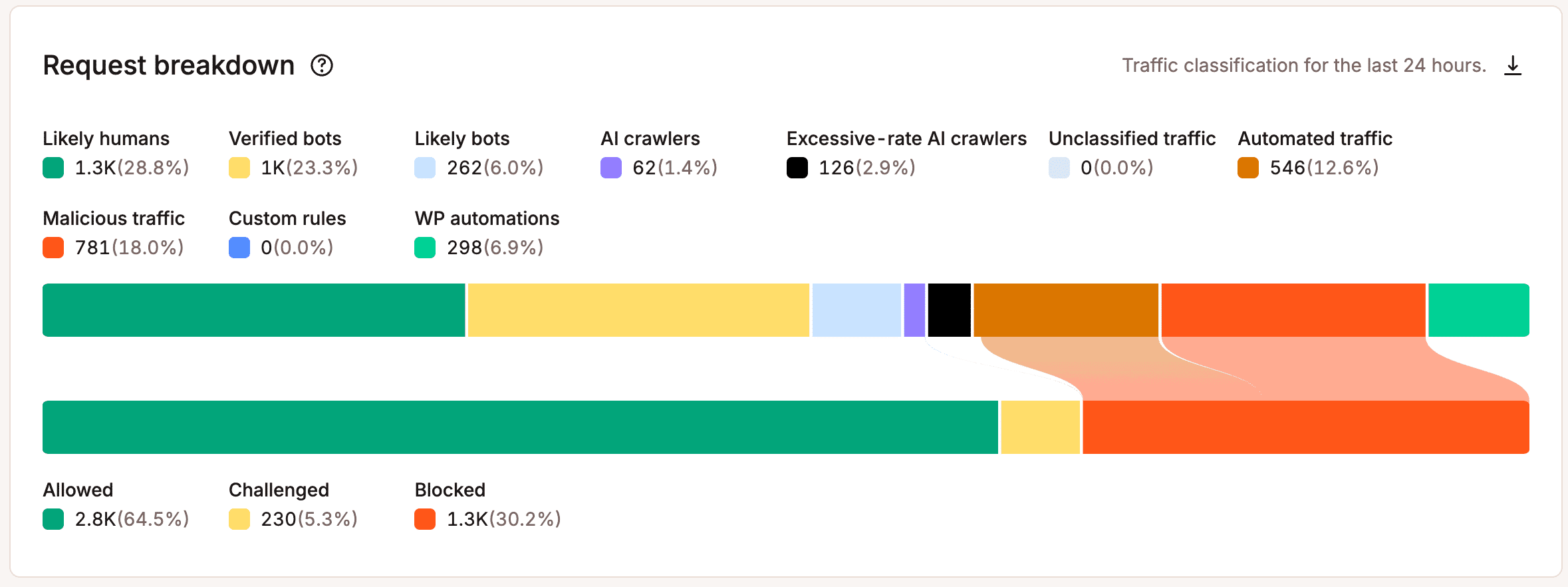
This chart shows all requests made to your site in the past 24 hours and how Kinsta classified each one. It includes:
- Likely humans: Traffic from real visitors who show normal browsing behavior and are most likely human.
- Verified bots: Automated traffic from legitimate, verified companies, such as Google, Bing, monitoring, and SEO tools.
- Likely bots: Traffic from unverified automation that is most likely generated by bots.
- AI crawlers: Traffic from bots that scan and collect website content to train, analyze, or power AI models.
- Excessive-rate AI crawlers: Traffic from AI crawlers making requests at a rate that overloads server resources.
- Unclassified traffic: Typically harmless traffic, usually internal service requests (such as error page requests) that don’t impact your origin server.
- Automated traffic: Requests confirmed to be generated by software rather than human users. This can include legitimate tools that aren’t classified as verified bots, such as WordPress management tools, custom API integrations, uptime monitors, or deployment scripts.
- Malicious traffic: Attack, DDoS, and abuse traffic.
- Custom rules: Requests that matched any Kinsta-managed custom rules configured on your site.
- WP automations: Automated requests from common WordPress features, integrations, and background tasks. These can be allowed or blocked within Allow typical WordPress automations.
For more information about each traffic type, refer to How traffic is classified in MyKinsta.
Hover over a request type to see a bar showing how many of those requests were:
- Allowed: Requests that were allowed to access your site.
- Challenged: Requests that were challenged, failed verification, and were blocked as a result.
- Blocked: Requests that were blocked immediately based on your configured bot protection levels.
You can also view charts for Requests, Bot protection results, and Top traffic within Analytics.
Block AI crawlers
An AI crawler is a bot that collects content from websites to train, analyze, or power AI models. Some identify themselves clearly, such as GPTBot and other Cloudflare-verified bots. Others make frequent requests, including to uncached assets, which can affect site performance.
The Block AI crawlers setting blocks these crawlers entirely, including verified ones. This can reduce unwanted traffic and server load, and help you work out whether bots are behind high traffic or performance issues.
This setting doesn’t block:
- Search engine crawlers: Such as Googlebot and Bingbot.
- AI search crawlers: Bots that index content so it can appear in AI search results, such as
OAI-SearchBotandClaude-SearchBot. - User-initiated AI agents: Requests made when a person asks an AI tool to visit a page, such as
ChatGPT-User.
However, if any of these generate excessive requests or access pages they shouldn’t, they may be classified as excessive rate AI crawlers and challenged when your protection level is set to Challenge bots or Challenge everyone.
Blocking AI crawlers may still reduce how often your content is used or referenced by some AI tools, so monitor your traffic after making changes.
If blocking AI crawlers interferes with plugins, integrations, or API functionality, enable Allow typical WordPress automations or add a custom exception in Exceptions.
To block AI crawlers for a single site, go to Sites > sitename > Bot protection, and click the slider on Block AI crawlers.
To block AI crawlers for multiple sites at once, go to the Sites page, select the checkboxes next to the sites you want, click Actions, then Bot protection, and choose Change AI crawler block.

Example use cases
You may want to block AI crawlers in scenarios such as:
- AI crawlers aggressively scraping blog content: You may notice unusually high traffic to articles, tutorials, or archive pages, increased bandwidth usage, or large numbers of automated requests that provide little real user engagement.
- Large language model (LLM) training bots indexing documentation or articles: Some AI companies crawl public websites to collect content for training or improving AI models. You may want to restrict this activity to reduce server load or limit automated collection of your content.
- AI agents repeatedly crawling dynamic pages or search results: AI-powered browsing tools or agents may continuously request search pages, filters, APIs, or dynamically generated content, increasing server resource usage and affecting site performance.
- Automated AI browsing tools generating unusually high request volumes: AI assistants, research tools, or automation platforms may generate large numbers of requests in a short period of time, sometimes behaving similarly to abusive bots or crawlers.
- Protecting premium, gated, or proprietary content from automated collection: If your site contains subscriber-only content, internal documentation, paid resources, or proprietary information, you may want to reduce automated scraping or indexing by AI systems.
- Reducing infrastructure costs caused by excessive automated traffic: High volumes of AI crawler traffic can increase bandwidth usage, uncached requests, and server load, particularly on content-heavy or documentation-focused websites.
- Preventing analytics distortion from automated traffic: AI crawlers and automated browsing tools may inflate page views, visitor counts, or engagement metrics, making it harder to accurately measure real user activity.
Allow typical WordPress automations
This setting allows common WordPress features, integrations, and background tasks that rely on automated requests to your site.
Kinsta maintains a managed allowlist (which may change over time) of trusted WordPress endpoints, tools, and third-party services commonly used by WordPress sites.
Enable this setting if your site uses:
- Plugins or integrations (such as SEO tools, forms, or analytics).
- The WordPress REST API (
/wp-json/). - Background tasks such as scheduled posts, updates, cron jobs, or data syncing.
Requests originating from within the site’s own container or Kinsta-managed internal infrastructure are automatically allowed and are not affected by this setting. This includes internal requests to endpoints such as /wp-json/* and Kinsta-managed WordPress automation tasks, such as WP-Cron. In most cases, blocking external requests to these endpoints will not affect normal WordPress functionality because core scheduled tasks continue running internally.
Kinsta’s internal IP allowlist is built into the platform, ensuring core WordPress functionality and Kinsta-managed services continue to work even when stricter bot protection settings are enabled.
If you prefer stricter bot protection and more granular control over automated traffic, you can leave this setting disabled and manually configure exceptions in Exceptions.
This setting is disabled by default. If this setting is disabled while stricter bot protection is enabled, some plugins, integrations, or automated WordPress functionality may be blocked or challenged unexpectedly.
To enable Allow typical WordPress automations for a single site, go to Sites > sitename > Bot protection, and click the slider on Allow typical WordPress automations.
To allow typical WordPress automations for multiple sites at once, go to the Sites page, select the checkboxes next to the sites you want, click Actions, then Bot protection, and choose Change WordPress automation allowlist.

Example use cases
- WooCommerce stores: Syncing orders, inventory, subscriptions, or customer data with third-party services.
- Contact form plugins: Sending submissions to CRMs, help desk systems, or email marketing tools.
- SEO plugins: Accessing the WordPress REST API (
/wp-json/) for indexing, metadata, or sitemap functionality. - Scheduled posts, WP-Cron tasks, automatic updates, or background processing: Running automatically within WordPress.
- Analytics, translation, search, or optimization services: Communicating with your site in the background.
- Mobile apps or headless WordPress frontends: Using the REST API to retrieve or update content.
- Automation platforms and integrations: Such as Zapier, Make (Integromat), Slack, or webhook-based services.
- External monitoring or uptime services: Regularly checking your site’s availability or performance.
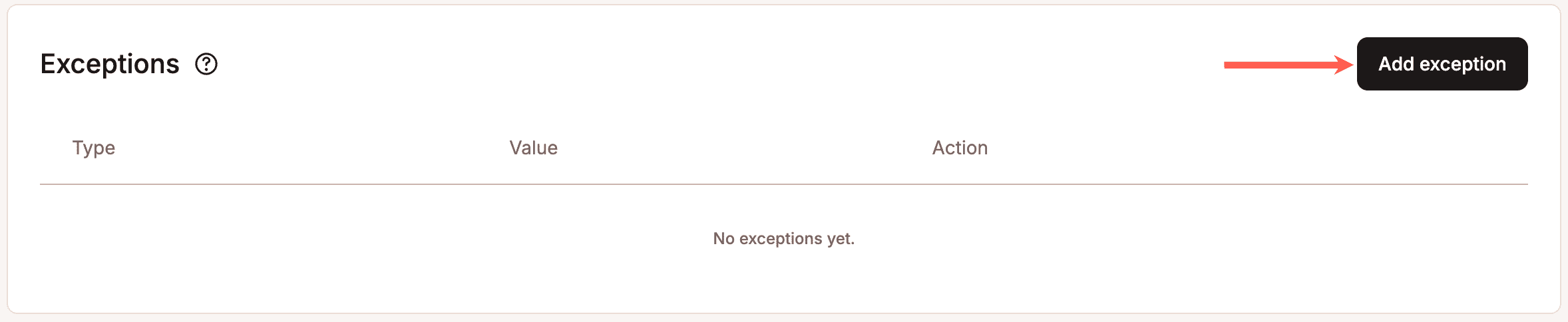
Exceptions
In the Exceptions section, you can allow, challenge, or block access to your site for specific IP addresses, paths, user agents, or countries regardless of the bot protection level enabled.
This is useful for defining how bot protection treats specific traffic, for example, always allowing trusted services like monitoring tools or known-safe IP addresses, or challenging or blocking traffic from sources you don’t trust, such as specific countries or suspicious user agents.
Exception priority
These exceptions bypass bot protection challenges and blocking rules, but they don’t override Vulnerability protection or Kinsta’s other platform-level security. Attempts to exploit known vulnerabilities on your site are still blocked, even from sources you’ve allowed. Other requests identified as malicious, or that violate platform-level security rules, may also be blocked to help protect your site and the Kinsta platform.
Separately from Kinsta’s security protections, when multiple of your own exceptions could apply to the same request, they’re evaluated in a fixed priority order: Allow, then Challenge, then Block. The exceptions are listed in the order that they apply.
If more than one exception matches, the highest-priority action wins; Allow always takes precedence over Challenge and Block, and Challenge takes precedence over Block.
This matters most when exceptions overlap. For example, if you allow an entire country but also block a specific IP address, user agent, or path, requests from that country are still allowed, even if they also match one of your block rules, because Allow outranks Block.
Example:
- You add an exception to allow the country
Germany. - You also add an exception to block the user agent
BadBot. - A visitor from Germany using the BadBot user agent sends a request.
- Because the request matches both an Allow rule (
Germany) and a Block rule (BadBot), the Allow rule takes priority, and the request is allowed through.
To block that specific bot even from an otherwise-allowed country, you’d need a more targeted rule, for example, blocking that user agent without a broader country-level allow rule in place, or using IP address-level exceptions instead, since these don’t automatically override each other by type; priority is based purely on the action (Allow/Challenge/Block), not which field (IP, path, user agent, country) the exception uses.
The same logic applies between continents and countries. If you allow a continent, you can’t then block a single country within it; the continent-level Allow still takes priority, since Allow outranks Block regardless of how specific the Block rule is.
Example:
- You add an exception to allow the continent
Europe. - You also add an exception to block the country
Germany. - A visitor from Germany sends a request.
- Because the request matches both the Allow rule (
Europe) and the Block rule (Germany), the Allow rule takes priority, the request is allowed through, and the country-level block has no effect.
If you need to exclude a specific country from an otherwise-allowed continent, you can’t do this with a Block rule; instead, avoid allowing the whole continent, and add individual country-level Allow exceptions for just the countries you want to permit.
Add an Exception
To add an exception for a single site, go to Sites > sitename > Bot protection, and within Exceptions click Add exception.
To add exceptions for multiple sites at once, go to the Sites page, select the checkboxes next to the sites you want, click Actions, then Bot protection, and choose Add bot protection exception.
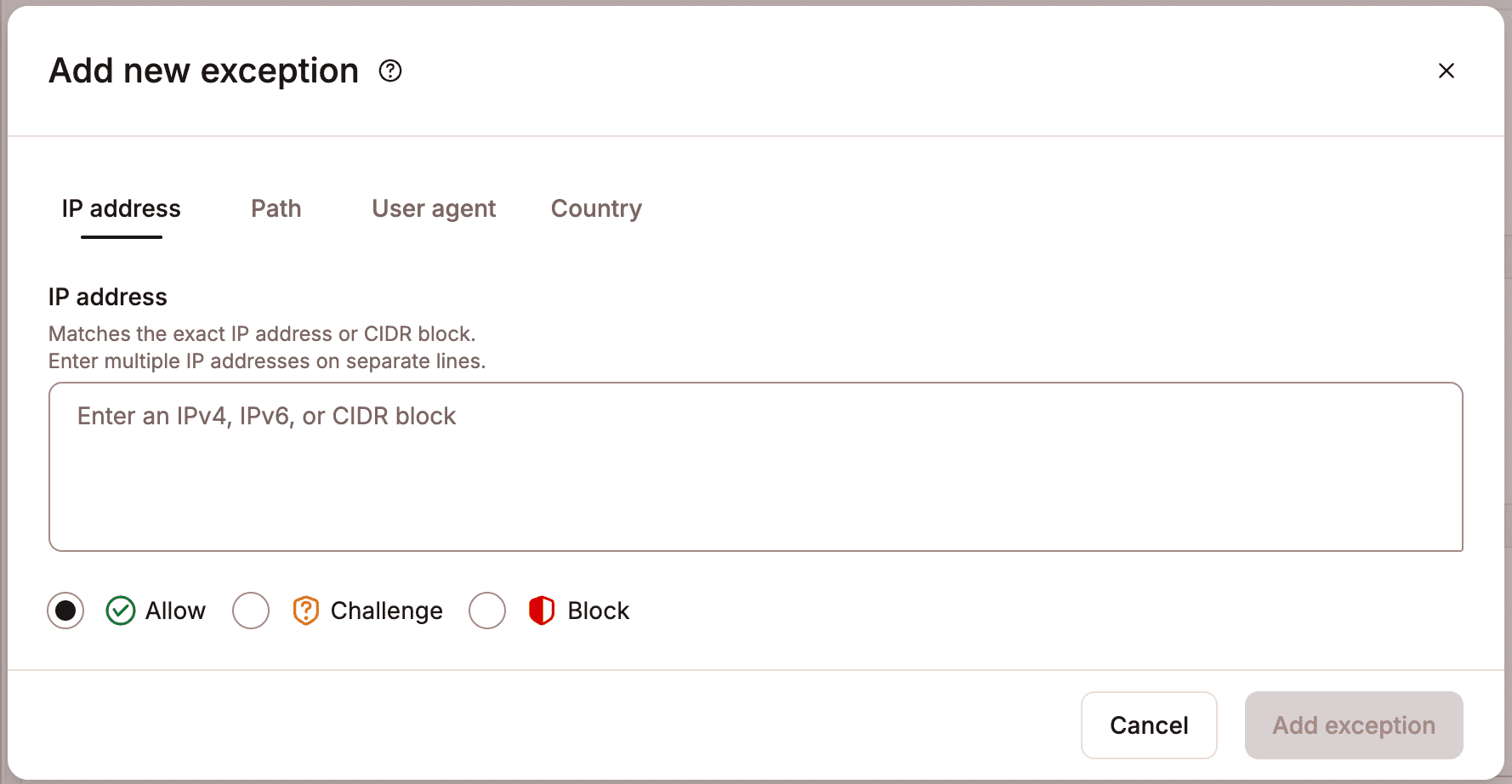
Choose what you’d like the exception to apply to, then select whether to allow, challenge, or block matching requests:
- IP address: Enter an IP address. This can be an IPv4 address (e.g.,
192.168.1.1), an IPv6 address (e.g.,2001:0db8:85a3:0000:0000:8a2e:0370:7334), or a CIDR block, a range of IP addresses rather than a single one (e.g.,192.168.1.0/24covers the range192.168.1.0–192.168.1.255). You can add multiple IP addresses on separate lines. - Path: Enter a path on your site. You can add multiple paths on separate lines. Wildcards aren’t supported, these rules use Starts With matching by default, so you only need to enter the beginning of a path, and any URL starting with it will match. For example, entering:
/wp-json/matches all URLs beginning with/wp-json/, such as:/wp-json/wp/v2/posts/wp-json/wp/v2/pages/wp-json/custom-endpoint
- User agent: Enter the user agent. For example, a custom monitoring service’s user agent might be
MyCompanySiteMonitor, or to specify Slack, you can enterSlackbot. You can add multiple user agents on separate lines. - Country: Search for a country or continent, for example,
United States,Germany,Japan,Brazil, orEurope.
Select Allow, Challenge, or Block to determine how matching requests are handled.
You can add up to 50 exceptions. Once you’ve entered the details, click Add exception to save it.
Common examples
Form spam or crawlers
If your contact form is receiving high volumes of spam submissions, add a Path exception for the page your form lives on and set it to Challenge. This verifies visitors before they can submit, blocking most automated spam while letting real visitors through with minimal disruption.
Example:
- Your contact form is hosted at
/contact/and you’re receiving dozens of spam submissions a day. - You add a Path exception for
/contact/and set it to Challenge. - A real visitor loads the page, completes a quick verification step, and submits the form as usual.
- An automated bot that tries to load or submit the form fails the challenge and gets blocked before it reaches your form handler.
If you’ve identified specific bots or scrapers responsible for the spam, for example, from your form plugin’s submission logs or the Top traffic report, you can instead add a User agent or IP address exception set to Block for those specific sources, without affecting other visitors.
Monitoring and uptime services
- Pingdom
- UptimeRobot
- StatusCake
Payment providers or external services
- PayPal IPN
- Stripe webhooks
- Shopify integrations
API endpoints
/wp-json//wp-admin/admin-ajax.php/webhooks/
Trusted IP addresses
- Office IP addresses
- Developer VPN IPs
- Agency or client IPs
Search engines and crawlers
- Googlebot
- Bingbot
Third-party integrations
- Zapier
- Slack webhooks
- Mailchimp
- HubSpot
Country-based access
If your site only serves visitors in specific regions, you can allow only those countries and block or challenge the rest, for example, allowing only United States and Canada for a regional business, or blocking countries you don’t operate in or ship to.
Headless or decoupled WordPress setups
If your frontend application relies on WordPress APIs, you may want to always allow /wp-json/
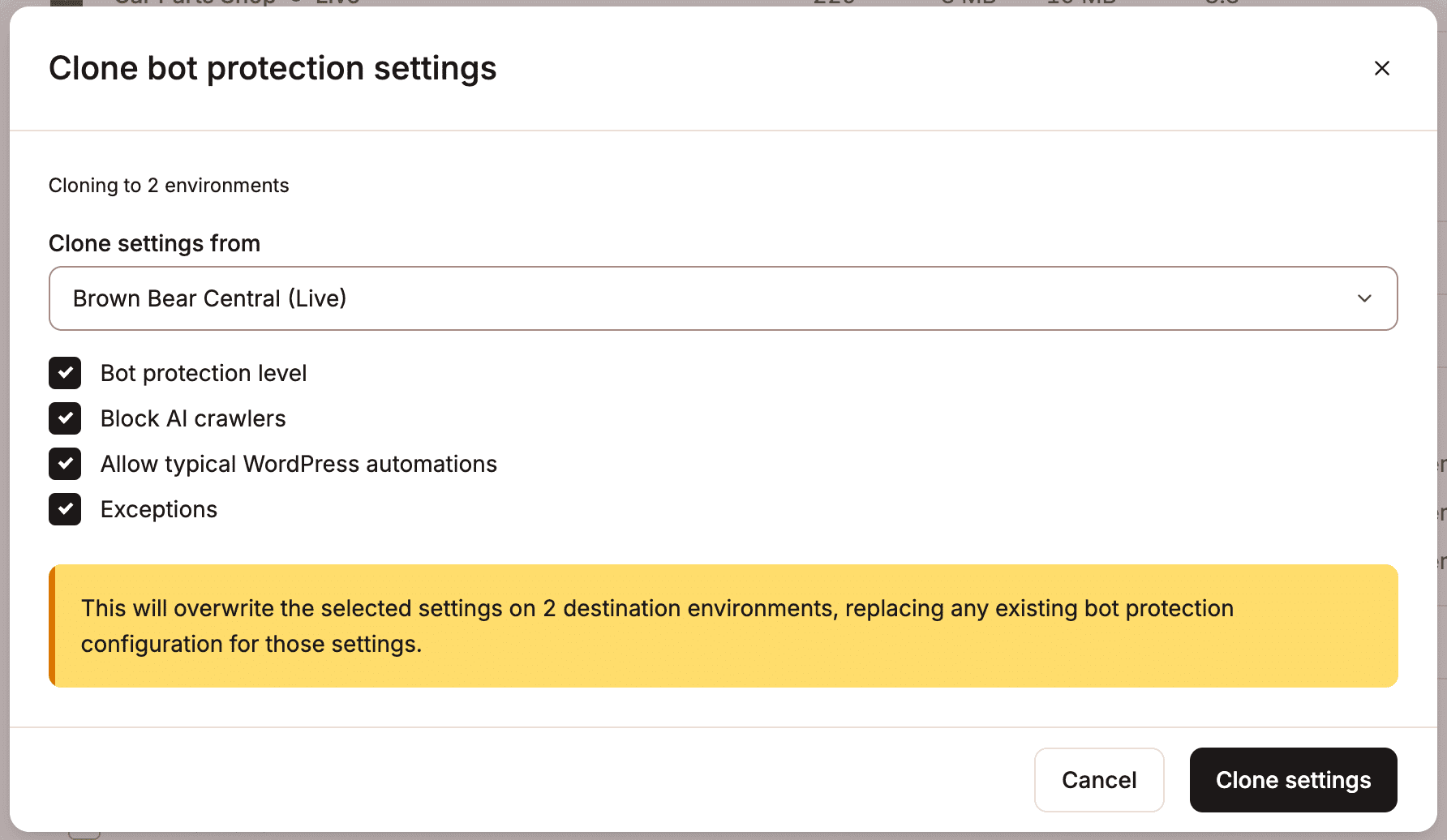
Clone bot protection settings
If you want several sites to use the same bot protection settings, you can copy them from an existing site instead of configuring each one manually. This saves time, especially if you’ve set up many exceptions.
- In Sites, select the sites you want to copy the settings to.
- Click Actions > Bot protection > Clone bot protection settings.
- Choose the site you want to copy the settings from.
- Select the settings you want to copy.
- Click Clone settings.
Top traffic
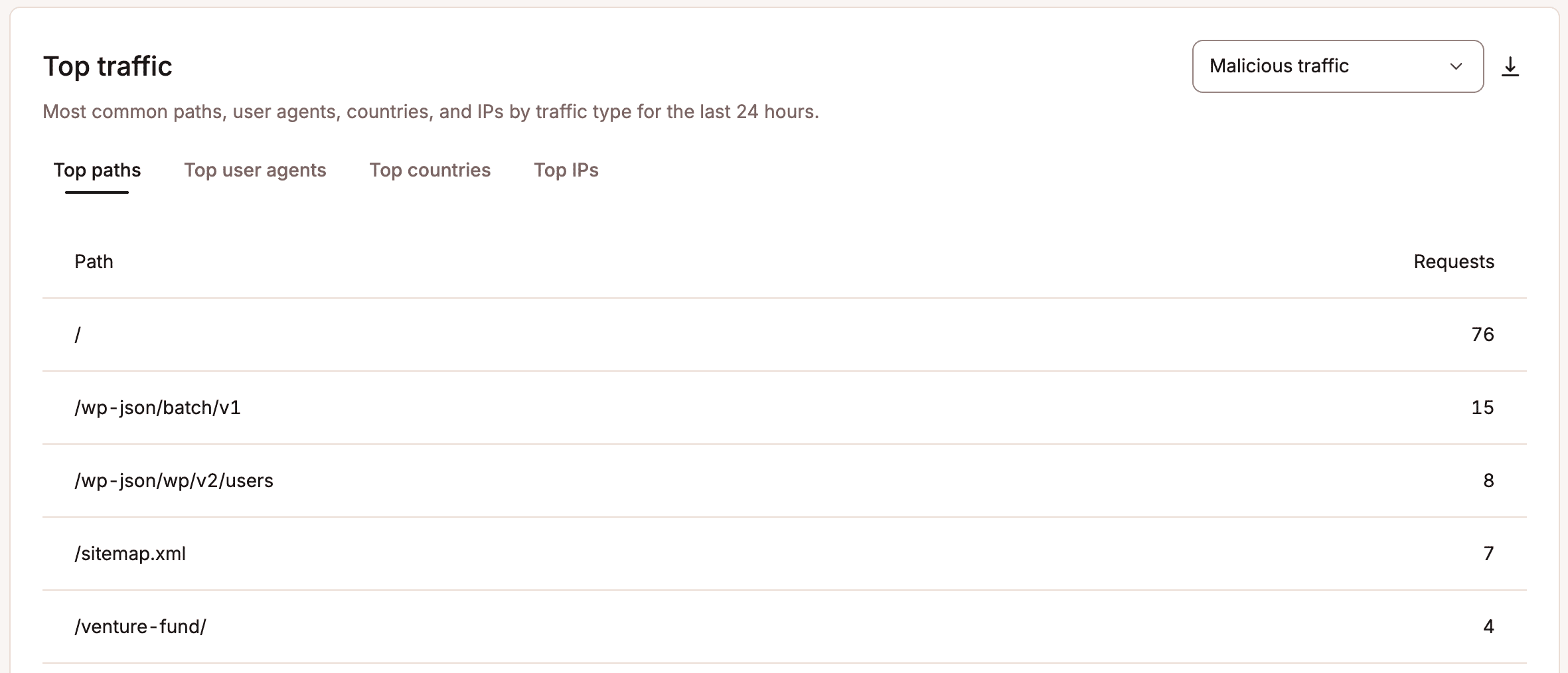
This report shows the top paths, user agents, countries, and IPs for the last 24 hours. Use the dropdown to select a traffic type, such as malicious traffic, automated traffic, or AI crawlers, and the report will update to show the top paths, user agents, countries, and IPs for that traffic type.
For more information about each traffic type, refer to How traffic is classified in MyKinsta.
Spikes in bot traffic charts
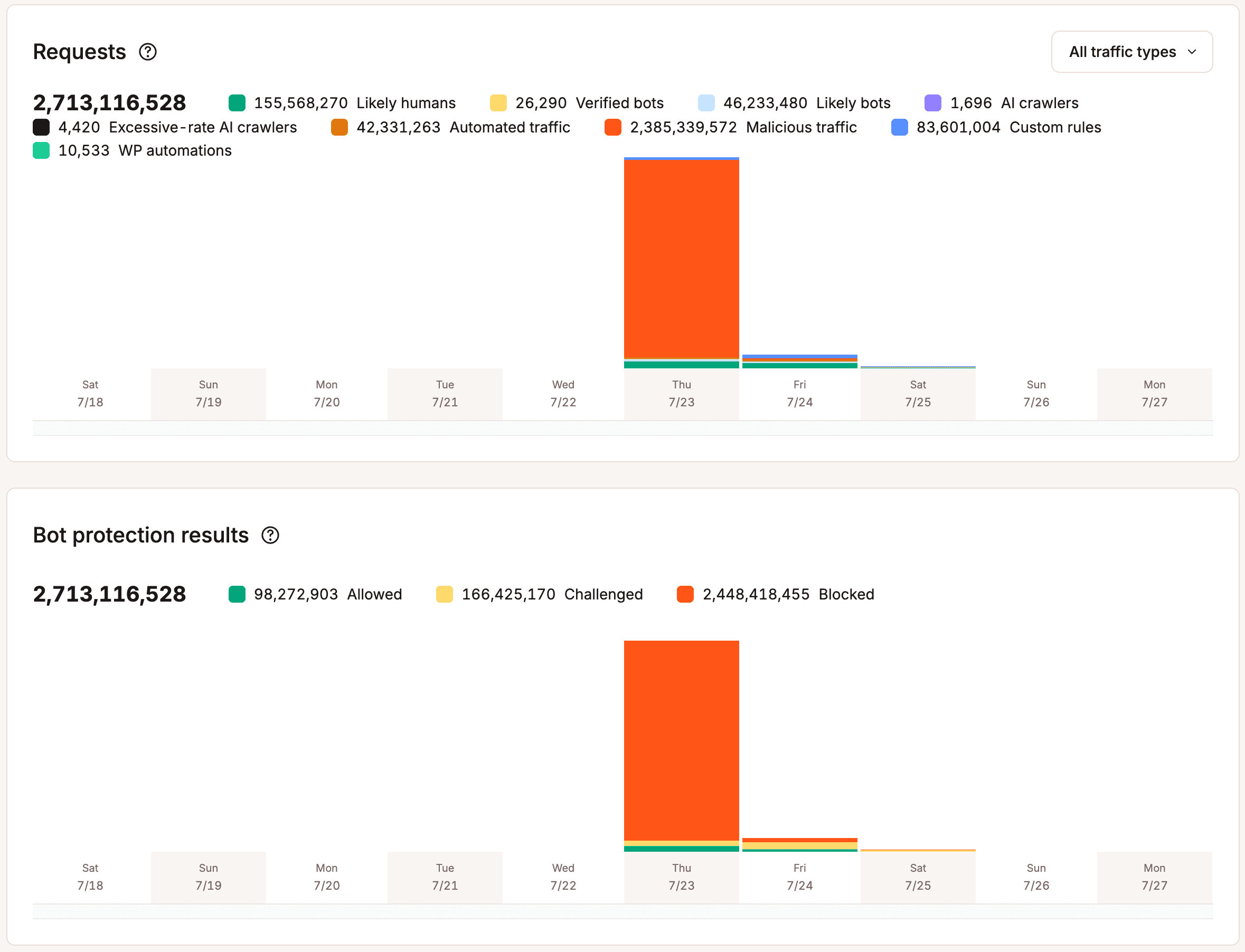
If your site experiences a large DDoS attack, Kinsta blocks well over 99% of the malicious traffic. A small fraction of requests can still reach the origin, since they closely resemble normal visitor traffic and are extremely difficult to identify as malicious. Even this small fraction can be 100 to 3,000 times, or more, your usual traffic volume during a large attack. With Bot protection enabled, this traffic is still evaluated against the bot protection rules and blocked.
Because of this, your bot traffic chart may show a huge spike on the day of the attack, with the other days appearing empty by comparison. This doesn’t mean there was no traffic on those days; the attack volume is simply so much larger that normal traffic becomes too small to register visibly on the same scale.
For example: