Based on our totally unscientific survey (we asked a few people), the file most often edited in a WordPress installation is config.php. Usually less than 4KB, this file contains the information a site needs to get online after a migration or changes (sometimes unexpected) to the database backend.
But editing config.php (even in an emergency) demands access to the server’s file system usually available only through tools like an FTP/SFTP client. That means you need to add server addresses, usernames, and passwords to another application that has access to your website.
Our new Files tool in the MyKinsta dashboard provides quick access to every file in a WordPress installation, including essential components like configuration files. Maybe more importantly, the work within the Files tool we call the file manager around here happens under the same security umbrella you have chosen for MyKinsta’s multi-factor authentication.
How to manage files and folders in MyKinsta
The new file manager is just a couple of clicks away when you log in to MyKinsta. After selecting a WordPress site in the dashboard, you’ll find Files in the left-hand menu:
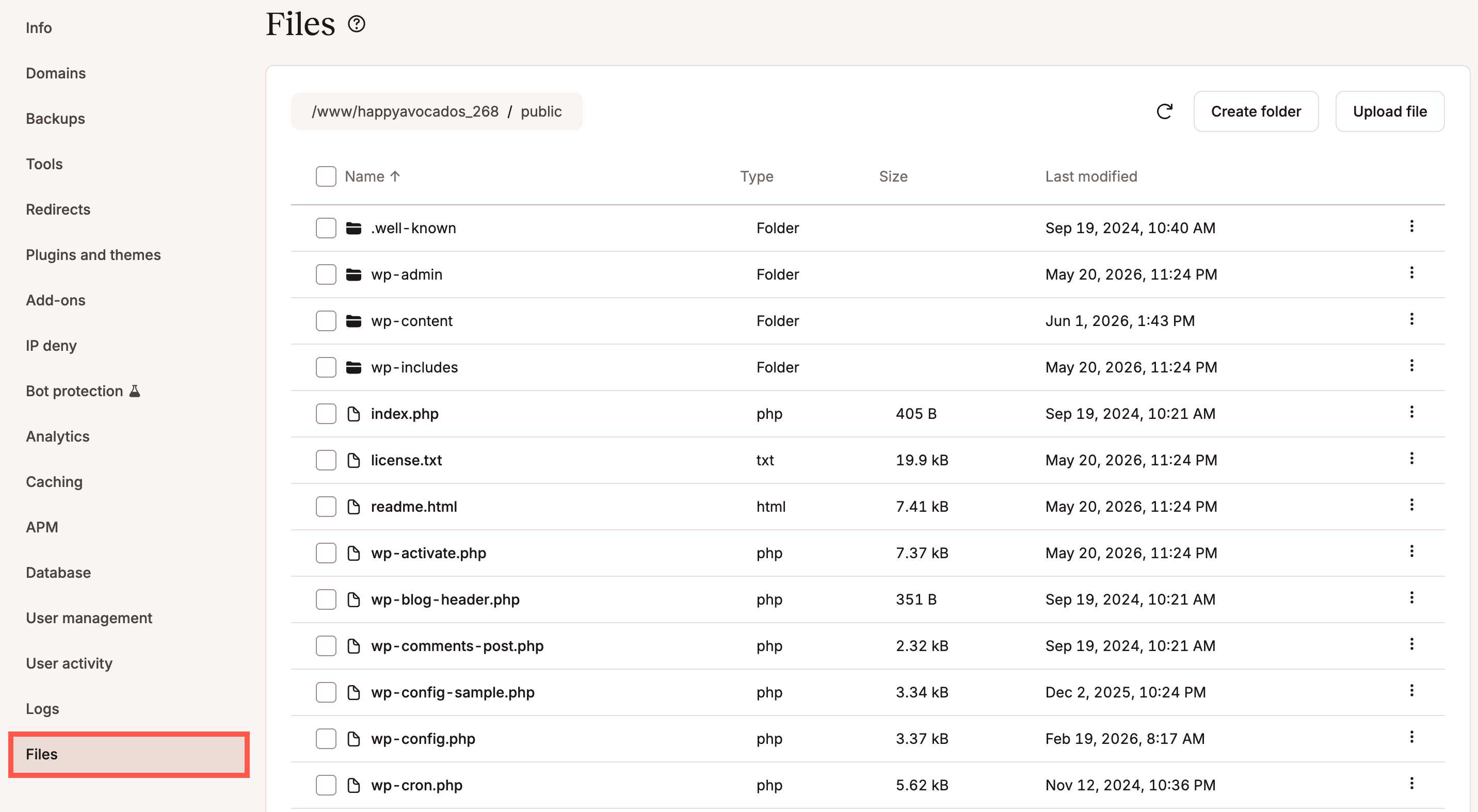
From here, you can now…
- Navigate the directories of a WordPress installation
- Upload, download, rename, move, copy, and delete files
- Create, rename, move, copy, and delete folders
- Rename, move, copy, and delete symbolic links (symlinks)
- View and edit text files (including PHP, JavaScript, and style sheet documents)
What’s more, some of these actions can be performed in bulk for multiple files and folders simultaneously.
Let’s take a closer look at some of these capabilities. But first, a warning:
Working with folders
Navigate your website’s file system by clicking on folder names. A breadcrumb menu at the top of the file manager display allows you to jump to any location on the current path.
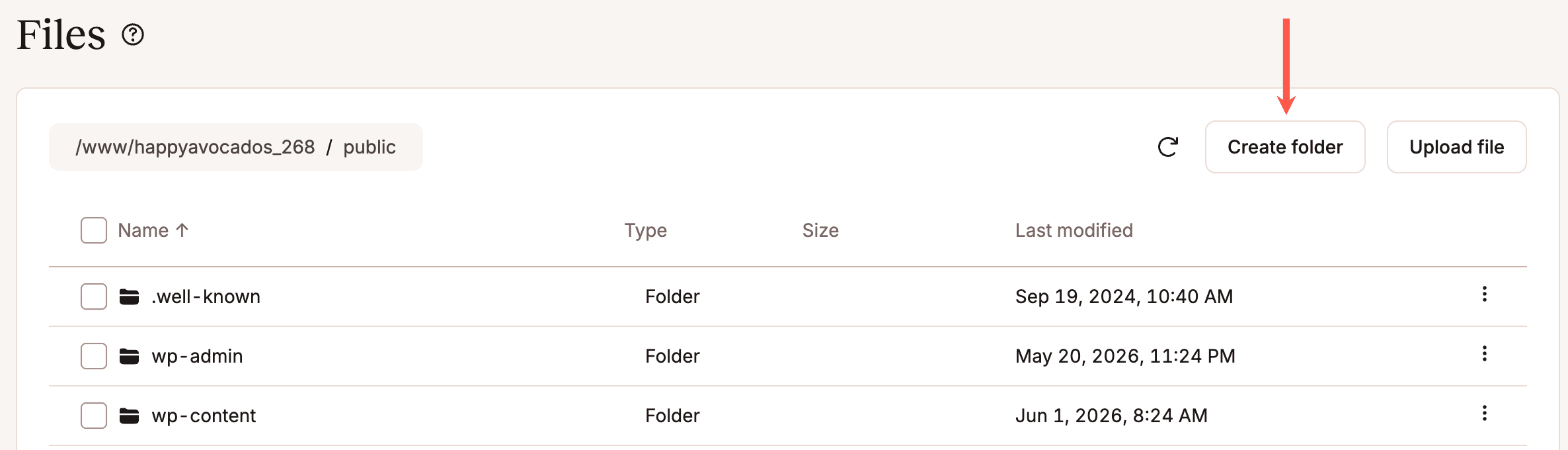
At any time, you can create a new folder at the current location by clicking the Create folder button near the top of the page:
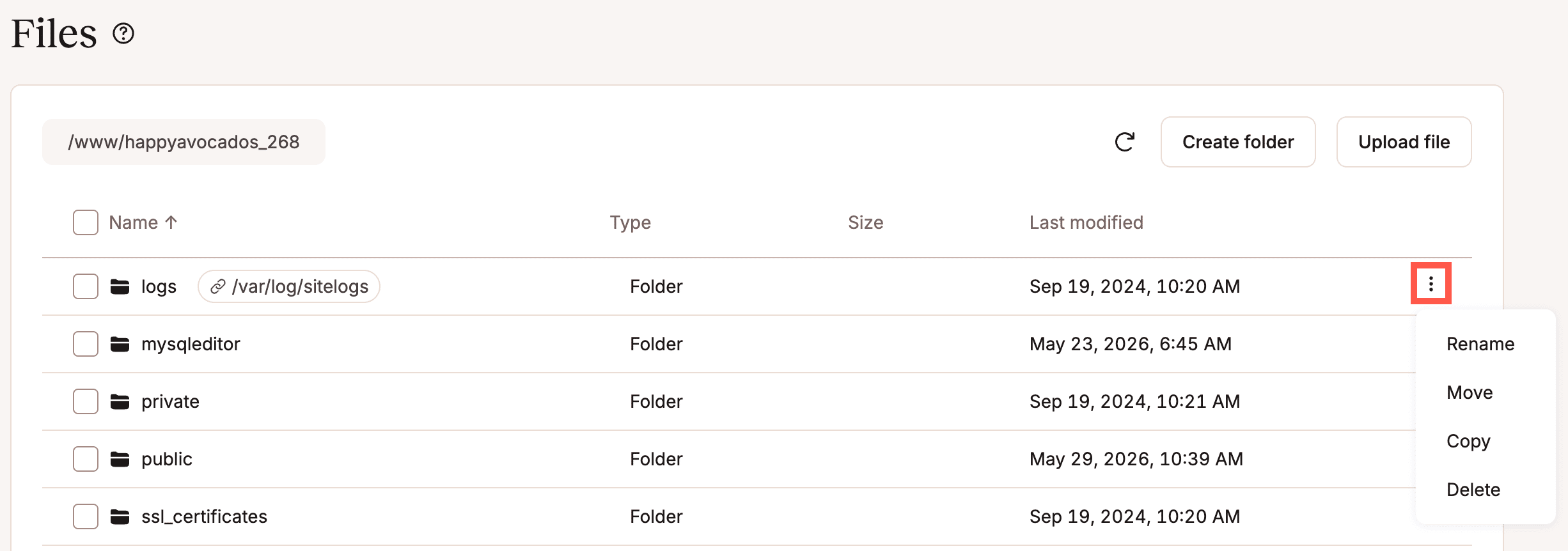
Other folder actions (renaming, moving, copying, or deleting) begin by clicking on the kebab (three-dot) menu to the right of a folder name:
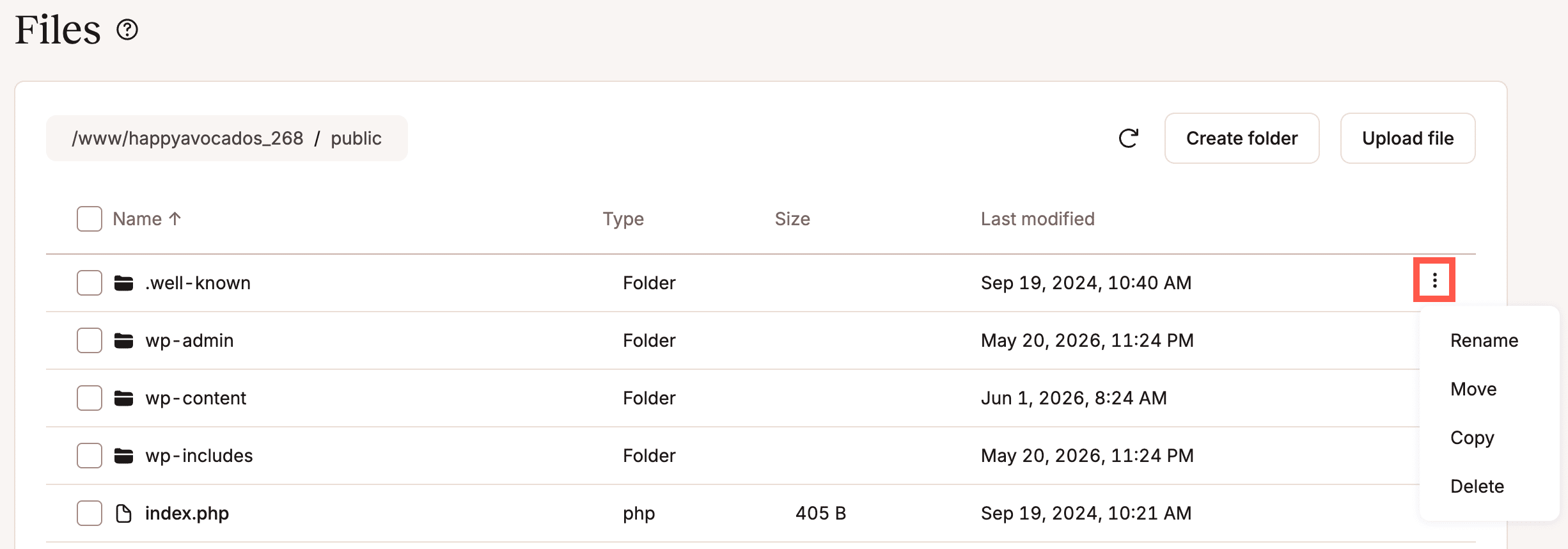
The kebab menu initiates most folder actions.
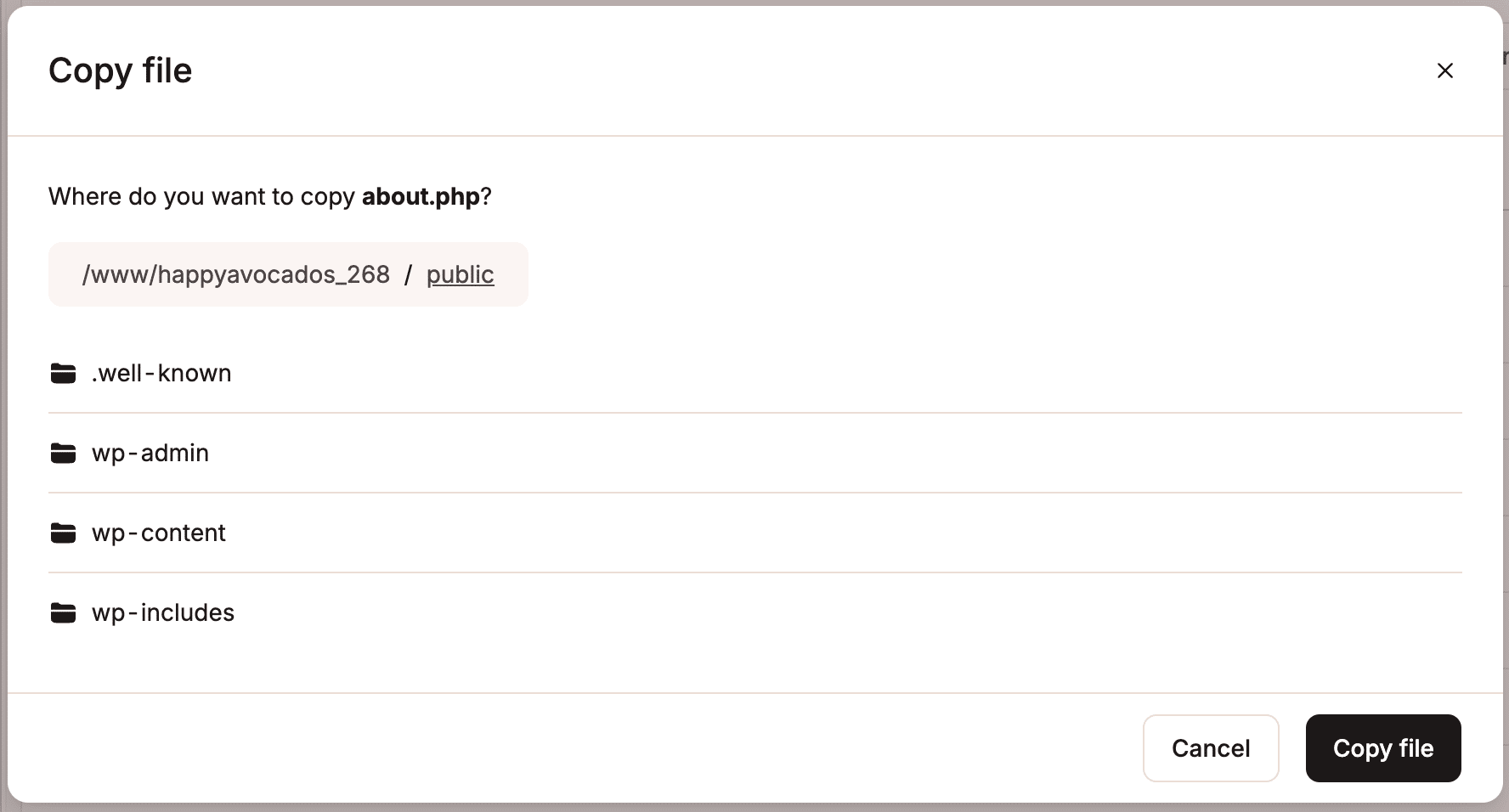
When copying or moving a folder, you will be asked to navigate to the destination for the action:
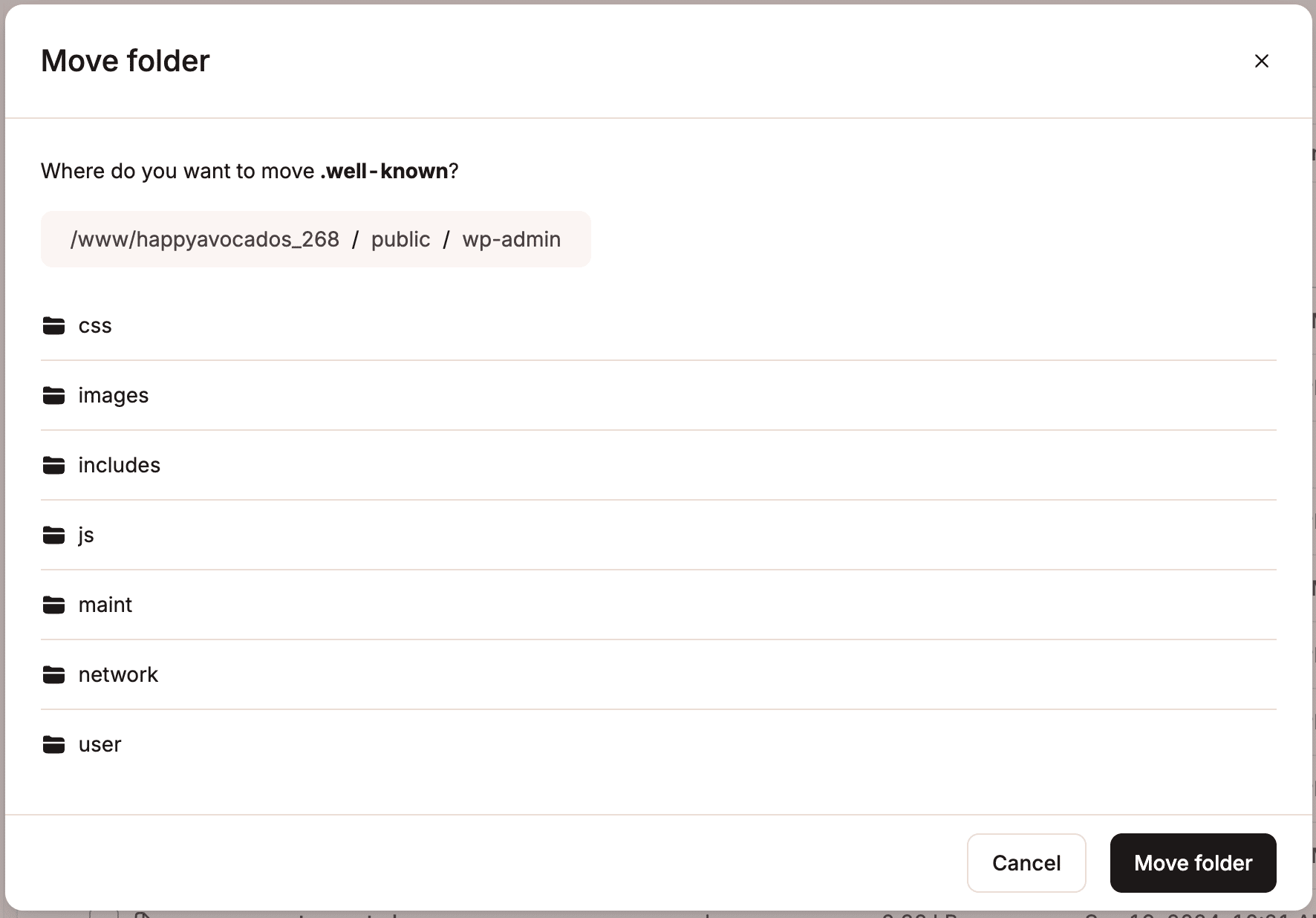
Note: When moving, copying, or deleting a folder, you will be moving, copying, or deleting all of that folder’s contents.
The file manager opens with a view of the public folder, which is the root directory of most WordPress sites at Kinsta. But you can navigate up another level for access to resources like site logs:
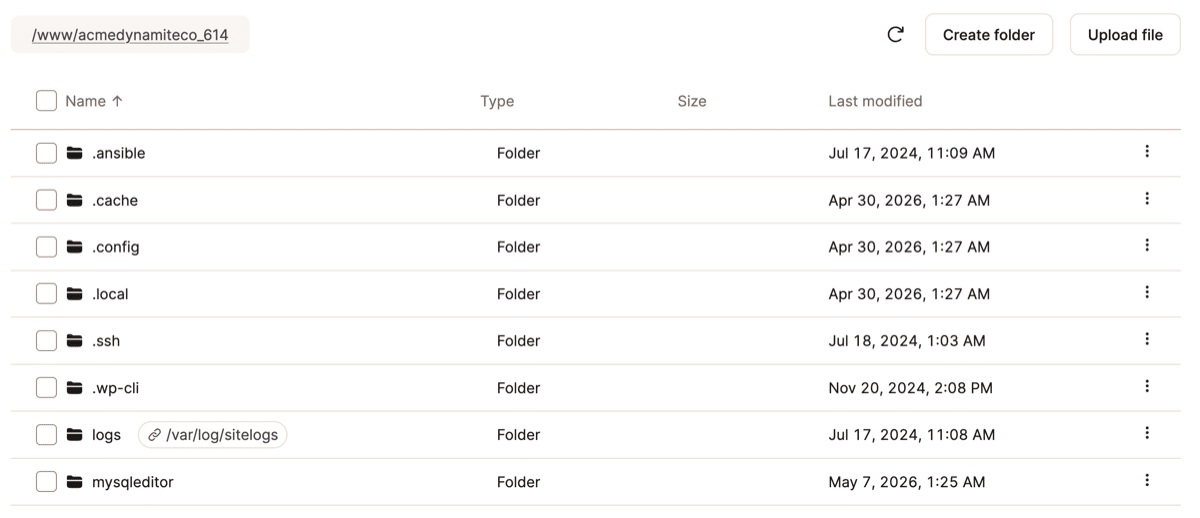
The logs folder in the display above is a symlink. The real path of a symlink is displayed beside the file or folder name (/var/log/siteslogs in this case).
Working with files
Viewing the contents of a file is the default action for plain-text documents in the file manager. Simply click on the filename to view documents like PHP code, JavaScripts, CSS, and more:
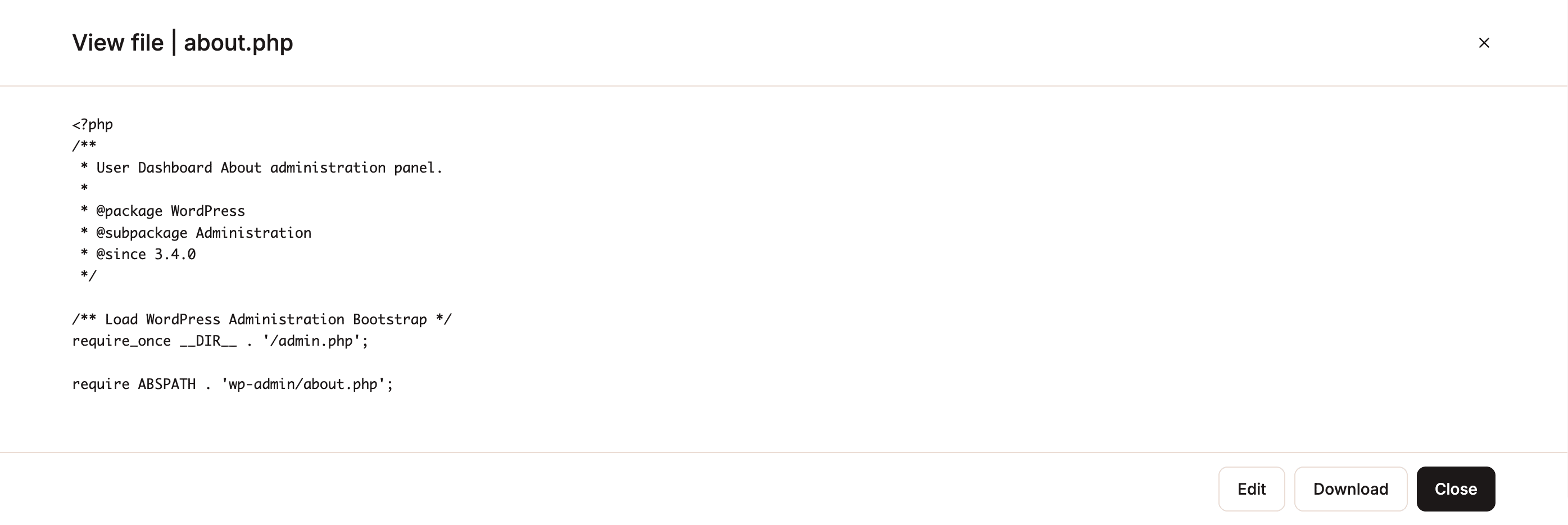
You can’t view binary files (like images, PDFs, audio and video files, and Word documents). If you attempt to view a binary file, you are asked if you would like to download the file instead:
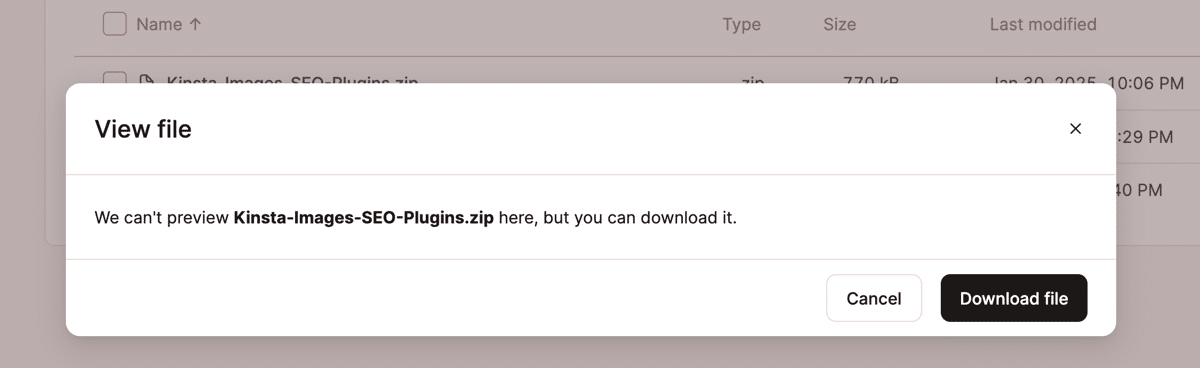
View is just one of the actions available for files in the kebab menu to the right of a filename:
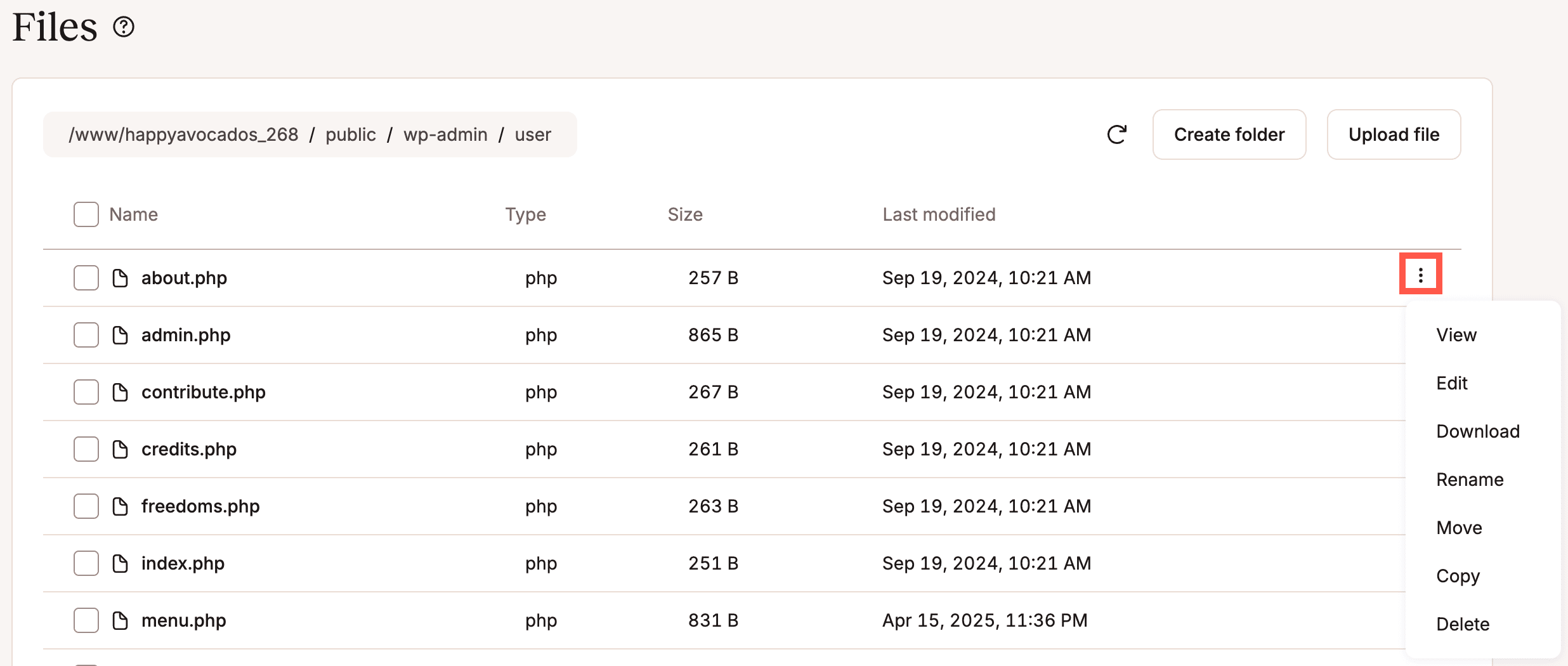
You can begin editing a file by selecting Edit in the kebab menu or by clicking the Edit button when viewing a file:
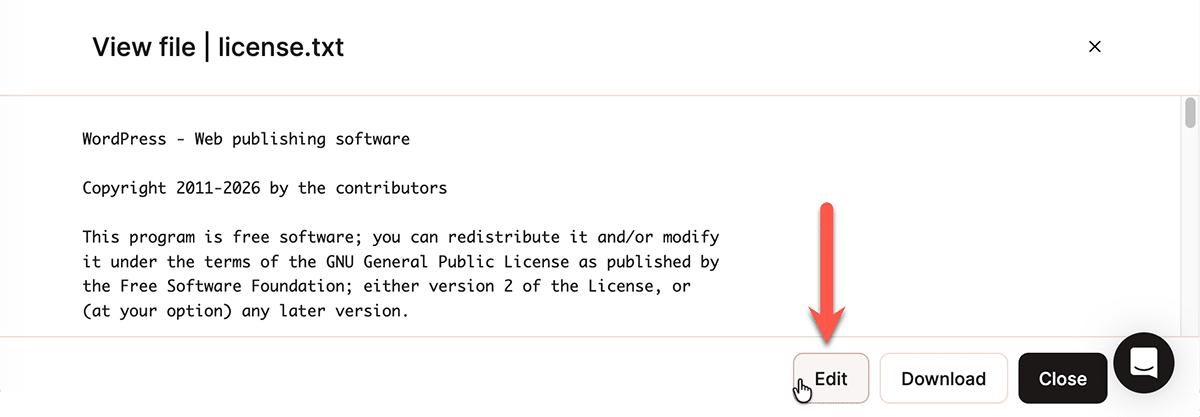
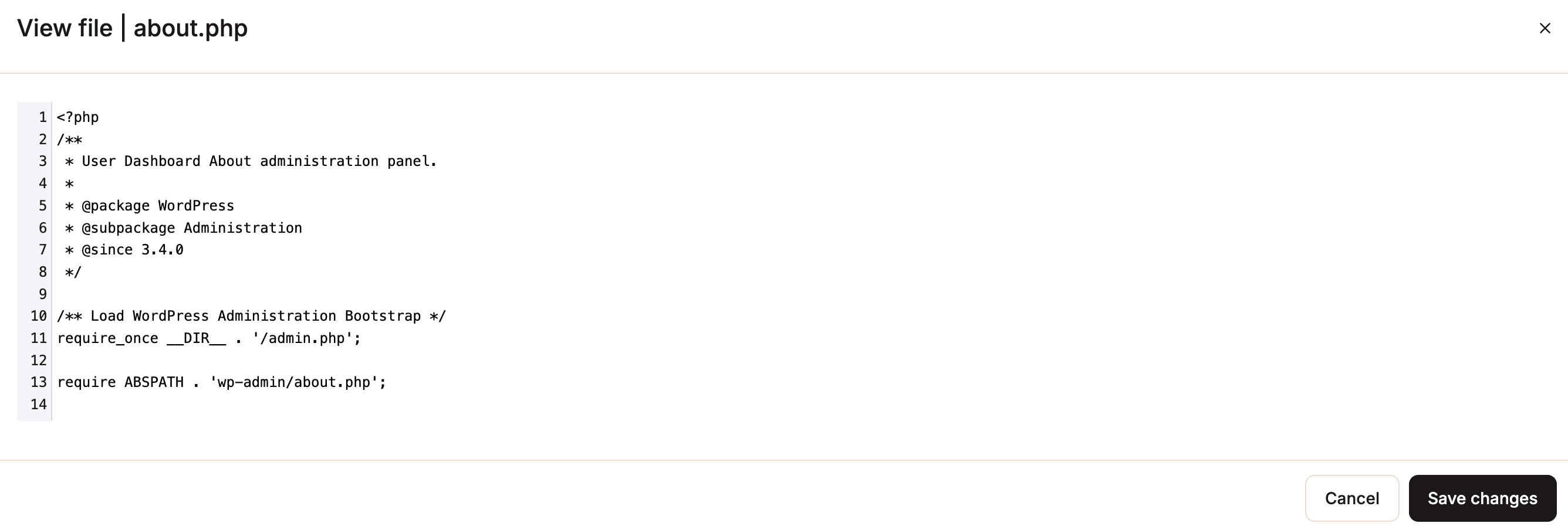
After making edits, you can write the revised file to disk by clicking the Save changes button:
Files can also be downloaded from the server and uploaded:
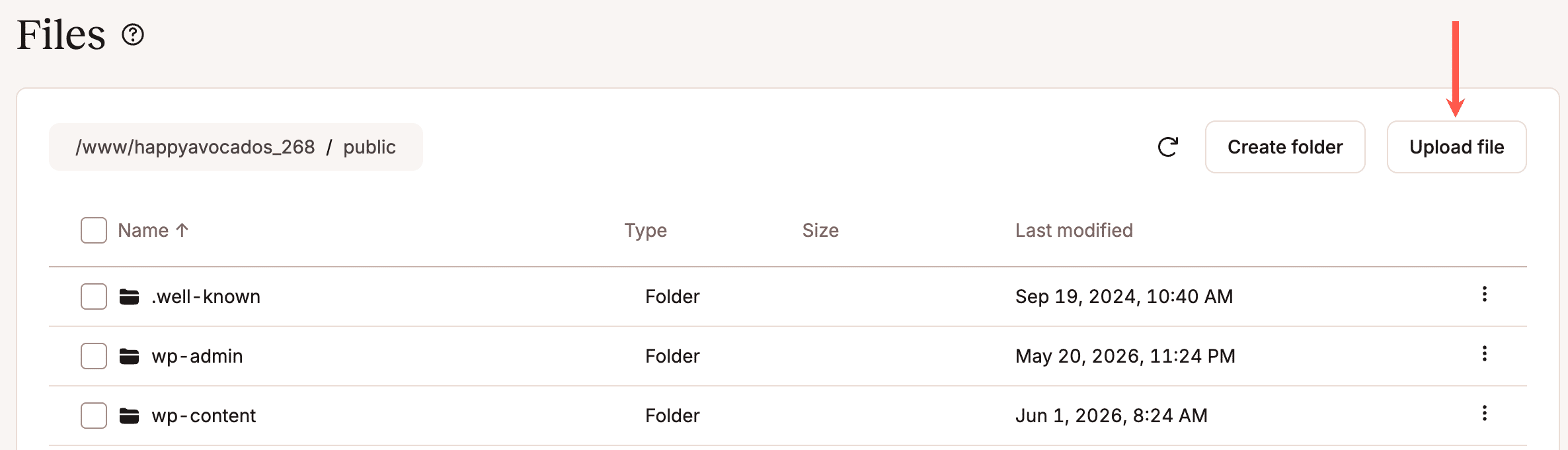
This is a great way to download a file for editing in your preferred application before returning it to the server.
Like with folders, when moving or copying a file, the file manager will ask you to navigate to a target destination:
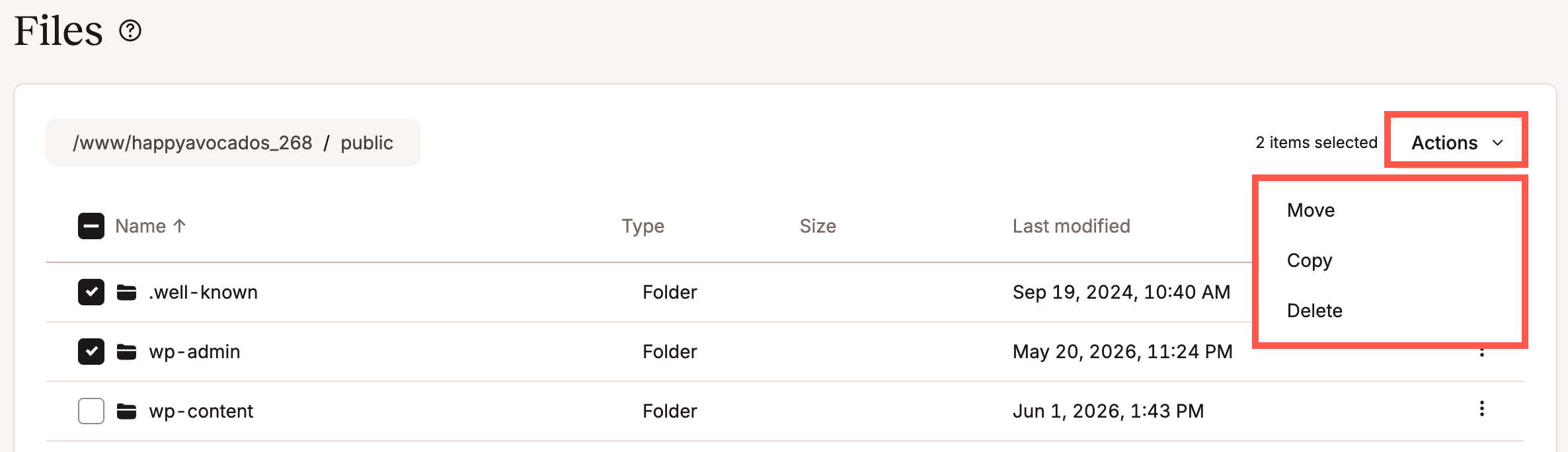
You can move, copy, and delete multiple files and folders simultaneously. Select the target files and folders using the checkboxes to the left of their names and then choose the desired action from the Actions menu:
Working with symlinks
You can use the file manager to rename, move, copy, and delete symlinks:
Tell us what you think
June 2026 marked the first release of the file manager. You can learn more about the feature in our extensive documentation, and we hope you’ll find it to be a time-saver right inside MyKinsta.
Do you have your own wish list for an in-dashboard file manager? Let us know!