File Manager
The MyKinsta File Manager gives you quick, direct access to your WordPress site’s files and folders. You can browse, view, edit, rename, download, upload, move, copy, and delete files, as well as create, rename, move, copy, and delete folders, all within the MyKinsta dashboard without needing to connect via SFTP, saving you time and effort.
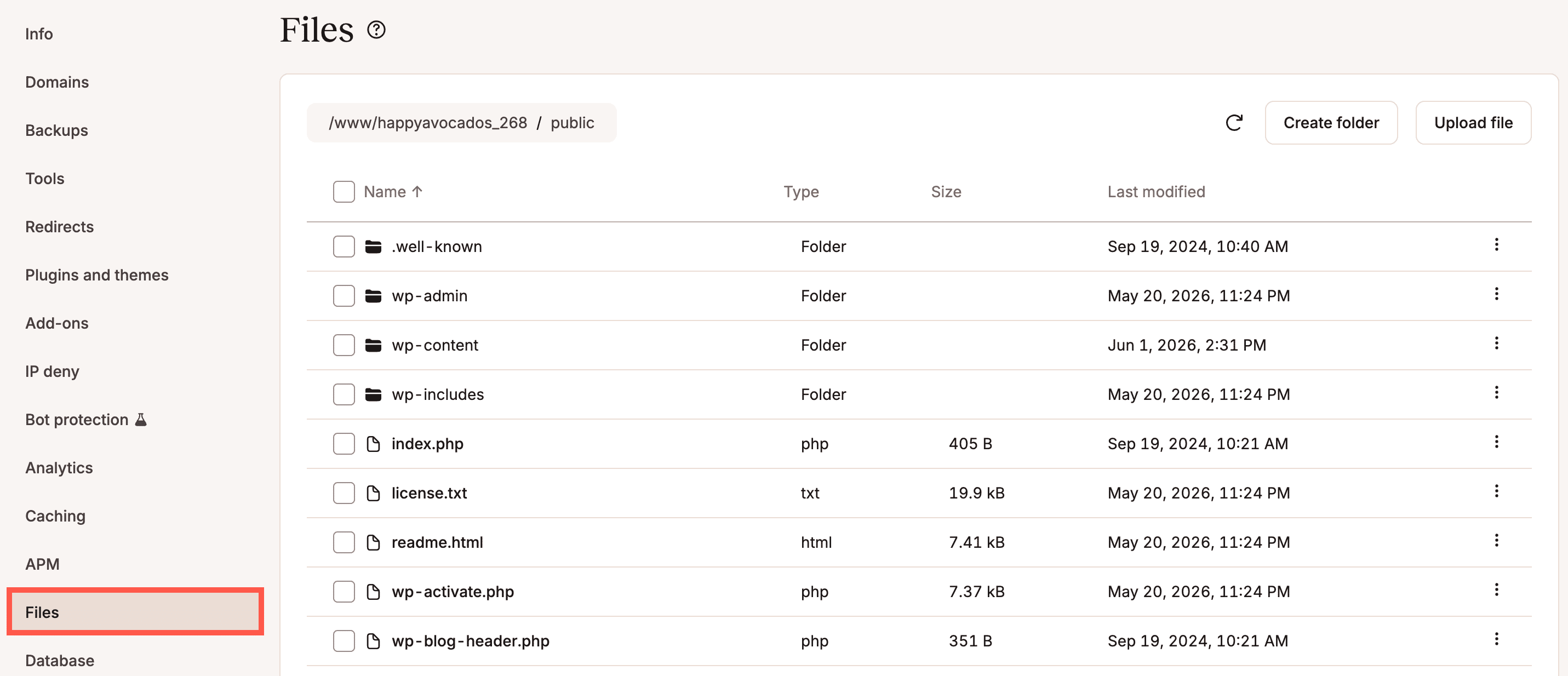
To access the File Manager in MyKinsta, click Sites, select the sitename, and click Files. The default directory that opens is the Public directory. If the public directory does not exist or has been renamed, it opens at the root directory.
File Manager limitations
The following limitations apply to MyKinsta’s File Manager:
- Upload size: Files larger than 100 MB cannot be uploaded.
- Upload time: Uploads that take longer than 20 minutes will fail, this usually only happens due to a slow connection.
- Viewing and editing: You can only view and edit files that contain readable text, such as code, configuration, and markup files (for example, PHP, HTML, CSS, JavaScript, JSON, XML, YAML, and SQL). Files larger than 10 MB cannot be opened in the built-in viewer or editor.
- Non-readable text files: You cannot view document, media, or binary file formats. This includes files such as PDFs, Word documents, spreadsheets, images, videos, audio files, fonts, archives, or executables. To view these files, you must download them.
- Download size: There is no explicit file-size cap, but very large downloads may fail if the transfer is too slow or times out.
- Action links: If an upload, download, or edit takes too long to start, you may need to retry it.
Folder options
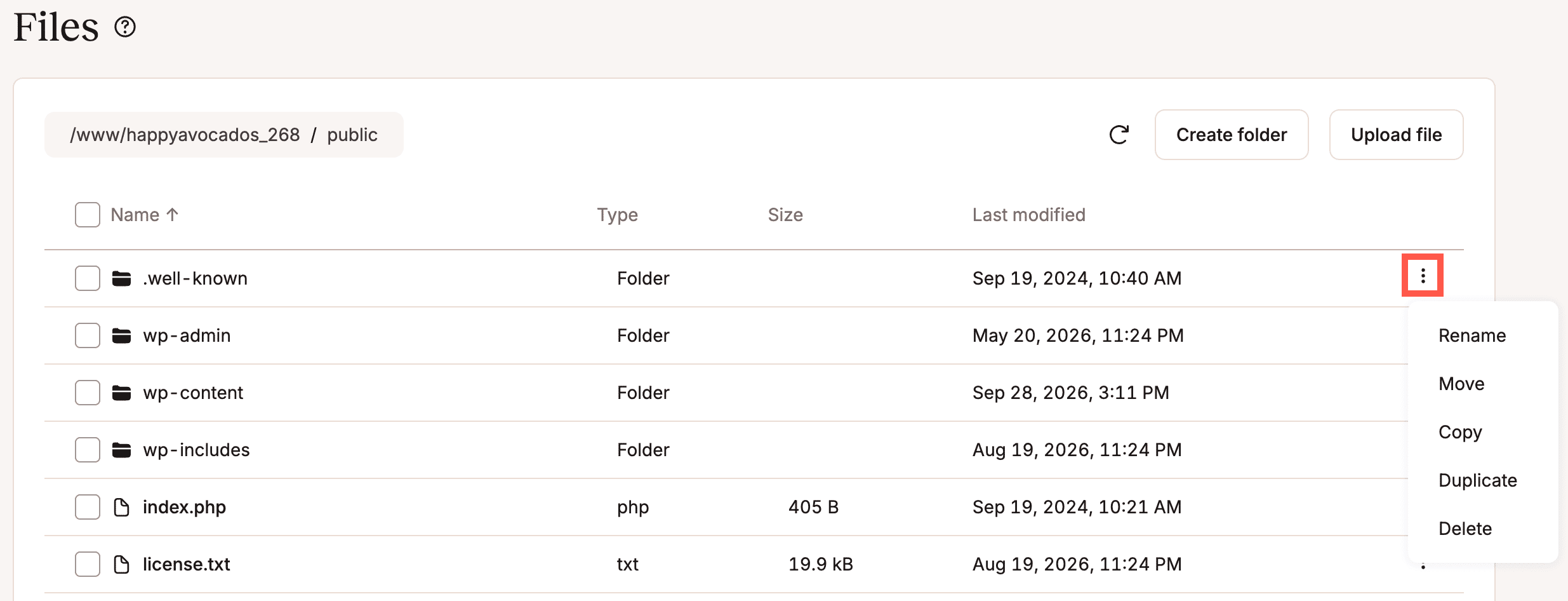
Click on a folder to view its contents. To rename, move, copy, duplicate, or delete a folder, use the kebab (three dots) and select the required option.
Rename a folder
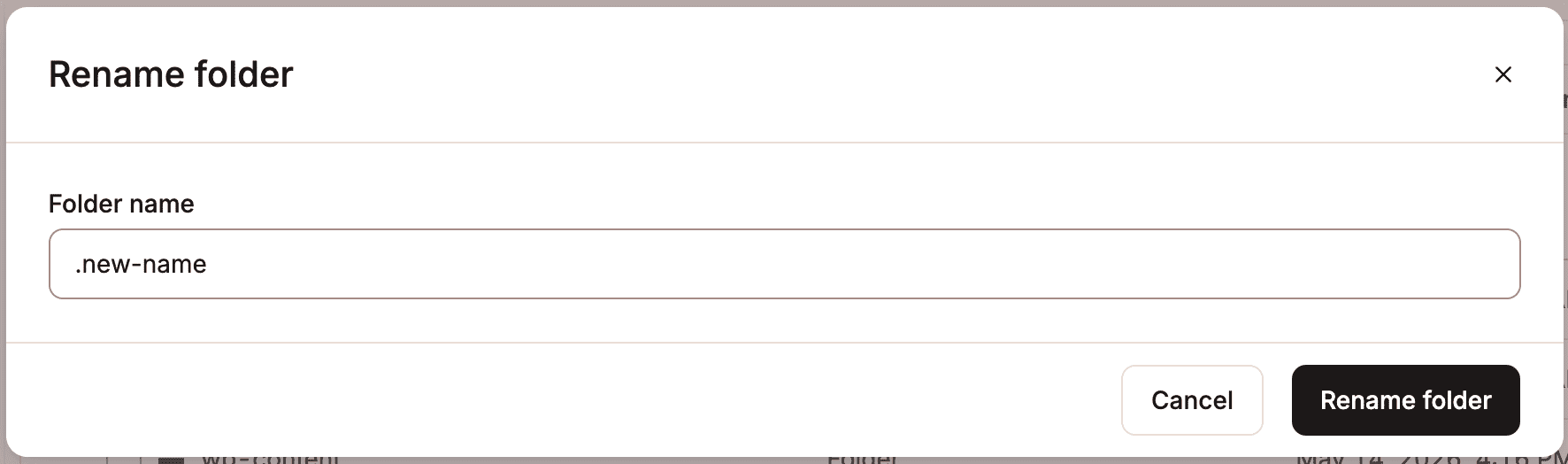
To rename a folder, use the kebab (three dots) and select Rename. Enter the new name for the folder, and click Rename folder.
Move a folder
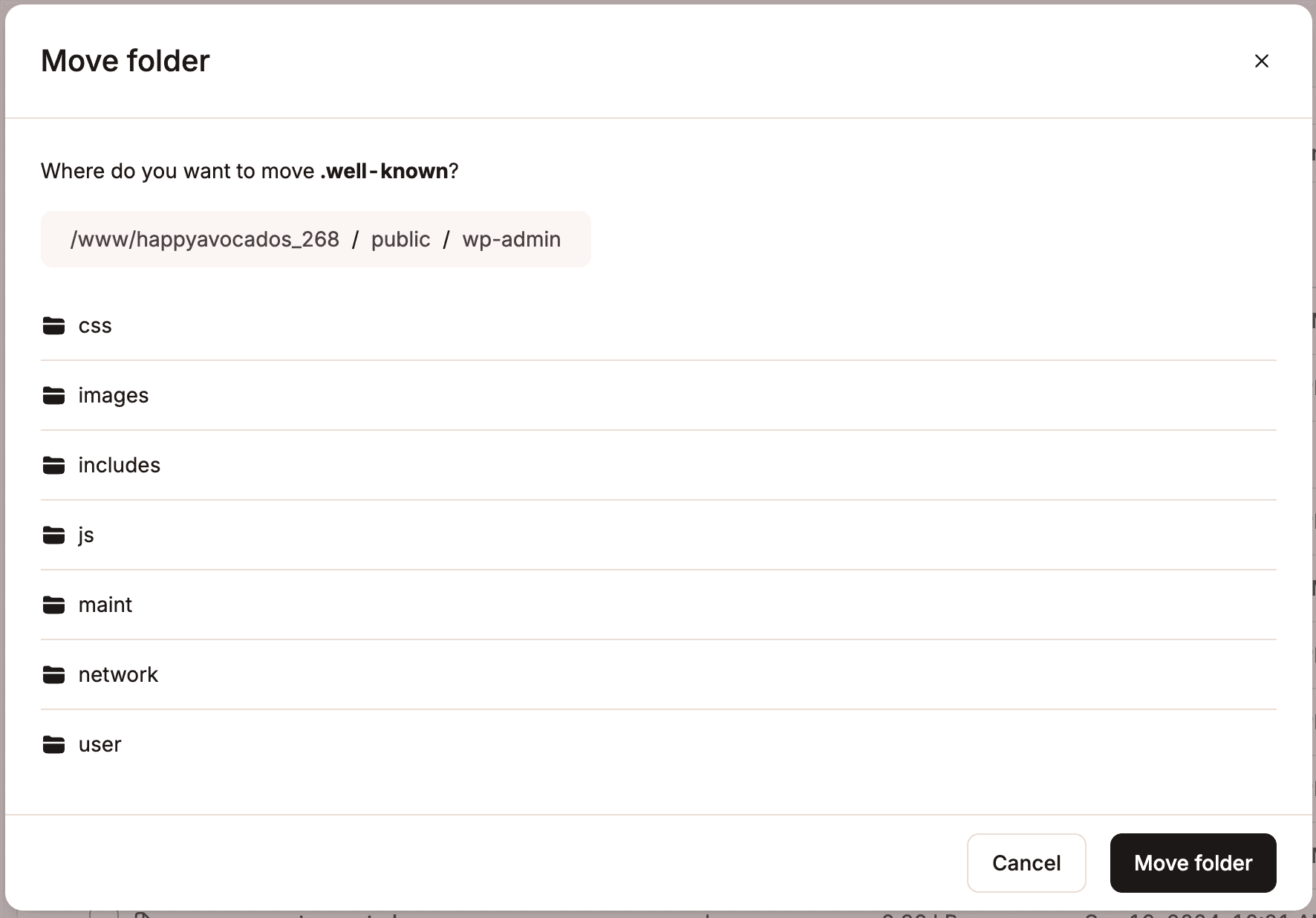
To move a folder, use the kebab (three dots) and select Move. Browse to the destination where you want to move the folder, click a folder to open it, or use the breadcrumbs to navigate back to a parent folder. Then click Move folder to move the folder into the selected location.
Copy a folder
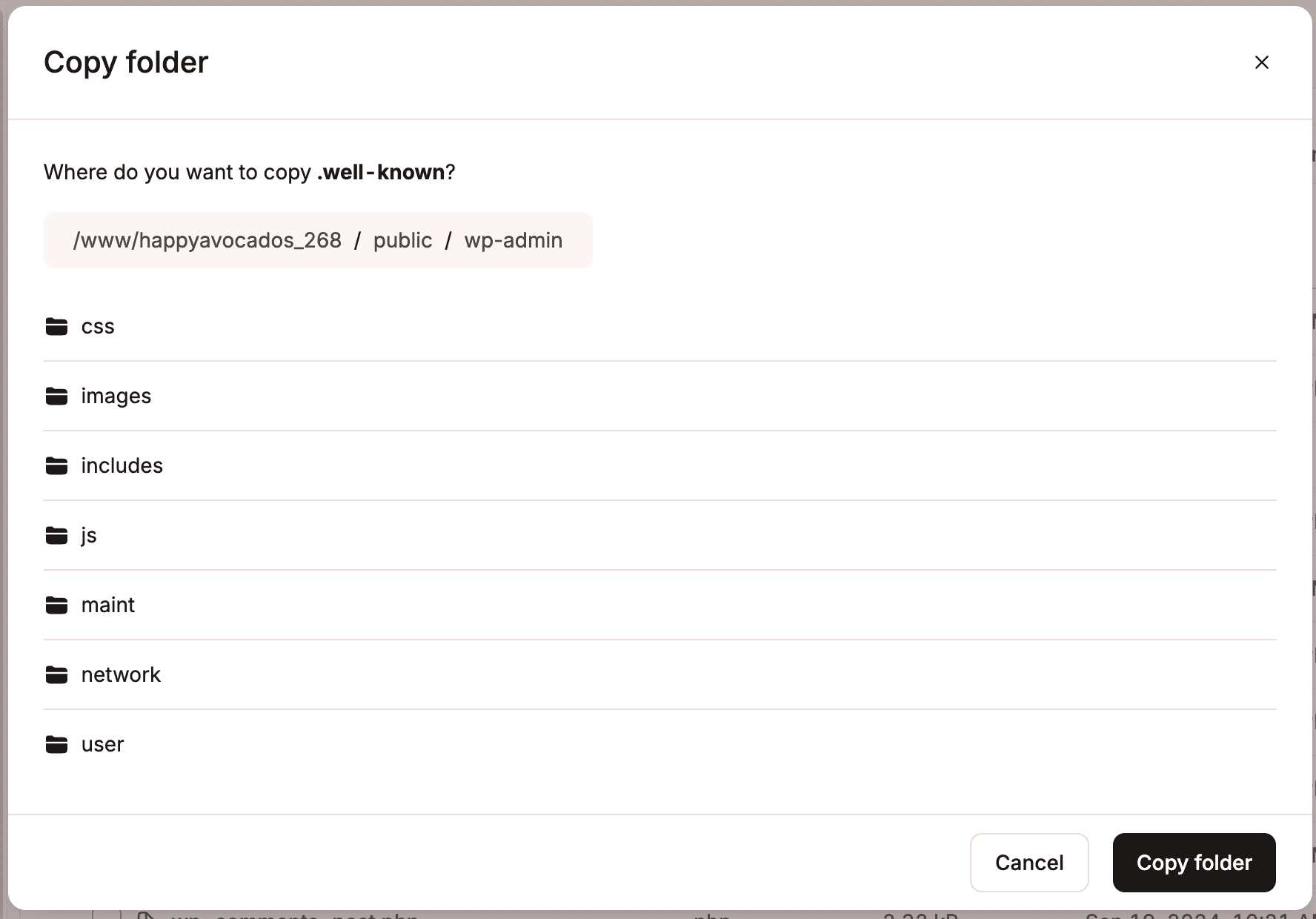
To copy a folder, use the kebab (three dots) and select Copy. Browse to the destination where you want to copy the folder to, click a folder to open it, or use the breadcrumbs to navigate back to a parent folder. Then click Copy folder to copy the folder into the selected location.
Duplicate a folder
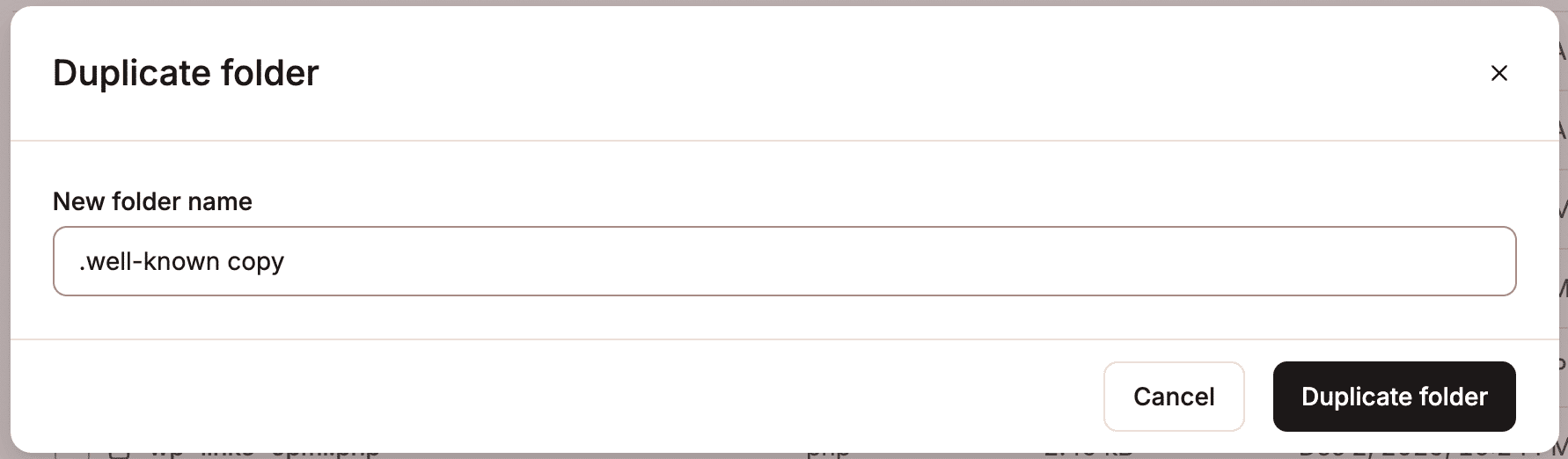
To duplicate a folder and its contents, use the kebab (three dots) and select Duplicate. By default, the duplicate uses the original folder name with copy added. To use a different name, enter it in New folder name, then click Duplicate folder.
Delete a folder
To delete a folder, use the kebab (three dots) and select Delete.
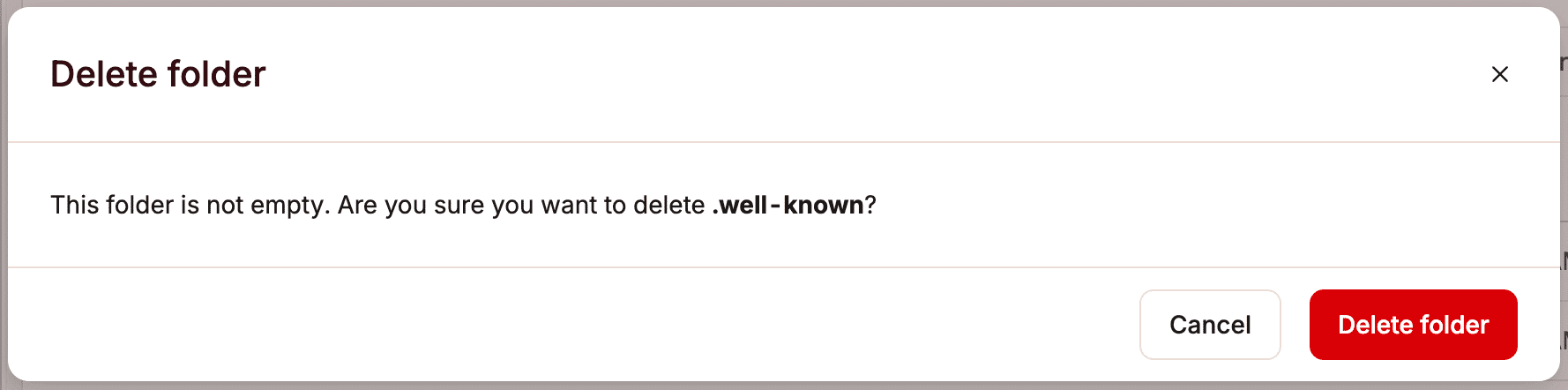
If the folder contains files or subfolders, the confirmation window will indicate that the folder is not empty, and deleting it will also permanently delete all of its contents.
To confirm the deletion, click Delete folder.
Create a new folder
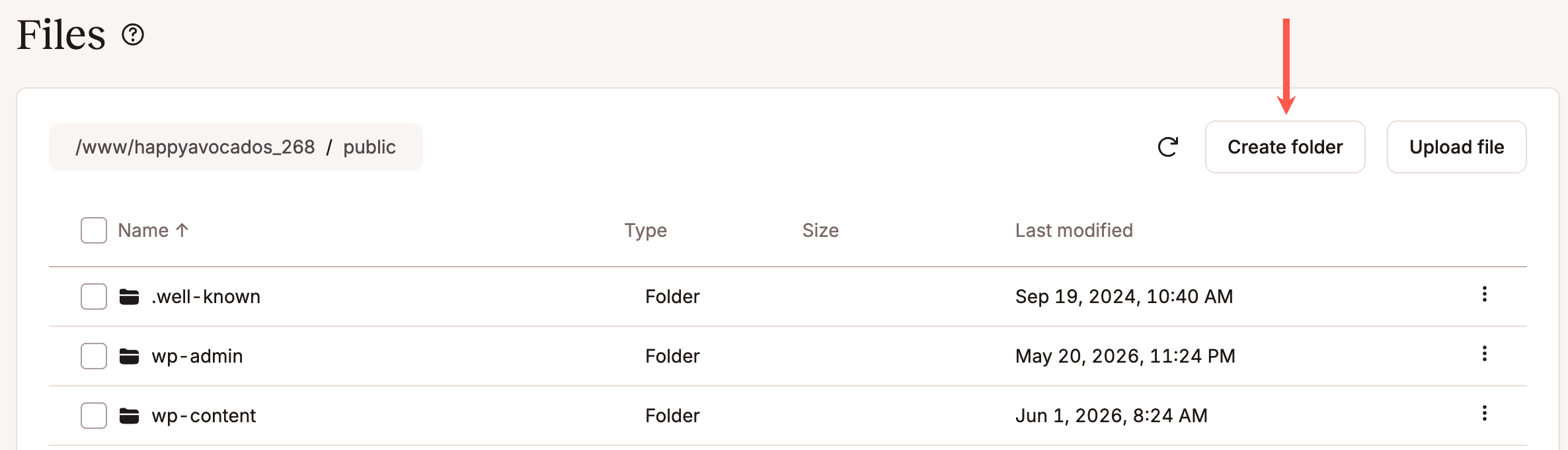
To create a new folder, browse to the destination where you want to create the folder, click a folder to open it, or use the breadcrumbs to navigate back to a parent folder and click Create folder.
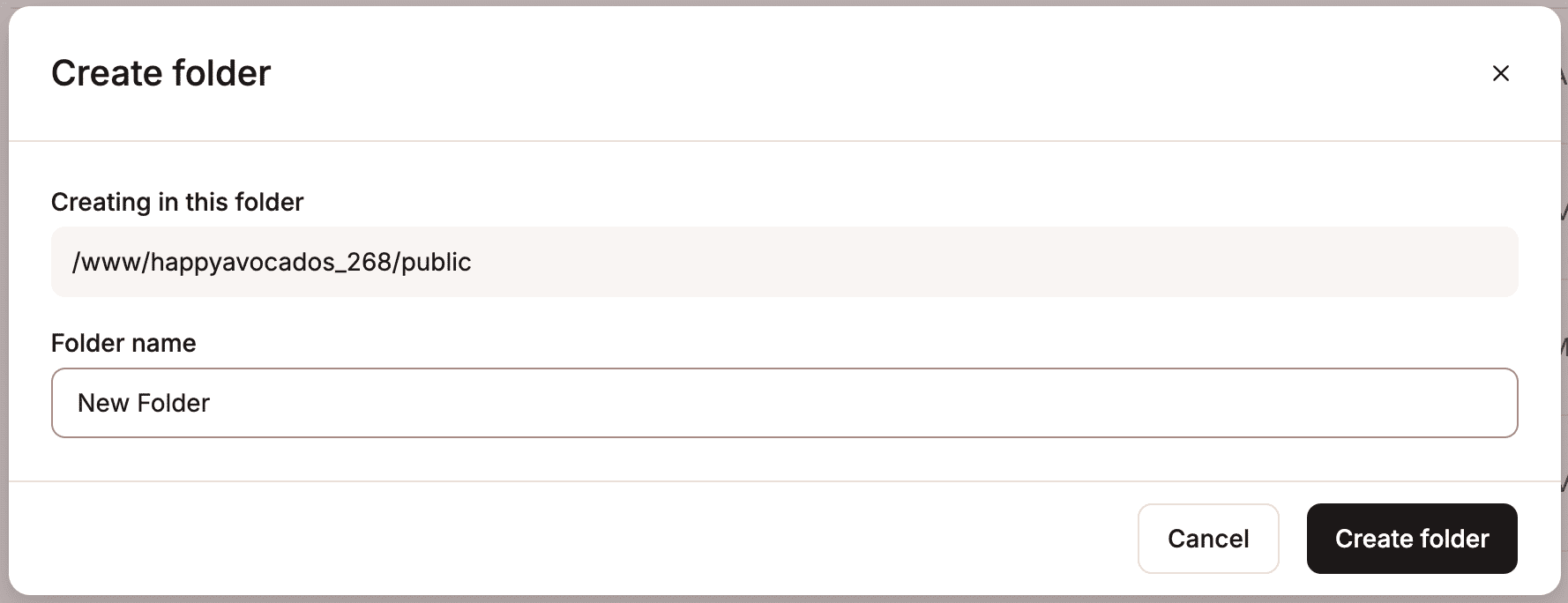
Enter a name for the folder, and click Create folder.
Sharing links to folders
To share a link to a specific folder, copy the URL and send it to the person you want to share it with. You can only share folder links with users who already have access to the environment. Folder links stay active for 30 days; after that, clicking an expired link opens the default folder instead of the specific one.
File options
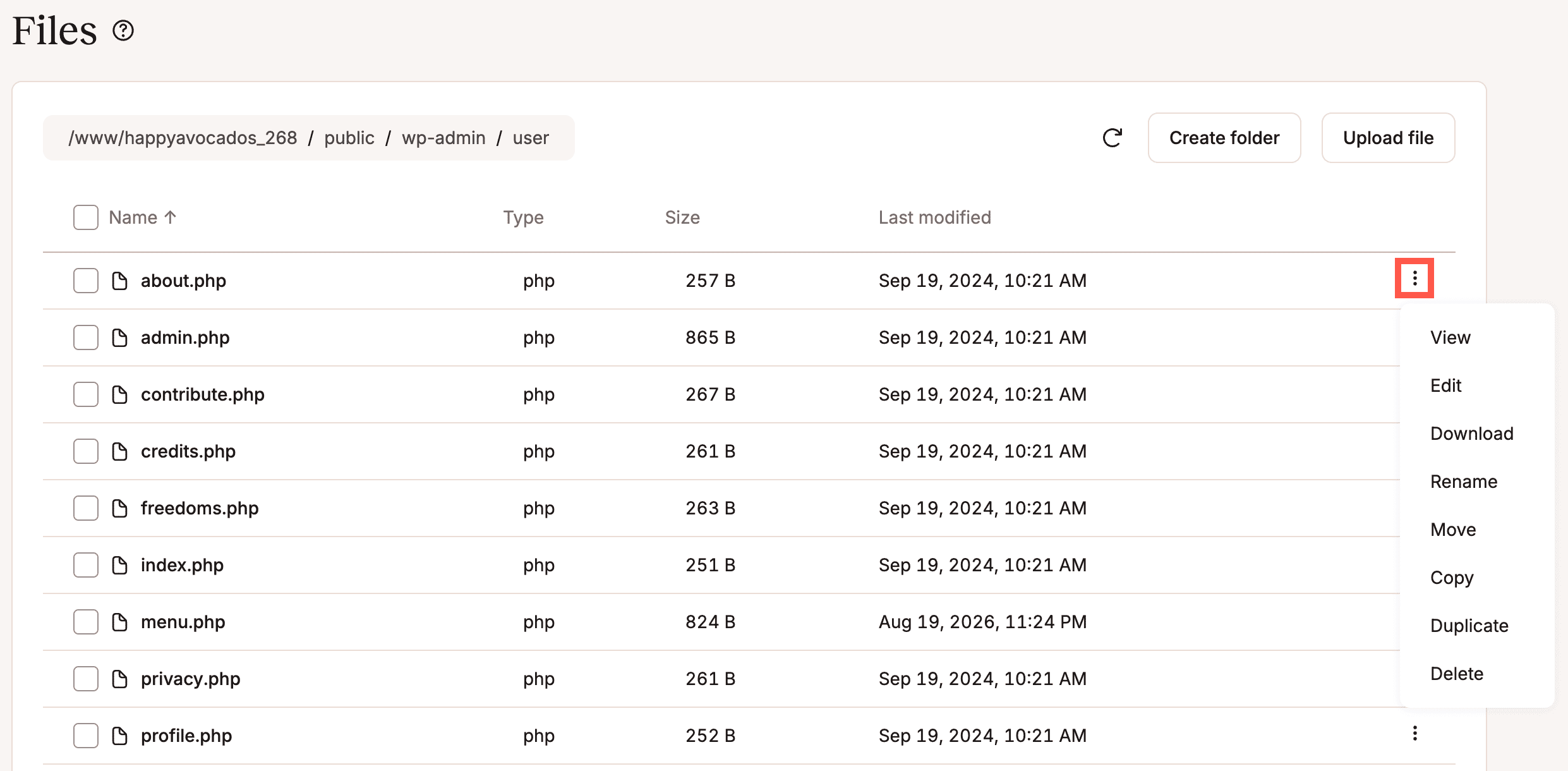
To view, edit, download, rename, move, copy, duplicate, or delete a file, click the kebab (three dots) and select the required option.
View a file
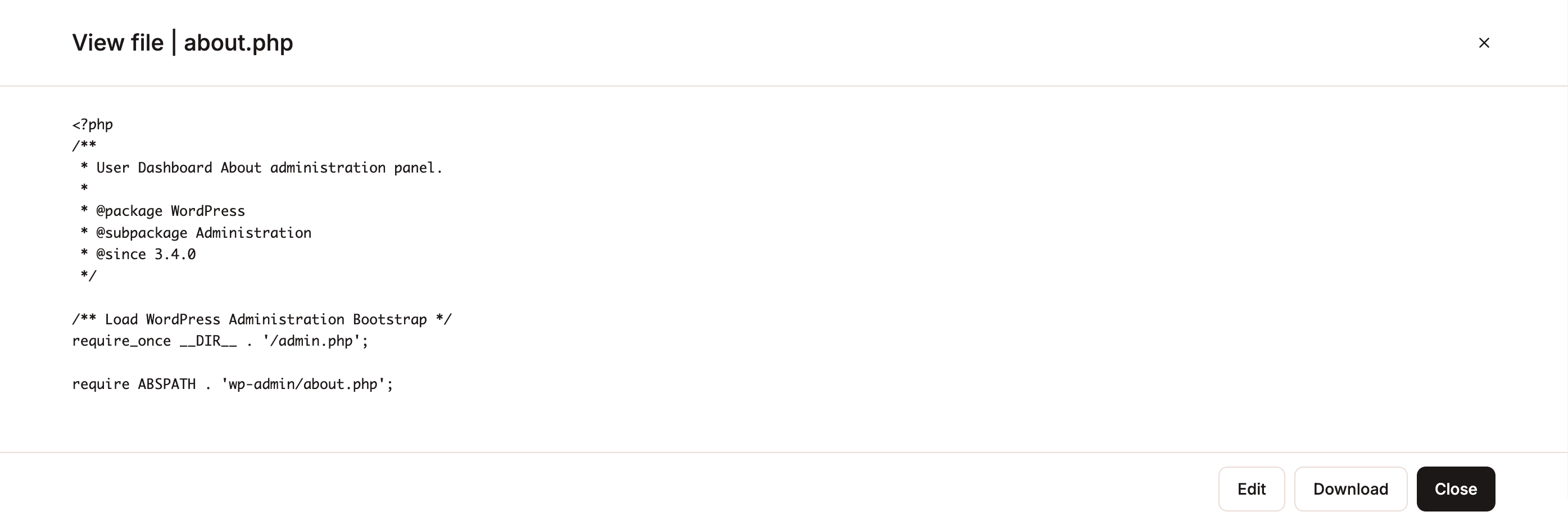
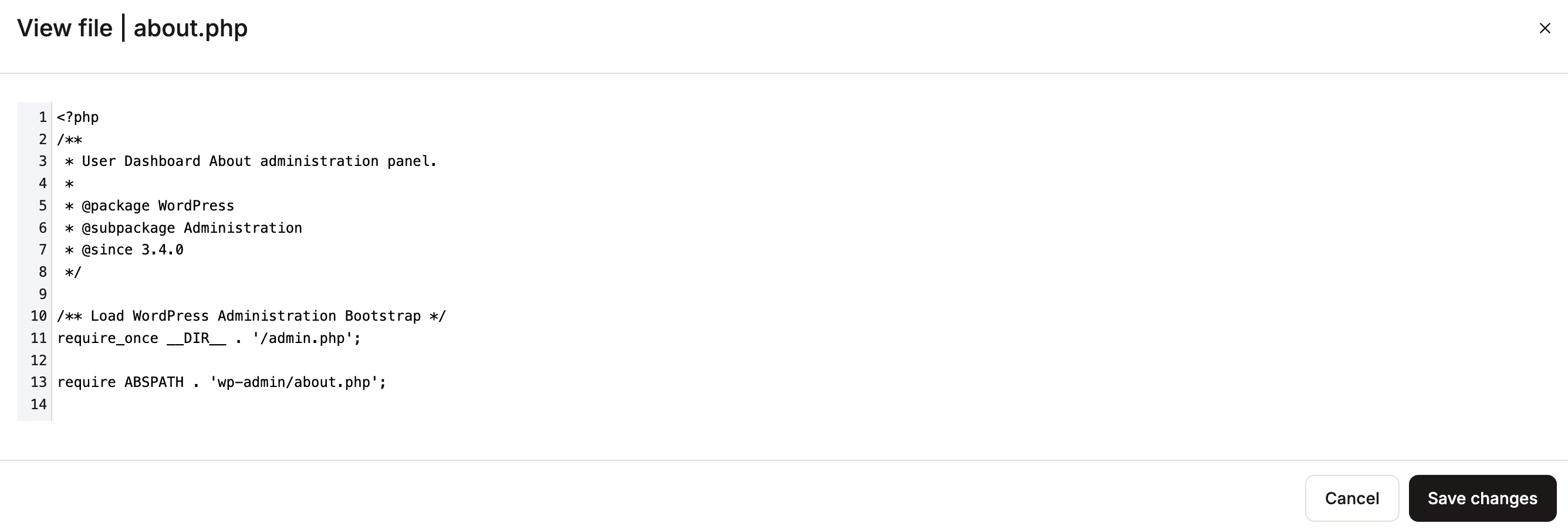
To view a file, use the kebab (three dots) and select View. You can use File Manager to view files that contain readable text, such as code, configuration, and markup files (for example, PHP, HTML, CSS, JavaScript, JSON, XML, YAML, and SQL).
You cannot view document, media, or binary file formats. This includes files such as PDFs, Word documents, spreadsheets, images, videos, audio files, fonts, archives, or executables. To view these files, you must download them.
You cannot view files larger than 10 MB within File Manager. To view these files, you must download them.
You can also edit the file from the view window. To go back to File Manager, click the cross to close the file.
Edit a file
To edit a file, use the kebab (three dots) and select Edit. You can use File Manager to edit files that contain readable text, such as code, configuration, and markup files (for example, PHP, HTML, CSS, JavaScript, JSON, XML, YAML, and SQL).
You cannot edit document, media, or binary file formats. This includes files such as PDFs, Word documents, spreadsheets, images, videos, audio files, fonts, archives, or executables. To edit these files, you must download them, make the changes, and upload them again.
You cannot edit files larger than 10 MB within File Manager. To edit these files, you must download them.
When you make the required changes to your file, click Save changes. To go back to File Manager, click the cross to close the file.
Download a file
To download a file, use the kebab (three dots) and select Download. The file is downloaded to your default download location, which varies by operating system, as follows:
- Windows: C:\Users\<username>\Downloads
- macOS: /Users/<username>/Downloads
- Linux: /home/<username>/Downloads
There is no limit to the download size; however, large downloads may fail if the transfer is too slow or times out.
Download log files
Kinsta’s File Manager provides a quick and easy way to download log files from your site.
- In MyKinsta, go to Sites > sitename > Files.
- To access the site’s root directory, click the root directory path in the breadcrumbs.
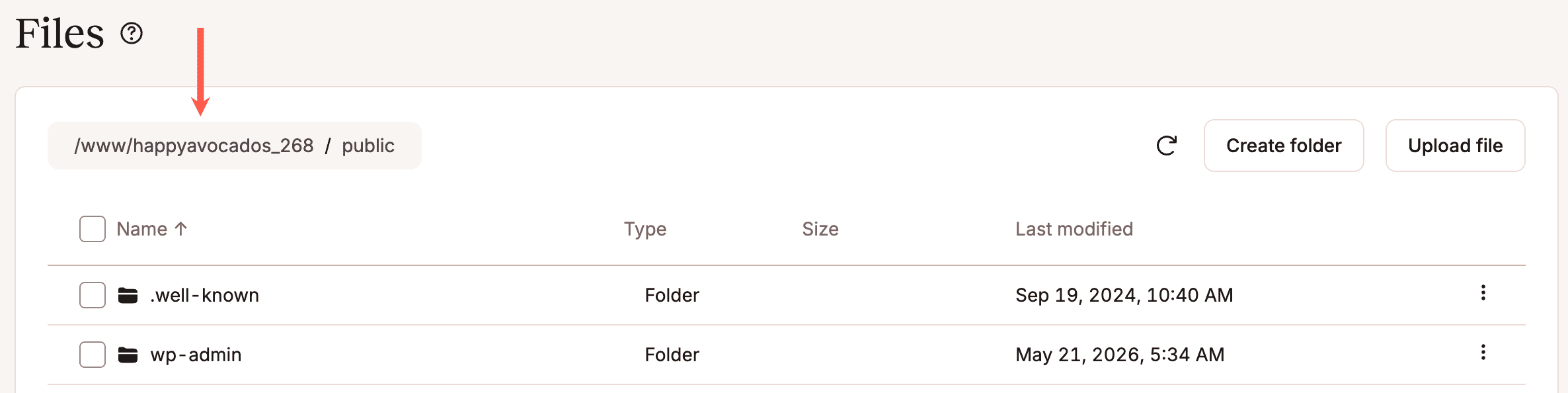
Click the root directory path to access the logs. - Open the logs folder.
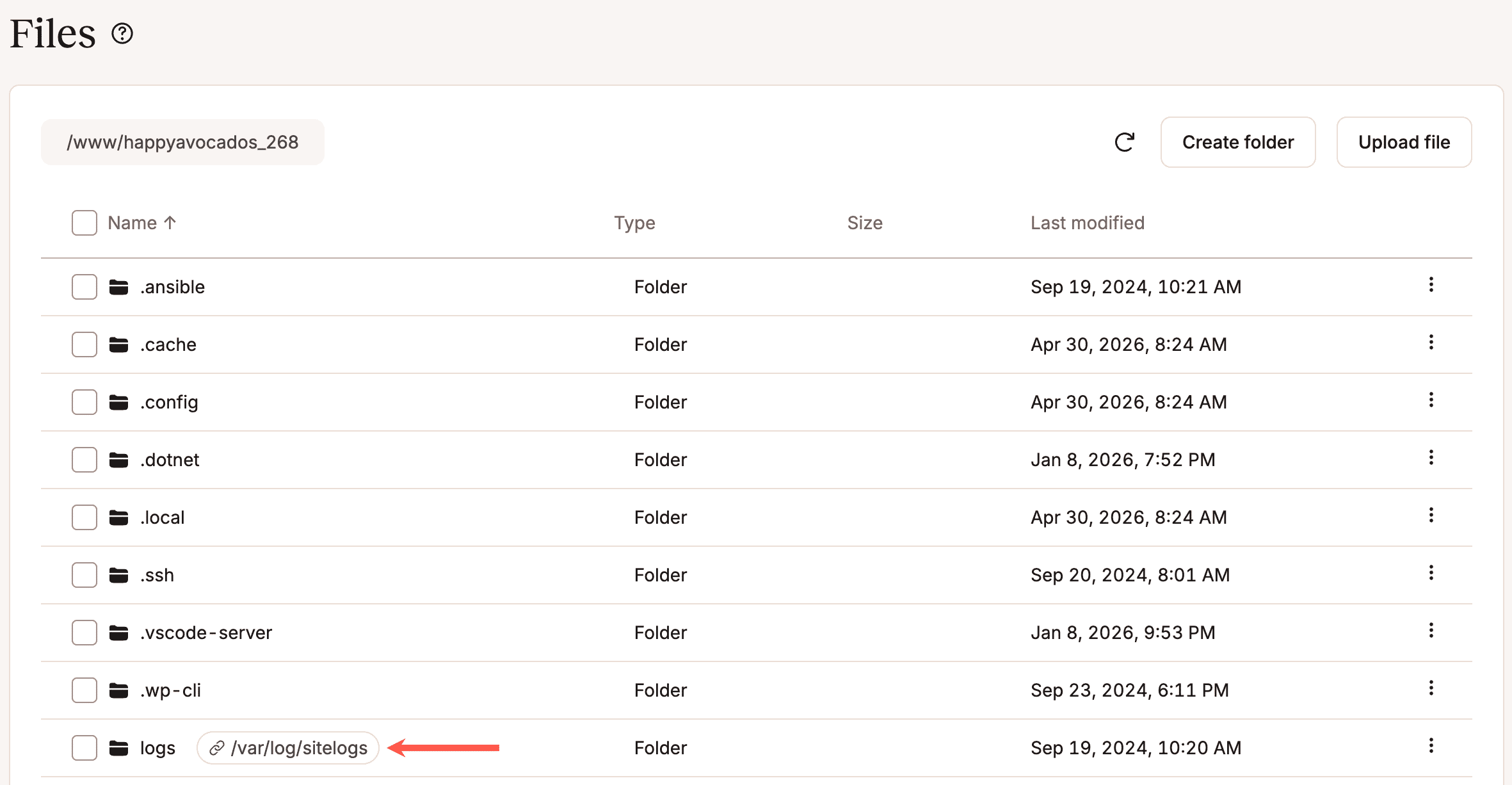
Open the logs folder. - Locate the log file you want to download, click the kebab (three-dots), and then click Download.
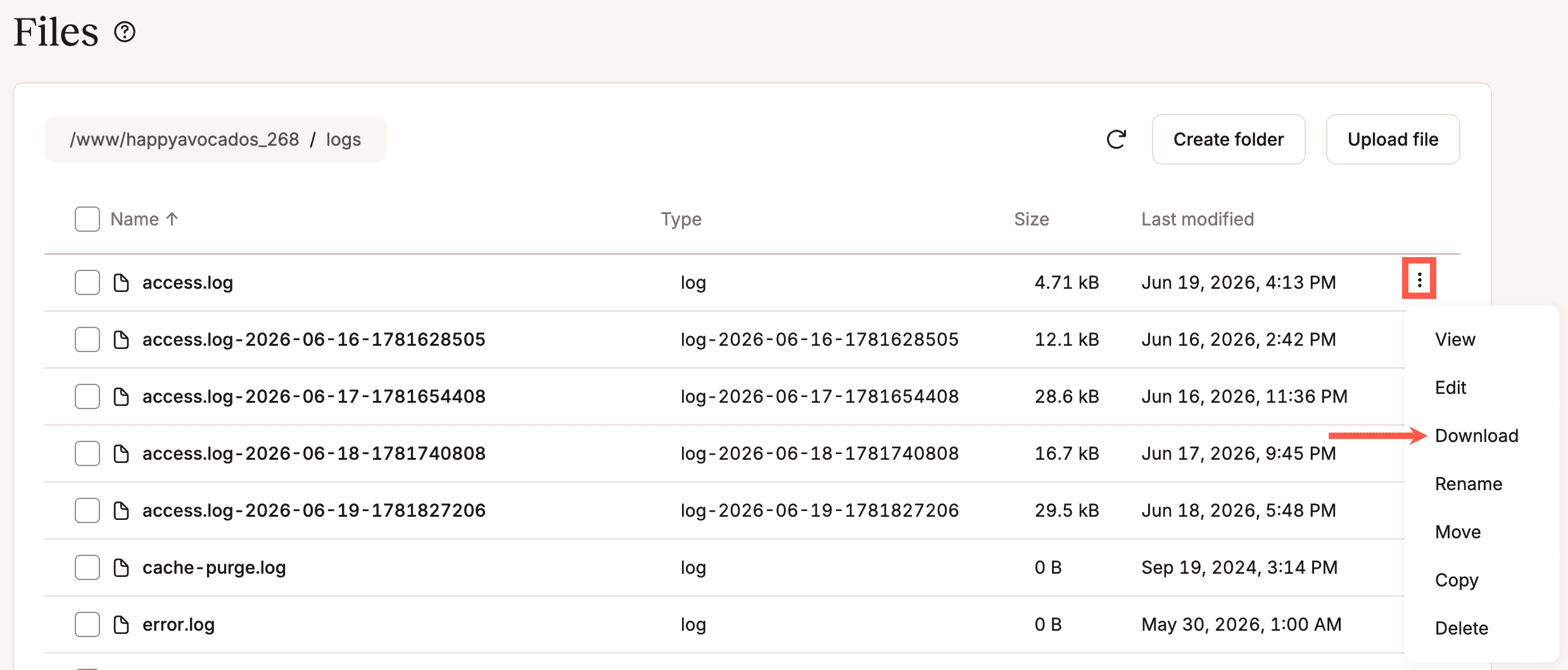
Download the log file.
The log file is downloaded to your computer and can be opened with any text editor for further analysis.
Rename a file
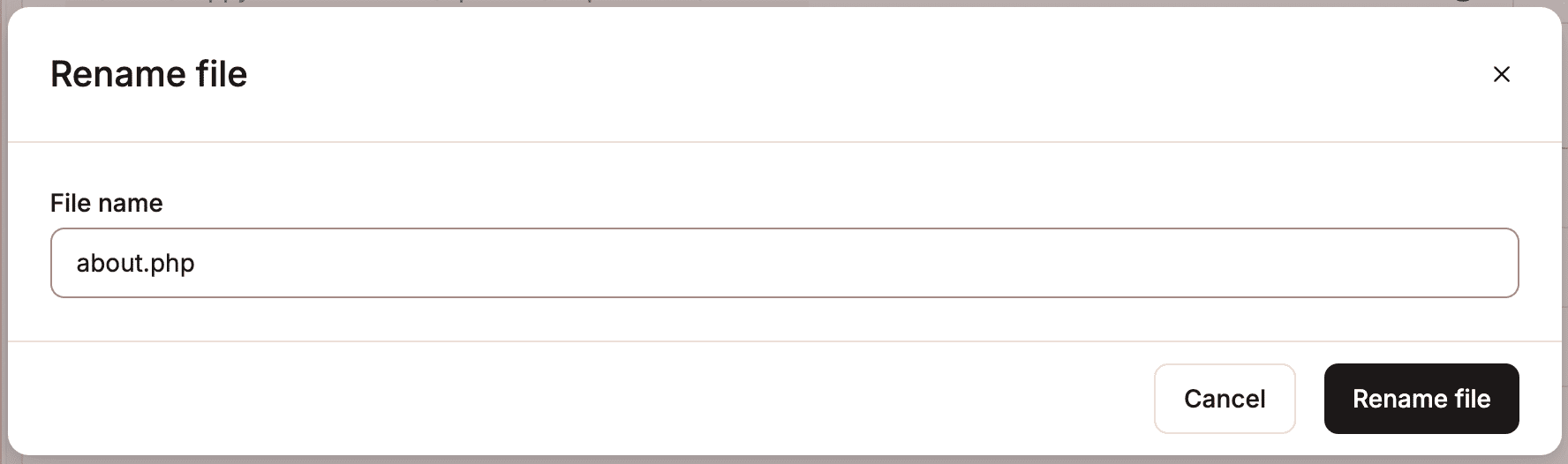
To rename a file, use the kebab (three dots) and select Rename. Enter the new name for the file, and click Rename file.
Move a file
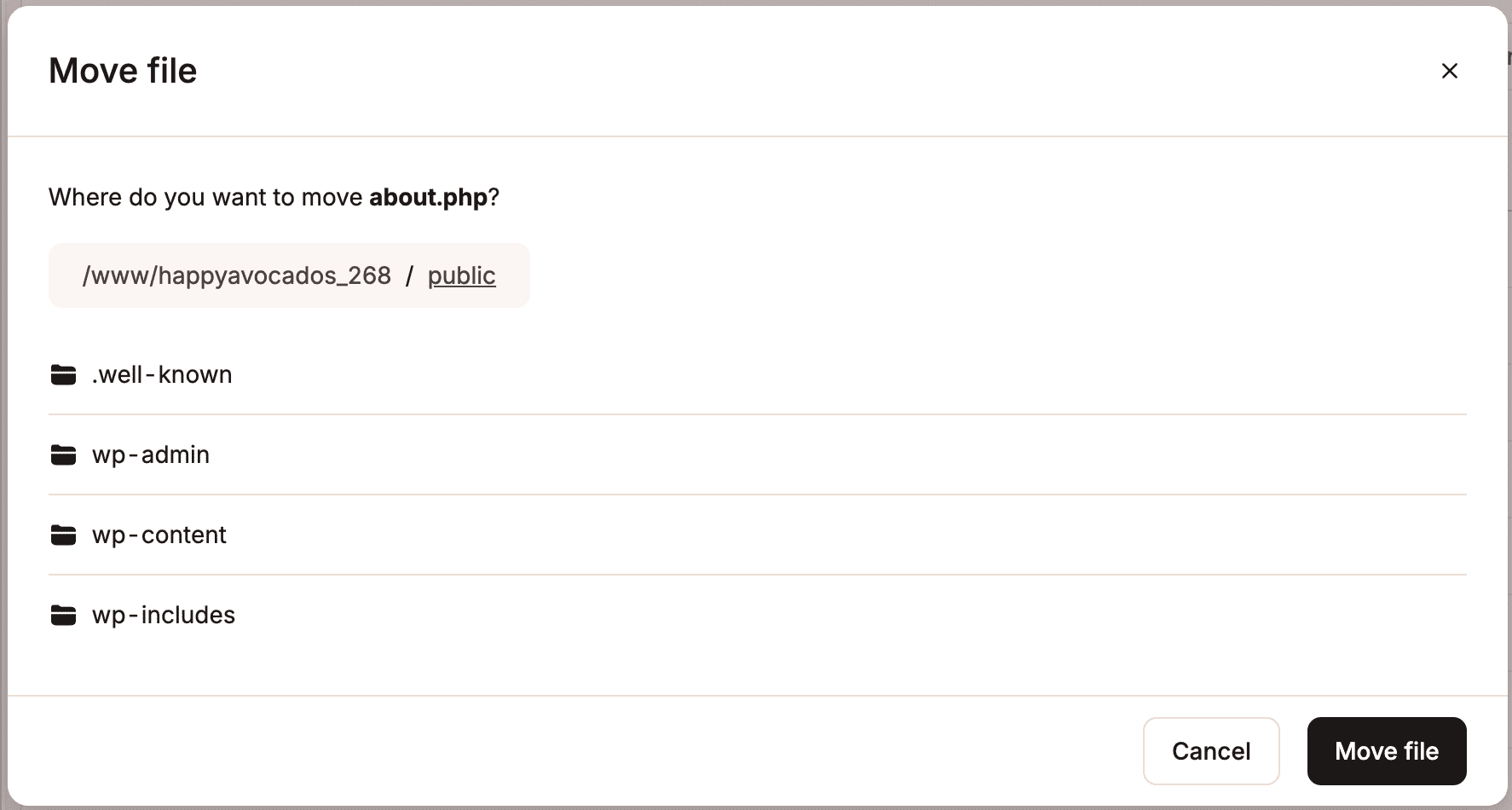
To move a file, use the kebab (three dots) and select Move. Browse to the destination where you want to move the file, click a folder to open it, or use the breadcrumbs to navigate back to a parent folder. Then click Move file to move the file into the selected location.
Copy a file
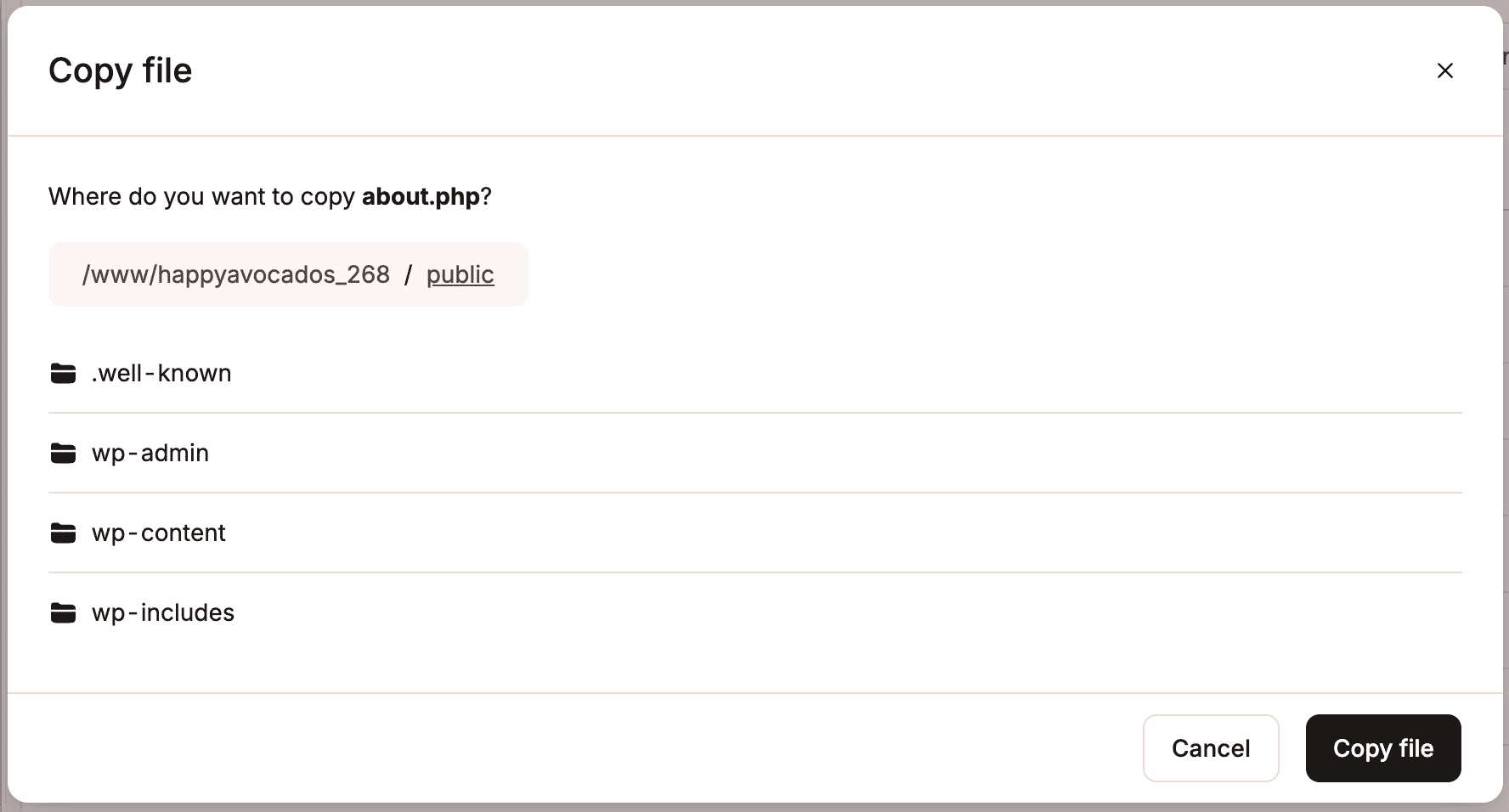
To copy a file, use the kebab (three dots) and select Copy. Browse to the destination where you want to copy the file to, click a folder to open it, or use the breadcrumbs to navigate back to a parent folder. Then click Copy file to copy it into the selected location.
Duplicate a file
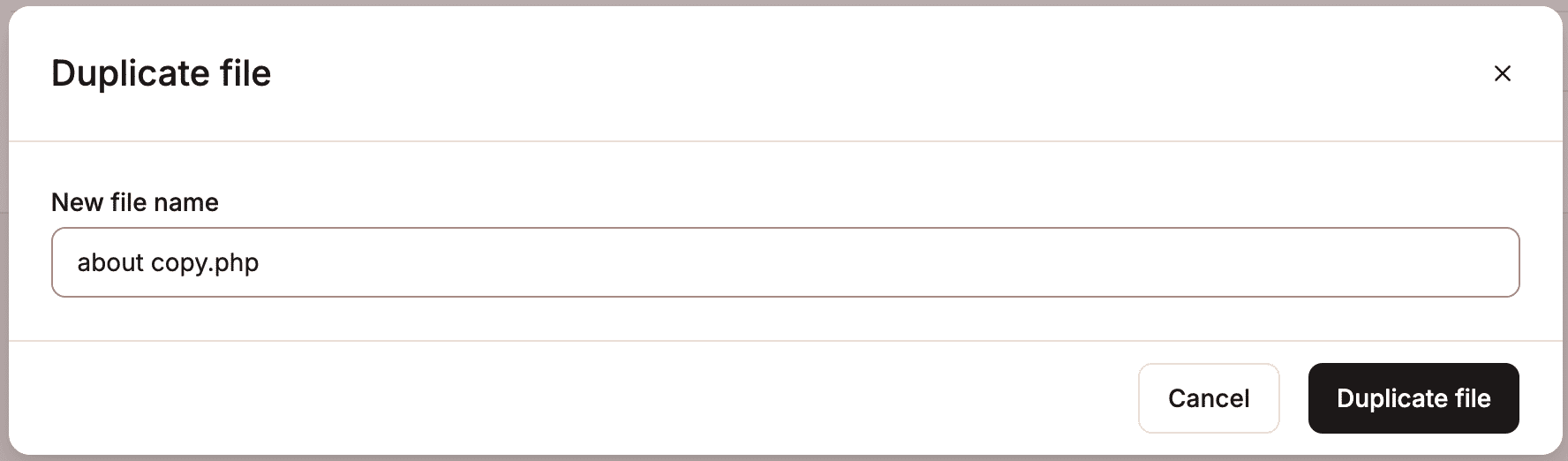
To duplicate a file, use the kebab (three dots) and select Duplicate. By default, the duplicate uses the original file name with copy added. To use a different name, enter it in New file name, then click Duplicate file.
Delete a file
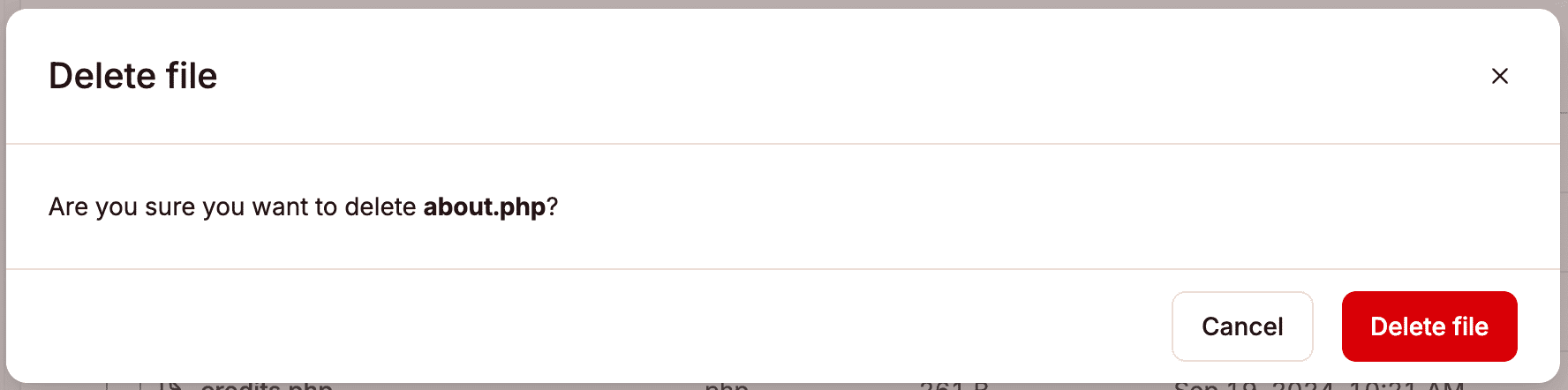
To delete a file, use the kebab (three dots) and select Delete. To confirm the deletion, click Delete file.
Upload a file
To upload a file, browse to the directory you want to upload it to, then click Upload file. Files larger than 100 MB cannot be uploaded within File Manager.
You cannot upload a file with the same name as an existing file in the folder. If a file with that name already exists, you’ll be asked if you want to overwrite the existing file or skip it.
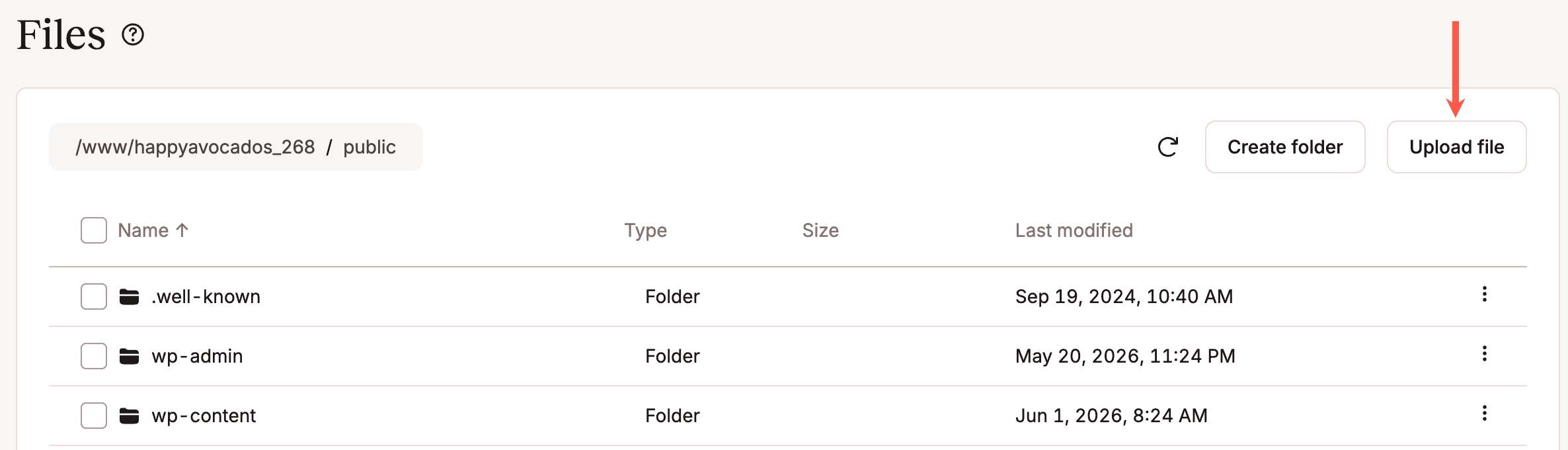
Browse to the file on your computer and click Open.
If you need to cancel the file upload, click Cancel upload.

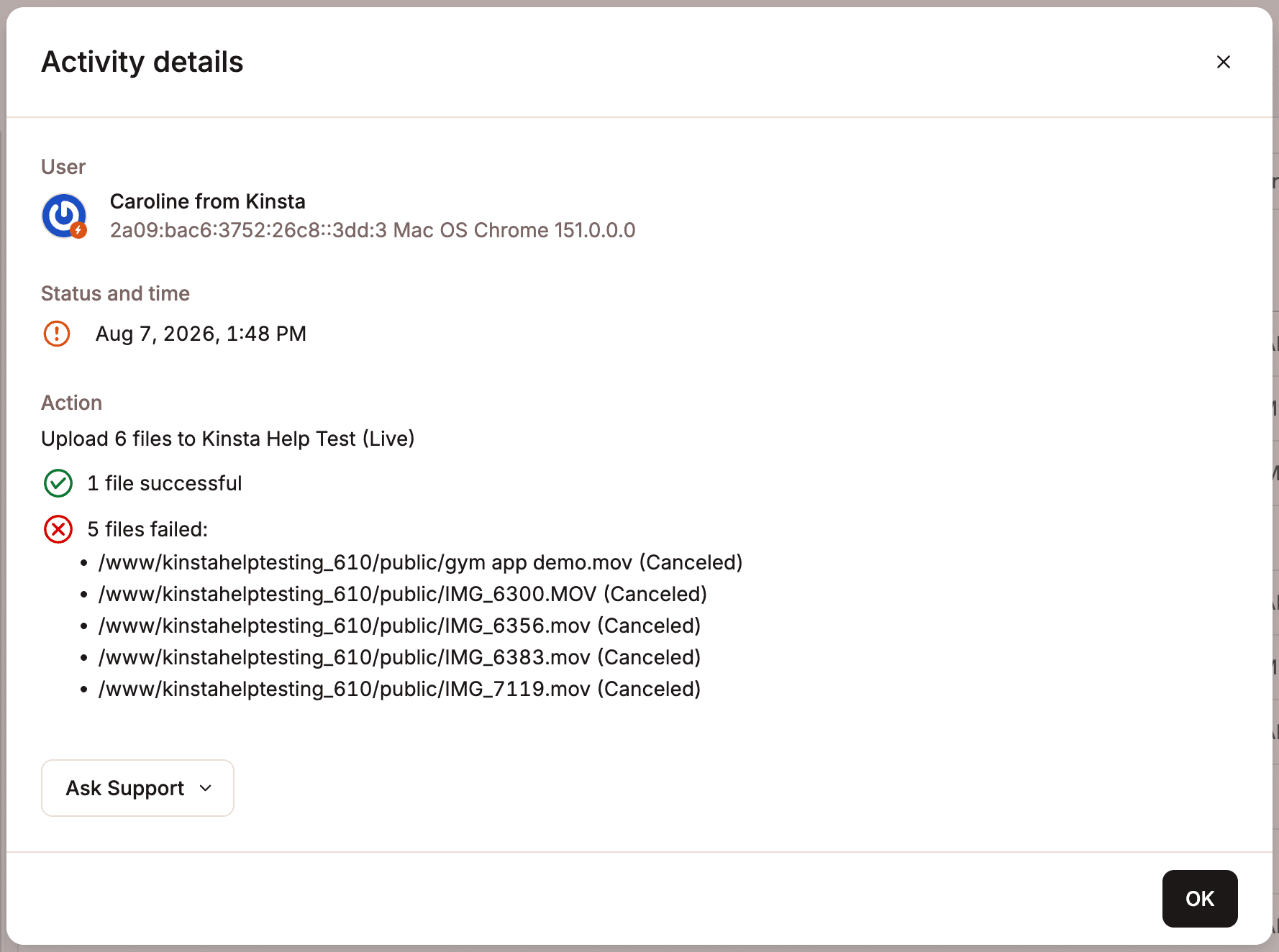
If the file upload fails, click See details to see which files failed to upload and the reason why.
Symlinks
A symlink is a shortcut or a link that points to another file or folder within your WordPress directory. It lets you access a file or directory from one location while the actual file lives somewhere else.
Symlinks are commonly used for:
- Shared files or assets: Multiple WordPress sites may use the same uploads folder, plugin, or media library through a symlink instead of storing duplicate copies.
- External or mounted storage: A symlink can point the
uploadsdirectory to external storage, such as a mounted network drive or cloud storage volume. - Development workflows: Developers often symlink plugins or themes from a local development repository into the WordPress
wp-contentdirectory, so changes update immediately without copying files. - Keeping large files outside the main WordPress directory: Large media libraries, backups, or generated files can be stored outside the main WordPress installation while still appearing accessible from within WordPress through a symlink.
If a folder or file uses a symlink, the link to that file or folder is shown in MyKinsta’s File Manager.
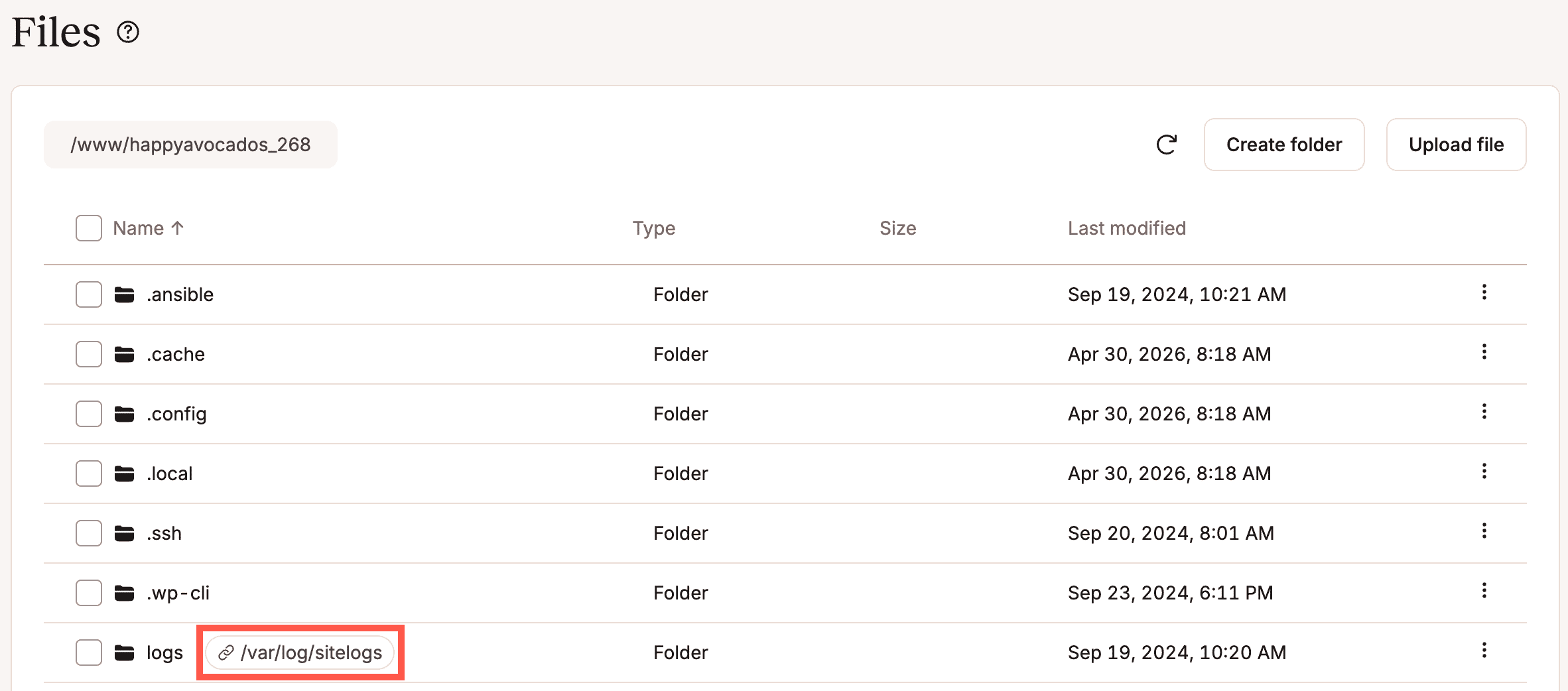
To rename, move, copy, or delete a symlink, click the kebab (three dots) and select the required option.
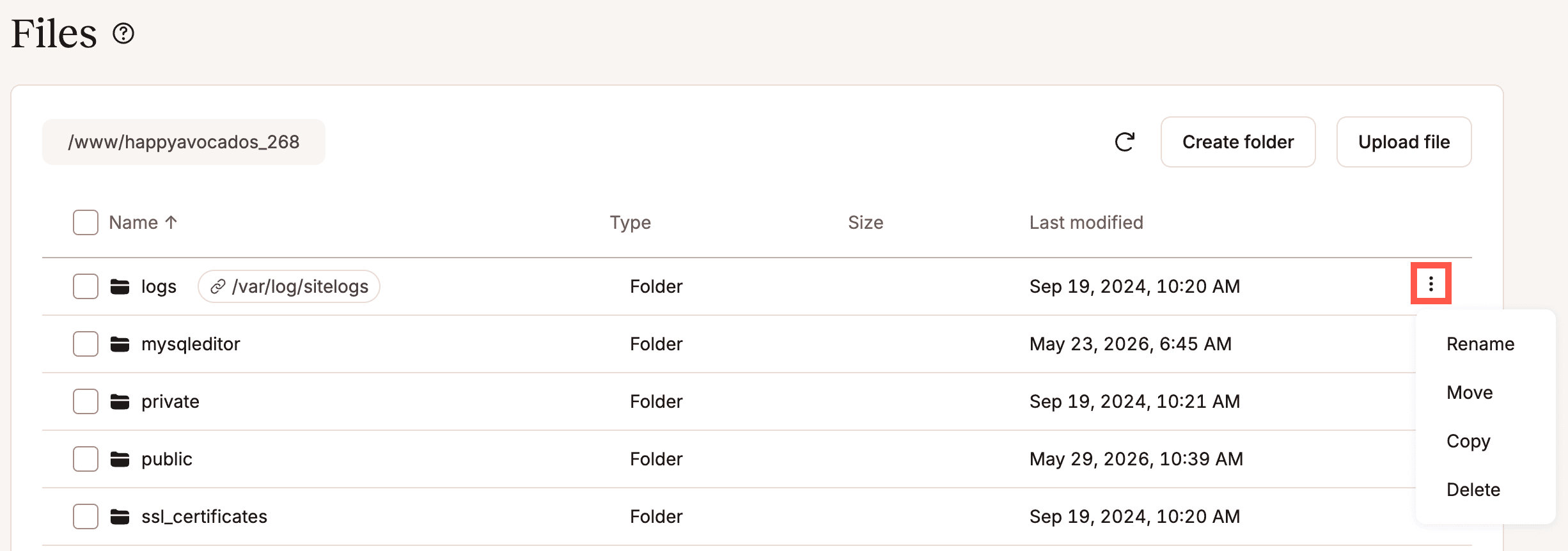
Rename a symlink
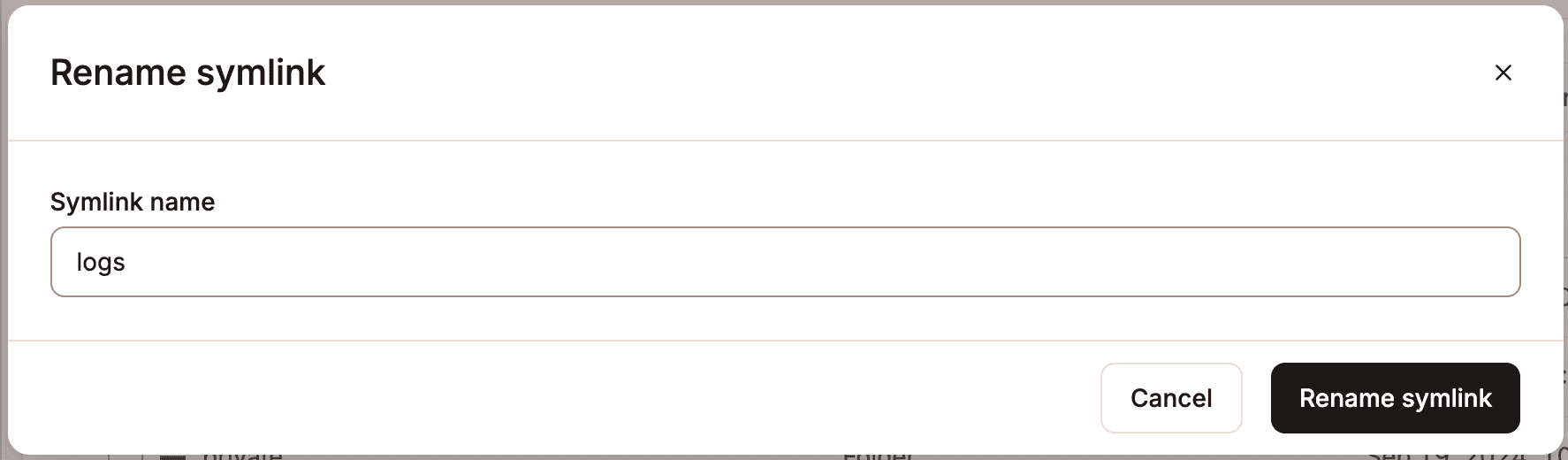
To rename a symlink, use the kebab (three dots) and select Rename. Enter the new name for the symlink, and click Rename symlink. Renaming a symlink only changes the name of the link itself; it does not rename or modify the original file or folder it points to.
Move a symlink
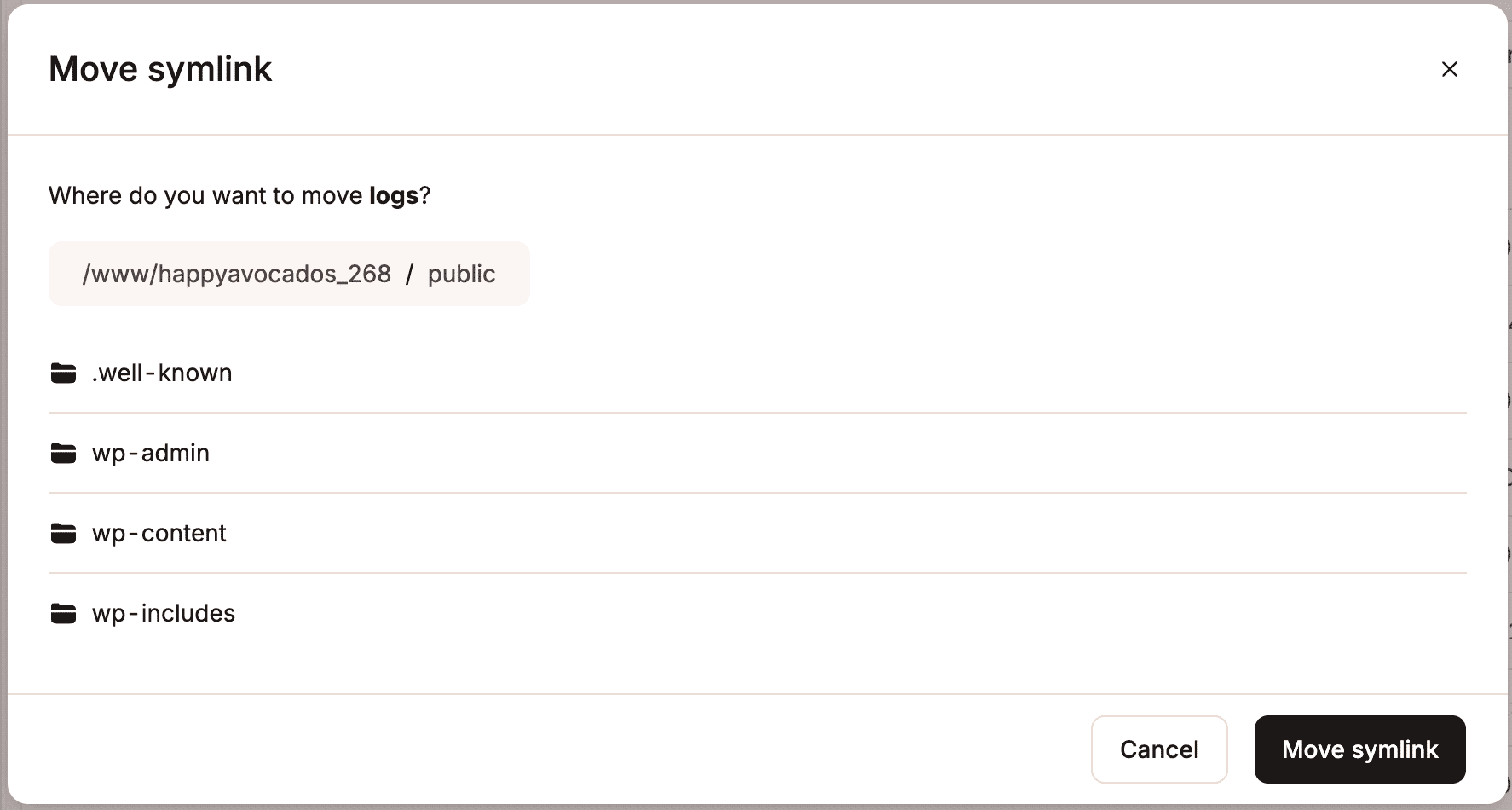
To move a symlink, use the kebab (three dots) and select Move. Browse to the destination where you want to move the symlink, click a folder to open it, or use the breadcrumbs to navigate back to a parent folder. Then click Move symlink to move the symlink to the selected location. This only moves the link; it does not move the original file or folder it points to.
Copy a symlink
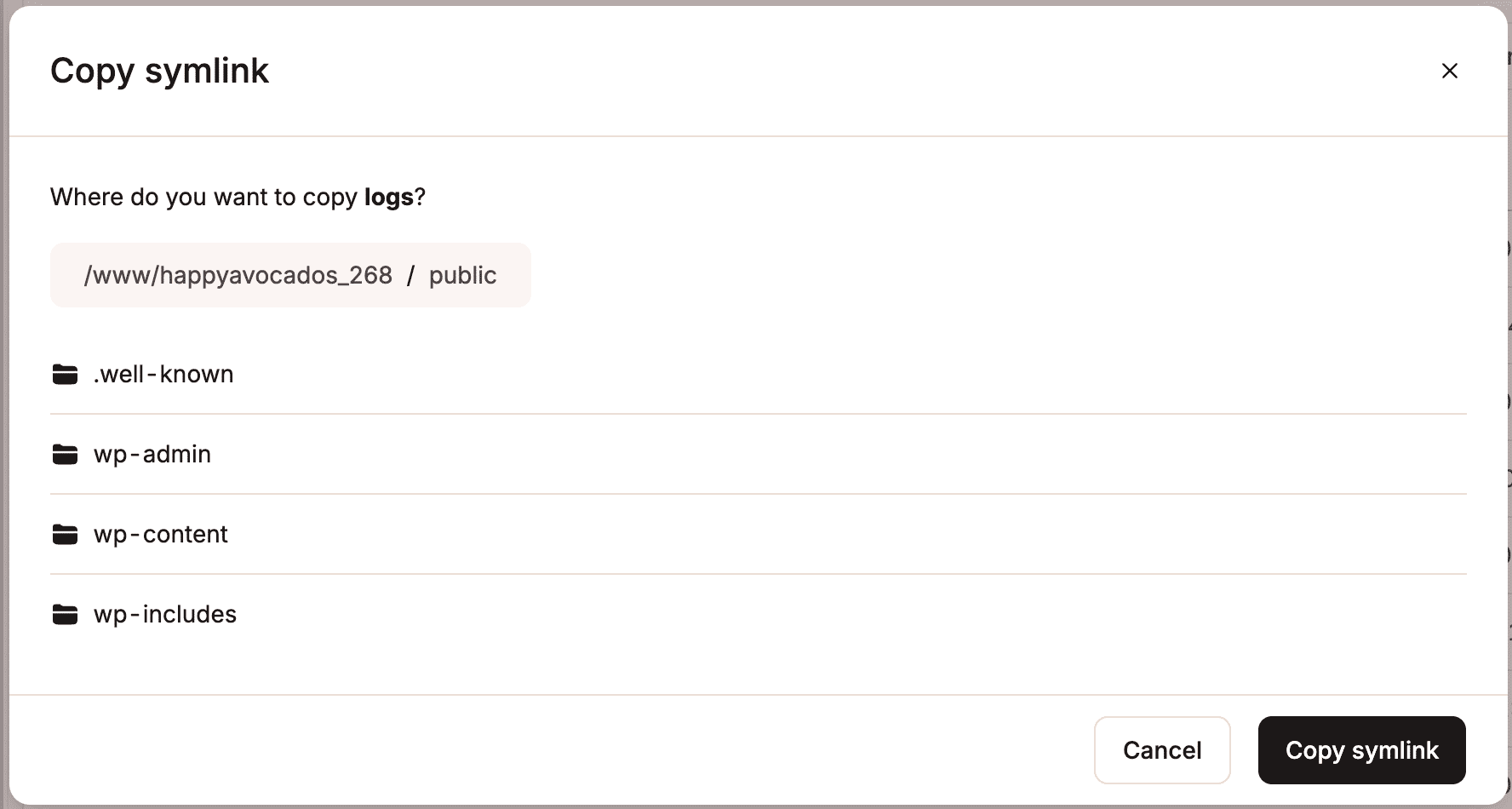
To copy a symlink, use the kebab (three dots) and select Copy. Browse to the destination where you want to copy the symlink to, click a folder to open it, or use the breadcrumbs to navigate back to a parent folder. Then click Copy symlink to copy the symlink to the selected location.
Delete a symlink
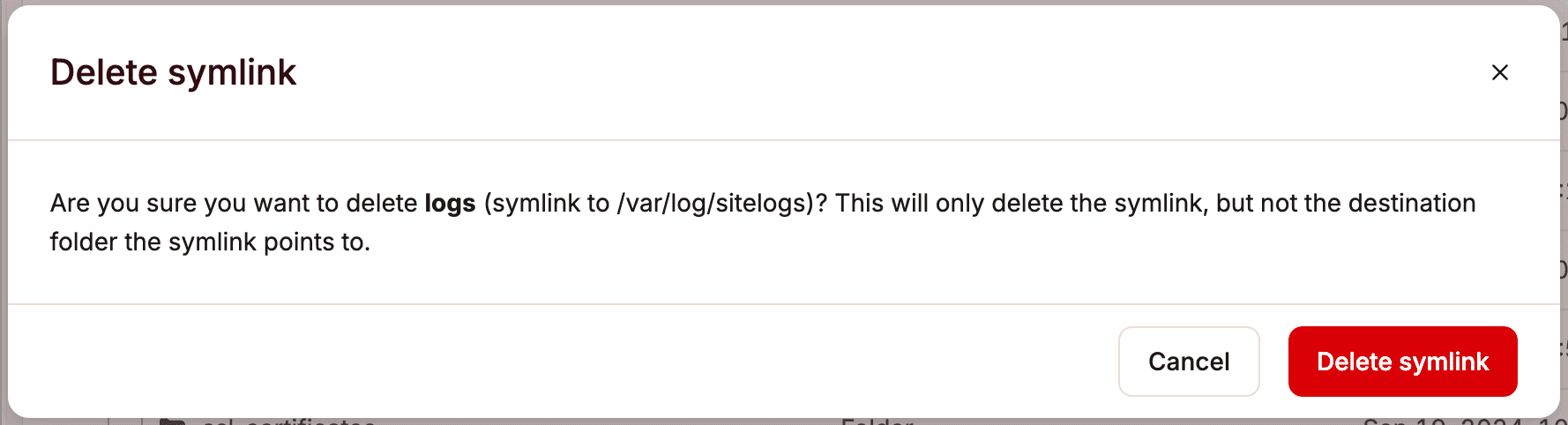
To delete a symlink, use the kebab (three dots) and select Delete. To confirm the deletion, click Delete symlink.
Bulk options
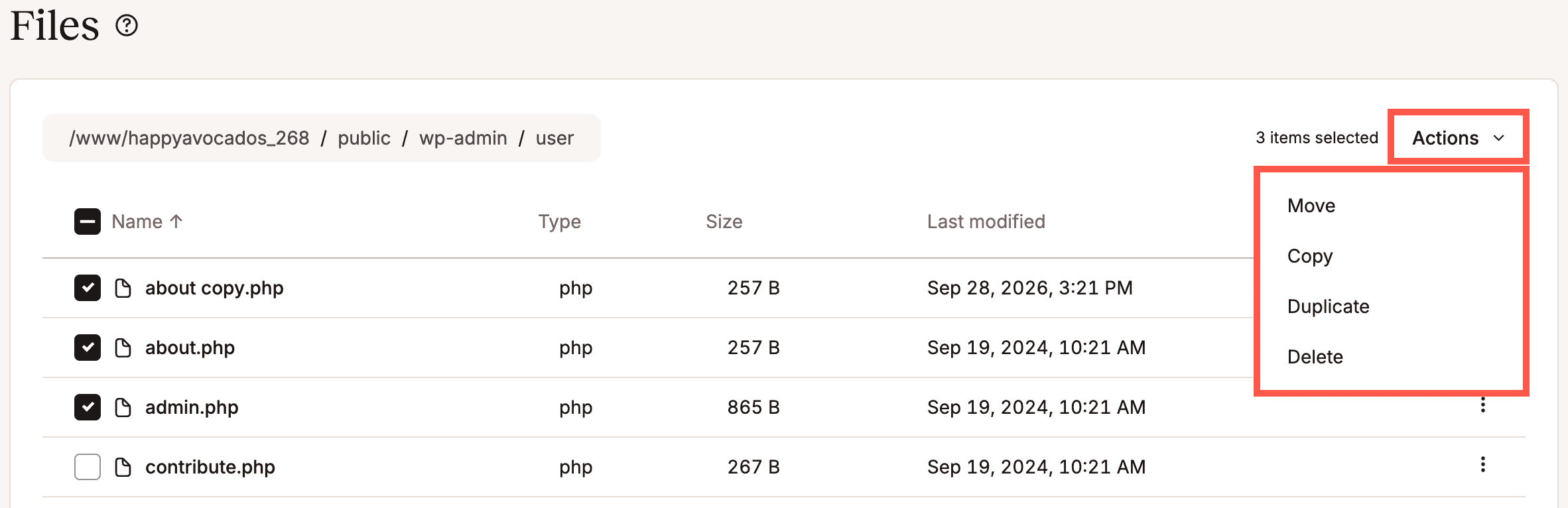
You can move, copy, duplicate, and delete multiple files and folders simultaneously. Select the required files and folders, click Actions, and select Move, Copy, Duplicate, or Delete.