 Add as a preferred source on Google
For an agency managing dozens or hundreds of WordPress sites, site management isn’t just a technical challenge—it’s a race against time and a battle for security. Every time a team member jumps from one site to another, they experience “login friction.” Retrieving credentials for every site and passing two-factor authentication (2FA) for each one, every single time, is a waste of time and resources.
Many agencies subscribe to third-party WordPress Management Tools (or Centralized Dashboards) to help them manage WP Admin access across multiple sites. However, these services come at a cost that, for an agency with over 50 sites, can reach up to $1,500/year—not to mention the time lost in setup and maintenance.
To eliminate this inefficiency, we’ve launched a native solution that enables your team members to automatically authenticate to the WordPress admin panel directly from your MyKinsta dashboard with a single click. This feature saves your agency time by removing the need to manage credentials and two-factor authentication for each login, allowing your team to focus on higher-value activities while improving security and productivity.
Let’s dive into WP Admin auto-login and find out why it’s such a powerful feature for agencies.
Reclaiming Efficiency with Kinsta’s WP Admin auto-login
For an agency managing multiple sites, time is a scarce resource. Every single step in a workflow consumes time and energy, and often the “in-between” tasks—like logging into a WordPress dashboard—are underestimated.
Think about it: Every time a team member needs to access a site’s admin, they have to search for the domain, retrieve credentials, find the login URL (which is often customized), and wait for a 2FA code. Multiply this by dozens of logins per day, and you’ve identified a major source of inefficiency and stress.
The problems caused by manual login impact different roles within your agency:
- Project Manager: Managing access is tough. If different developers have different site assignments, the PM must provide everyone with proper access. This increases security risks and complicates operations. Third-party tools help, but also raise costs.
- Technical team: Accessing the WordPress admin for every bug report takes time, especially when a site uses a custom login URL for security.
- Marketing Specialist: Updating a tracking pixel across 20 sites means spending many minutes copying and pasting credentials.
With Kinsta as your hosting partner, there’s no need to manage credentials for multiple WordPress sites. You can simply access admin panels with one click.
How Kinsta’s WP Admin auto-login works
To log in automatically to WP Admin in Mykinsta, navigate to Sites > sitename > Info, and click on Log in to WP Admin.

If your MyKinsta email matches an existing WordPress user’s email, you are directly logged into your WordPress admin.
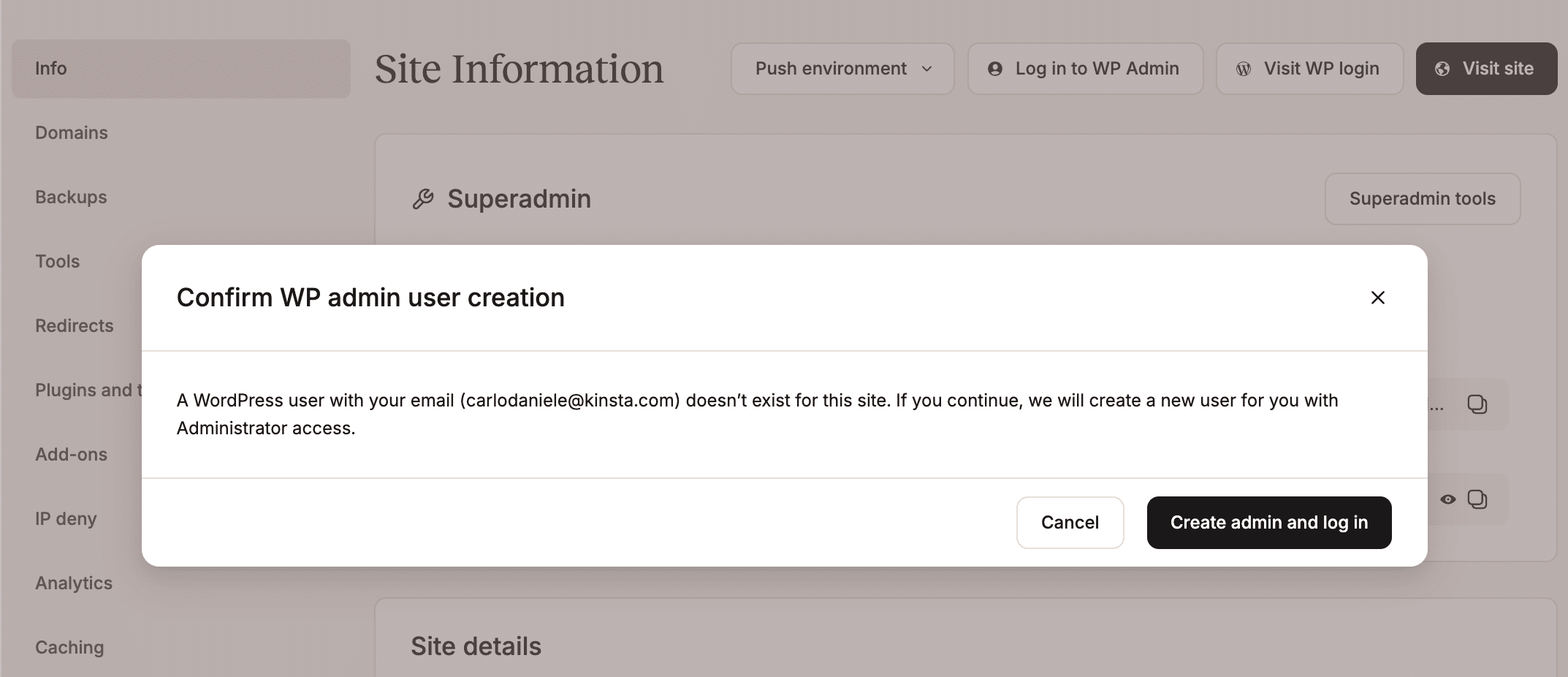
If no WordPress user exists with the same email as your MyKinsta account, you’ll be prompted to create a new Administrator account using that email address. This step is required to access WordPress via auto-login from MyKinsta.
To create the new WP Admin user and log in automatically, click Create admin and log in.
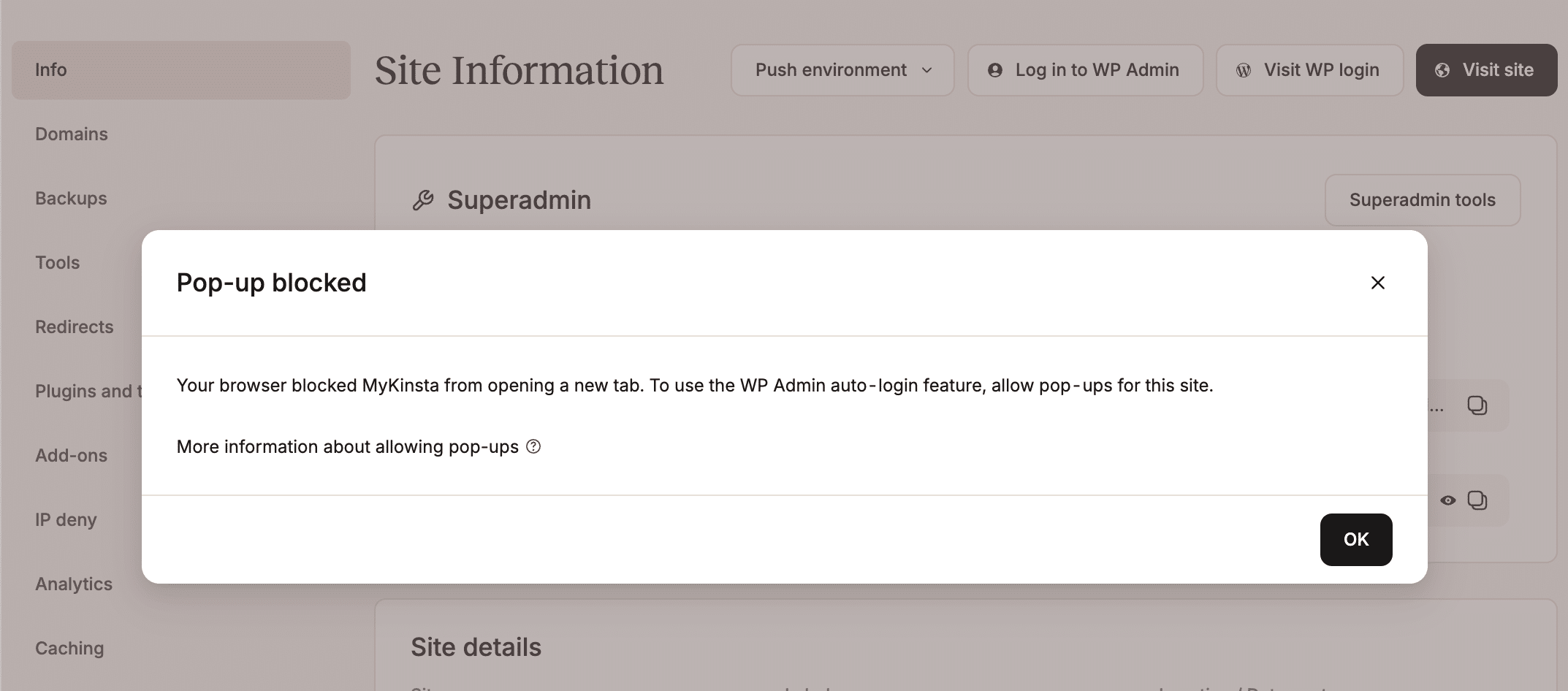
Please note that the WP Admin auto-login feature requires pop-ups to be enabled in MyKinsta. If pop-ups are disabled, you will see a Pop-up blocked message. Follow the instructions in our docs to fix this issue, or refer to your browser’s documentation.
Kinsta’s WP Admin auto-login does not replace standard credential-based authentication. Once you’ve created a new user via WP Admin auto-login, if you want to log in manually, you need to reset your WordPress password by clicking Lost your password? on the WordPress login screen. Then, just follow the link you will receive via email to set your new password.
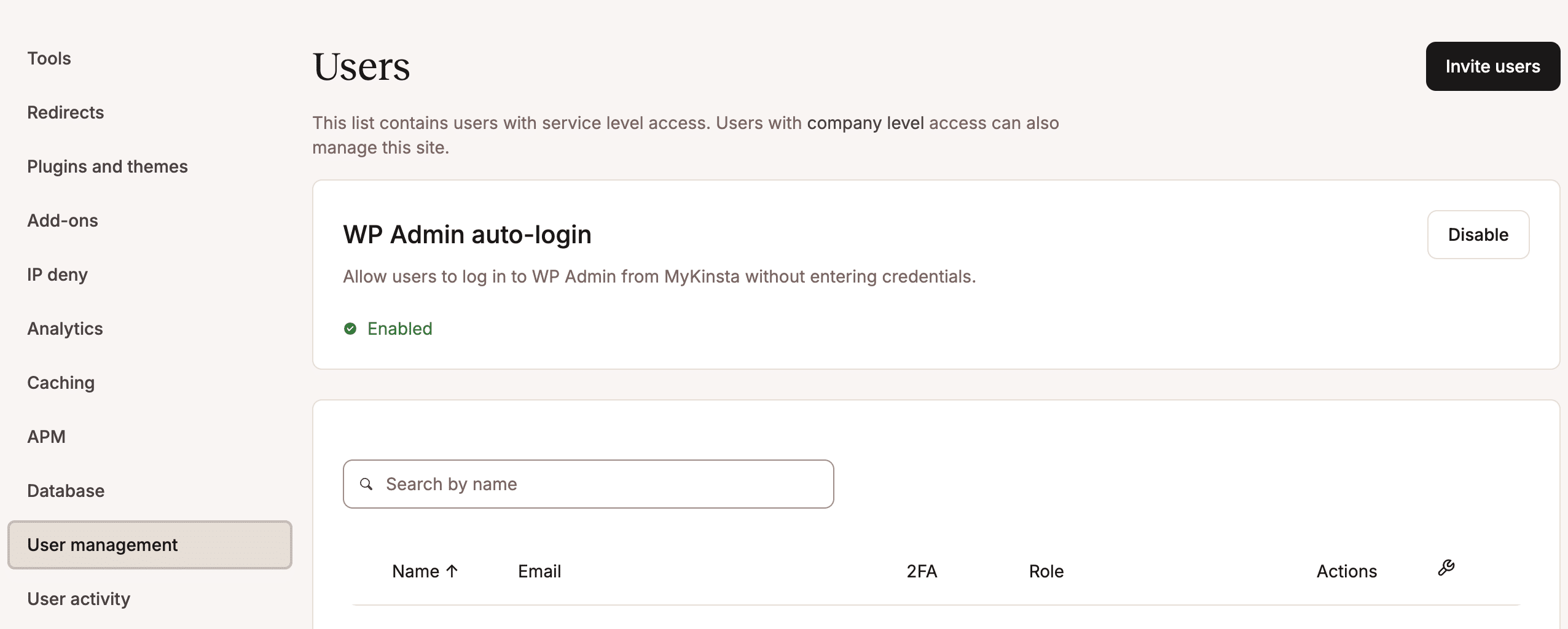
WP Admin auto-login is enabled by default for all your websites. Company Owners, Company Administrators, and Company Developers can enable/disable it on a per-site basis under Sites > sitename > User management > WP Admin auto-login > Disable.
Security and Governance with Kinsta’s WP Admin auto-login
Keeping things simple should not weaken security. Third-party management tools usually require plugins that may introduce vulnerabilities. Kinsta’s WP Admin auto-login streamlines agency workflows while enforcing governance without compromising your security. This centralized authentication system offers several benefits:
- Granular site-level control: Not all sites need the same settings. Your agency might manage high-traffic e-commerce sites with strict security protocols alongside smaller portfolio websites. As a company owner or administrator, you can granularly control which sites have auto-login enabled directly from the MyKinsta user management page.
- No passwords to store: With WP Admin auto-login, your team members don’t need to store or share credentials for every site. This eliminates risks like weak passwords, shared credentials, or forgotten 2FA setups.
Native Integration with MyKinsta SAML SSO
Kinsta’s WP Admin auto-login integrates natively with Kinsta SAML SSO, bringing unique benefits to your agency’s governance, including enhanced security and greater fluidity.
If you are using an Identity Provider (IdP) like Microsoft Entra ID, Google Identity Platform, or Okta, you can centralize the entire access lifecycle at the IdP level.
You can decide which members of your team can access MyKinsta with the default Company Developer role. You can then change the default role or modify a specific user’s role in MyKinsta. If you leave the default Company Developer role, the user will be able to access all of your agency’s sites through WP Admin auto-login.
If you change an individual user’s role, for example, to Site Developer, the authorized team member will only be able to use WP Admin auto-login on the sites they have access to.
With Just-In-Time (JIT) provisioning, the process is even simpler: authorized users at the IdP level can access MyKinsta without a manual invite. Upon their first login, the system generates a new account, and they can immediately use the WP Admin auto-login to access client sites based on their assigned roles (e.g., Company Developer).
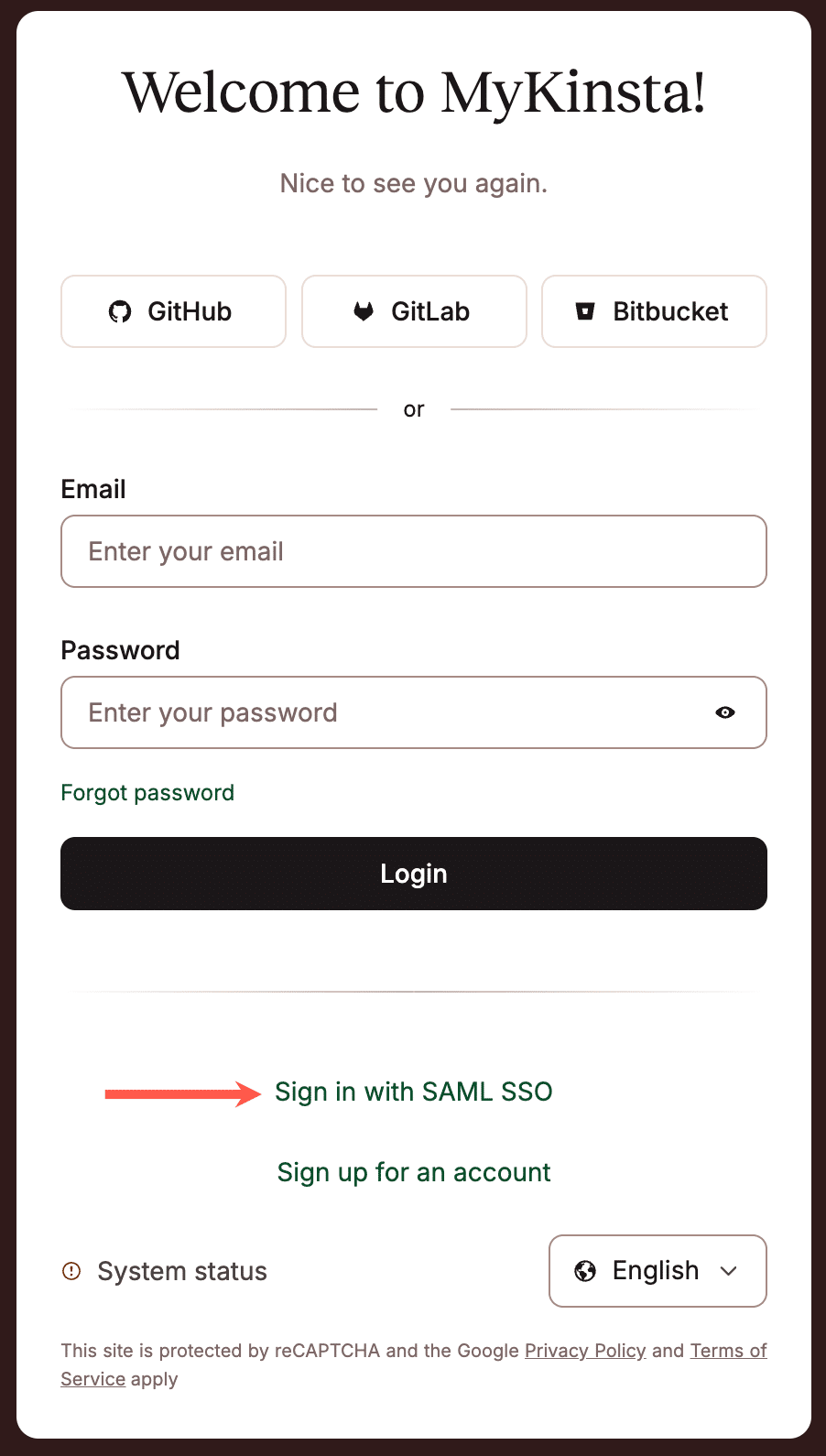
Here is the step-by-step process for a typical onboarding process:
- A new team member is added to your environment at the IdP.
- Your new employee logs into MyKinsta via SAML SSO.
- The system automatically creates a new MyKinsta user with the Company Developer role (or another role if you have changed the default settings), and the new team member can immediately start working in MyKinsta.
- The user navigates to Sites > sitename > Info and clicks Log in to WP Admin.
- If this is their first login, the system automatically creates a new WordPress user, and your new team member is up and running in seconds.
Why Kinsta’s WP Admin auto-login is different
Although one-click login is now considered standard in managed hosting, most implementations on the market have documented limitations that often force agencies to revert to manual authentication just when they are trying to streamline processes while maintaining high security.
Kinsta’s WP Admin auto-login is different because it was designed to overcome the constraints of traditional automatic login:
Custom Login URLs: Many agencies rename the login page of their clients’ sites to strengthen WordPress admin security (for example, from /wp-admin to /my-secret-login). Providers such as WP Engine expressly state that their Seamless Login does not work for “sites that have a custom login page URL that is not wp-admin or wp-login.php.” Kinsta’s WP Admin auto-login works seamlessly with custom login paths without any additional configuration.
Multisite Support: On many hosts, one-click login is not compatible with multisite installations. Flywheel does not guarantee that its Seamless Login will work properly when WordPress Multisite is enabled. WP Engine explicitly states that its Seamless Login does not work for multisite installations. Kinsta’s WP Admin autop-login fully supports multisite installations, assigning Super Admin privileges to the user created via SSO.
Other common limitations to using one-click login include 2FA, transferable sites, and password-protected sites, though most hosting providers leave their one-click login services undocumented.
Conversely, Kinsta’s WP Admin auto-login is fully compatible with two-factor authentication, staging environments, and password-protected sites.
Use Case Scenarios
To understand the importance of Kinsta’s WP Admin auto-login for your agency, let’s put ourselves in your team members’ shoes.
Debugging under pressure
Suppose your client’s website receives a 500 Internal Server Error during a product launch. Your IT team can’t waste time searching for credentials; they need to act immediately. They log into MyKinsta with SAML SSO, navigate to Sites > sitename > Info > Log in to WP Admin, and they’re in. With Kinsta’s WP Admin auto-login, a process that could take several minutes takes only 10 seconds or less.
Massive maintenance and marketing
Need to update a tracking pixel or change a setting on 50 client sites? Instead of logging in 50 times, your Marketing Specialist can hop in and out of each WordPress dashboard as easily as switching between browser tabs. One click, and they’re on every one of your clients’ sites. The time savings from Kinsta’s WP Admin auto-login aren’t measured in seconds but in minutes.
Quick and secure offboarding
Think about when one of your employees leaves your team. Without centralized access control, you would have to manually map and delete that user from all your WordPress sites, risking forgetting some. If you have enabled mandatory SSO and WP Admin auto-login in MyKinsta, you won’t have to worry about this, as you can simply revoke their access in your IdP, and their access will be automatically blocked in MyKinsta and across all your clients’ WordPress sites.
Access governance per site
In some cases, you may want to enable auto-login for users on some of the sites you manage but not on others. This may be the case, for example, if you have sites that require more rigorous security measures. In such cases, you may want to disable automatic login on a specific site but not on others. With Kinsta’s WP Admin auto-login, this is possible. Navigate to Sites > sitename > User management > WP Admin auto-login, click Disable, and you are done.
More time for high-value activities
At Kinsta, we strive to simplify site management, especially for agencies with dozens or hundreds of WordPress sites. Kinsta’s WP Admin auto-login is another piece that adds to MyKinsta’s SAML SSO, code repo integrations, automation tools, and Kinsta API.
With this new feature, your agency’s teams will spend less time logging into your clients’ sites, have granular access governance, and can focus on the tasks that matter most to you without worrying about access management.
WP Admin auto-login is available on all Kinsta plans at no extra cost. Ready to turn MyKinsta into your centralized command center? Check out our plans or contact sales to learn more.

Carlo is a passionate lover of webdesign and front-end development. He has been playing with WordPress for more than 20 years, also in collaboration with Italian and European universities and educational institutions. He has written hundreds of articles and guides about WordPress, published both on Italian and international websites, as well as on printed magazines. You can find him on LinkedIn.

