Add as a preferred source on Google
Let’s set the scene. Your new WooCommerce chatbot passes every test. It answers product questions, helps shoppers compare options, and responds quickly enough that nobody gives performance a second thought.
The problem doesn’t surface until the store has a busy afternoon. Checkout begins taking a little longer, and response times creep up as PHP threads reach capacity. At first, the slowdown looks like the result of a traffic spike, but visitor numbers are about the same as the week before. What has changed is the amount of work the server performs during each visit.
Every chatbot exchange can trigger a live API call that passes through WordPress, bypasses the page cache, and occupies a PHP thread while the model provider generates its response. It may also query the database for product details, conversation history, or other context. The shopper sees an answer arrive in two seconds. The server sees a thread it can’t use for anything else during that time.
This infrastructure question is becoming harder to avoid. WordPress 7.0 brought AI into core through a provider-agnostic AI Client, along with the Abilities API and a central Connectors hub.
The same pressure can come from features that look very different on the surface. AI search, product recommendations, personalized content, editorial tools, and agent integrations each interact with WordPress in their own way. Knowing whether they run in the dashboard, on the front end, or through an API (and whether their requests can be cached) helps you plan for the server resources they’ll need.
What WordPress AI actually looks like on a live site
AI on WordPress isn’t a single workload. Where the feature runs, when it runs, and whether a visitor triggers it all affect the infrastructure profile.
AI chatbots and support assistants
This is the most visible category. Plugins like AI Engine (with more than 100,000 active installations), MxChat, and Tidio bring conversational interfaces to the front end.

Each message can initiate a dynamic request, retrieve context, call an external model, and store conversation data. Unlike a contact form submission, one conversation may generate several of these requests in quick succession.
AI personalization, recommendations, and search
Personalization, recommendations, and AI search usually run on the front end. On a WooCommerce store, that might mean adjusting product suggestions based on what a shopper has already viewed or interpreting a search query instead of matching its exact wording. The rest of the page can often come from cache, but those results still have to be generated for the individual request.
AI content generation and editorial tools
Think tools like Jetpack AI, Rank Math Content AI, Divi AI, and GetGenie. They primarily run inside the WordPress dashboard.
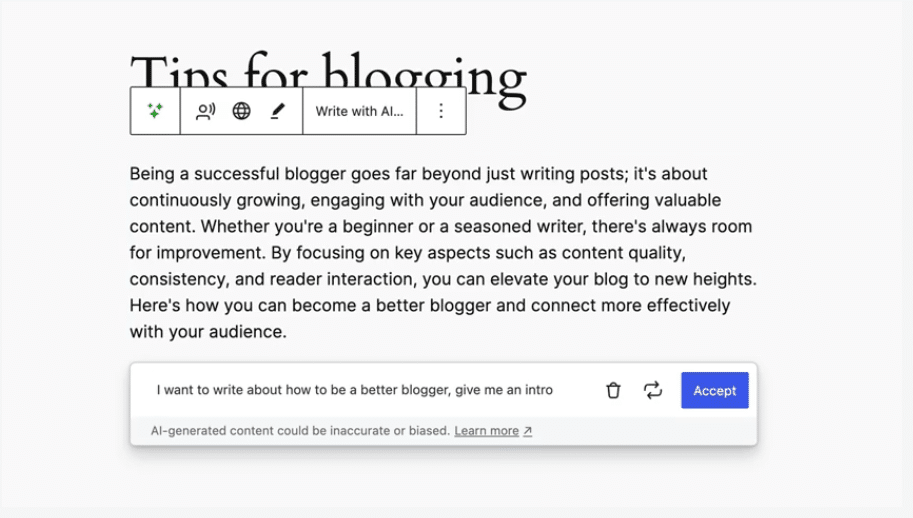
Because these tools run mainly in the WordPress dashboard, they generally don’t slow down front-end page loads. They can still put noticeable pressure on the server when several editors use them at the same time.
AI agents and MCP integrations
MCP integrations don’t wait for someone to visit the site. AI Engine’s MCP support and the official WordPress MCP Adapter allow an outside tool to connect to WordPress and carry out approved tasks, like reading site data or updating a post. Each task comes through as an authenticated API request, adding another source of server activity to account for.
Two sites can both use AI and need very different levels of hosting resources. One might use it occasionally in the editor to suggest headlines, while another generates product recommendations for every shopper. To estimate the impact, look at where the feature runs and how often it triggers a WordPress request.
What AI features actually do to your server
The cost of an AI feature comes from the work surrounding the model response. WordPress still has to receive the request, execute plugin code, retrieve any necessary data, contact the external provider, and return the result. Four parts of that process have the greatest effect on performance.
PHP threads stay occupied longer
Cached content can be served without using a PHP thread. A dynamic AI request must be processed by one, and each thread handles only one request at a time. If a chatbot waits two seconds for an external provider, the PHP thread handling that exchange may remain occupied for those two seconds. When simultaneous conversations use all available threads, other uncached requests enter a queue.
This is structurally similar to the bot traffic patterns documented in Kinsta’s AI and Bot Traffic Report. Bots hitting search, cart, and other dynamic endpoints reserve PHP threads and force origin processing. AI features do the same thing intentionally and, ideally, productively. The infrastructure cost of each request remains comparable.
More requests bypass the cache
Many AI responses are specific to the person making the request, so they can’t simply be reused for the next visitor. The main product page may still load from cache, but a recommendation panel or AI search result has to be generated separately. The more often that happens during a visit, the more requests the origin server has to handle.
Database activity becomes more complex
Before sending a prompt, a plugin may need to pull product details, previous messages, or information about the user from WordPress. Because the data changes from one request to the next, it’s harder to cache than a regular page query. If many of these requests arrive together, they add database activity at the same time checkout and account pages are trying to do their own work.
External API latency becomes part of site performance
AI plugins often have to wait on a third-party service before they can finish a request. If OpenAI takes three seconds to respond, WordPress is waiting too—and with a synchronous call, so is the PHP thread handling it. The plugin should have a timeout so a stalled call doesn’t remain open indefinitely. Some workloads can also be queued or cached, although a live chatbot usually has to wait for the provider.
WordPress 7.0 itself provides a useful example. The core team pulled real-time collaboration from the release after testing raised concerns about server load, memory use, and race conditions. The feature still had value, but it wasn’t ready to ship within the performance limits WordPress core had to meet.
The three hosting characteristics that matter most for AI-enabled WordPress
AI workloads are dynamic, bursty, and often dependent on services outside your hosting environment. Three hosting characteristics determine whether those requests remain contained and diagnosable or begin affecting the rest of the site.
1. Isolated container architecture
That can be a problem on shared hosting, where your site isn’t the only one using the server. If AI activity suddenly jumps, it can eat into the CPU, memory, and database resources available to other sites on the same machine.
Kinsta runs every WordPress site in its own isolated Linux container with a dedicated software stack that includes Nginx, PHP, and MySQL. Each site also receives its own PHP thread and memory allocation. If an AI chatbot suddenly handles dozens of simultaneous conversations, its workload remains within that site’s container instead of using resources assigned to another site.
This isolation is especially valuable for agencies. A poorly configured AI plugin on one client site can still degrade that site, but the problem doesn’t cascade across the rest of the portfolio.
2. A current PHP version and appropriate configuration
PHP 7.4 will run WordPress 7.0, but it isn’t the version you’d choose for performance. PHP 8.x handles WordPress code faster, so the work surrounding an AI request takes less time, and the PHP thread becomes available sooner.
A newer PHP version can’t make OpenAI or Anthropic respond faster, but it can reduce the work WordPress performs before and after that external call. Kinsta supports PHP versions through 8.5 and lets you change versions for individual live or staging environments from MyKinsta. Testing the change on staging first helps catch compatibility conflicts in the AI plugin, theme, or custom code.
3. Visibility into the entire request
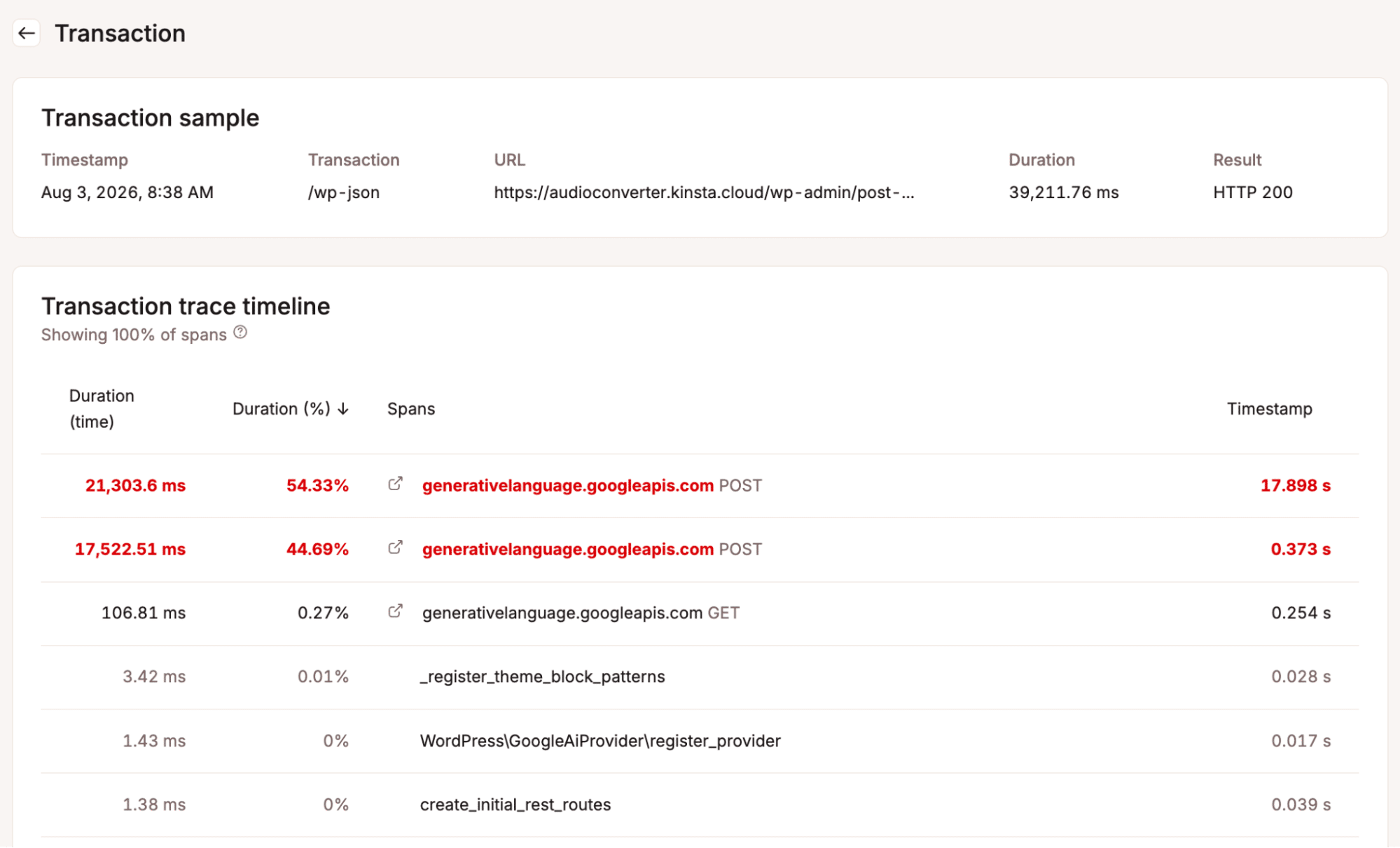
AI performance problems can originate in several places: the plugin’s PHP code, a database query, the external model provider, or insufficient thread capacity. Without request-level data, all four can look like a general hosting slowdown.
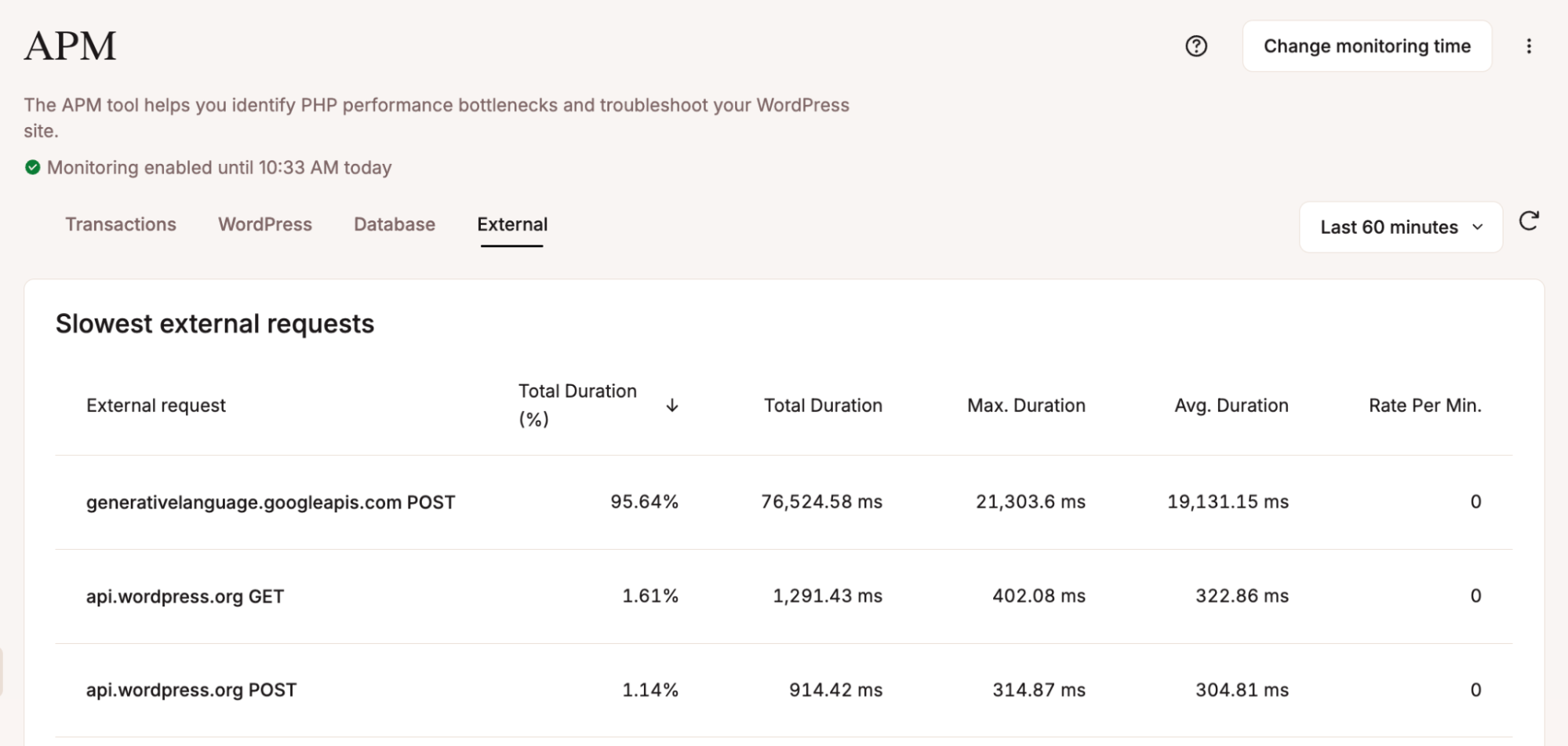
Kinsta’s APM tool separates those components.
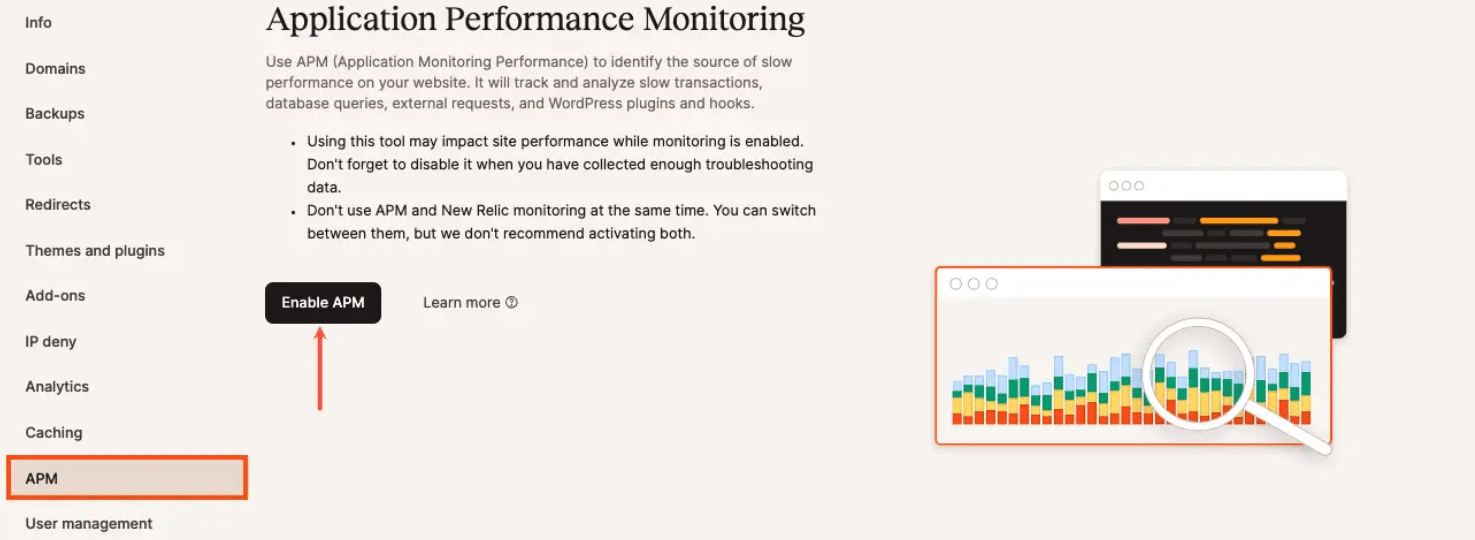
A practical investigation might look like this:
- Check Analytics > Performance to confirm when response times increased.
- Open APM > Transactions to identify the slowest endpoints and requests.
- Review APM > External to measure calls to OpenAI, Anthropic, or another provider.
- Check APM > Database for slow or repeated personalization queries.
- Review Top server cache bypasses to see which AI-driven paths are reaching the origin.
Once you can see where the time went, you have somewhere useful to start. A slow WordPress transaction calls for a different fix than a backed-up database or a model API that takes several seconds to answer.
AI features also change your traffic profile
AI can increase infrastructure demand in both directions. Your WordPress site sends more requests to model providers, while automated systems send more requests to your site.
AI-assisted publishing can quickly expand a site’s crawl surface. If a media team increases its output from five articles a week to twenty, the site adds more URLs, internal links, archives, and pagination for crawlers to explore. The crawlers don’t necessarily know or care that AI helped produce the content. They simply see a larger, more frequently updated library and return to crawl it.
A million requests for cached pages place a very different load on a server than a million requests to dynamic URLs. In Kinsta’s analysis of more than 10 billion requests, crawlers repeatedly hit search results, filtered product pages, add-to-cart links, and similar endpoints. Each request can bypass the cache and send work to PHP and the database.
That puts automated traffic in competition with your site’s own AI features. A chatbot request and a crawler hitting a dynamic product filter may have completely different purposes, but both can occupy PHP threads. If crawlers consume a considerable portion of the site’s available capacity, legitimate chatbot, search, and recommendation requests have less room to run.
An AI-enabled site needs enough headroom for the requests its visitors actually make. Bot controls help preserve it. Googlebot still needs access to pages you want indexed, and you may decide that some AI crawlers are worth allowing. The traffic to cut is repeated activity on dynamic endpoints that provides no value but still ties up PHP threads.
Kinsta Bot Protection provides environment-level controls for allowing, challenging, or blocking automated traffic, including a separate option for AI crawlers. Its analytics show how requests are classified and handled.

Bot analytics are only one piece of the picture. Check them against APM traces, cache-bypass reports, and top client IPs in MyKinsta. That makes it easier to tell whether the load is coming from your own AI features or outside crawlers, and whether those crawler requests are worth the resources they use.
What to check before adding an AI feature to a WordPress site
Before moving an AI feature into production, test how it behaves on your existing infrastructure. Start with these five questions.
1. Where in the request cycle does this plugin run?
The request path matters here. Writing and editing tools usually keep their work inside wp-admin. Customer-facing tools share PHP capacity with the rest of the front end, including checkout and account pages. An agent may bypass both paths and come in through the API. Check the plugin’s request flow before estimating how much capacity it needs.
2. What can the plugin cache?
Find out exactly what the plugin excludes from the cache. The response itself may need to remain dynamic, as it changes with the prompt or user, but related data such as conversation state, search results, or recommendations may be reusable for a short time. A dedicated uncached API endpoint is much less expensive than a plugin that makes the entire product page dynamic.
3. What happens when the external API is slow?
Also test a failed call, not only a slow one. Temporarily break the connection in staging and see when the request ends. Some plugins retry right away; others stay open until PHP cuts them off. If several chatbot requests do that at once, checkout and account requests may have to wait for a PHP thread.
4. Test on staging first with the APM tool running
Install the plugin on a staging environment and enable Kinsta’s APM tool during testing. Reproduce typical conversations, searches, or content-generation workflows, including concurrent activity where appropriate. Review the Transactions, External, and Database tabs to establish how long requests take and where that time is spent.
5. Is PHP ready for the additional work?
Record how the staging site behaves before changing PHP. MyKinsta shows whether it is already reaching its PHP thread limit, as well as response time and memory usage data. Switch staging to a current PHP 8.x release, repeat the same workflows, and confirm that the plugin still works before making the change in production.
Staging won’t reproduce production perfectly. It can still show whether the plugin causes too many requests to bypass the cache, waits too long on an external API, runs expensive queries, or leaves too little PHP capacity for the rest of the site.
Treat every AI launch as an infrastructure change
WordPress 7.0 provides developers with a standard way to integrate with AI providers and call models from WordPress. The server still has to process those requests once the feature is live.
Before changing the hosting setup, open a few APM traces. The plugin list won’t show how much work the site is doing, and the PHP thread count won’t explain why a request is slow. A trace shows whether the request bypassed the cache, how long PHP spent processing, and whether the delay came from the database or the model API. From there, you can decide whether the plugin needs work or the site needs more capacity.
An AI plugin can work perfectly and still be a poor fit for the site’s current capacity. Before it goes on a client site, run APM in staging and check how long its outside API calls take, which requests miss the cache, and what PHP version the environment uses. Check those numbers again after launch, once real traffic is in the mix.
Those few checks can catch thread pressure, slow dependencies, and expensive query behaviors before they turn into a sluggish site — or a difficult client conversation.

Carlo is a passionate lover of webdesign and front-end development. He has been playing with WordPress for more than 20 years, also in collaboration with Italian and European universities and educational institutions. He has written hundreds of articles and guides about WordPress, published both on Italian and international websites, as well as on printed magazines. You can find him on LinkedIn.