Add as a preferred source on Google
Deleting your entire production database and backups is not something a human will do often, but it is possible for an AI agent running under strict instructions. A credential mismatch within the codebase is not something an agent will check.
Without guardrails, it will carry on regardless. This is what happened to PocketOS in April 2026, but it wasn’t the AI agent’s fault. Instead, it shows that the infrastructure and control around agentic workflows need human oversight.
This post looks at employing those agentic guardrails using Kinsta’s functionality. The Kinsta API and MyKinsta dashboard both play a part. As AI agents take on more work, they need strict checks where a human approves destructive steps.
Why access to production is a risk for an AI agent
When it comes to failures, a typical script and an AI agent falter in different ways. With a script, you see an error on screen. Even if you encounter a White Screen of Death, that’s still an error on display. This is because you build error handling into a script under all but the rarest of cases.
However, the nature of AI is to comply with a task. This means an AI agent can report success but throw silent errors. This still happens because a model wants to help you succeed. This causes fabricated or synthesized results.
[QUOTE]OWASP’s 2026 Top 10 for LLM Applications report puts prompt injection in its top spot. AvePoint notes in its reporting that nearly 50% of businesses experience agentic manipulation through an untrusted input.[/QUOTE]
For WordPress, an agent that crawls changelogs, API responses, scraped content, or anything else as part of its task set is open to exposure. In April 2026, Essential Plugin released a backdoor that sent malicious code to over 400,000 sites before being shut down. However, this doesn’t provide a fix for compromised sites.
An AI agent that applies plugin updates automatically as part of its workflow doesn’t know the difference between legitimate and compromised updates. Unless you include a staging review, this sort of attack can happen to you too. Opsin Labs’ 2026 report on agentic adoption highlights that 60% of AI agents have more permissions than necessary. It’s the same permissions issue for human WordPress teams, now showing up for agents.
How staging can turn an AI agent’s error into a minor event
A staging review as part of your workflow instructions gives you a way to challenge specific aspects of agentic deployment. For example, if a developer pushes a planned change, they know what those changes are.
In contrast, an AI agent running through instructions as part of a multi-step task is simply trying to complete the task for you. Combining this with potential information synthesis means a review checkpoint is a necessity.
If you compare the WordPress supply chain attack with an agent making production-level updates, both make changes without review. Kinsta provides free staging for all sites to help combat this problem:
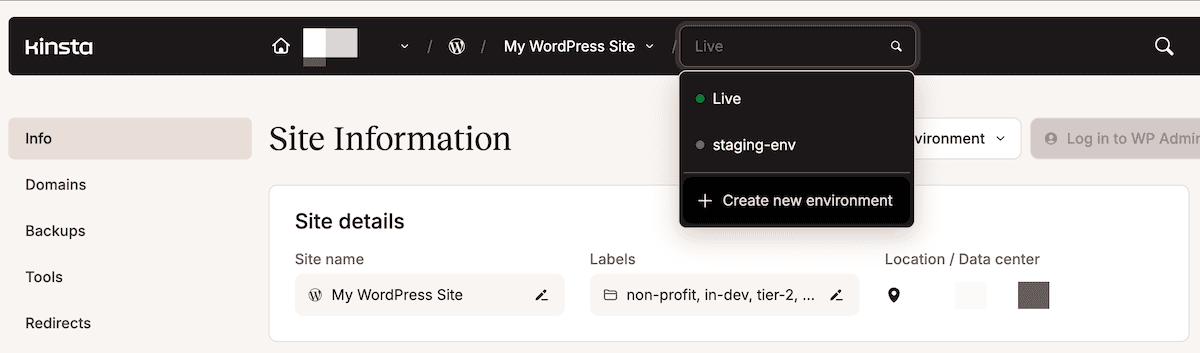
You also have the option for premium staging environments if you need to work with a spec closer to production.
With this in place, the changes an AI agent makes don’t move from staging until you choose to push the environment live:
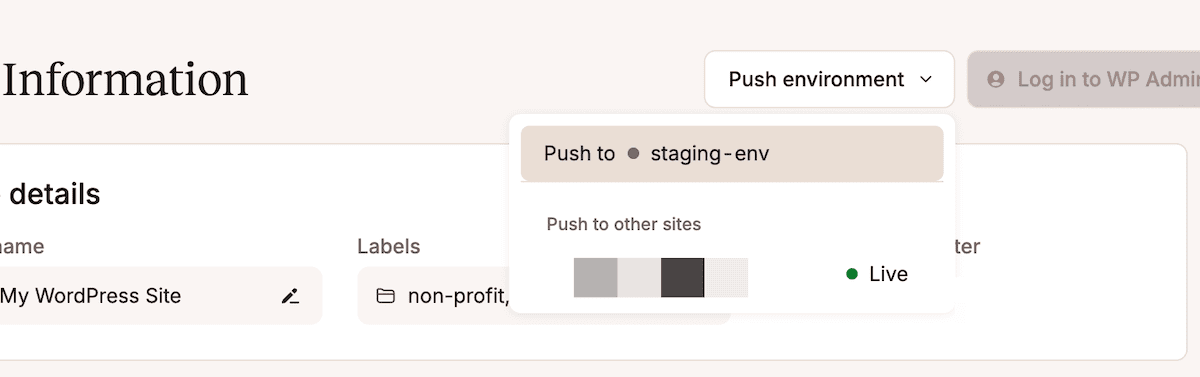
This gives you granular options to push the database, files, or both together. MyKinsta also creates an automatic backup of the target environment first. The same logic applies to Kinsta’s Automatic Updates too.
A practical way to include staging within your workflow is to clone production to staging before you run an agentic task. Then, run the AI agent within staging and review the result. Finally, selective push lets you approve the changes and send them to production.
Using the principle of least privilege before an AI agent hits WordPress
Agentic access and permissions work on the same principles as humans. The Principle of Least Privilege is a fundamental concept of security:
[QUOTE]An agent or human should only hold the minimum level of permissions and access it needs to carry out a task and nothing more.[/QUOTE]
Kinsta’s existing roles and permissions settings are applicable to AI agents as well as humans:
- Company Administrator, which provides full control across your entire Kinsta account. Almost no AI agent needs this role.
- Company Developer roles let your agent manage all your sites and DNS.
- Site Administrator lets you assign full site access to an agent.
- Site Developer is the most appropriate for agentic workflows as it only allows staging-level access.
Assigning roles also means you need to assign API keys to your agents. A Kinsta API key inherits the access level of the role that generates it. This is a good way to automatically limit the access an AI agent has.
A solid, secure workflow here is to generate API keys on a per-agent or per-workflow basis. You do this through the Company Settings > API Keys screen within MyKinsta:
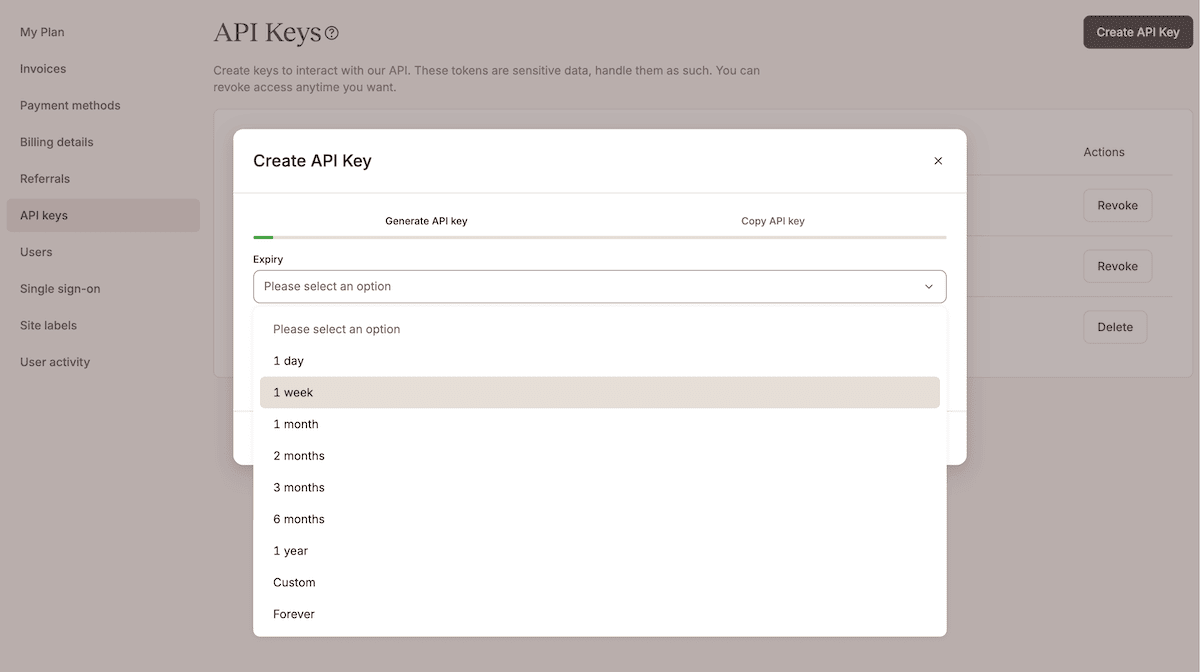
Setting an expiry time gives you a chance to review access. If your workflow changes, you now have a natural way to reassess your access and permissions.
Why backups should be a big part of your agentic workflow
Because the reasons for failures differ between human and agentic workflows, so does the need for backups. For example, a human pause is natural when carrying out a destructive task. However, because of the need to comply with instructions, an AI agent won’t pause to think or double-check. The fix is to build in a hard requirement.
It means a backup is only a safety net when it sits outside of what could delete it. For instance, the PocketOS incident is as much an architectural issue related to backups as it is a permissions issue. Storing volume-level backups on the volume itself is resolvable in code.
However, only having an old backup available to restore your database isn’t possible with Kinsta:
- Daily automatic backups give you a baseline regardless of what an agent does.
- System-generated backups run before a selective push or update, even when triggered by an agent.
- Manual backups let you create your own restore points (with tags) when you need them.
The Kinsta API lets you build in checks before an AI agent carries out a destructive step:
const KINSTA_API_URL = 'https://api.kinsta.com/v2';
const headers = {
  'Content-Type': 'application/json',
  Authorization: `Bearer ${process.env.KINSTA_API_KEY}`
};

const createBackup = async (envId, tag) => {
const resp = await fetch(`${KINSTA_API_URL}/sites/environments/${envId}/manual-backups`, {
method: 'POST',
headers,
body: JSON.stringify({ tag })
});
return resp.json();
};

const pollOperation = async (operationId, intervalMs = 5000, maxAttempts = 12) => {
for (let i = 0; i < maxAttempts; i++) {
const resp = await fetch(`${KINSTA_API_URL}/operations/${operationId}`, { method: 'GET', headers });
const data = await resp.json();
if (data.status === 200) return data;
if (data.status >= 400) throw new Error(`Operation failed: ${data.message}`);
await new Promise(r => setTimeout(r, intervalMs));
}
throw new Error('Operation timed out');
};

const findBackupByTag = async (envId, tag) => {
const resp = await fetch(`${KINSTA_API_URL}/sites/environments/${envId}/backups`, { method: 'GET', headers });
const data = await resp.json();
return data.environment.backups.find(b => b.note === tag) || null;
};

const runAgentTask = async (envId, agentTask) => {
const tag = `pre-agent-action-${Date.now()}`;
const backup = await createBackup(envId, tag);
if (!backup.operation_id) throw new Error(`Backup request failed: ${JSON.stringify(backup)}`);

await pollOperation(backup.operation_id);
const verified = await findBackupByTag(envId, tag);
if (!verified) throw new Error('Backup not found after completion');

return agentTask();
};
Here, you send a POST request to create a manual backup for an environment. Then, the agent can poll the operation ID and confirm the backup. With a confirmation, the agent can proceed to the destructive step. Building in a step to create a backup when modifying production is as important and non-negotiable as any other security setting.
How to check the scope of AI agentic workflow within MyKinsta
Using MyKinsta’s information lets you run an audit on what your agents can access. The programmatic option using the Kinsta API is near instant if you build it into your instructions. However, the MyKinsta interface gives you a way to run a ten-minute, human-led audit.
Confirm that staging is your default path
Upfront spot checks give you human eyes on some key pieces of information. There are two areas to check:
- Instances of production environment IDs.
- Kinsta’s Automatic Updates run at the right points in your workflow.
To find your production and staging IDs through MyKinsta, open a site dashboard and look at the URL:
https://my.kinsta.com/sites/details/{site_id}/{environment_id}?idCompany={company_id}
Use the environment drop-down menu to switch between the environments you want to check. Next, open any config or script that handles your automation and search for the environment ID. If any production IDs show, replace them with your staging ID.
To confirm your Automatic Updates settings, navigate to the Plugins and themes screen. Here, click Change next to the Automatic Updates section:
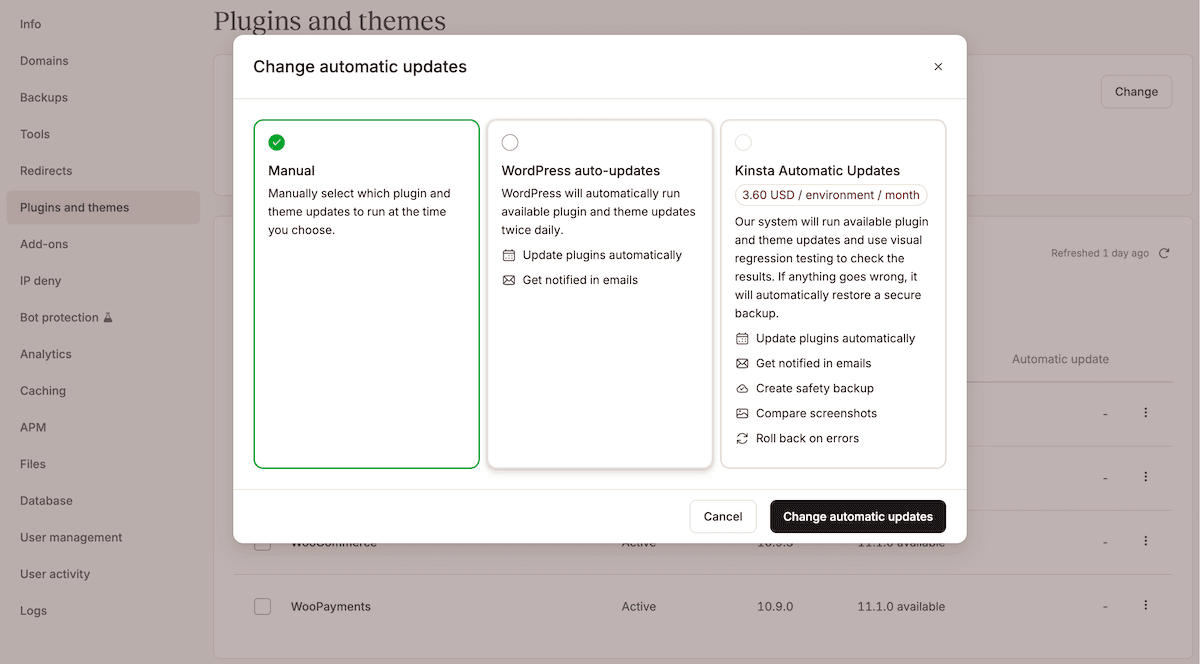
Kinsta’s solution lets you use visual regressions and rollbacks when finding an error. If any of the before-and-after screenshots of your site’s pages look different, Kinsta rolls back to a ‘known’ version. You can adjust the sensitivity of visual regression testing and work with dynamic content too.
Review what can access your API keys
A straightforward check is to audit your API keys. Depending on the size of your team and the projects you run, there may be many expired or otherwise redundant keys to clear out.
To do this, head to Company Settings > API keys within MyKinsta. The list doesn’t tell you the access level of each key from the dashboard. It means having clear naming conventions and records is vital.
You want to check three elements:
- Which role a key was generated under.
- The expiry date, which is viewable in the list.
- Whether the key is still in use for an active workflow.
For any API key not active but still within the expiry date, you can click the Revoke button to remove it. For expired keys, the button reads Delete. Regardless, the action is the same.
You can filter the User activity screen in MyKinsta to see associated activity that uses a specific API key:
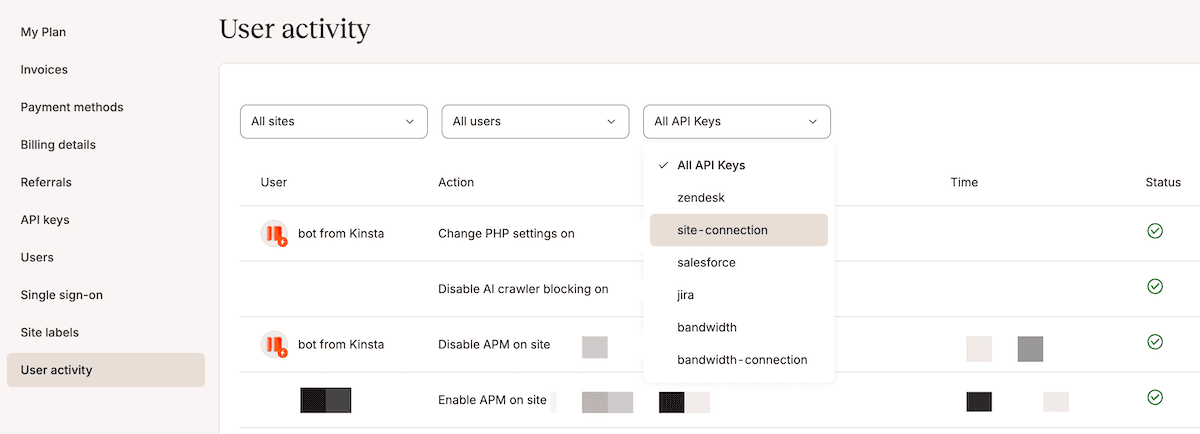
For programmatic checking, there are endpoints for fetching the activity logs and API keys for a company.
However, in order to see the access level information for an API key, there needs to be one action for it. So if a key has never been used, you can safely delete the key.
Check that agentic workflows have a restore point
For your backups, open a site and look at the Manual tab within Backups:
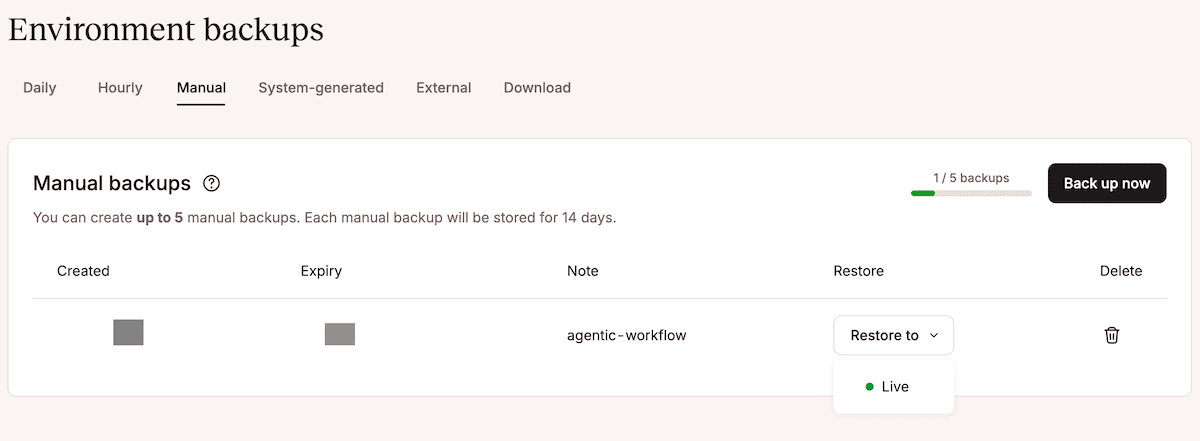
Here, look for missing or incorrect notes. Then, consider whether any agentic workflow calls the API and makes a manual backup. If so, make sure you check the operation status before the agent runs a backup.
Also, an agent may trigger backups more than you expect. If your five manual backup slots are full, look at the creation date. This helps you decide if you need to optimize a wasteful backup process.
Use the activity log to check for rogue actions
Back on the User activity screen, confirm that every action traces back to a named user or an API key. You can view an activity log at the company or site level.
For any entry you want to query, click it and use the Ask Support button. This lets you message support to ask for further details about the nature of an entry.
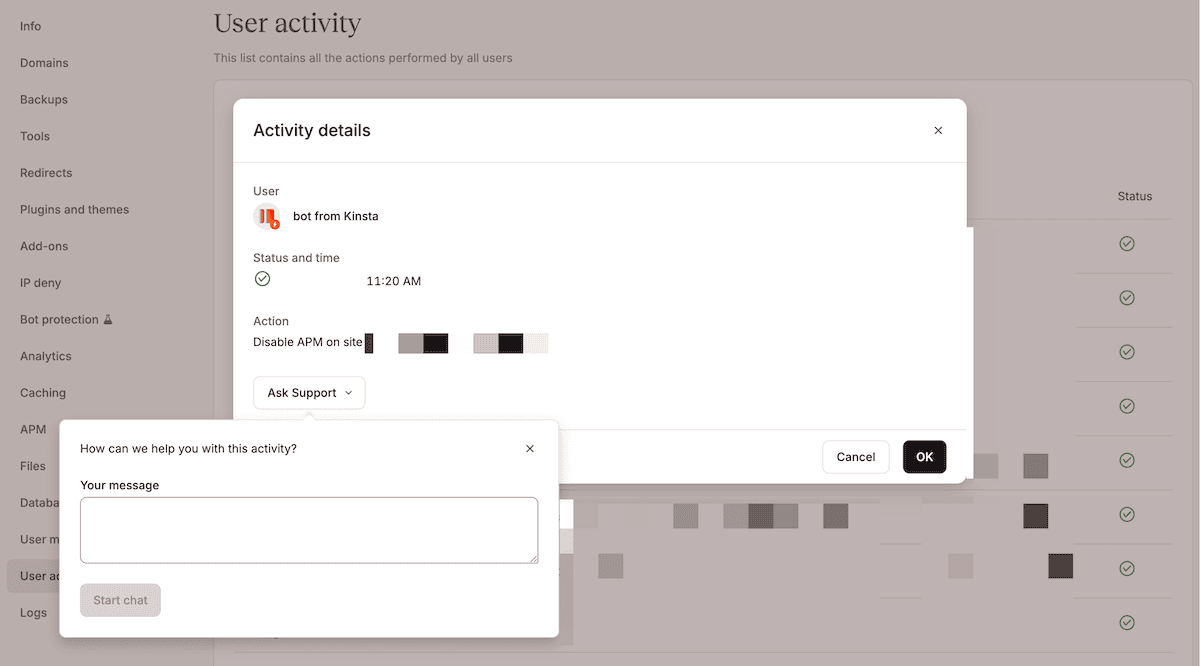
There’s also a programmatic way to access user activity details, which gives you another way to build checks into your workflow. However, human checks here can catch issues an AI agent may miss.
Guardrails make AI autonomy safe to deploy
MyKinsta’s functionality isn’t specifically for AI security. Staging, user activity logs, automated backups, and permissions all stop agentic workflows from causing catastrophic issues. You can also control the workflow at every step, either through the MyKinsta dashboard or the Kinsta API.
Making your AI agents more trustworthy means giving them the right scope and building guardrails into the process. Human intervention is still necessary, even for the most automated of operations.
Choosing Kinsta’s high-performance WordPress hosting gives you the tools to ensure safe, secure agentic access. For agencies, Kinsta gives the same best-in-class security and support across your entire client base.