Add as a preferred source on Google
Most WordPress performance tests capture a quiet moment. They show how a page loads when the site has little else happening in the background.
Production sites rarely work that way.
An active WordPress site may serve visitors while cron jobs run, product imports process, backups run, orders sync, plugins perform scheduled tasks, and updates move through the system. Visitors don’t see that work happening, but they may feel the impact when pages load slowly, forms lag, search results stall, or checkout takes longer than usual.
That’s why performance issues can feel random. A page may test well in the morning, then slow down hours later, even though nothing visible has changed on the frontend.
In this article, we look at how cron jobs, imports, backups, and other background processes affect WordPress performance, how to spot the warning signs, and why hosting plays such a big role in keeping the frontend experience stable while work happens behind the scenes.
Why WordPress sites slow down during background activity
Background tasks may run out of sight, but they still use server resources. Cron jobs, imports, backups, and plugin tasks can all consume PHP resources, run database queries, and use memory, CPU, and disk I/O while visitors are using the site.
That overlap is where performance issues start. A visitor loading a page, submitting a form, searching for products, logging into an account, or checking out may need the same resources as a background task.
Caching can reduce some of the pressure. If a page is already cached, the server can often deliver it quickly without running WordPress from scratch. But dynamic requests work differently. Checkout pages, account dashboards, admin screens, membership portals, search results, and form submissions often need fresh PHP and database activity. When background jobs are using those resources, these parts of the site usually slow down first.
That’s why e-commerce stores, membership sites, LMS platforms, publishers, and high-traffic sites feel the impact more often. They process orders, update user records, manage subscriptions, publish content, sync inventory, send notifications, and support logged-in users throughout the day.
Many performance tests miss these factors. A site can perform well when it’s idle, then struggle when normal production activity picks up. Real WordPress performance depends on how well the site handles frontend traffic and background work simultaneously.
Common background tasks that affect performance
WordPress background activity comes from several places. Some tasks come from WordPress core. Others come from plugins, themes, e-commerce tools, marketing integrations, or the hosting environment.
On their own, many of these jobs are normal and necessary. The issue starts when they run too often, run too long, or overlap with visitor activity.
Common examples include:
- WP-Cron events: WordPress and plugins use scheduled tasks for publishing, cleanup, update checks, notifications, and other recurring jobs.
- Product or content imports: Large imports may update posts, products, images, categories, tags, custom fields, and metadata.
- Database updates: Plugins may create, modify, or clean up database tables during updates or scheduled maintenance.
- Plugin and theme updates: Updates can trigger file changes, database migrations, cache clearing, and post-update checks.
- Full-site or database backups: Backup jobs may scan files, export database tables, compress archives, and move data to storage.
- WooCommerce order processing: Orders can trigger emails, stock updates, payment status changes, tax calculations, shipping workflows, and CRM activity.
- Subscription renewals: Membership and subscription sites often process recurring payments, access changes, failed payment notices, and account updates.
- Inventory syncs: E-commerce stores may sync product availability across warehouses, point-of-sale systems, marketplaces, or supplier feeds.
- CRM or email marketing syncs: Form submissions, purchases, user updates, and list changes may trigger data transfers to third-party platforms.
- Search indexing: Search and filtering plugins may rebuild indexes, enabling visitors to search for products, posts, documents, or listings.
- Image processing: Uploads and imports can trigger thumbnail generation, compression, format conversion, and metadata updates.
- Scheduled publishing: Publishers may queue posts, landing pages, product drops, or campaign content to go live at specific times.
- Plugin cleanup jobs: Plugins may remove expired transients, old sessions, logs, revisions, abandoned carts, or temporary files.
Imports and syncs deserve extra attention because they can create a lot of work without looking dramatic from the outside. A product import, for instance, may involve thousands of database writes, image downloads, thumbnail generation, taxonomy updates, metadata changes, and cache clearing. A sync may look like a small background process, but if it runs every few minutes, it can keep touching the database throughout the day.
The impact depends on how the task runs. A small batch job during a quiet period may barely register. A large import during peak traffic can slow down processes like checkout and other dynamic parts of the site. Timing, batch size, plugin quality, database health, and hosting resources all shape how disruptive background activity becomes.
Why WP-Cron can create performance spikes
WP-Cron helps WordPress run scheduled tasks like publishing posts, checking for updates, sending notifications, clearing temporary data, and triggering plugin workflows.
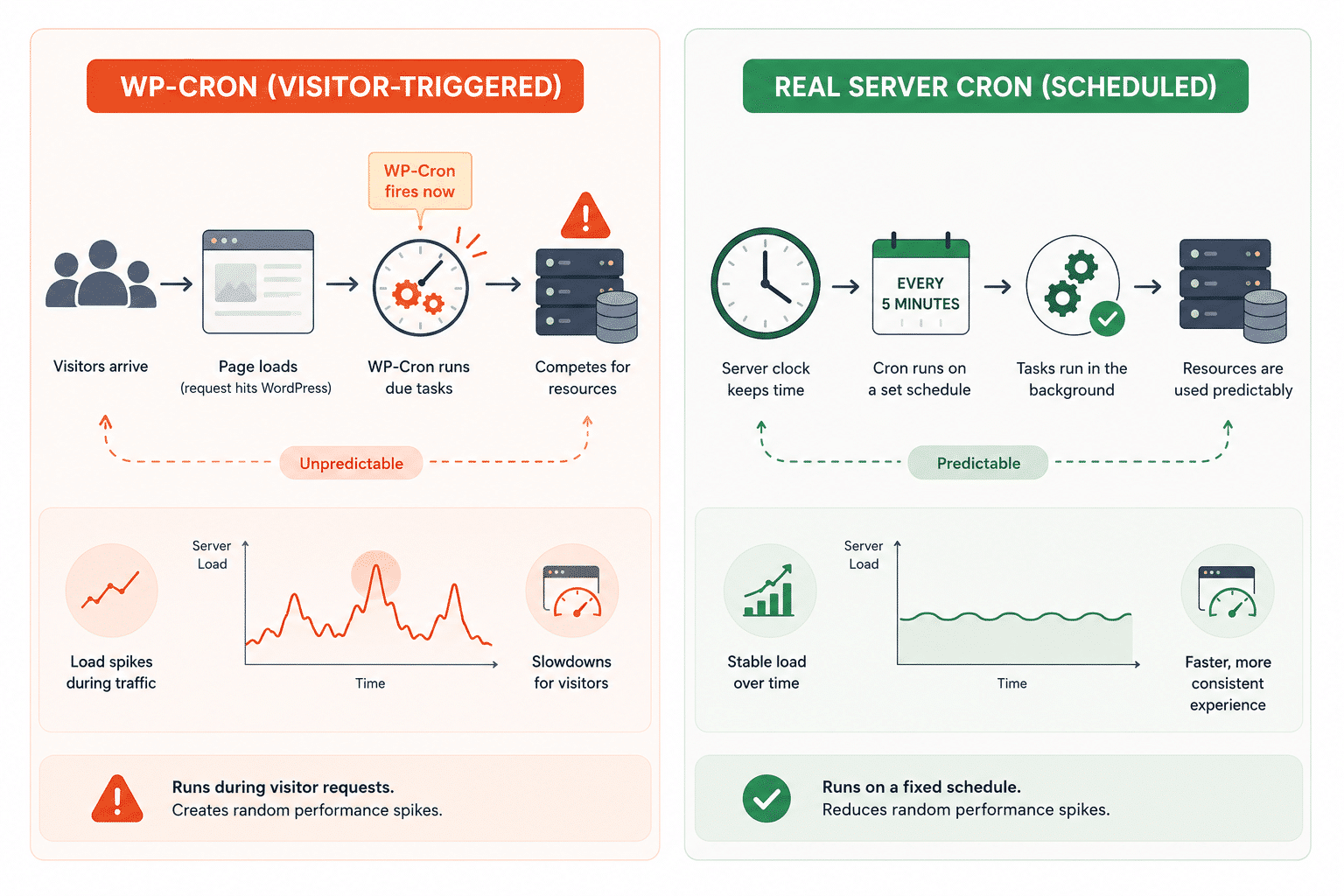
The catch is that WP-Cron doesn’t run like a true server cron by default. Instead of following a fixed server schedule, it checks for pending tasks when someone visits the site. That means a normal page load can also trigger background work.
On busy sites, this can cause performance spikes during periods of active traffic. Visitors loading pages, submitting forms, browsing products, or checking out may experience slower responses while WordPress simultaneously processes scheduled tasks. That extra PHP and database activity hits hardest on dynamic requests right when the site needs those resources for users.
Low-traffic sites can have the opposite issue. If few people visit, WP-Cron may not run on time. Tasks can pile up, then process all at once the next time someone loads the site. That visitor may get a slower experience because WordPress has a backlog of delayed tasks to process.
A real server cron gives WordPress a more predictable schedule. Instead of waiting for visitor traffic to trigger tasks, the server runs them at set intervals. It doesn’t make every background task light, but it does reduce the chance that scheduled work fires at random moments during active use.
How backups can affect WordPress performance
Backups protect your site, so they’re necessary. If an update, import, deployment, or security issue goes wrong, a recent backup can help you recover quickly.
But backups still need resources to run. The impact depends on how the backup works, how large the site is, how often backups run, and what else is happening on the site at the same time.
Plugin-based backups can be more demanding because they often run directly through WordPress. A backup plugin may scan files, export database tables, compress archives, create temporary files, and send backup data to remote storage. That process can consume PHP resources, database connections, CPU, memory, and disk I/O while visitors are still using the site.
Large sites are more affected. A WooCommerce store with years of order data, a publisher with thousands of posts, or a membership site with many users may have more files, tables, logs, sessions, and metadata to process. Media-heavy sites can add even more load because image libraries take time to scan and package.
Timing matters, too. A backup during a quiet window may barely affect visitors. The same backup during a sales campaign, product import, checkout rush, or busy admin period can compete with live traffic and slow down dynamic requests.
The point isn’t that backups are bad. It’s that the backup strategy affects performance. Hosting-level backup workflows can reduce the need for heavy backup plugins running inside WordPress, helping teams protect the site without adding as much pressure to the frontend experience.
Why background performance issues feel random
Background performance issues are hard to catch because the symptoms appear before the cause is identified. Site owners notice the slowdown, but the cron event, import, backup, or sync responsible for it is already running silently in the background.
That disconnect is what makes these issues feel inconsistent. Nothing visible changed on the frontend, but the workload behind the scenes did.
Cached pages often continue to load without issue. Dynamic parts of the site are usually where the impact is most visible: account activity, admin workflows, form submissions, and search-heavy pages. These requests depend on live PHP and database resources, so they feel the pressure sooner than static or cached pages.
Common signs include:
- Server response time spikes without a clear traffic increase
- Slower checkout, login, search, or admin actions
- Timeouts during imports, updates, backups, or plugin tasks
- Visitor reports that the site feels inconsistent
- Speed tests that look fine outside the problem window
- Slowdowns that happen at similar times each day or week
In many cases, the page itself isn’t the issue. The site is competing with its own background workload.
How to diagnose background performance problems
The best place to start is timing. If the site slows down at certain times of day, during specific workflows, or right after a scheduled activity, that pattern can help pinpoint the cause.
Check scheduled tasks
Review cron schedules to see which tasks run, how often they run, and whether several jobs fire at the same time. One scheduled task may not create much pressure, but several running together can increase PHP and database load quickly.
Review backups, imports, and syncs
Look at backup timing, import logs, and sync logs. If slowdowns line up with full-site backups, database exports, product feed updates, inventory syncs, CRM syncs, or email marketing integrations, background activity may be competing with live traffic.
For WooCommerce sites, review scheduled actions as well. Order processing, subscription renewals, payment retries, emails, webhooks, and inventory updates can all create background work. A backlog of pending or failed actions can point to jobs that aren’t completing cleanly.
Compare slow periods with traffic
Match performance drops against traffic patterns. If response times spike during a traffic surge, the site may need more capacity or stronger caching. If response times spike while traffic stays normal, background activity becomes a more likely cause.
Look at server and application data
Check PHP thread usage to see whether dynamic requests are queuing. Review slow database queries, error logs, timeouts, memory issues, failed external requests, and repeated plugin warnings.
APM data can connect these clues. It helps teams identify slow PHP transactions, database queries, external HTTP requests, and long-running processes during the problem window. Instead of guessing which task caused the slowdown, they can see where the site spent time and resources.
What to look for in hosting for background-heavy WordPress sites
Hosting affects how well WordPress handles both frontend traffic and background work simultaneously. Even a well-built site can struggle if the hosting environment doesn’t have enough room for real production activity.
For sites with frequent cron jobs, imports, backups, syncs, or ecommerce activity, look for hosting that includes:
- Resource isolation: Background work should not depend on an overcrowded shared environment or easily affect other sites.
- Enough PHP capacity: If background tasks consume too much PHP capacity, dynamic requests queue up, and visitors wait.
- Real server cron support: Scheduled tasks should run on a predictable schedule instead of relying on visitor traffic to trigger them.
- Strong caching: Page caching, CDN support, and edge caching can reduce the number of requests that need PHP and database resources.
- Database performance support: Imports, orders, search indexing, subscription renewals, and cleanup jobs all depend on database health.
- Reliable backup workflows: Backups should protect the site without forcing every backup job to run through WordPress itself.
- Performance visibility:Analytics, PHP usage data, cache data, response codes, logs, and APM tools help teams see what happened during a slowdown.
- WordPress-specific support: Background performance issues can involve cron behavior, plugins, PHP limits, database queries, cache rules, external API calls, or WooCommerce scheduled actions.
These features matter most for sites that depend on things like orders, logins, imports, renewals, syncs, publishing workflows, or admin activity. The more a site depends on these workloads, the more it needs hosting built for frontend and backend work happening at the same time.
How Kinsta keeps WordPress responsive during background work
Kinsta gives WordPress sites a hosting environment built for real production activity, not just quiet speed tests.
Each WordPress site runs in its own isolated software container with the resources needed to run that site, including Linux, NGINX, PHP, and MySQL. That separation keeps resource usage more predictable when scheduled tasks, imports, backups, or syncs start running alongside live traffic.
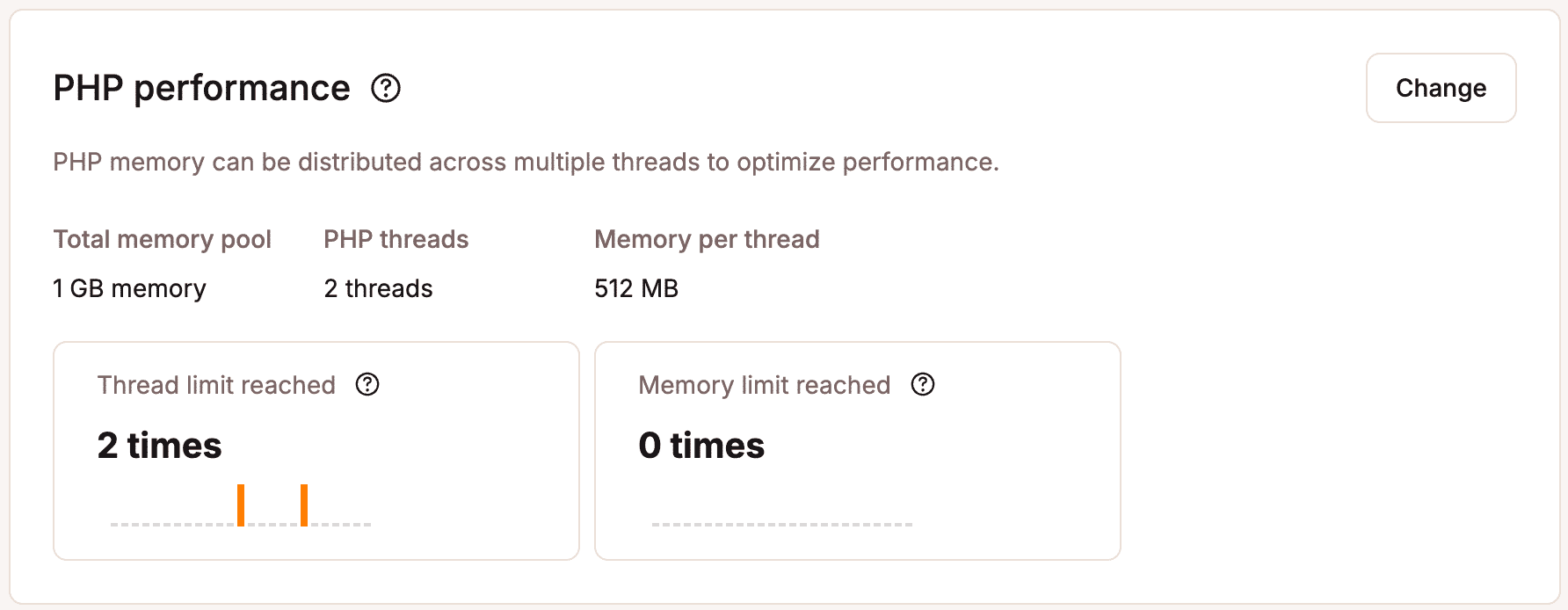
Kinsta also gives teams more control over PHP performance. Dynamic requests like checkout, login, search, admin workflows, imports, and membership activity all rely on PHP. In MyKinsta, teams can review and adjust PHP performance settings for each site, so the environment better matches the workload.
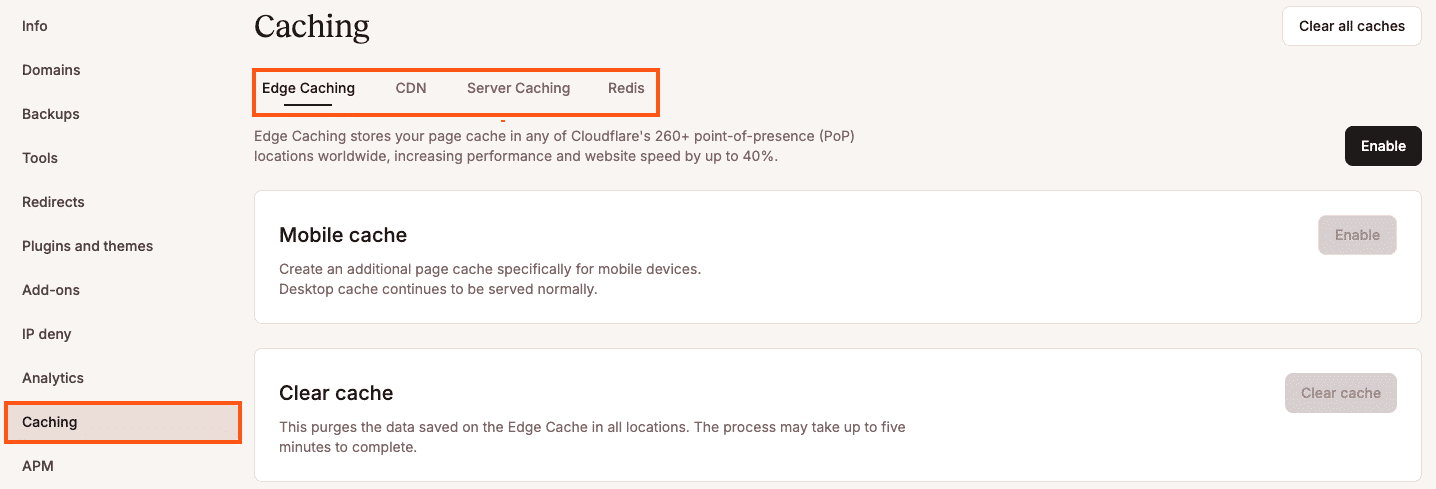
Caching helps reduce pressure, too. Kinsta uses NGINX FastCGI cache for page caching, so cacheable pages can load without using PHP threads. That keeps more PHP capacity available for dynamic requests that need it.
For scheduled tasks, Kinsta supports server-level cron jobs. This gives teams a more predictable way to run background work instead of relying only on WP-Cron events triggered by site visits.
Kinsta also gives teams better visibility into performance issues. MyKinsta Analytics shows resource usage, performance data, response codes, cache behavior, CDN usage, and traffic patterns. Kinsta APM goes deeper with data on PHP processes, MySQL queries, external HTTP calls, and slow transactions, making it easier to trace performance drops tied to background activity.
On the backup side, Kinsta provides automatic daily WordPress backups and system-generated backups with restore points available in MyKinsta. That reduces the need to rely on heavy backup plugins running inside WordPress for routine protection.
Together, these features help WordPress stay responsive while the site works behind the scenes. Cron jobs still run, imports still process, and backups still matter. But teams get more control, more visibility, and a hosting environment built to handle background workloads alongside the visitor experience.
Keep WordPress fast while your site is working behind the scenes
Your WordPress site needs to stay responsive during real production activity, not just when it sits idle.
Kinsta WordPress hosting gives teams the infrastructure, caching, PHP performance controls, backups, cron support, and visibility they need to keep busy sites running smoothly.