Add as a preferred source on Google
In 2025, bots accounted for 53% of all web traffic, the first time automated traffic had outpaced humans in a calendar year. By June 2026, Cloudflare Radar put that figure at 57.5%, a crossover that Cloudflare’s own CEO said arrived years ahead of his projections.
For most WordPress operators, none of this is visible. Their dashboards look normal. Visit counts are climbing. But a growing share of what’s driving those numbers isn’t a customer, a reader, or a prospect but an AI crawler scraping content to feed a language model, doing it at a rate and volume that search engine bots never did.
This article explains why it hits WordPress sites differently than traditional crawling, and how to find it and respond to it directly from MyKinsta.
What is an AI crawler?
AI crawlers are automated bots that read publicly accessible web pages and collect their content for use in AI systems. On the surface, it looks like a traditional search engine crawler, but the motive is different.
A search crawler, such as Googlebot, reads a page to index and rank it, which lets visitors find you. However, an AI crawler reads the same page to feed it into a language or training model. That happens in one of a few ways:
- Training crawlers (such as GPTBot and ClaudeBot) collect text to teach large language models.
- Retrieval crawlers fetch pages in real time when someone asks an AI tool a question that needs current information.
- Indexing crawlers build a provider’s own search-style database to reduce its dependence on third parties.
The common thread is that none of this returns a visitor to you. Identification makes things unpredictable. Some AI crawlers use named user agents and stay within published IP ranges. Others borrow a legitimate browser’s user agent, rotate the source addresses, or offer no dependable identification at all.
In a nutshell, the traffic is both harder to attribute and growing fast: Cloudflare’s 2025 Radar Year in Review put non-Googlebot AI crawlers at an average of 4.2% of HTML requests, a figure that swung from 2.4% in April to 6.4% in June. Add Googlebot, which now crawls for both search indexing and AI training, and total AI-related crawling reached around 8.7% of HTML requests in 2025.
The crawl norms that search engine crawlers established
To understand this change, it helps to see what the old contract actually was. Search crawling ran on a set of shared conventions that let site owners plan around it. The Robots Exclusion Protocol appeared in 1994 and was formalized as an internet standard in 2022. Around it grew four behaviors that made traditional crawlers something you could build infrastructure for:
- A respect for
robots.txt. A crawler read the file, saw which paths were off-limits, and stayed out of them. - Automatic throttling. The dominant crawlers slowed down when a server showed strain, so a struggling site received fewer requests rather than more.
- Consistent identification. A stable user agent meant you could verify a crawler and decide how to treat it.
- Working within a ‘crawl budget’. Google defines a site’s crawl budget as the set of URLs Googlebot can and wants to crawl. This keeps any one site from being crawled without limit.
Tied into this is ‘crawl delay’: the time a crawler waits between page requests. However, it’s an unofficial directive, so Google has never supported it and left it out of the formalized standard. Instead, Googlebot adjusts its own crawl rate dynamically based on how quickly your server responds. The expectation is that a crawler ‘reads the room’ and moderates itself.
Those conventions are baked into how hosting works. For instance, caching layers exist because well-behaved crawlers request the same pages predictably enough to serve from cache. The entire model rests on the assumption that crawlers play fair.
Where AI crawlers break those norms
AI crawlers are playing by different rules in three ways:
robots.txtis treated as optional. TollBit’s reports find drastic increases in the number of bots ignoring robots.txt directives. The same reporting describes Cloudflare catching one major AI search provider reaching content on sites that had explicitly disallowed it.- There’s no throttling. Many AI crawler implementations send requests at a flat, high rate no matter how your server responds. Some of it isn’t even deliberate due to those who are “vibe coding a bot…and letting it loose” without ever checking
robots.txt. - Crawlers get stuck in loops. This is an expensive pattern that’s structural rather than malicious. Most crawlers follow every link they find and log every unique URL as a separate page. AI crawlers follow one variation, which spawns another, which it follows again, with no sense that it’s walking in a circle.
The sting is that most AI crawling is for model training rather than search or user queries, which means it sends no referral traffic back to your site.
Why this hits your server as a performance problem
Volume isn’t really the problem here. For example, a static page served from cache costs you almost nothing, so a thousand cached hits barely register. The trouble starts when traffic skips the cache, and looping crawlers are good at finding these routes.
On a WordPress site running WooCommerce, search or filtering requests account for a large share of requests hitting dynamic endpoints rather than pages. These are typically cart actions, ?add-to-cart= parameter variants, filtered product pages, search queries, and AJAX-powered interactions routed through admin-ajax.php. None of these is cacheable the way a blog post is, so every request forces the server to work:
- PHP execution. A PHP thread is reserved for the full duration of each request. Under sustained bot load, threads run out and real visitors wait in the queue behind the bots.
- Database queries. Dynamic pages hit the database on every load because there’s no cache layer to absorb the query.
- Session handling. Cart and checkout pages create or validate a session on each request, adding overhead even for bots that will never buy anything.
Drawing on Kinsta’s infrastructure data, a single bot generated 3.75 million requests against add-to-cart URLs in 24 hours. This is roughly one request every 23 milliseconds around the clock. The symptoms look like usage anomalies, bandwidth overruns, exhausted PHP processes, and slower response times for genuine users. As a result, it looks like ordinary crawling rather than an attack, which is easy to miss.
How to identify AI crawler activity in MyKinsta
Before you start changing settings, you need to confirm that crawlers are the cause. MyKinsta gives you three views that (read together) turn a hunch into a diagnosis.
First, head to Sites > sitename > Bot protection within MyKinsta. Here, the Request breakdown graph shows every request made to your site over the past 24 hours and how Kinsta classifies each one.
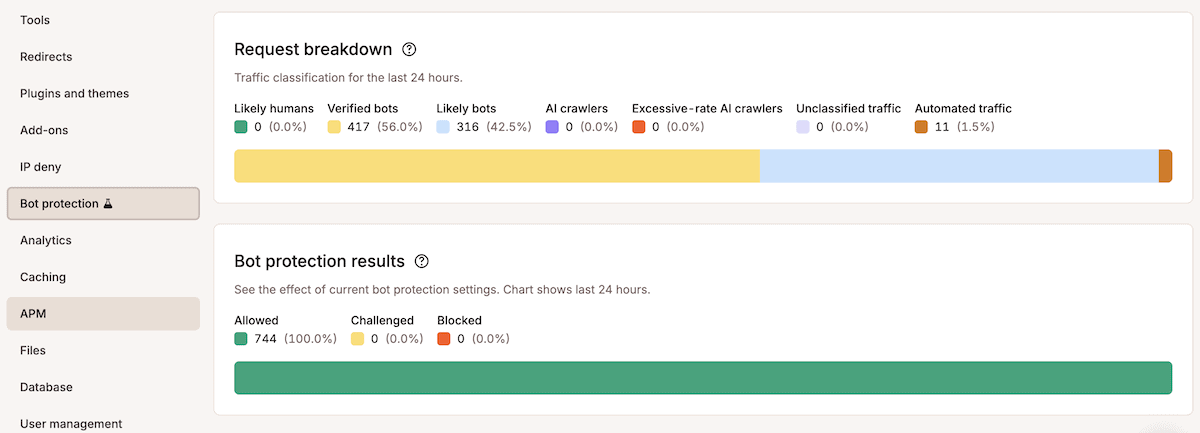
The excessive-rate AI crawlers category isolates the bots generating request volumes high enough to threaten performance. When a large slice of the chart sits in that band, you’re looking at crawler load rather than a genuine surge in readers.
The Bot protection results chart shows you what happened to the traffic by splitting it into requests that were allowed, challenged, or blocked. This lets you see how much automated traffic is currently reaching your site versus being filtered before it gets there. Side-by-side, these charts let you understand whether the load is already being handled or sailing straight through to your server.
To tie the traffic to the slowdown, check out the Top client IPs list within MyKinsta’s Analytics:
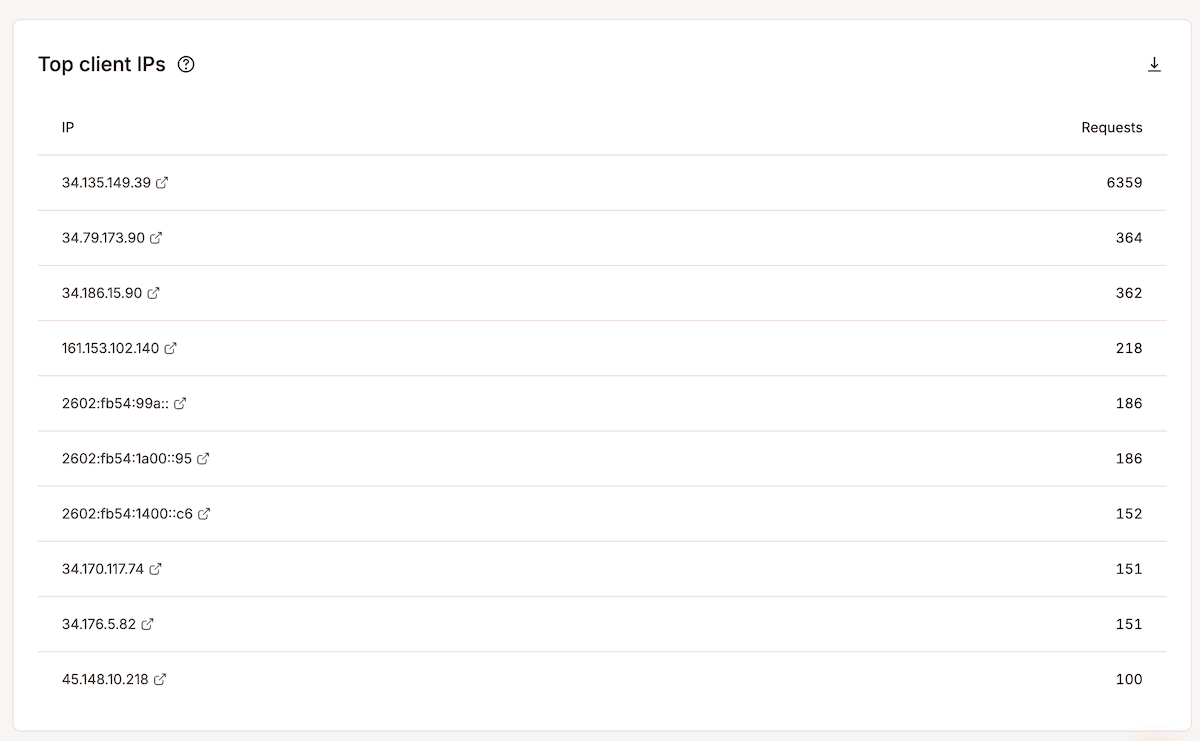
This shows the addresses sending the most requests, with each IP linking out to a lookup service to check its origin. Finally, open the Performance tab and line up the response-time spikes against the periods of heavy crawling. If the resource spikes and bot volume rise and fall together, you know the next step is to control the incoming traffic.
How to manage AI crawlers with Kinsta’s bot protection
Once you’ve confirmed the source, Kinsta’s Bot Protection gives you control over each category of traffic. It sits on top of the platform defenses that already filter out clearly malicious traffic and it’s included in all plans.
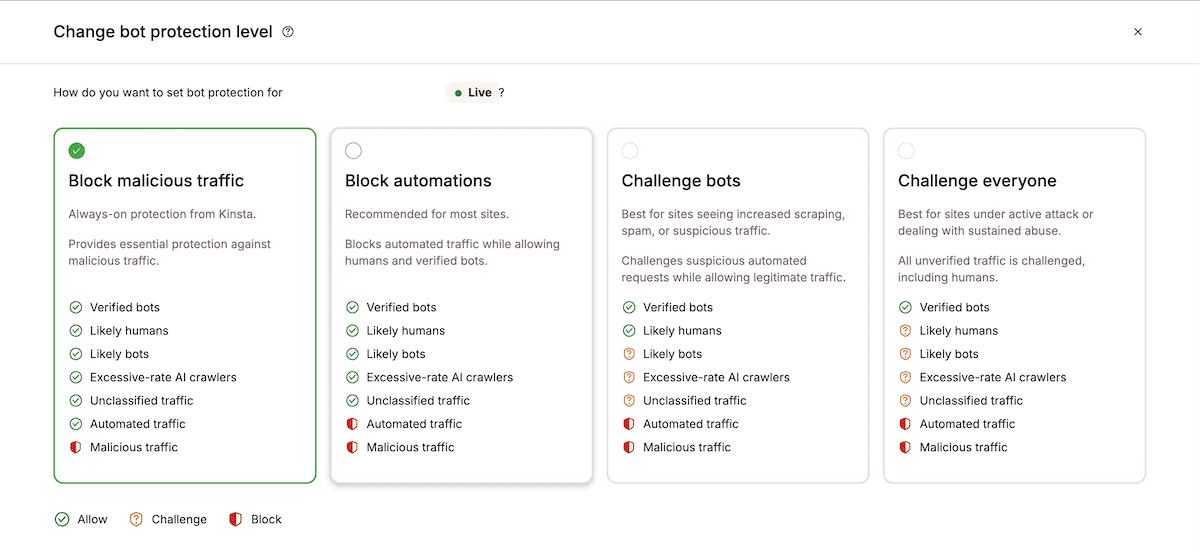
The Protection level panel on the Bot protection screen in MyKinsta offers four settings to choose from:
- Block malicious traffic is the default. It handles DDoS mitigation and blocks IPs and endpoints tied to known attack sources.
- Block automations adds a layer that blocks confirmed automated traffic while letting verified bots and real visitors through.
- Challenge bots adds a verification step for likely bots. A visitor who passes won’t be challenged again for ten days on the same browser and IP address.
- Challenge everyone is the strongest setting and only lets verified bots through. This is a tool for short-term use during an active spike.
At Challenge bots or above, any tool that connects to your site programmatically and isn’t on Cloudflare’s verified bot directory will be challenged or blocked. As such, confirm your business-critical tools appear on that list before you raise the level.
Kinsta layers its own rules on top of Cloudflare’s verified bot list. This means it reclassifies verified AI bots that generate high request volumes into the separate Excessive rate AI crawlers category.
The logic is to judge a crawler by its behavior rather than its credentials, so a verified bot that starts hammering your site gets treated as the problem it has become. When you set protection to Challenge bots or higher, it lets a legitimate high-volume service prove itself while filtering out crawlers stuck in a loop.
MyKinsta’s other bot protection functionality
The Block AI crawlers toggle is a separate control from the protection level that targets AI crawlers specifically, including verified ones such as GPTBot. Googlebot and Bingbot keep indexing your site regardless, so this removes the AI crawler load without touching your search visibility.
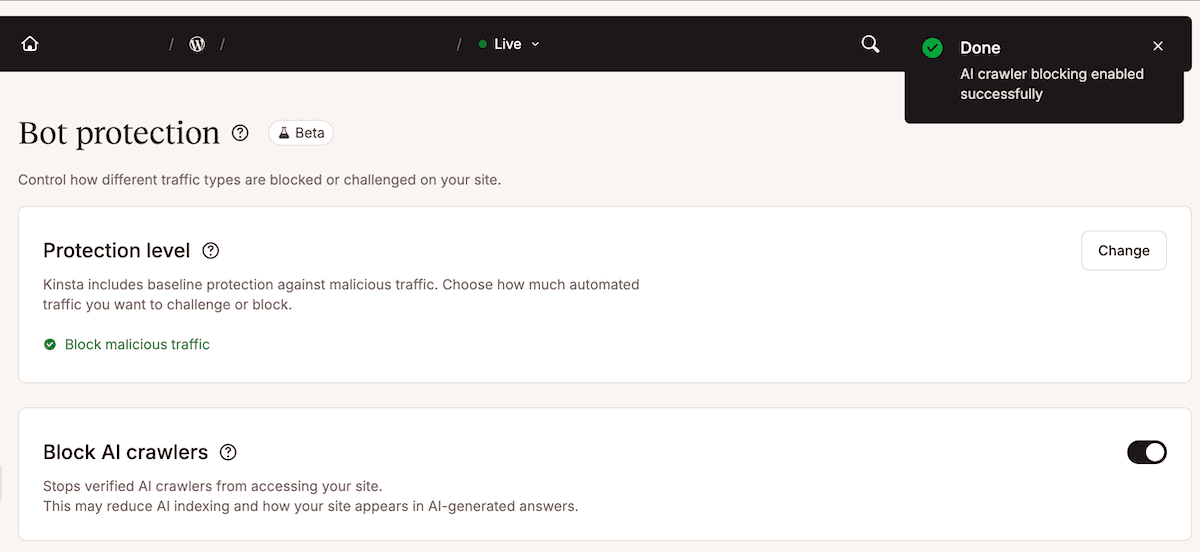
It’s a cleaner option than hand-editing robots.txt or maintaining per-bot rules, but the tradeoff is worth thinking through before you enable it.
Blocking AI crawlers reduces how often your content surfaces in AI-generated answers and summaries, and as AI tools become a more significant discovery channel for some audiences, opting out entirely has implications beyond server load.
For performance-first sites like WooCommerce stores, high-traffic content sites, membership platforms, the resource cost of AI crawling is high and the return is low, so blocking may be a cleaner call if you see problems. For content-first sites where AI visibility is a strategic priority, staying at Block automations or Challenge bots filters the worst behavior while keeping your content indexable by AI platforms.
There’s no universal right answer. The toggle is there to give you the choice.
Stricter protection can catch the automated traffic you rely on, so two settings keep it flowing. The Always Allow section lets you add up to 50 exceptions by IP address, path, or user agent. It’s where you list the things that should never be challenged, such as a monitoring service, a payment webhook, or a trusted office or client IP.
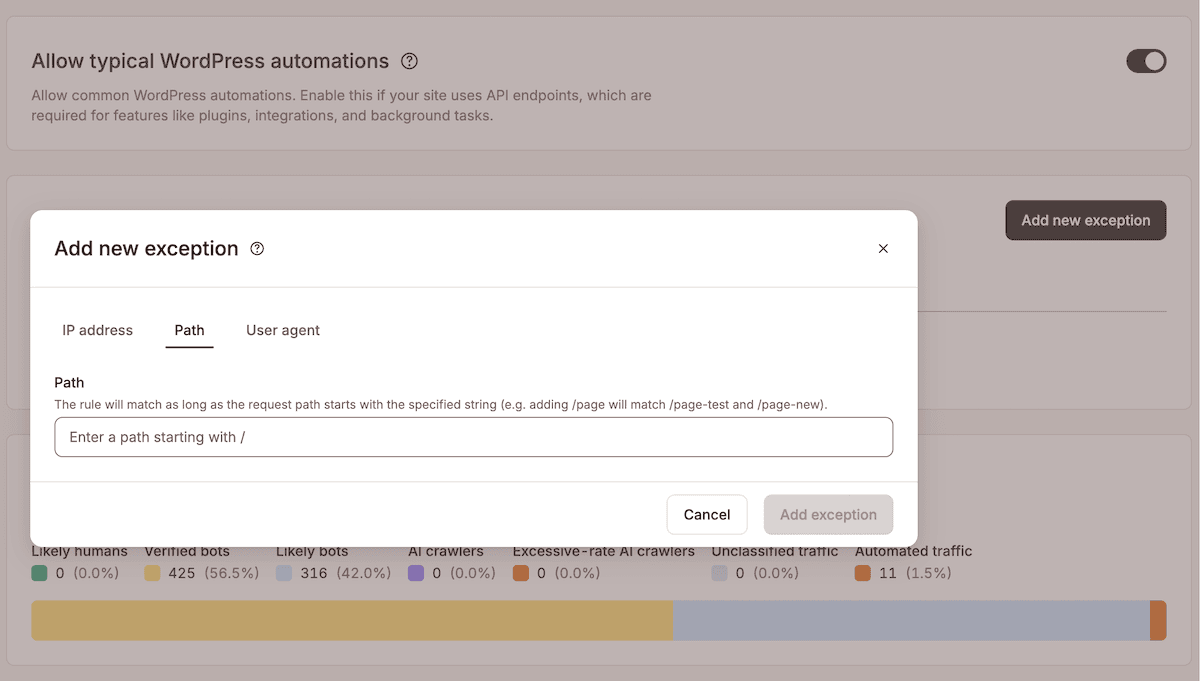
Allow typical WordPress automations switches on a managed ‘allowlist’ of common WordPress endpoints and services, including the REST API and background tasks. You enable it alongside stricter protection when your site depends on plugins, integrations, or scheduled jobs that make automated requests, so that raising your defenses doesn’t quietly break a workflow.
The new rules of web crawling need closer management from you
While internet behavior has changed, your hosting likely hasn’t. AI crawlers don’t respond to the same rules search engines spent two decades writing. robots.txt is optional, and crawling is at a flat high rate. What’s more, you get nothing in return for the used resources. This gives you a performance and cost problem that looks like a struggling site rather than crawler activity.
The solution is short sequence within your control. First, confirm the cause in MyKinsta’s analytics. Next, set the right Protection level within MyKinsta and switch on Block AI crawlers to shed AI crawler load without losing search visibility. Then, protect what you rely on through Always Allow, so stricter settings don’t break a trusted integration. Each change takes effect without downtime, so you can adjust as the patterns shift.
If you manage lots of client sites, Kinsta’s Agency Partner Program packages these controls with dedicated support. Explore Kinsta’s managed WordPress hosting to put that control to work.