Add as a preferred source on Google
The world of dev agencies is extremely diverse. It ranges from DevOps-oriented system houses to lean agencies that offer turnkey solutions. In between, you’ll find various agencies, such as marketing and design-oriented digital boutiques, as well as production factories that focus on WordPress-based custom solutions and plugin or theme development.
Different types of agencies take different approaches to hosting, depending on their business model, target market, and the availability of skilled developers, DevOps, and sysadmins.
DevOps-oriented agencies usually handle complex application development and view WordPress as one tool among many, which often leads them to favor DIY hosting for flexibility and control. In contrast, WordPress and marketing agencies prioritize efficiency and reliability, making managed hosting solutions more appealing for their needs.
Although DevOps-oriented agencies have the skills to manage DIY infrastructures, the challenge today is deciding whether it’s still worth configuring a server. Tasks such as managing security patches, Nginx optimizations, and kernel updates are time-consuming operational overhead.
This is where Kinsta shines. Thanks to its suite of advanced developer tools, Kinsta enables DevOps teams to maintain architectural control via API and SSH while delegating operational tasks to the platform.
Now, let’s explore why a developer-oriented managed cloud hosting service like Kinsta might be a better choice than raw cloud services like AWS, Azure, and Google Cloud.
Kinsta vs Raw Cloud: Why managed cloud hosting wins for devs
Agencies that adopt a DIY hosting strategy typically aim to maximize profits by purchasing wholesale resources from a raw cloud hosting service and reselling them at a high markup.
However, this strategy can create the illusion of margin because managing your own stack requires factoring in the cost of human capital. Each hour that a developer spends on server updates, security monitoring, or troubleshooting is an hour that cannot be billed to clients. This time is also taken away from high-value activities, such as developing new projects, technological innovation, and learning new skills.
Additionally, the DIY hosting model carries unpredictable financial costs. A security vulnerability or server overload during a traffic spike can result in lost sales, damage to the agency’s and clients’ reputations, overtime for developers, and customer churn, costing hundreds or thousands of dollars, instantly wiping out months of accumulated hosting margins.
Kinsta transforms these hidden, unpredictable costs into fixed, predictable expenses, enabling agencies to achieve higher net profit margins per project.
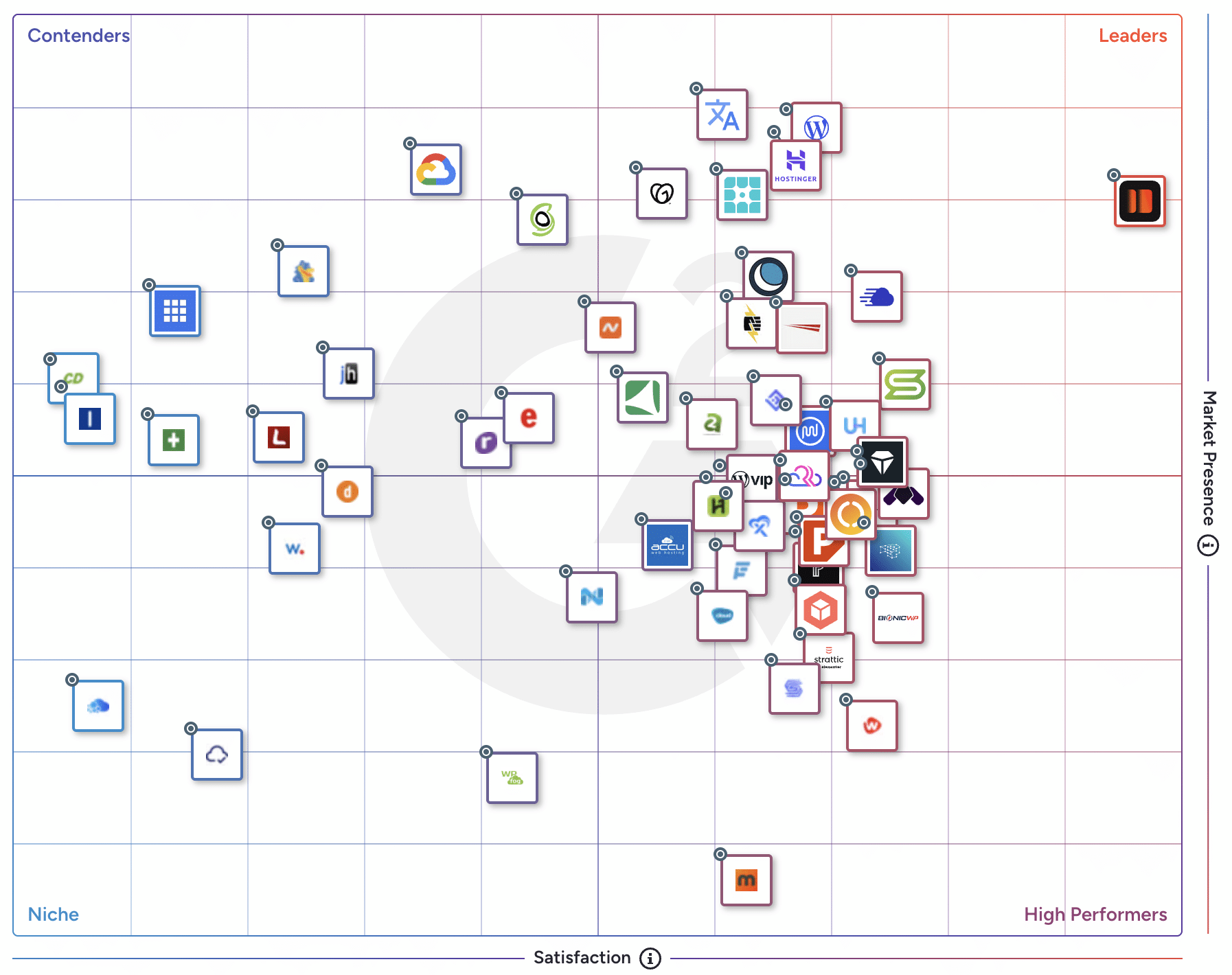
Kinsta acts as an abstraction layer on top of powerful cloud architecture. It adds a developer-friendly management interface, cutting-edge security, an enterprise-level CDN with DDoS protection, and automations that ease WordPress site management. Even more importantly for dev agencies, Kinsta provides top support and has been rated the Best WordPress Hosting by G2 users.
Now, let’s take a look at the advantages of Kinsta over a raw cloud service provider.
From infrastructure to environment
Kinsta eliminates the need to manage low-level cloud infrastructure. Instead, it provides agencies with a ready-to-use, expertly optimized server environment, unlike the hands-on setup required with raw cloud providers.
Our machines are fine-tuned for optimal performance and are equipped with state-of-the-art technology. Each site on our platform runs in an isolated software container with all the necessary resources (Linux, NGINX, PHP, and MySQL) for execution. This means your site is isolated from any other on our platform, so it won’t experience slowdowns or downtime due to “noisy neighbors.”
Our engineers have already optimized Nginx and PHP workers, saving your agency time and costs associated with manual optimization and the need to hire a team of DevOps and SysAdmins.
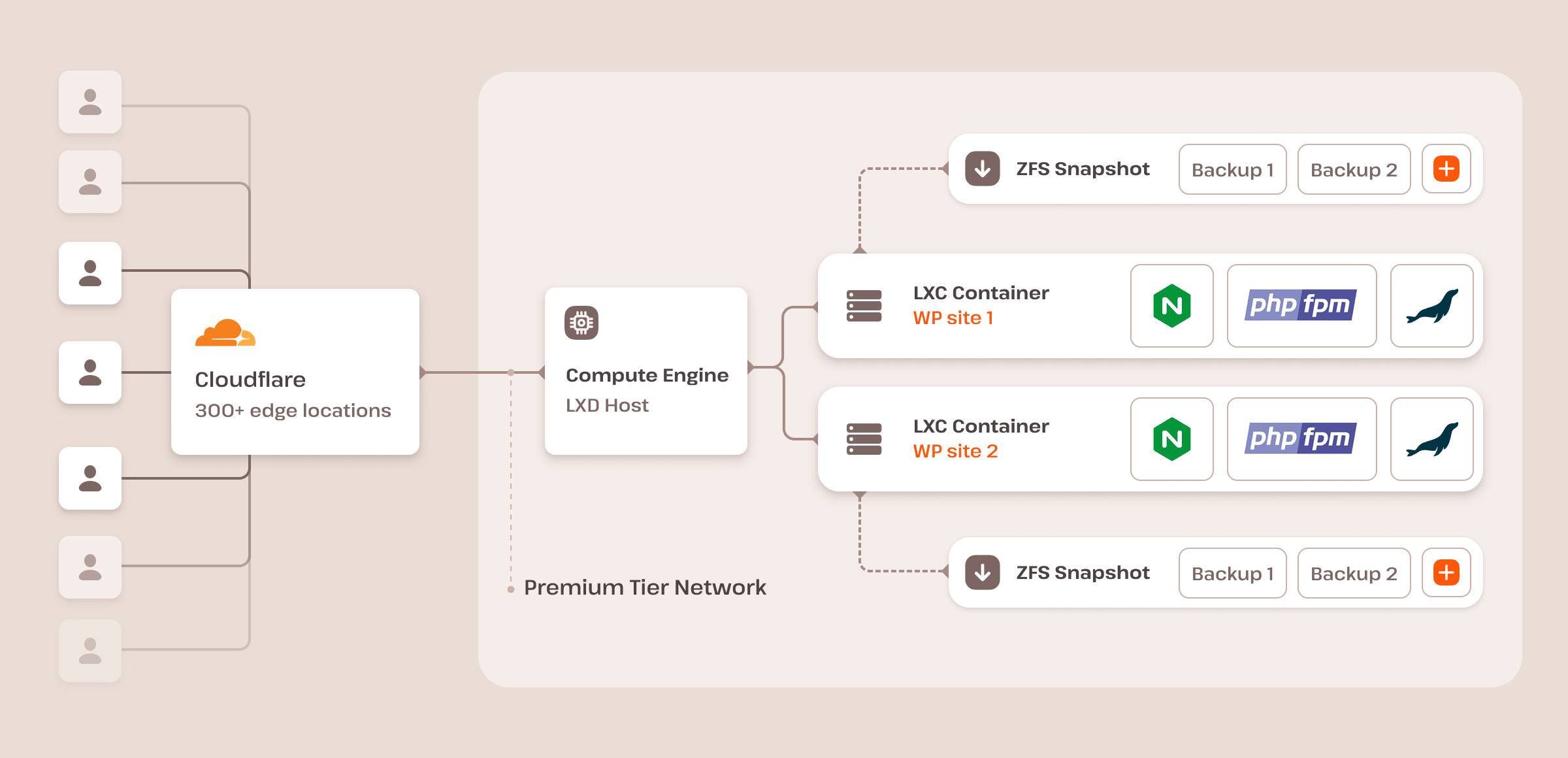
Unlike raw cloud hosting, where IT staff must configure caching and optimize static asset delivery, Kinsta integrates server-level caching and a global CDN through Cloudflare by default. This setup accelerates site performance without any manual configuration from your IT team.
In brief, agencies choosing Kinsta over raw cloud hosting avoid the time and resources required for server administration. Kinsta delivers a pre-tuned, secure, and high-performing environment, reducing operational burdens while keeping client sites fast.
Integrated observability
In software engineering, observability is the ability to understand a system’s state from its output. In cloud computing, observability means monitoring, measuring, and understanding a system or application’s status by examining its outputs, logs, and performance metrics.
For those using raw hosting, achieving true observability is complex. Your IT team would need to configure and pay for third-party services such as New Relic, Datadog, or Papertrail, which add costs to your budget and complexity to your workflows.
Kinsta eliminates this overhead by providing a suite of professional-grade monitoring tools available in the MyKinsta dashboard at no extra cost.
Kinsta APM tool
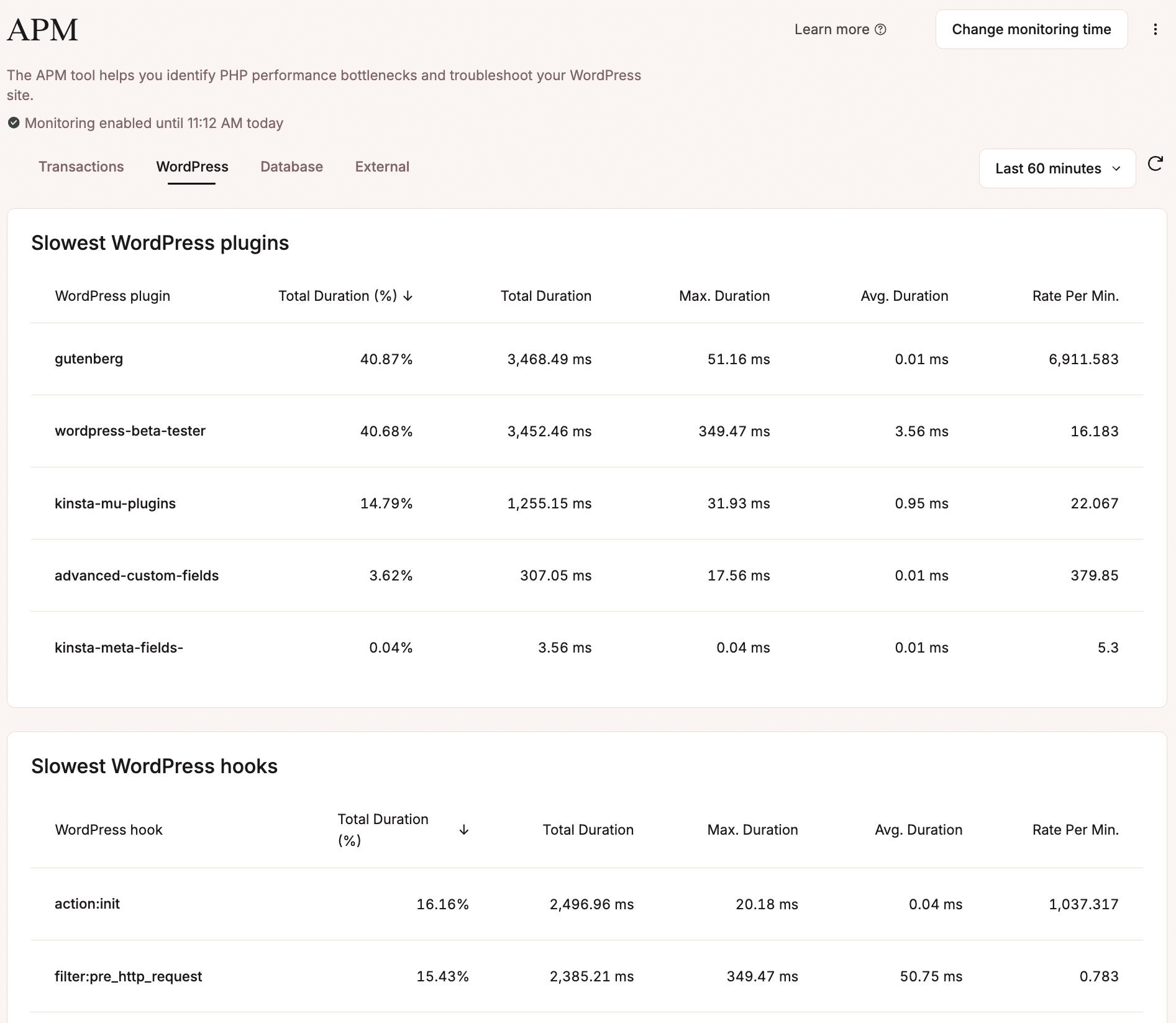
Our Application Performance Monitoring (APM) tool captures timestamps for every PHP process, database query, external HTTP call, custom code, and installed plugin, providing a detailed analysis of each process. On a raw cloud infrastructure, a similar level of tracing would require a third-party service, often costing hundreds of dollars per month.
To enable the APM tool, log in to MyKinsta, choose the site you want to monitor, click APM in the left-hand menu, and then click the Enable APM button:
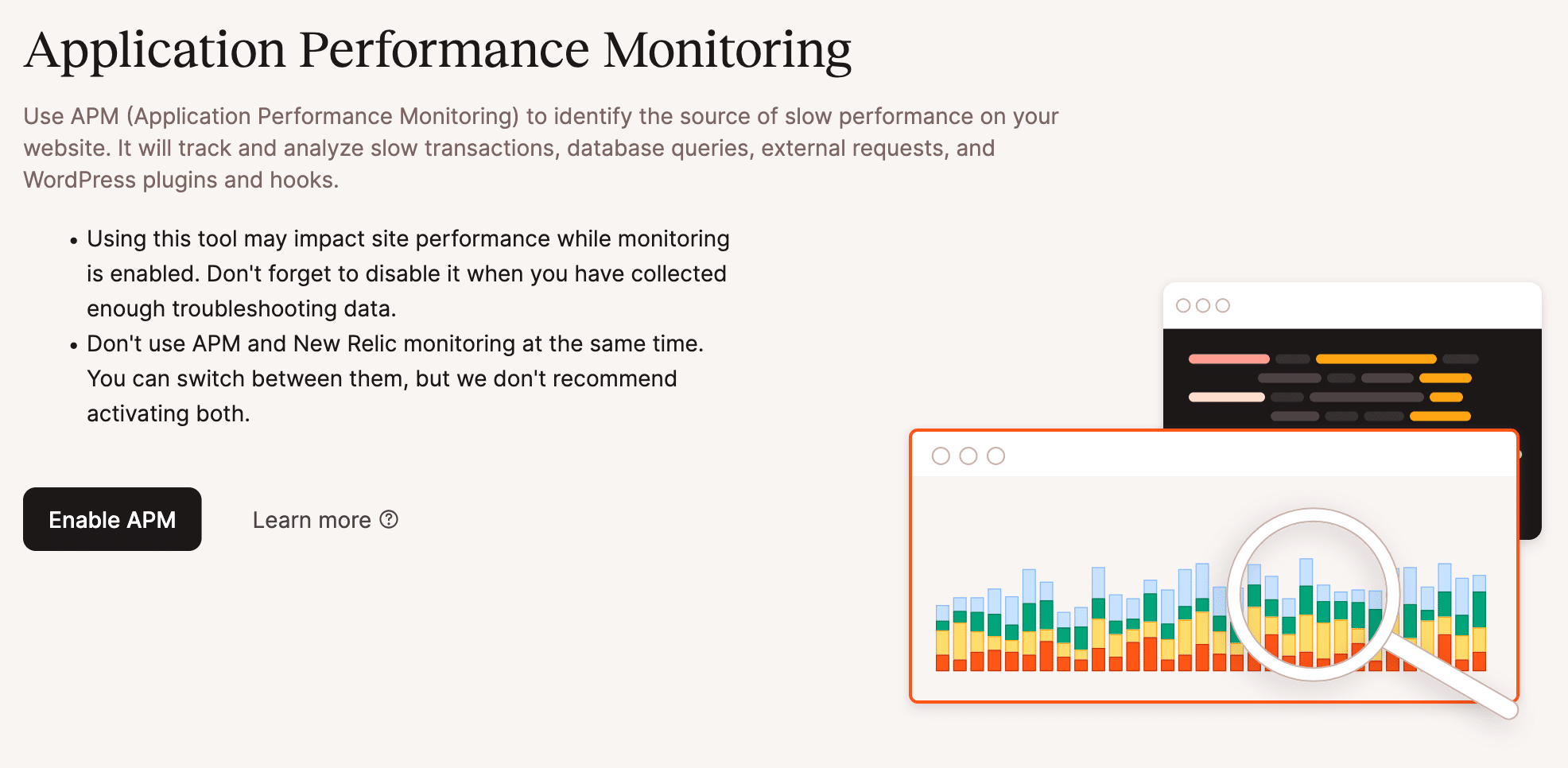
With Kinsta APM, your developers can instantly identify which plugin or custom function is slowing down your e-commerce checkout page or your membership site. Kinsta APM can save your team hours of billable time, reducing the Mean Time to Repair (MTTR).
Log Management
Accessing logs requires using the terminal or configuring complex tools, such as Amazon CloudWatch or Google Cloud’s Observability. This is another area where DIY hosting drains developer productivity.
With Kinsta, you can conveniently access error, cache, and access logs in just a few clicks from your MyKinsta dashboard. You can also download your log files via SFTP.
To access the MyKinsta logs page, navigate to Sites > sitename > Logs. This page is divided into three tabs.
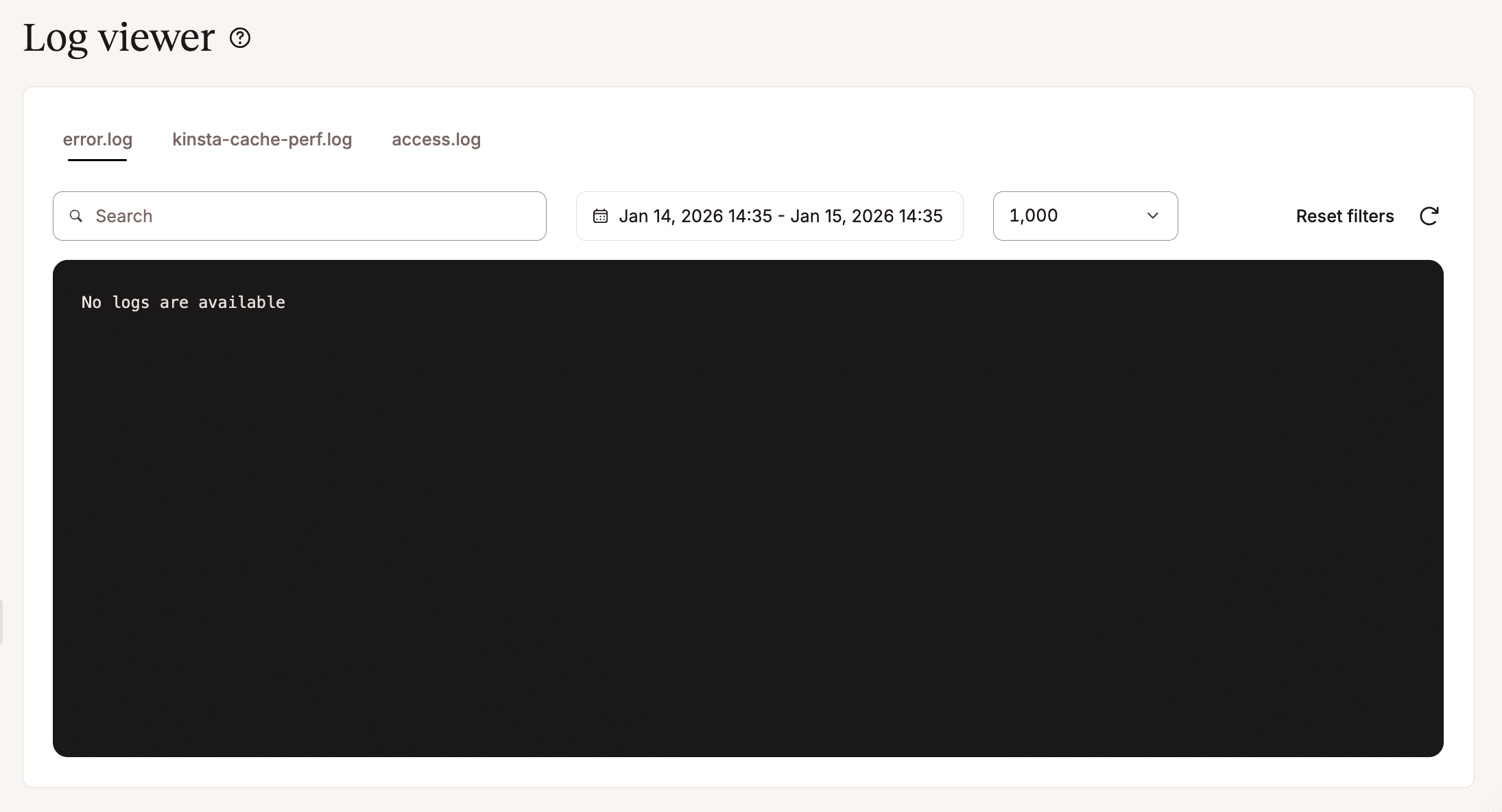
The error.log tab shows PHP errors and warnings generated by your WordPress site. This tab is particularly useful for troubleshooting broken pages, white screens of death, and other theme and plugin issues.
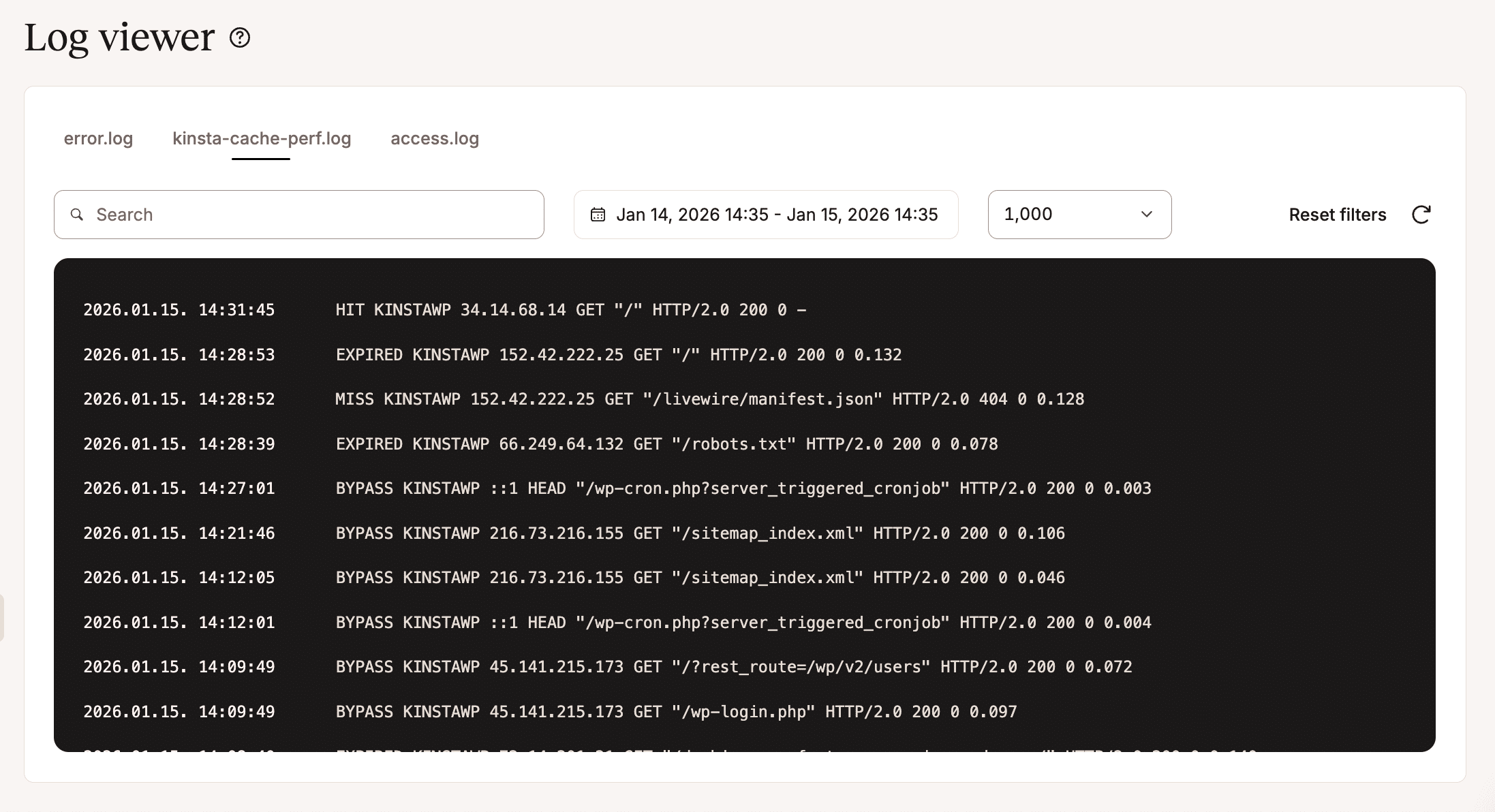
The kinsta-cache-perf.log tab provides logs specific to Kinsta’s caching layer. It lets you see whether your site’s pages are being cached correctly and provides information to improve performance.
The access.log tab shows the logs of every HTTP request made to your site. The access log is essential because it provides useful information for security checks, traffic monitoring, detecting 404 errors, and understanding site access patterns.
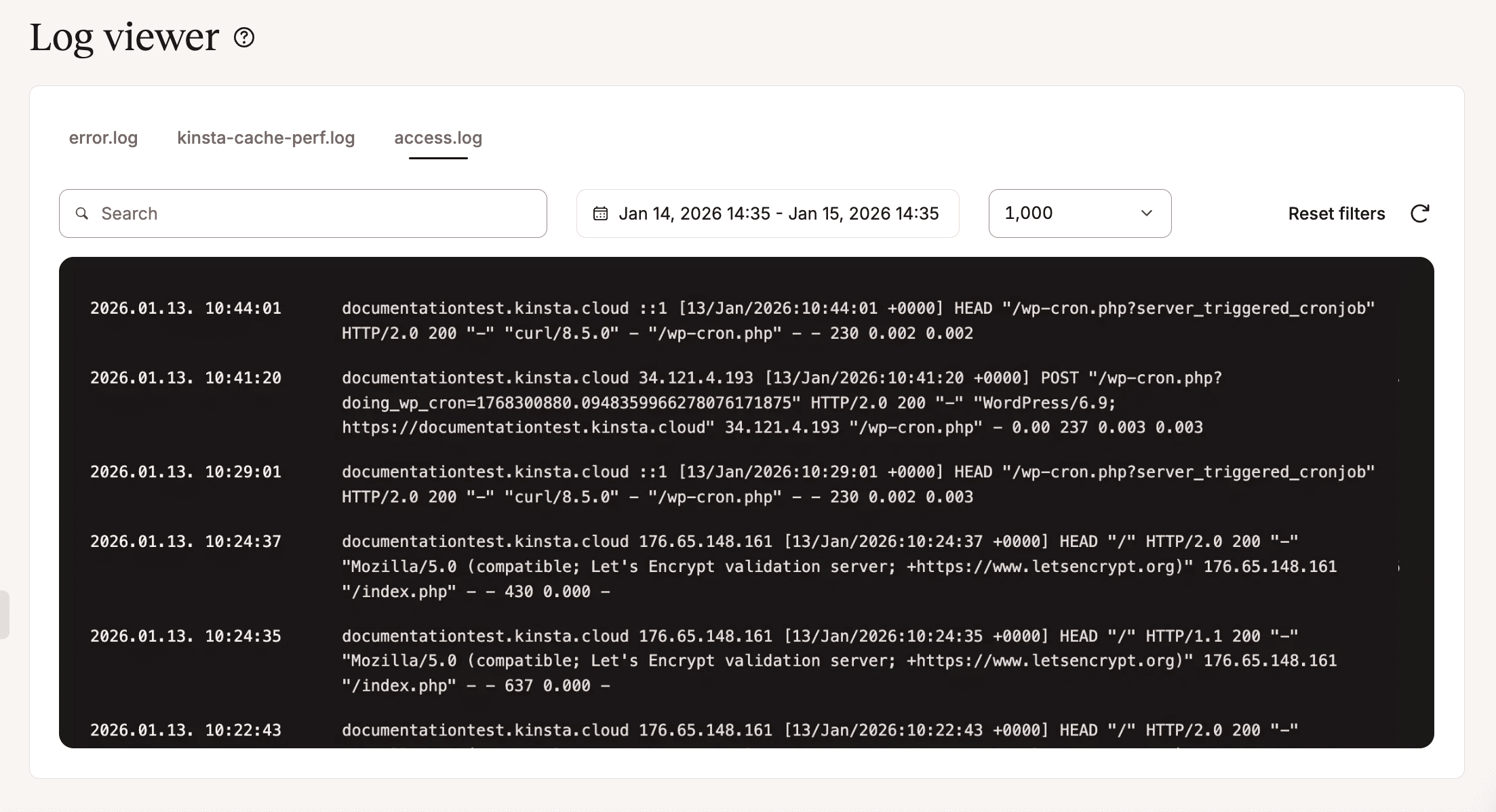
The log screen also lets you set filters and specify a time interval or a maximum number of logs to display. This helps you monitor and fix errors on your site, eliminating the need to work in the terminal or use complex, costly third-party tools.
Kinsta doesn’t just provide a server for your client websites; it provides a complete diagnostic environment. With Kinsta, you won’t need to buy third-party software licenses, and your team won’t have to deal with the hassle of managing extra tools.
Traffic and resource consumption analytics
On raw cloud platforms (AWS, GCP, Azure), monitoring is often a separate service that requires manual configuration by your IT team.
Kinsta offers a built-in system that provides advanced traffic and resource consumption monitoring. It’s more than just a set of graphs and charts; it’s an early warning system that protects you from the risk of site meltdown during critical events.
In MyKinsta, you can view analytics reports for your WordPress plan and for your clients’ individual sites. You can also export analytics data in CSV format.
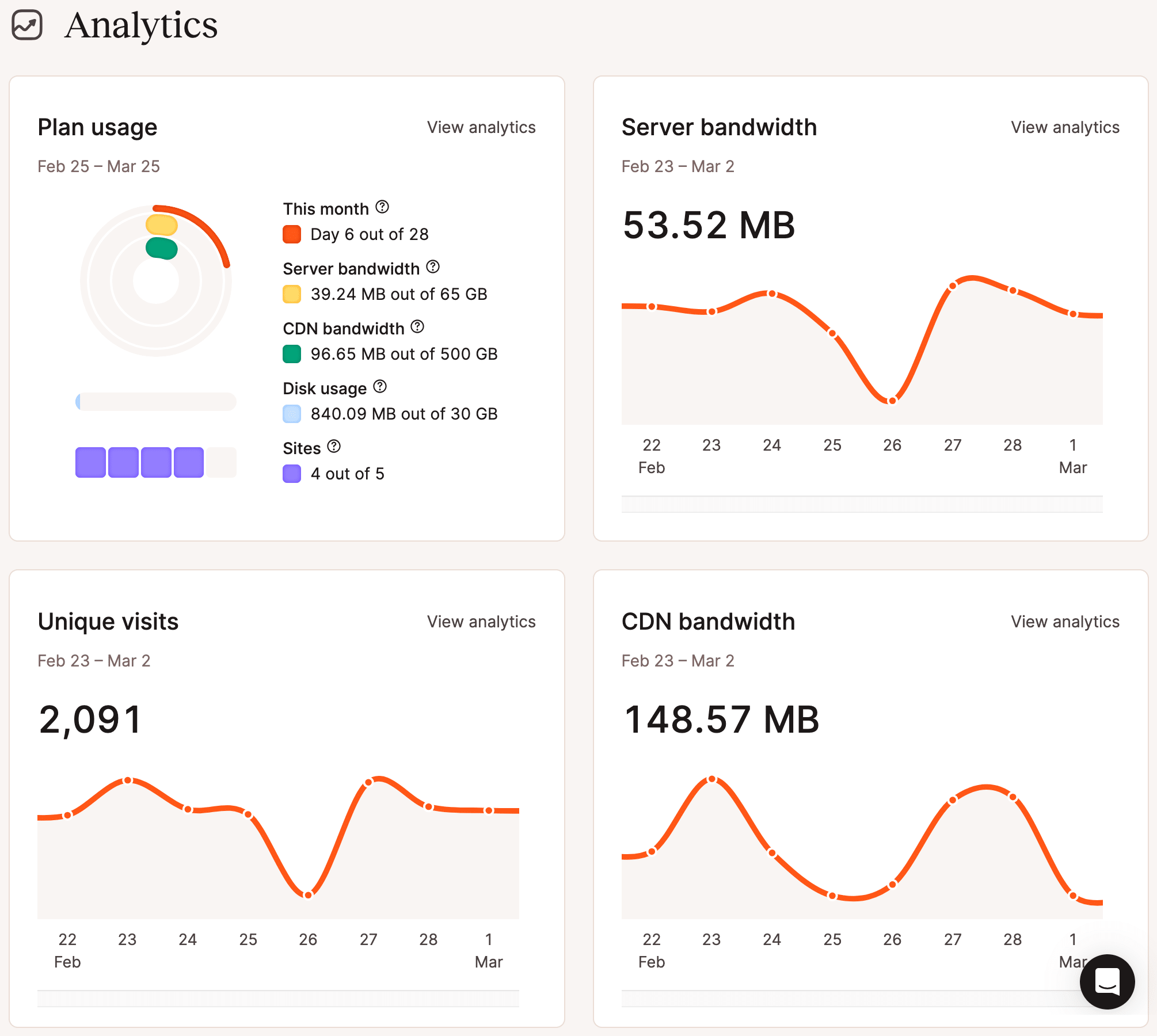
The MyKinsta dashboard page provides a quick overview of your WordPress plan’s resource consumption. To access this section, navigate to your company’s Dashboard and scroll down to the Analytics section. There, you will find charts showing plan usage, bandwidth consumption, unique visits, and CDN bandwidth:
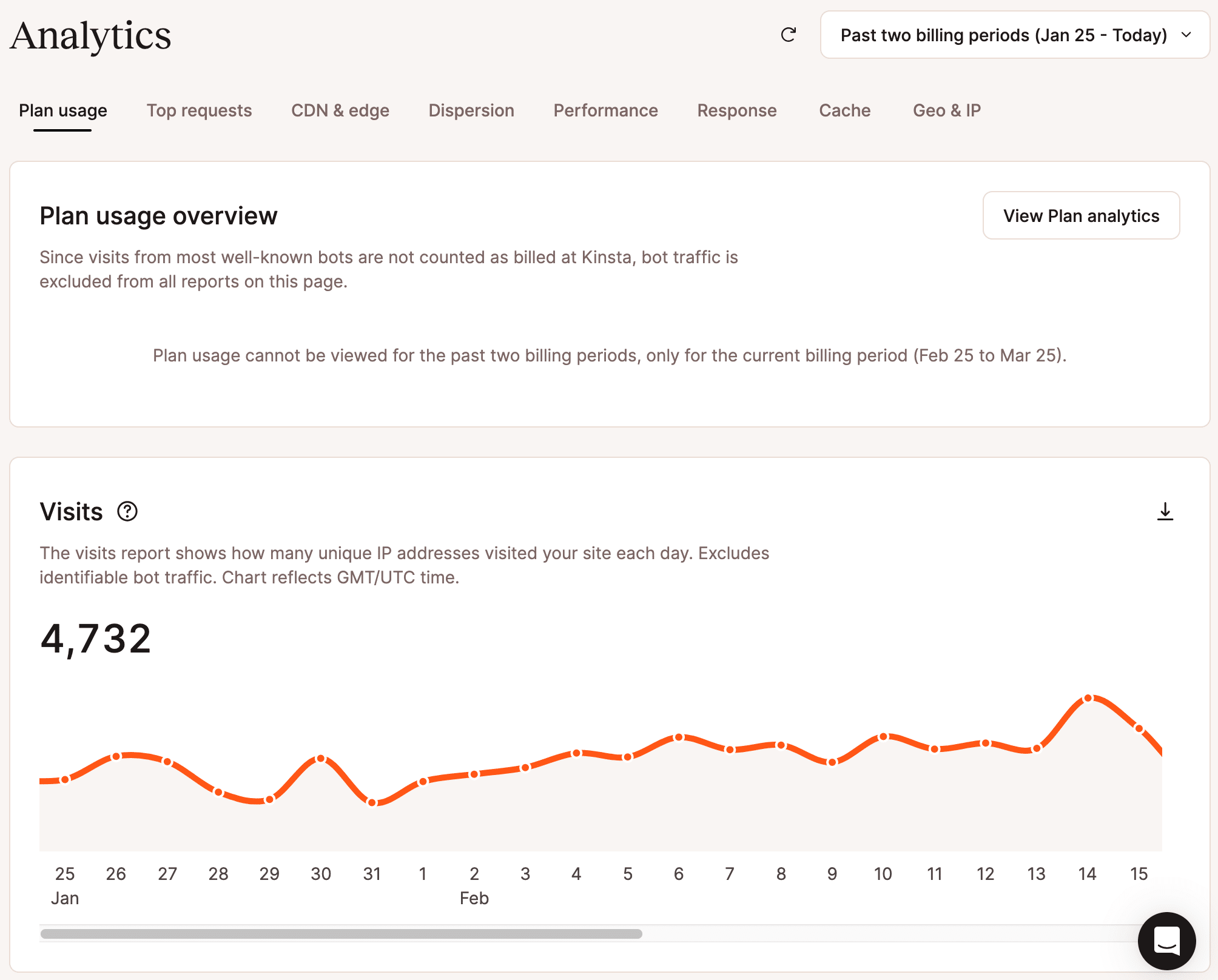
To access more detailed reports for all the sites in your plan, select Analytics in the left-hand menu. You will find a comprehensive reporting system grouped under tabs that allows you to accurately monitor your plan’s traffic and resource consumption.
You can check in real time whether the resources allocated to your WordPress plan are sufficient to handle requests smoothly. More specifically, the Performance tab includes key reports for monitoring this aspect and displays the following charts:
- Average PHP + MySQL response time: This chart displays the average response time of the PHP engine and the MySQL engine for every uncached request.
- PHP throughput: This is the number of PHP transactions per unit of time
- PHP memory limit reached: The number of times the PHP memory limit was exceeded.
- PHP thread limit: This chart shows how many times the PHP engine reached the maximum number of allocated PHP threads.
- AJAX usage: This chart shows the number of admin-ajax requests.
- Top average PHP + MySQL response time: This chart shows the average response time of the PHP and MySQL engines for each uncached request.
- Top maximum upstream time: This is the total time NGINX takes to process a request and send a response.
These reports let you perform a detailed audit of your WordPress plan’s resource usage. The great thing for Kinsta clients is that, once you’ve determined which configurations to change for your sites’ specific needs, you can take action directly from the MyKinsta dashboard. For example, you can use our PHP performance add-on to change a site’s PHP thread number or PHP memory limit per thread.
Other reports include plan usage, top requests, CDN and Edge caching bandwidth consumption, response code breakdown, cache responses and bypasses, Geo and IP addresses visiting your site, and more.
MyKinsta also provides site-level analytics, accessible under Sites > sitename > Analytics:
User activity
Observability is complete only when it includes monitoring team member activity. In a collaborative environment, knowing who did what and when is critical to maintaining high security standards and debugging effectiveness.
If you work with a raw cloud service, implementing a User Activity Monitoring (UAM) service is a complex operation that requires configuring several specialized services.
At Kinsta, the user activity log is integrated into MyKinsta. You can access the user activity log at the company and site levels.
To access the company-level log, navigate to Your Name > Company Settings > User activity. You can filter the logs by action, site, users, and API key.
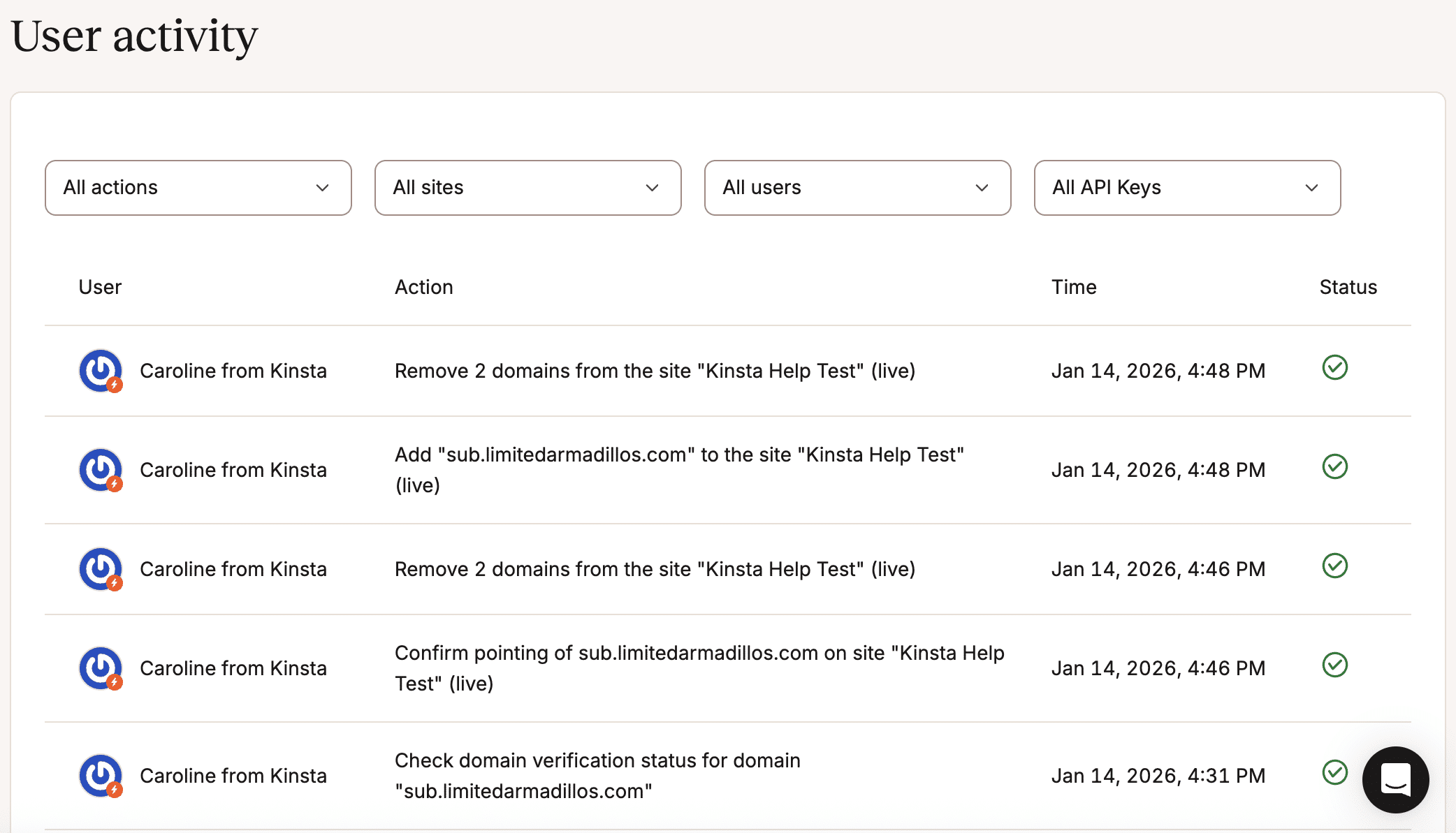
To access user activity at the site level, navigate to Sites > sitename > User activity. You will find the same information described for company-level user activity.
Users with different roles have access to different data. Company administrators and company developers can see all activity, while WordPress site administrators can only see information associated with the sites they have access to.
Developer workflow: Reduce friction and increase productivity
An agency that opts for DIY hosting must focus on more than just creating a website or application; it must also create and maintain its own infrastructure. As mentioned above, this option provides maximum flexibility and complete control over your stack, workflow, and processes. However, it requires the implementation and maintenance of your infrastructure, which comes at a cost.
The process begins with project setup and provisioning, which includes launching a new cloud instance, configuring the firewall, associating IPs, installing the software stack, creating staging environments, managing permissions, building custom CI/CD pipelines, and providing backups. Furthermore, ensuring the proper functioning of the infrastructure is the agency’s direct responsibility. In short, the agency must worry not only about what it is building (websites or apps for clients) but also about configuring and maintaining the underlying hosting infrastructure, including updates and security patches.
By choosing Kinsta as your managed cloud hosting solution, you won’t have to worry about these tasks because the platform is pre-configured and optimized for performance and security, and the workflow is designed to minimize developer friction.
Here are some of the features that your dev team can expect to find on Kinsta.
One-click staging environments and selective push
Every site hosted on the Kinsta platform comes with a one-click staging environment by default (with some exceptions), as well as selective push. This means your IT team won’t need to manually duplicate instances or databases, configure subdomains, or manage permissions because Kinsta handles all of this behind the scenes. Your development team simply needs to navigate to Sites > sitename, click on the site name in the top toolbar, and select Create new environment.
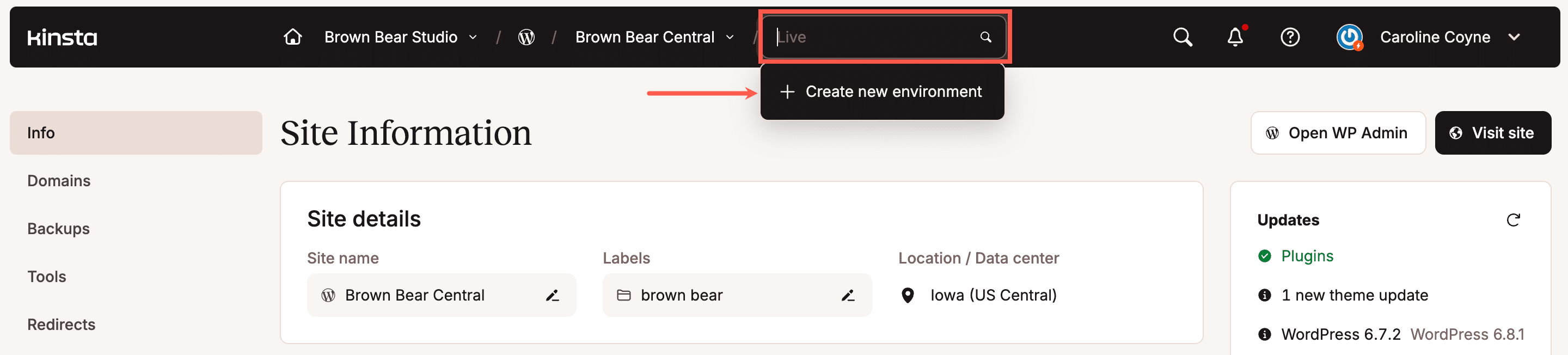
You will then be asked to choose between a premium staging environment, which has the same resources as your live site and is available as an add-on, and a standard staging environment, which is ideal for situations where staging does not require the same resources as the production environment.
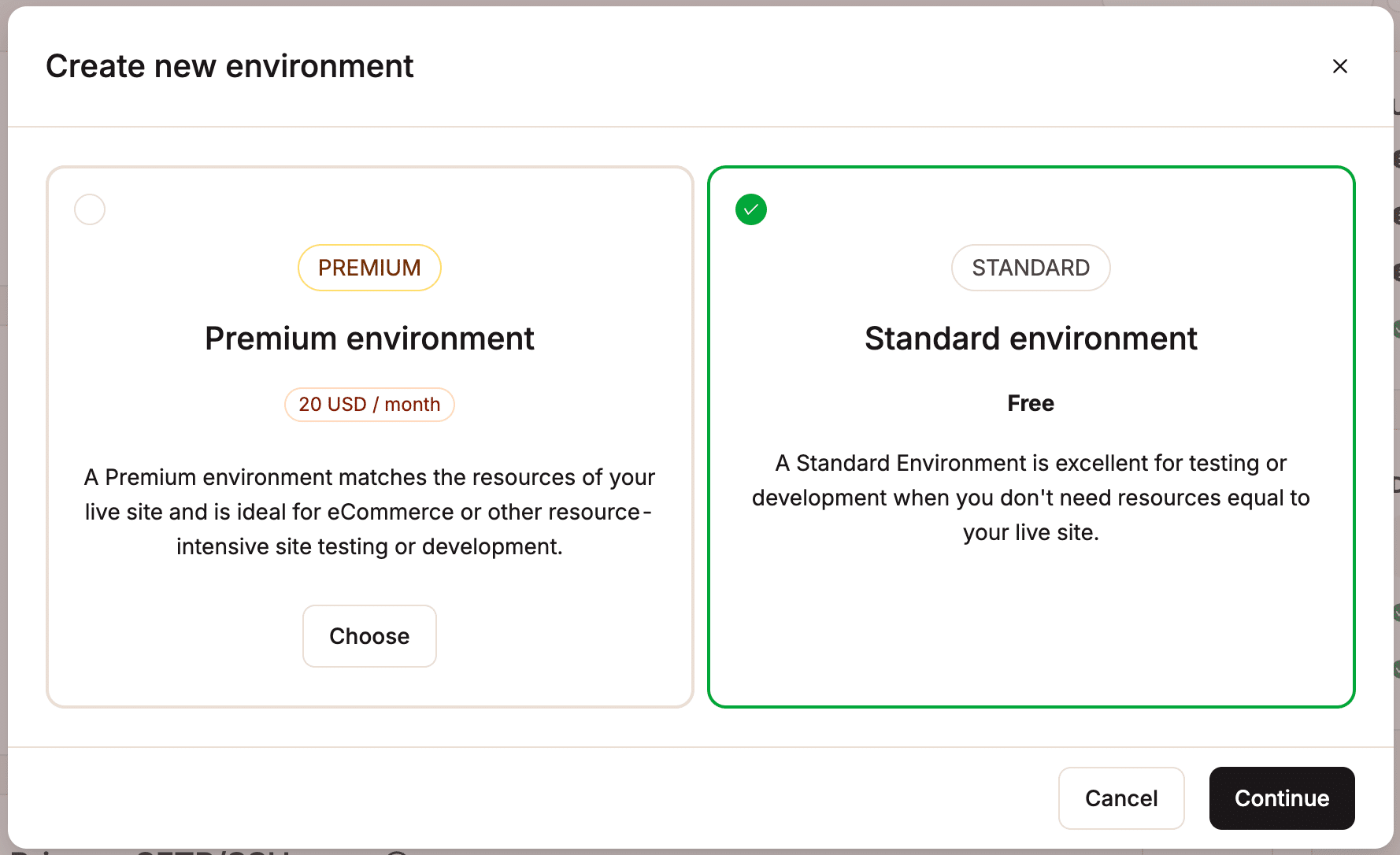
You can create an exact copy of your environment (staging or production) by pushing it to any of your existing environments. Thanks to Kinsta’s staging environments, you have the flexibility to:
- Create an exact copy of your staging or production environment to use as a blueprint for new projects.
- Move changes made in the staging environment directly to production. This is useful when you have custom code and want to verify that the site is working correctly before pushing it to production. It is also useful when updating the site is risky due to special configurations.
You can also selectively push all files and folders in your installation or only specific ones. Additionally, you can push the whole database tables or only specific tables. Finally, you can choose to perform a search-and-replace operation from the domain of the origin environment to the domain of the destination environment.
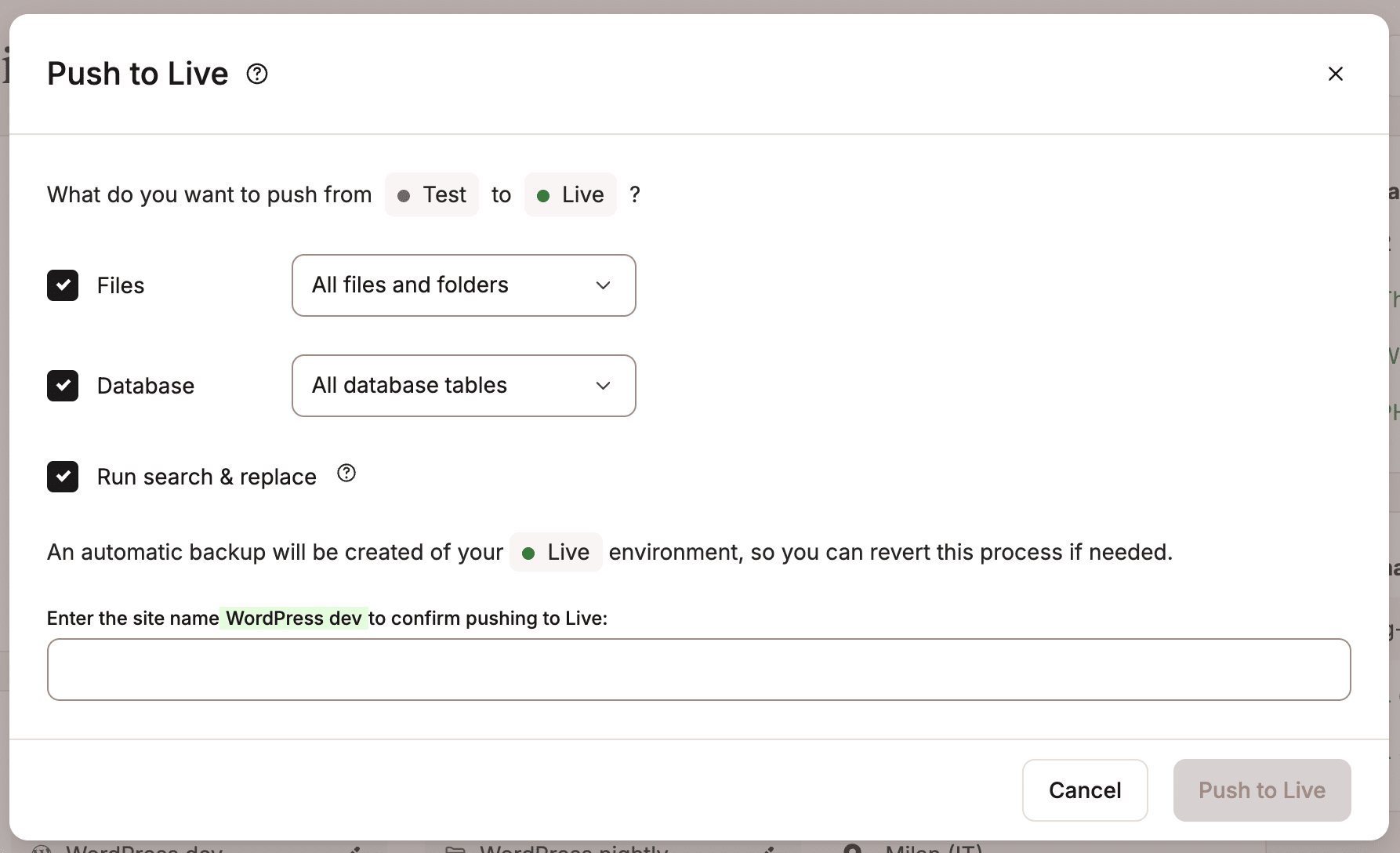
Every push operation from one environment to another is preceded by an automatic backup. If something goes wrong, you can restore the environment to the previous version with a single click.
Would you like to know what our customers think about our staging environments? Here’s a review from Martim D. on G2:
I really like how fast and reliable Kinsta’s hosting is. The dashboard is very intuitive, making it easy to manage multiple WordPress sites, backups, and staging environments. The customer support team is always available through live chat and they genuinely know what they’re doing ,it feels like talking to real WordPress experts rather than generic support agents. The overall performance improvement compared to my previous host was huge.
Continuous integration and continuous delivery (CI/CD)
For those who opt for DIY hosting, code deployment is a complex task that requires building and maintaining a pipeline. A DevOps team must configure tools such as GitHub Actions or GitLab CI; manage environment security, server access, and key management; synchronize environments with Search & Replace scripts; and ensure that a code push does not accidentally overwrite essential files, and so on.
With Kinsta, all of this becomes a thing of the past because Kinsta connects directly to your repositories. Your IT team can automatically deploy changes from a version control system to a live environment, reducing the risk of manual errors and significantly speeding up development and deployment. As a result, your clients’ sites are always up to date with the latest versions of your code.
For a detailed overview of how to continuously deploy your WordPress sites on Kinsta, check out our tutorials:
- How to continuously deploy your WordPress site to Kinsta with GitHub Actions
- How to continuously deploy your WordPress site to Kinsta with Bitbucket Pipelines
- How To Create a CI/CD Pipeline With GitHub Actions and Kinsta API
SSH and WP-CLI
Not only is SSH access to the server convenient, but it’s also essential for performing operations such as configuring the stack, correcting file permissions, and resolving critical errors that prevent the control panel from loading. If you’ve chosen the DIY solution, you’ll also need to configure, update, and secure tools for “power users,” such as WP-CLI. You will also need to manage SSH access securely.
With Kinsta, your team can leverage the full power of these features while eliminating the tedious configuration and security tasks.
SSH access is available on all plans, and WP-CLI is installed by default on all our servers. As company administrators, if you haven’t created any additional SSH/SFTP users, you’ll find the information you need to access your server via SSH in MyKinsta. Navigate to Sites > sitename > Info > Primary SFTP/SSH user.
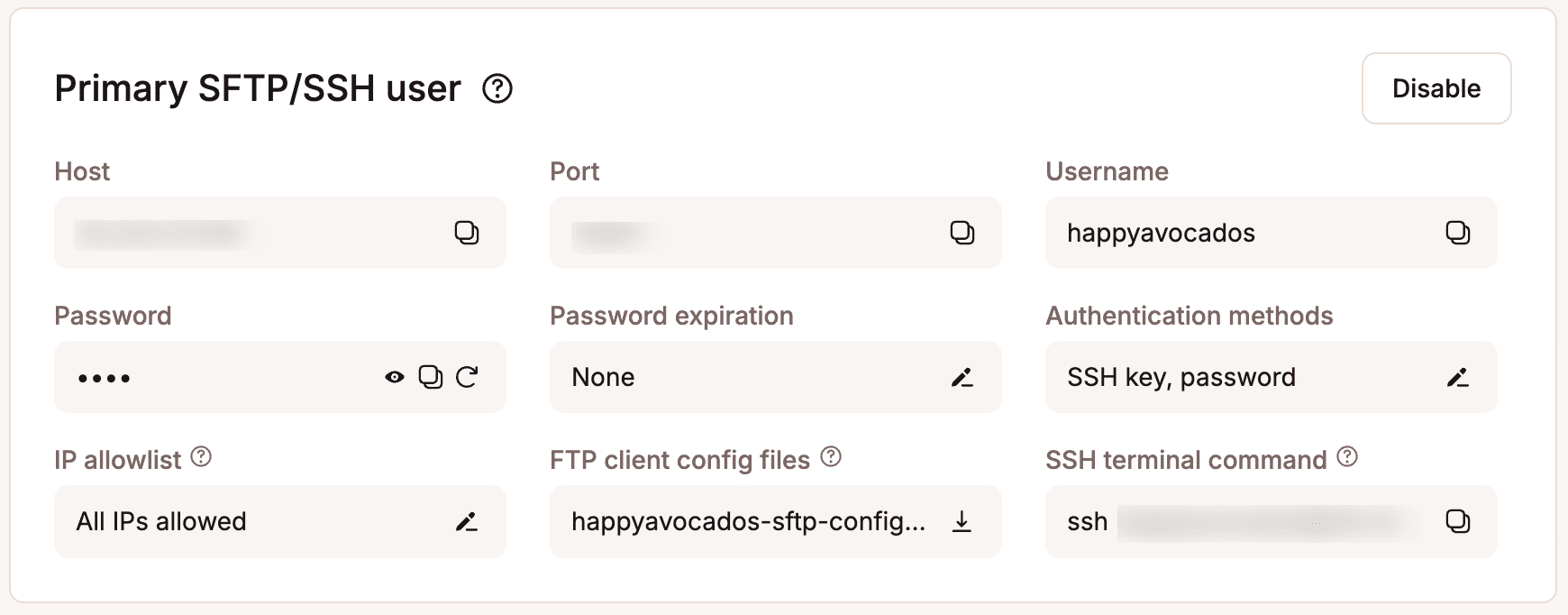
Once you’re inside, you can use WP-CLI commands to perform various tasks, such as managing plugins and users in bulk, clearing the cache, searching and replacing text in the database, and troubleshooting your website.
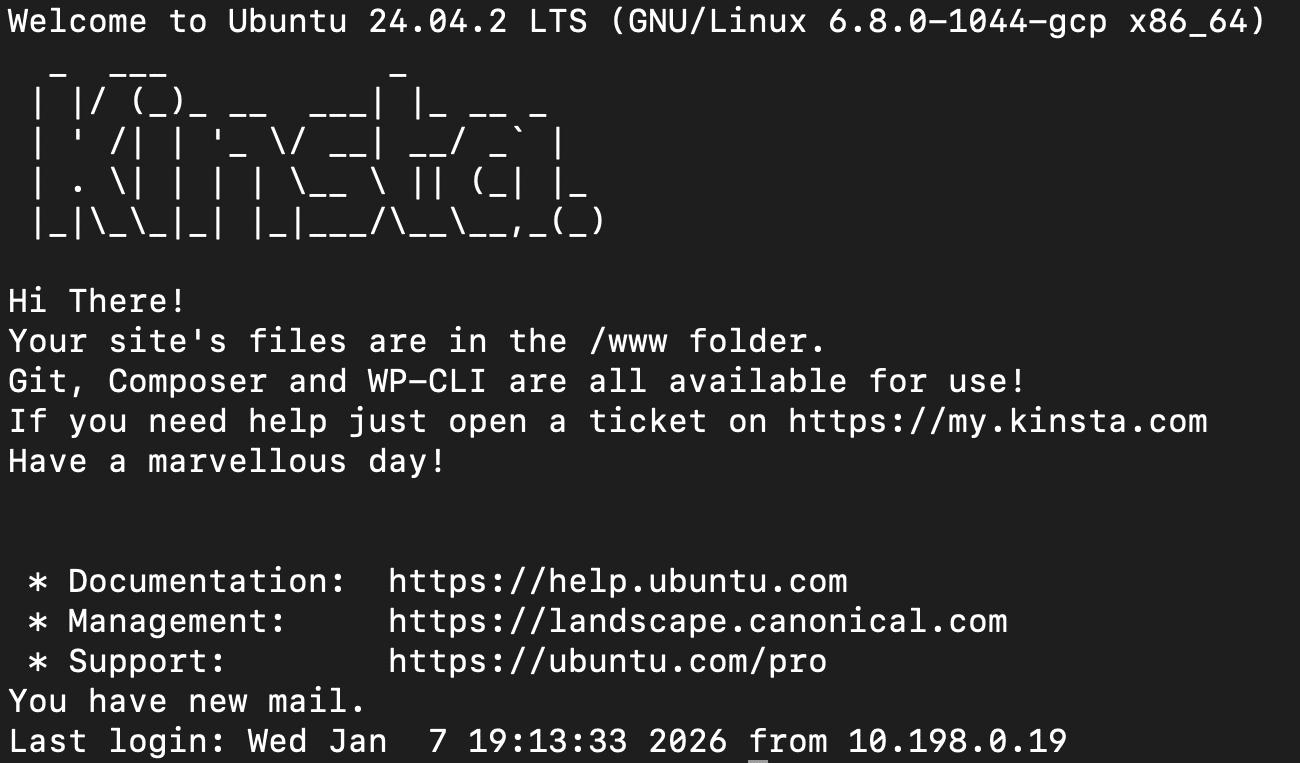
WP-CLI is included with Kinsta by default, so your development team can take full advantage of this fantastic WordPress feature without worrying about configuring anything.
Automatic backups and options for hourly and external backups
When you use a raw hosting service, such as AWS, Google Cloud, or Azure, your agency must also engineer a backup service. This involves orchestrating file snapshots and database dumps, and creating automated processes to store backups on an external storage service. You will also need to implement retention policies to prevent storage costs from increasing over time. Then, you must design a recovery system, which is complex in a raw infrastructure.
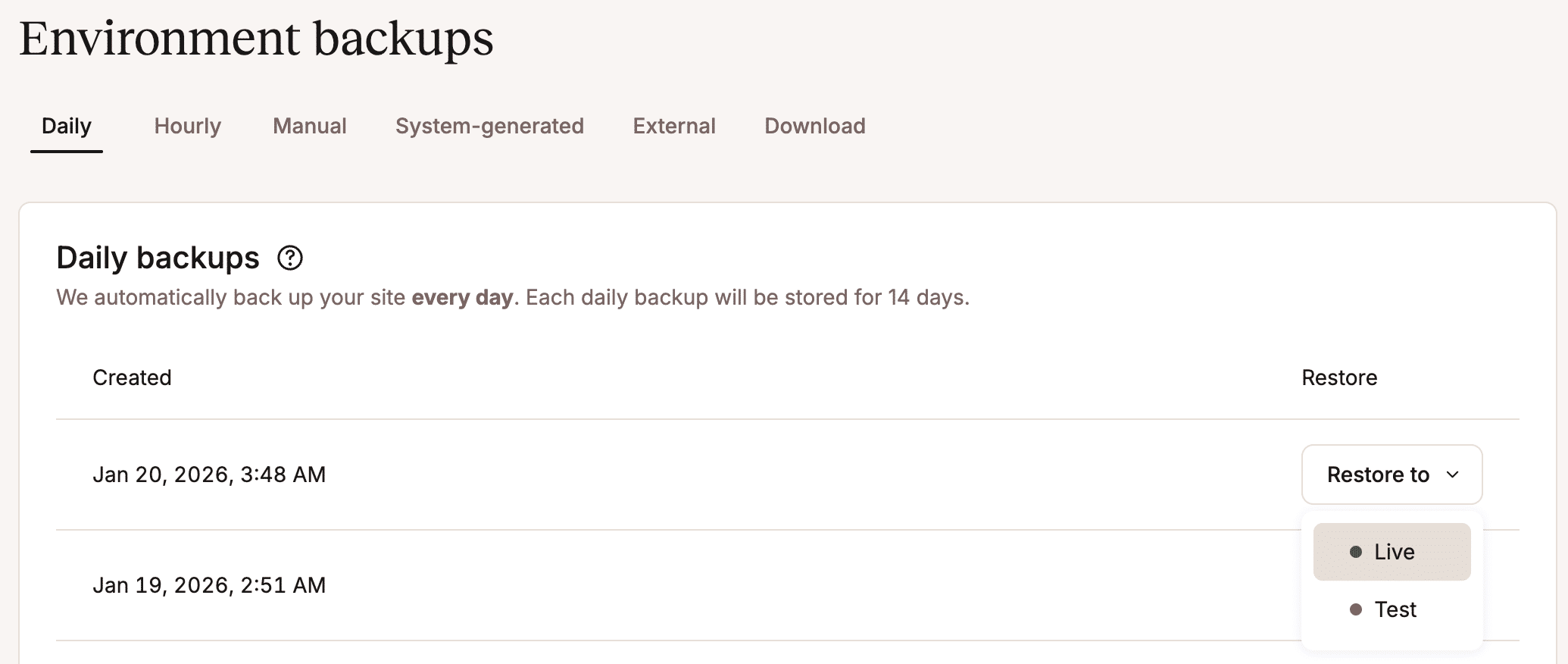
With Kinsta’s managed cloud hosting, backups occur automatically at set intervals and during critical moments, so you don’t have to worry about configuring anything. Recovery is as simple as can be: a single click.
Kinsta provides six types of backups with one-click recovery:
- Daily backups included in all plans: Kinsta automatically backs up each of your WordPress sites daily. Depending on your plan, the backup retention period is either 14 or 30 days. Disk space consumed by backups is not counted toward your total disk space allocation.
- System-generated backups: Kinsta automatically backs up your WordPress site before any potentially risky operation. Whether you’re pushing from staging to live, performing a search-and-replace, or updating WordPress automatically, you’ll always have a working backup you can restore with one click in case of failure.
- Manual backups: You can create up to five manual backups that remain in the system for 14 days or more, depending on your plan. These backups are useful when you need to make changes to the live site without going through staging.
- Downloadable backups: You can create one backup per week and download it to your computer.
- Downloadable backups are available for 48 hours.
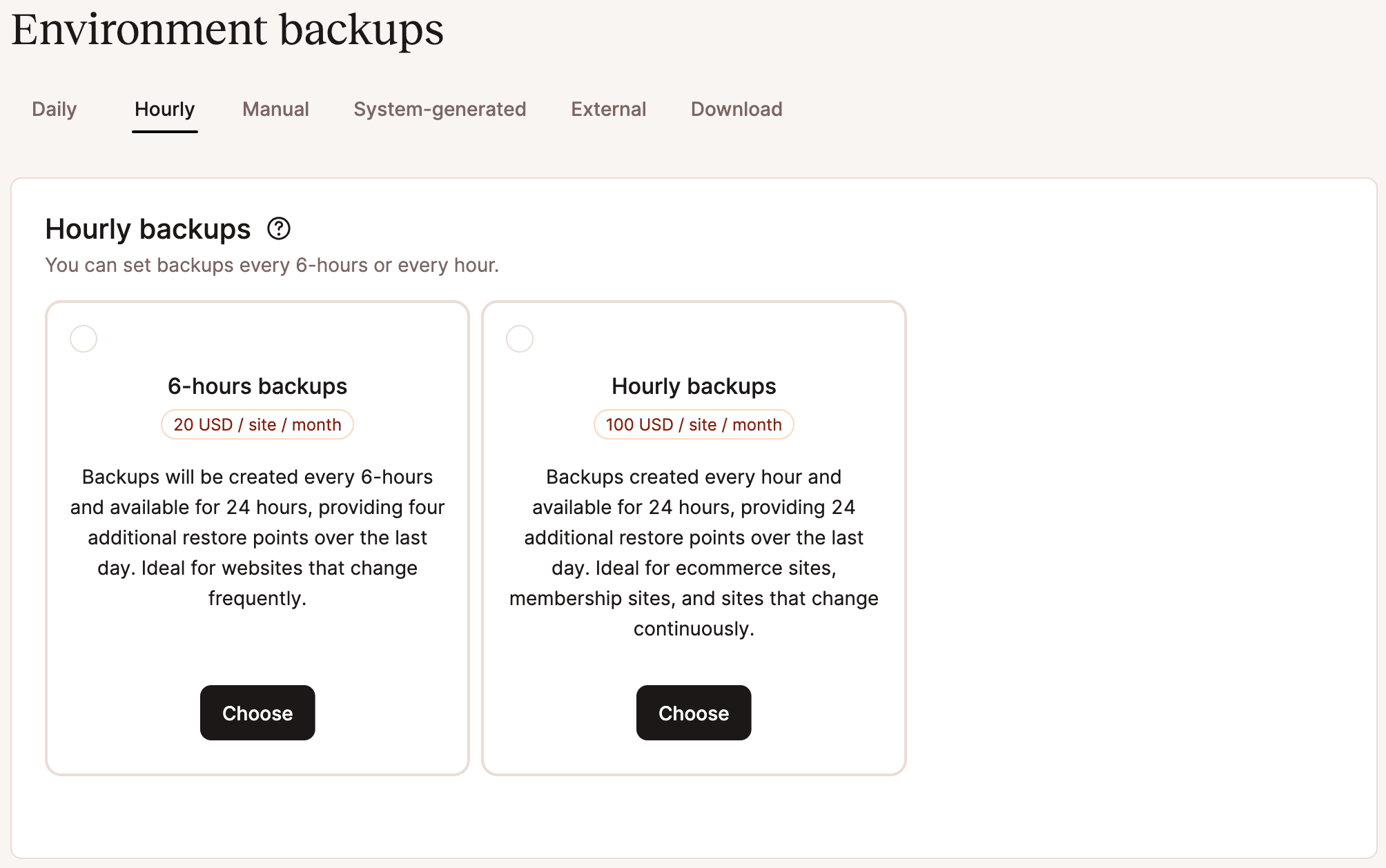
- Hourly backups: Kinsta offers an add-on that allows you to create hourly backups at one-hour or six-hour intervals, depending on your site’s needs. These backups help you minimize your Recovery Point Objective (RPO) by ensuring that, in the event of human error, failure, or breach, data loss is minimal or nonexistent.
- External Backups: The external backups add-on allows you to connect your Kinsta hosting to a cloud storage service, such as Amazon S3 or Google Cloud Storage, for weekly or monthly backups. This eliminates the need for third-party plugins or additional tools.
Restoring a backup takes just a few clicks from the MyKinsta dashboard.
Here’s what our customer Katy W. shares about Kinsta backups:
Genuinely feels worth the price. I expected premium features; I didn’t expect peace of mind. This is one of the few platforms that actually feels like a value, not just an expense.
As a solo creator building a thoughtful, design-forward site without a tech team, Kinsta has made me feel like I’ve got backup. No stress, no hidden chaos. No weird errors. Just WordPress hosting that delivers what it promises.
Automating your workflow with the Kinsta API
Most, if not all, of the operations we’ve described above are automated. However, Kinsta takes process and workflow automation to a whole new level through its powerful REST API, which allows you to integrate your hosting with your proprietary dashboard or third-party applications your team already uses.
With the Kinsta API, for example, you can create a new staging environment for a WordPress site:
curl -i -X POST \
  https://api.kinsta.com/v2/sites/{site_id}/environments \
  -H 'Authorization: Bearer <YOUR_TOKEN_HERE>' \
  -H 'Content-Type: application/json' \
  -d '{
    "display_name": "development",
    "site_title": "My First Site - development",
    "is_premium": false,
    "is_subdomain_multisite": false,
    "admin_email": "[email protected]",
    "admin_password": "vJnFnN-~v)PxF[6k",
    "admin_user": "admin",
    "is_multisite": false,
    "woocommerce": false,
    "wordpress_plugin_edd": false,
    "wordpressseo": false,
    "wp_language": "en_US"
  }'
You can push a staging environment to production, and vice versa:
curl -i -X PUT \
  https://api.kinsta.com/v2/sites/{site_id}/environments \
  -H 'Authorization: Bearer <YOUR_TOKEN_HERE>' \
  -H 'Content-Type: application/json' \
  -d '{
    "source_env_id": "54fb80af-576c-4fdc-ba4f-b596c83f15a1",
    "target_env_id": "54fb80af-576c-4fdc-ba4f-b596c83f15a1",
    "push_db": true,
    "push_files": true,
    "run_search_and_replace": true,
    "push_files_option": "SPECIFIC_FILES",
    "file_list": [
      "wp-content/plugins",
      "wp-content/themes",
      "wp-content/uploads"
    ]
  }'
You can clone an existing environment:
curl -i -X POST \
  https://api.kinsta.com/v2/sites/{site_id}/environments/clone \
  -H 'Authorization: Bearer <YOUR_TOKEN_HERE>' \
  -H 'Content-Type: application/json' \
  -d '{
    "display_name": "development",
    "is_premium": false,
    "source_env_id": "0010cdaf-0b94-472e-86bd-7edf6fceaa1c"
  }'
Launch a backup:
curl -i -X POST \
  'https://api.kinsta.com/v2/sites/environments/{env_id}/manual-backups' \
  -H 'Authorization: Bearer <YOUR_TOKEN_HERE>' \
  -H 'Content-Type: application/json' \
  -d '{
    "tag": "my-awesome-backup"
  }'
Or restore an existing backup:
curl -i -X POST \
  'https://api.kinsta.com/v2/sites/environments/{target_env_id}/backups/restore' \
  -H 'Authorization: Bearer <YOUR_TOKEN_HERE>' \
  -H 'Content-Type: application/json' \
  -d '{
    "backup_id": 123456789,
    "notified_user_id": "54fb80af-576c-4fdc-ba4f-b596c83f15a1"
  }'
And much more, of course.
Implementing REST API-based automation on raw cloud hosting requires building middleware that allows your apps to communicate with the various cloud providers’ proprietary APIs. However, with a ready-to-use REST API like the Kinsta API, your team can save hours of work each month and leverage its full power without configuring or maintaining anything in your hosting environment.
Support as an extension of your team
Support is perhaps the most painful aspect of DIY hosting. Who can you turn to when your WordPress site is slow or displays an “Error Establishing a Database Connection“? The short answer is “no one.” Cloud provider support is limited — they won’t help you solve WordPress issues — and it can be expensive.
This means your IT team must address all errors and glitches on your WordPress site.
Kinsta, on the other hand, provides premium support from skilled WordPress engineers who respond quickly and effectively 24/7/365.
Furthermore, Kinsta does not offer tiered support. You won’t have to wait hours for a definitive answer to a problem, because a competent technician will assist you from your very first chat.
Read what Casey S., CEO of Bookafy, has to say about Kinsta support on G2:
There are lots of WordPress hosting options, but inevitably, WordPress is complicated and breaks. In my experience with Kinsta, anytime I have a problem i can get help immediately and within minutes they are always able to solve the problem. Its not like talking to customer support. I’m talking to an engineer that is capable of solving any problem I’ve ever had.
Browse reviews on Kinsta support on G2 to find out why our customers love our support so much.
The main point: Total cost of ownership
A lack of creativity or clients is not the real obstacle to an agency’s growth. The real bottleneck stems from the time spent configuring and maintaining servers, managing backups, and investigating performance drops on WordPress sites.
When a senior developer—whose time is valued at $100+/hour—spends hours patching a server or restoring a backup, it’s a direct hit to your agency’s bottom line.
Kinsta doesn’t just host your sites; it reclaim the value of your team’s working hours. We provide all the advanced tools your dev team uses and knows, ready to use with no configuration or maintenance required except for your WordPress sites.
What are you waiting for? Browse our plans or contact our sales team to learn more.

Carlo is a passionate lover of webdesign and front-end development. He has been playing with WordPress for more than 20 years, also in collaboration with Italian and European universities and educational institutions. He has written hundreds of articles and guides about WordPress, published both on Italian and international websites, as well as on printed magazines. You can find him on LinkedIn.