Bot Protection
With Kinsta’s bot protection, you can control how different traffic types are blocked or challenged on your site.
Kinsta’s bot protection adds another layer to our built-in platform security. Our default protection blocks malicious traffic; this automatically filters malicious traffic aimed at specific endpoints and traffic coming from IPs linked to known threats. In addition to Kinsta’s internal security controls, Cloudflare’s enterprise-level firewall stops many attacks before they ever reach your server, using a strict ruleset to filter incoming traffic and block IPs associated with hacking attempts and DDoS attacks.
Kinsta also proactively monitors daily inbound traffic to detect threats and potential infections across the platform. To further protect your data, we employ hardware firewalls alongside active and passive security measures and other advanced safeguards to prevent unauthorized access.
By default, Kinsta’s platform-level defenses stop about 15–20% of traffic classified as malicious before it impacts your site. This foundational layer targets clearly harmful requests and known threat sources across the network. Because traffic behavior and business requirements differ from site to site, additional flexibility can be important. Kinsta’s bot protection enhances this baseline by allowing you to fine-tune how different categories of traffic are handled, whether to reduce load during peak activity or to apply stricter security controls.
Kinsta automatically excludes traffic from well-known and recognizable bots from plan usage calculations. User agents that clearly identify as bots or crawlers are filtered from analytics and do not count toward your usage. In some cases, automated traffic that closely resembles human behavior may still appear in your metrics. If you see unusual traffic patterns, enabling a higher level of bot protection can help identify whether bots are responsible. While excluded from billing, large volumes of automated requests from clearly identified bots or crawlers can still affect performance if left unmanaged.
What is a bot?
Bots are requests identified as coming from automated software instead of human users. Kinsta maintains its own bot classification system, built on traffic patterns observed across our platform and industry standards, to identify and categorize automated traffic, particularly bots that generate large volumes of requests or place increased load on sites.
We complement this with Cloudflare’s machine learning based, real-time bot classification, which assigns visitors a score from 1 to 99, indicating how likely a request is automated. A score of 1 indicates that it is highly likely the request was automated, while a score of 99 indicates that the request most likely originated from a human.
How traffic is classified in MyKinsta
In MyKinsta, traffic is classified by the following categories:
- Verified bots: Automated traffic from legitimate, verified companies, such as Google, Bing, monitoring, and SEO tools. Kinsta allows most verified bots, regardless of the selected bot protection level. Verified bots include those listed on Cloudflare’s official verified bot list, such as the Kinsta uptime bot, major search engine crawlers, many API bots (including WordPress management tools), and AI bots.
In addition, Kinsta applies its own classification rules on top of this list. AI crawlers and excessive-rate crawlers may be reclassified even if they are verified bots, ensuring automated traffic that generates significant load is categorized and managed appropriately.
The verified bots we do allow ensure your SEO, search rankings, and visibility in AI-driven tools are never negatively affected. - Likely humans: Real visitors who are most likely human with normal browsing behaviour. These have bot scores between 30 and 99.
- Likely bots: Unverified automation detected; these visitors are most likely bots, with bot scores between 2 and 29.
- Unclassified traffic: Traffic that could not be confidently classified, a very small amount of traffic, and typically harmless. This traffic usually consists of internal service requests that do not impact the origin server, such as requests generated when your site returns an error page. This represents less than 0.07% of total traffic, and only about one-third of that traffic is ultimately served.
- Automated traffic: Confirmed automated requests generated by software rather than human users. This traffic is definitively identified as bot activity with a bot score of 1. When you set Kinsta’s bot protection to anything higher than block malicious traffic, it blocks automated traffic.
This category may include legitimate tools and services that connect to your site but are not classified as verified bots, such as certain WordPress management tools, custom API integrations, uptime monitors, deployment scripts, or third-party services that make automated requests without proper identification.
If you rely on any of these tools for your WordPress site and increase Kinsta’s bot protection above block malicious traffic, we recommend checking that they are listed on Cloudflare’s Verified Bots list. If the service is not listed, it can be registered for verification to prevent it from being blocked.
- Malicious traffic: Attack, DDoS, and abuse traffic. Traffic that is automatically blocked for all sites as part of Kinsta’s default security protection. This includes DDoS mitigation and global rules for IPs and endpoints used exclusively by malicious traffic. Kinsta combines these protections with continuous monitoring, hardware firewalls, and advanced security measures to keep your site safe. While baseline security filters approximately 15-20% of malicious traffic before it reaches your site, evolving bots that mimic real users may still require additional protections, such as a higher level of Kinsta’s bot protection.
- Excessive rate AI crawlers: AI crawlers making requests designed to overload server resources; these are unwanted AI bots.
What is a challenge?
A challenge adds a verification step that helps determine whether incoming traffic comes from a real user or automated software. Rather than immediately allowing or blocking a request, challenges act as a filter, allowing legitimate visitors through while stopping many unwanted bots.
When a visit is challenged, the request is temporarily held while the visitor completes a verification step to prove they are legitimate. This approach helps reduce abusive or automated traffic while minimizing disruption for real users.
The verification step can include:
- A browser-based challenge (for example, JavaScript checks)
- A CAPTCHA or interactive test
- Background validation that runs automatically without user interaction
If the challenge is completed successfully, the request is allowed, and the visitor can continue to the site. If the challenge fails or cannot be completed, the request is blocked. Legitimate human visitors typically pass these checks with little to no visible interruption, while the vast majority of automated requests are unable to complete the verification process.
If a visitor completes the challenge successfully, they won’t be challenged again for at least 10 days as long as they continue using the same browser and IP address.
When to use Kinsta’s bot protection
You have full control over when and how to use Kinsta’s bot protection, and you may enable a higher level of protection at any time, including continuously, if it meets your site’s needs. That said, because bot protection can affect how visitors and integrations interact with your site, it’s best used intentionally and with awareness of potential trade-offs.
We recommend enabling a higher level of bot protection in the following situations:
- During a traffic spike: If your site experiences a sudden surge in traffic, enabling a higher level of Kinsta’s bot protection can quickly reduce malicious load without blocking all visitors. To identify spikes in traffic, you can use the Visits chart within Sites > sitename > Analytics > Plan usage.
- Performance issues: If your site experiences performance problems, enabling a higher level of Kinsta’s bot protection can help determine whether automated traffic is contributing to the increased load on your site. To identify performance issues, use the Performance charts within Sites > sitename > Analytics > Performance.
- Evaluating suspicious traffic: If you’re seeing unusual behavior but don’t want to fully block it yet, enabling a higher level of Kinsta’s bot protection allows you to observe whether traffic can pass verification before taking stricter action.
Considerations for long-term or continuous use
While a higher level of bot protection can be left enabled long-term, doing so may introduce side effects, including:
- User experience: If you challenge everyone, even lightweight challenges add a brief verification step for visitors. For most users, this happens smoothly and only once within a longer period, allowing subsequent requests to pass without interruption. While a small percentage may notice a slight delay, particularly on mobile devices or slower connections, this approach can significantly reduce hidden bot traffic while maintaining a balanced user experience.
- Accessibility concerns: Some challenges (particularly CAPTCHAs) can be difficult or impossible for users relying on assistive technologies.
- Legitimate automation: Non-verified APIs and automated services will be blocked or challenged, potentially disrupting integrations. You should review your business-critical integrations and any third-party tools that connect to your site to ensure they are listed on Cloudflare’s Verified Bots list. If your service is not on the list, it can be registered for verification. Common examples include custom integrations, self-hosted monitors, or deployment automation.
- SEO and performance considerations: Widely recognized search engine bots, including Google and Bing, are part of the verified bot directory and are not affected. However, lesser-known SEO crawlers or specialized tools that are not verified could be subject to challenges.
Ultimately, deciding when to use bot protection and what level of protection is up to you. We recommend testing changes carefully and adjusting settings based on your site’s traffic patterns, performance, and user experience goals.
Kinsta bot protection with external security layers
Cloudflare can be used alongside Kinsta’s bot protection, as long as you do not enable Cloudflare’s WAF or bot protection features. When both are in place, Cloudflare evaluates traffic first. Any requests blocked at that layer will never reach Kinsta, meaning Kinsta’s bot protection only applies to traffic that passes through Cloudflare.
We do not recommend combining Kinsta’s bot protection with additional custom bot protection rules. Running multiple bot protection layers can lead to conflicting classifications, where legitimate traffic may be incorrectly flagged as bots and blocked. In some cases, this can disrupt normal traffic or even prevent access to your site entirely.
Kinsta’s bot protection cannot be used with third-party platforms such as AWS, Microsoft Azure, Sucuri, Fortinet, another CDN, or a reverse proxy setup. This is because the original source of the traffic cannot be reliably identified, and therefore, it is unable to determine if the request is automated or human.
Kinsta bot protection and custom WAF rules
If you have custom WAF rules configured through Kinsta Support and are using bot protection, both layers will apply to incoming traffic. In most cases, Kinsta’s managed rules are evaluated first. If a request matches one of these rules (allow, block, or challenge), that action is applied. If not, your custom rules are then evaluated and may still allow or block the request. If a custom rule is configured to run before Kinsta’s rules, it can override them. For example, a rule that allows all traffic and bypasses the WAF would prevent Kinsta’s bot protection and managed rules from being applied. If you need more information about the custom WAF rules applied to your site, please contact our Support Team.
Change the bot protection level
To change your level of bot protection, go to Sites > sitename > Bot protection, within Protection level, click Change. You can also change the protection level for multiple sites simultaneously. Within Sites, select the required sites and then click Actions > Change bot protection. 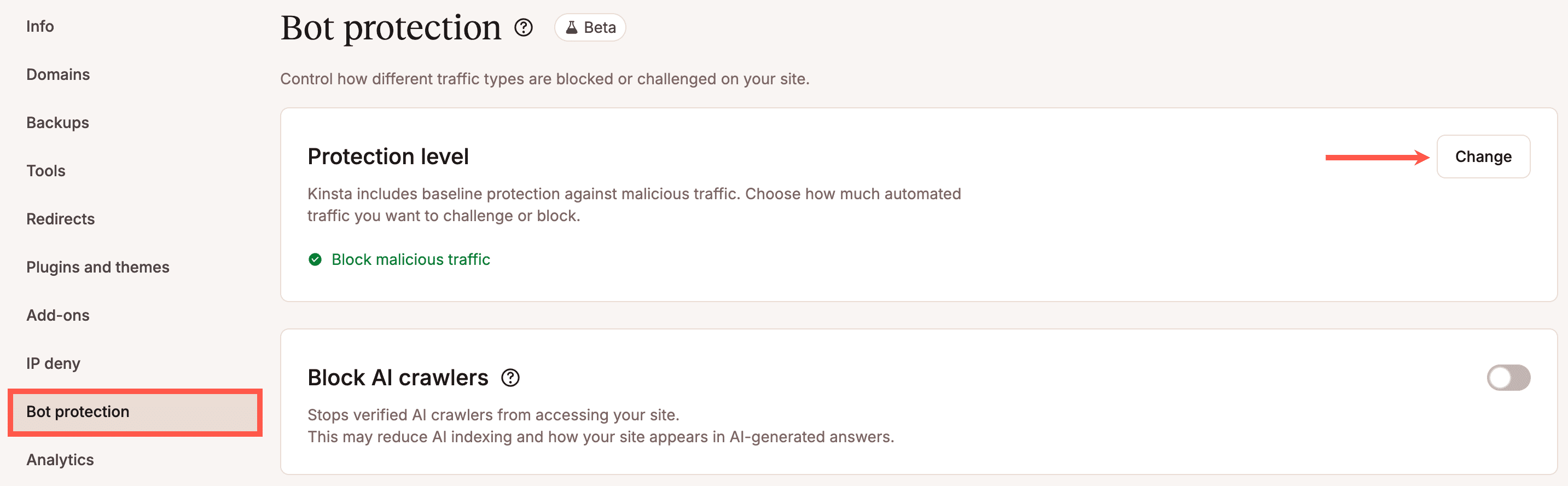
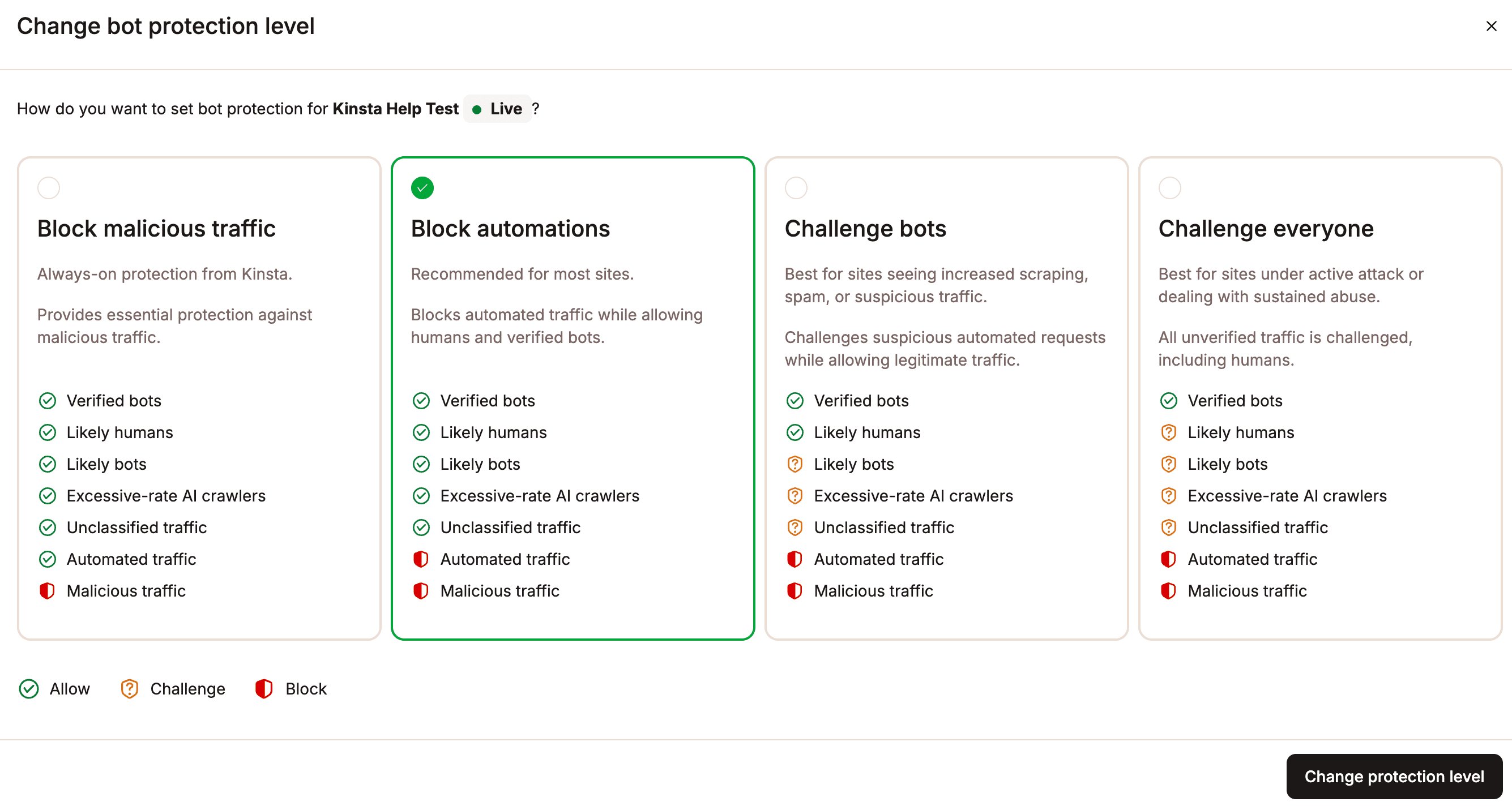
Change the level of bot protection in MyKinsta.You can then choose from the following:
- Block malicious traffic: This is the default protection provided by Kinsta. Malicious traffic is automatically blocked for all sites as part of Kinsta’s baseline security protection. This includes DDoS mitigation and global rules for IPs and endpoints used exclusively by malicious traffic.
- Block automations: Blocks both automated and malicious traffic.
- Challenge bots: Blocks automated and malicious traffic, and challenges likely bots and unclassified traffic.
- Challenge everyone: This is the highest level of protection. It blocks automated and malicious traffic, and it challenges likely humans, bots, and unclassified traffic.
The icons within each section represent the following:
 Allow: This traffic is allowed with no challenges.
 Challenge: This traffic is challenged and only allowed if it passes the challenge.
 Block: This traffic is blocked.
Once you select the protection level, click Change protection level.
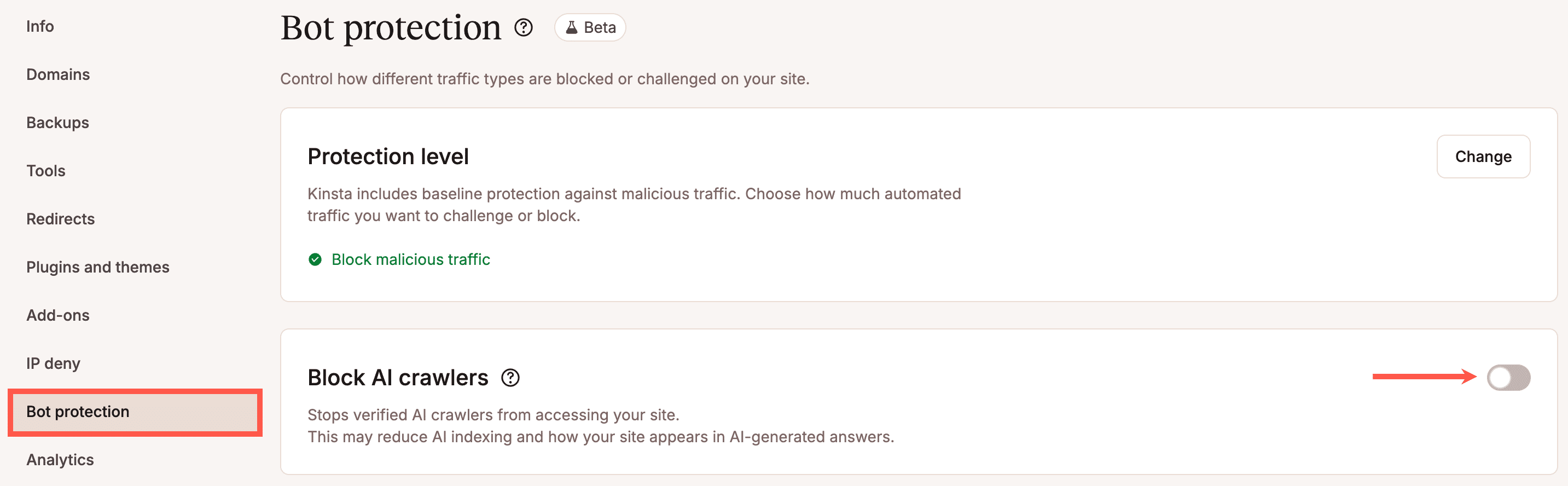
Block AI crawlers
An AI crawler is a bot that scans and collects content from websites to be processed by AI systems. They are similar to traditional search engine crawlers, but instead of only indexing pages for search results, they gather data to train, analyze, or power AI models.
Some AI crawlers clearly identify themselves and their purpose when accessing your site, such as Cloudflare-verified bots and GPTBot. Others may generate significant traffic by making frequent requests, including to uncached assets, which can impact site performance.
Kinsta’s bot protection allows you to block AI crawlers entirely, including verified crawlers. This only blocks AI crawlers; it does not include search engine crawlers such as GoogleBot and Bing. This can be useful for troubleshooting high traffic volumes or performance issues to identify if these are caused by bots. Keep in mind, however, that blocking crawlers may have an impact on your SEO results and should be monitored.
To block AI crawlers, within Sites > sitename > Bot protection, click the slider on Block AI crawlers. You can also block AI crawlers for multiple sites simultaneously. Within Sites, select the required sites and then click Actions > Change AI crawler block.