Restart and Update PHP
Restart PHP
If PHP goes down, our system automatically logs this for our Systems Administration (sysadmin) team to check out. However, you can manually restart PHP for any of your websites individually with a simple click of a button from MyKinsta.
How to restart PHP manually
To restart PHP on your WordPress site, follow the steps below.
- Log in to MyKinsta, go to Sites, and select the site on which you’d like to restart PHP.
- Go to Tools, then click Restart PHP in the Restart PHP section.
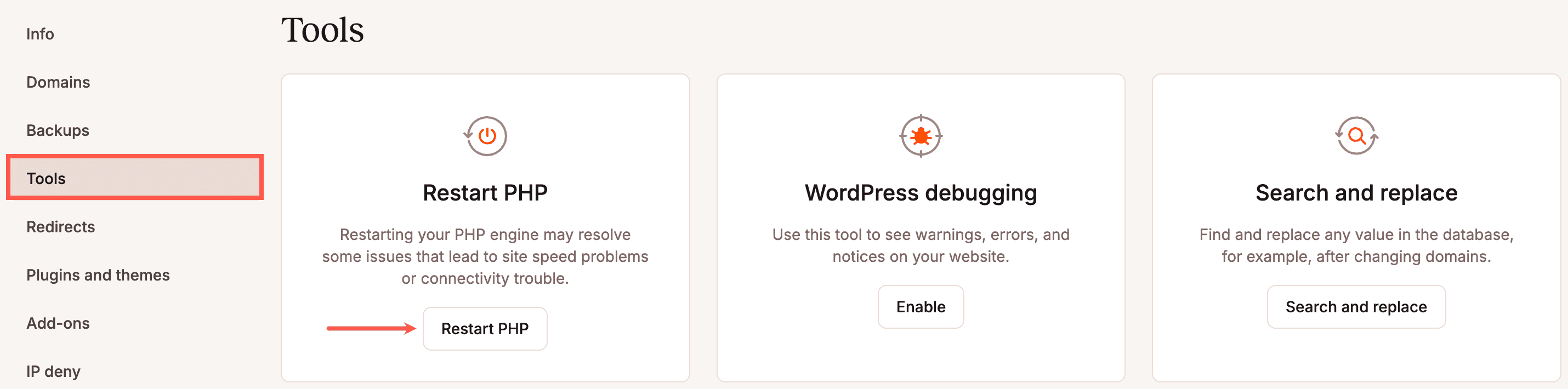
Please note that restarting PHP will take about 5-10 seconds. You will receive a notification at the bottom of the screen when it is completed.
Note: You will also need to delete your site’s cache to see the changes.
Update PHP
We’ve made updating your site’s PHP version as easy as possible in MyKinsta.
To update the PHP version for a single site, go to Sites > sitename > Tools. Under PHP settings, click Change.
To update the PHP version for multiple sites, including staging sites, at once, go to Sites, select the checkboxes next to the sites you want, click Actions, then PHP settings, and choose Change PHP settings.
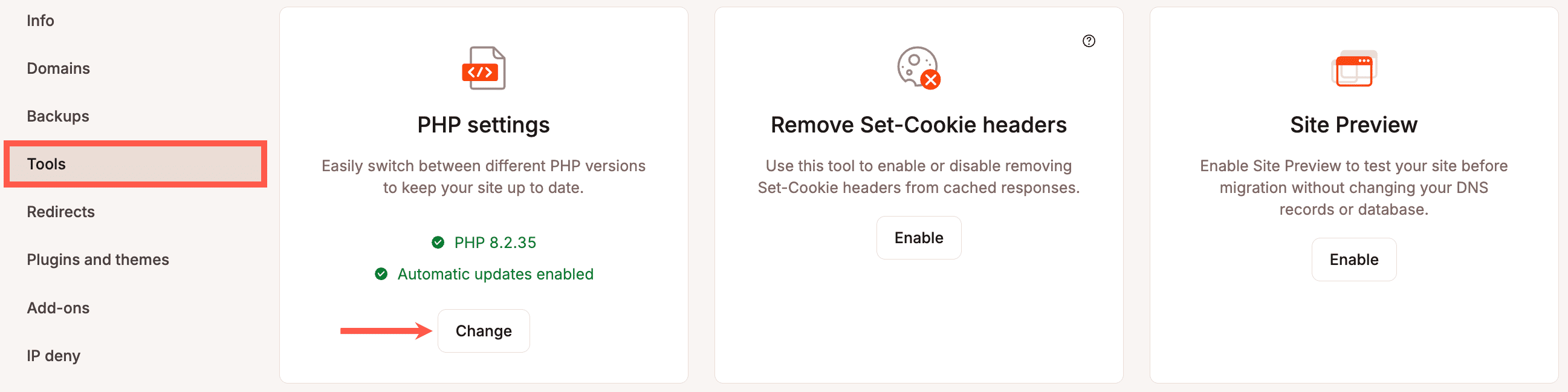
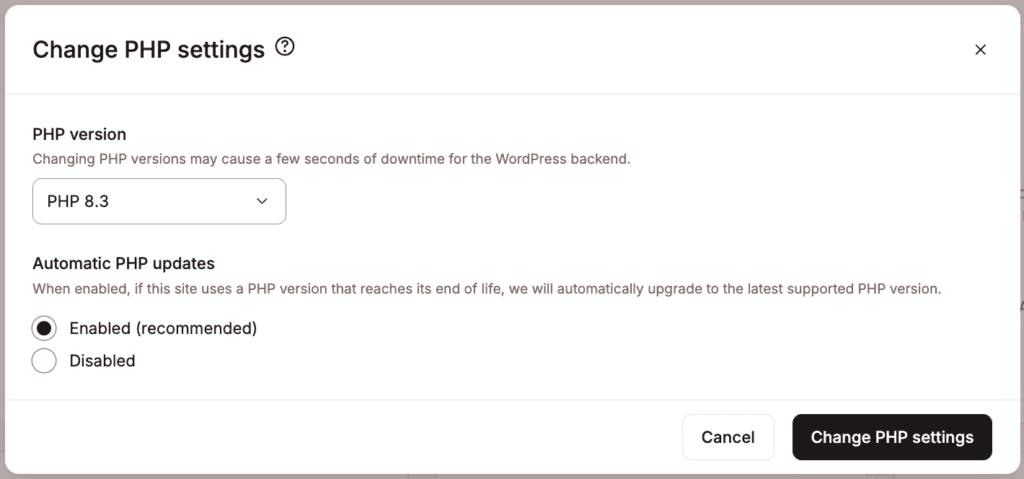
Choose a PHP version, and choose whether to enable or disable Automatic PHP Updates. When enabled, Kinsta automatically upgrades your site to the latest supported PHP version once your current version reaches end of life. To turn on Automatic PHP Updates without changing your PHP version, leave the PHP version field as is.
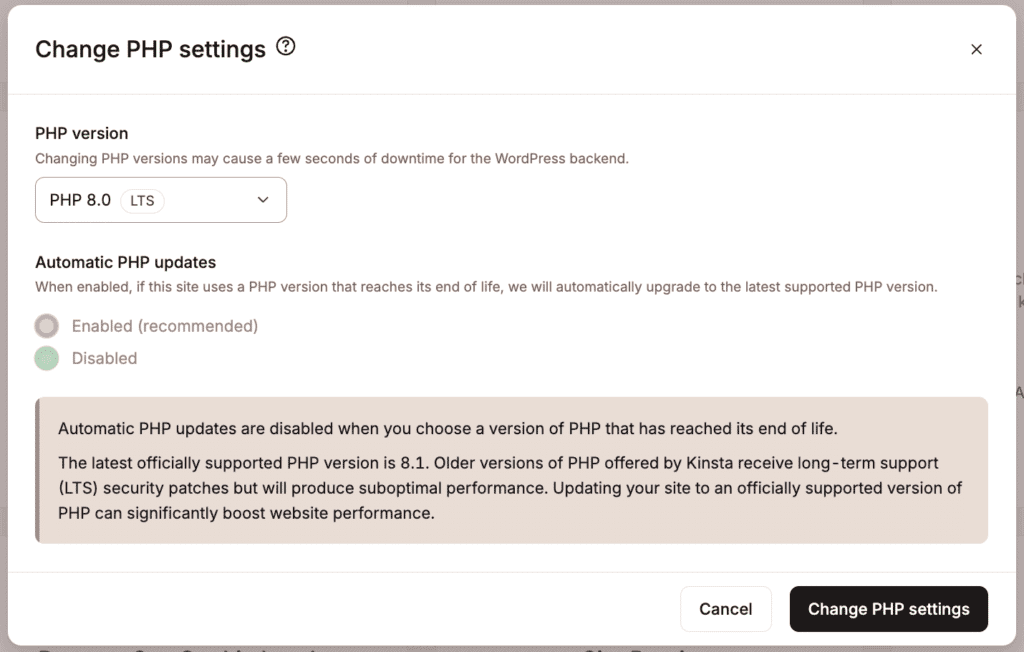
If you select a Long-Term Support (LTS) PHP version, automatic updates are disabled. The oldest officially supported PHP version is 8.1. LTS versions only receive security patches, which may result in reduced performance compared to an officially supported version. To enhance your website’s performance, we recommend upgrading to the latest officially supported PHP version.
At the end of the update, your PHP engine will be restarted, and the backend (WordPress dashboard) of your site may be down for a couple of seconds. The front of the site will remain up, and visitors will not experience any downtime.
While the update process is running, you can navigate to other parts of MyKinsta, but some actions, like cache management, will be unavailable until the PHP engine has restarted.
Once the update is complete (usually within 3 minutes or less), you’ll receive a notification in MyKinsta that it’s finished.