WP Admin
WP Admin is the WordPress backend, the administrative dashboard for your WordPress site, where administrators and site owners can manage all aspects of the site.
From WP Admin, you can:
- Create, edit, and publish posts and pages
- Install, update, and configure themes and plugins
- Manage users and permissions
- Moderate comments
- Adjust site settings (URLs, reading settings, etc.)
- View site health and basic analytics
Access WP Admin
In MyKinsta, you can access WP Admin using auto-login for a seamless login experience, or you can sign in through the standard WordPress login page. You can also navigate directly to your site’s WP Admin URL to log in to the standard WordPress admin dashboard outside of MyKinsta at any time.
If your site’s login URL has been customized, MyKinsta will automatically detect and use the custom URL when accessing WP Admin.
If you change the login URL, please allow up to one minute for MyKinsta to detect and apply the update before attempting to log in again.
Log in via MyKinsta using auto-login
MyKinsta provides auto-login for WP Admin, allowing you to log in automatically without managing separate WordPress credentials. To log in automatically to WP Admin, click Sites > sitename > Info > Log in to WP Admin. You can also log in via the Domains page.
If a WordPress user with the same email address as your MyKinsta account already exists, MyKinsta will automatically sign you in as that user using your email address. Your WP Admin password is never collected or stored by MyKinsta.
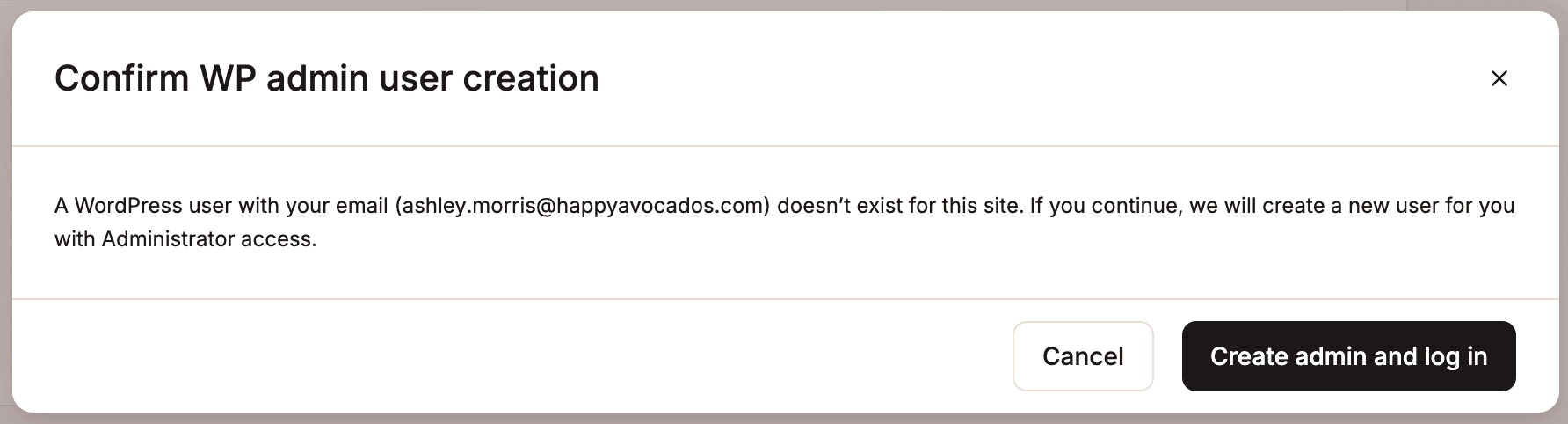
If there isn’t already a WordPress user associated with the same email address as your MyKinsta account, you’ll be prompted to create a new administrator account using that email address. This account is intended for logging in via MyKinsta using auto-login. The username is randomly generated, and no password is assigned initially.
If you’d like to log in through the standard WordPress login page, you’ll first need to set a password for the account. In MyKinsta, click Visit WP Admin, then select Lost your password? and follow the prompts to create a password for your email address. Once the password is set, you can log in directly to the WordPress admin dashboard using your email address as the username and the password you created. After logging in, you can visit your Profile page in the WordPress dashboard to view the randomly generated username assigned to your account.
To create the new WP Admin user and log in automatically, click Create admin and log in.
Pop-up blocked
When you click Log in to WP Admin, you may receive a ‘Pop-up blocked’ message. This is because your browser is blocking MyKinsta from opening a new tab. To allow pop-ups:
- Google Chrome: Click the pop-up blocked icon in the address bar and select Always allow pop-ups and redirects from this site, then click Done and refresh the page. You can also allow pop-ups in your Settings. Open Settings and go to Privacy and security > Site settings, click Pop-ups and redirects, and add https://my.kinsta.com under Allowed to send pop-ups and use redirects.
- Safari: Click Settings (or Preferences), click the Websites tab, select Pop-up Windows in the sidebar, locate https://my.kinsta.com, and change the setting to Allow.
- Microsoft Edge: Click Settings, go to Cookies and site permissions, select Pop-ups and redirects, and under Allow, click Add and enter https://my.kinsta.com.
- Mozilla Firefox: Open Settings, go to Privacy & Security, scroll to Permissions, next to Block pop-up windows, click Exceptions…. add https://my.kinsta.com and click Allow.
If you’re using a browser not listed above, refer to the browser’s official documentation for instructions on how to enable pop-ups.
Password-protected sites
If htpasswd protection is enabled on your site and you use WP Admin auto-login, you will still be signed in automatically. However, you’ll be prompted to enter the username and password configured in the password protection tool before accessing WP Admin.
Disable WP Admin auto-login
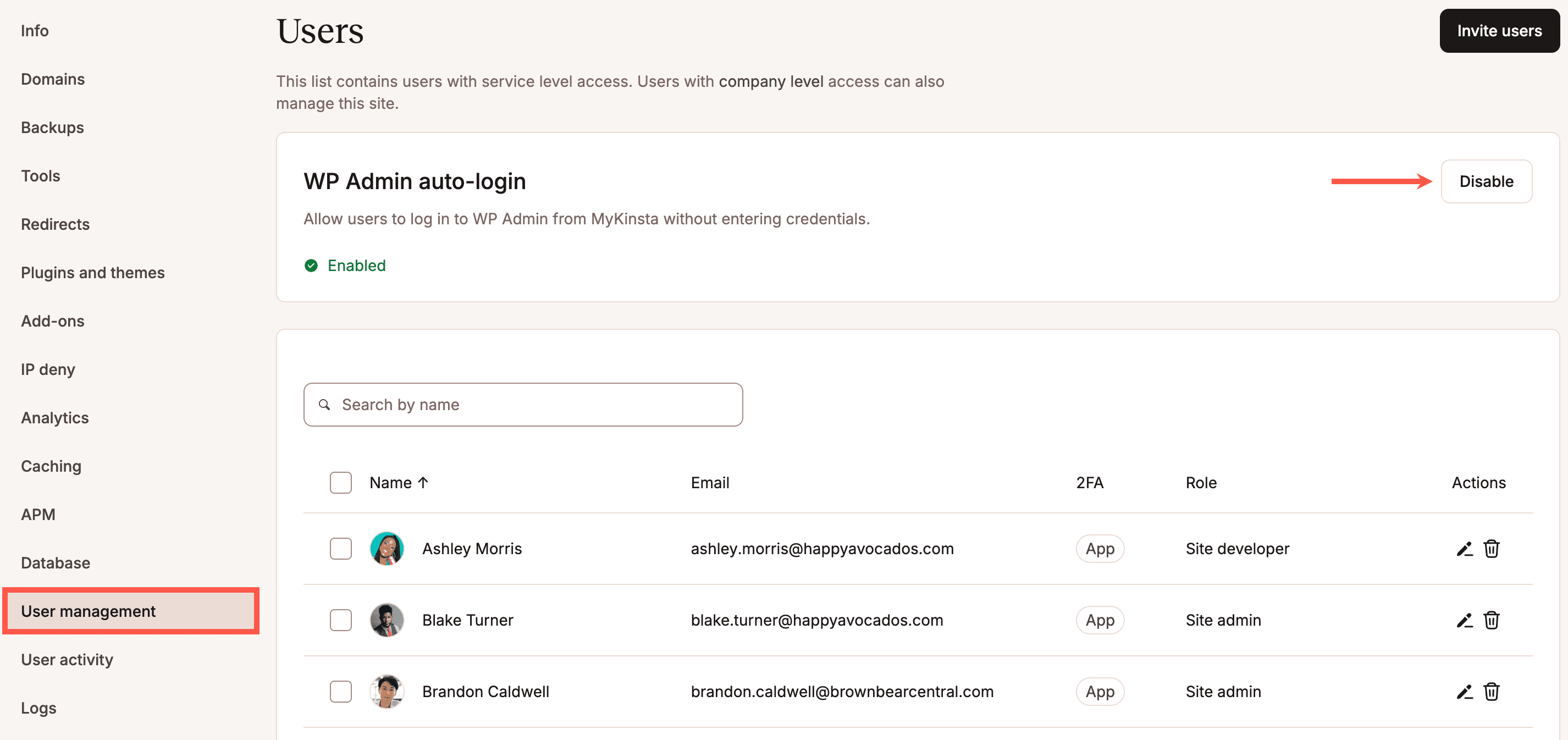
WP Admin auto-login is enabled for all sites by default; you can disable this within Sites > sitename > User management > WP Admin auto-login > Disable.
Log in via MyKinsta without auto-login
You can access and log in to WP Admin from Sites > sitename > Info > Visit WP Admin. You can also log in via the Domains page.
This does not automatically sign you in; you will need to enter your WordPress credentials, which may differ from your MyKinsta credentials.
Log in via the URL
Providing the login URL has not been customized, you can usually access and log in to WP Admin using the URL by appending “/wp-admin” or “/wp-login.php” to your site’s URL. For example, https://shop.happyavocados.com/wp-admin or https://shop.happyavocados.com/wp-login.php.
This does not automatically sign you in; you will need to enter your WordPress credentials, which may differ from your MyKinsta credentials.