PHP Performance on Dedicated Servers
Dedicated servers at Kinsta give you more control over how your sites use server resources, including PHP threads and memory limits.
If you’re already familiar with PHP performance settings on Kinsta’s standard infrastructure, the core concepts remain the same, but how these settings behave on a dedicated server is different.
This article explains what’s unique about PHP performance settings on dedicated servers, when adjusting them makes sense, and what to consider before making changes.
What PHP performance settings control
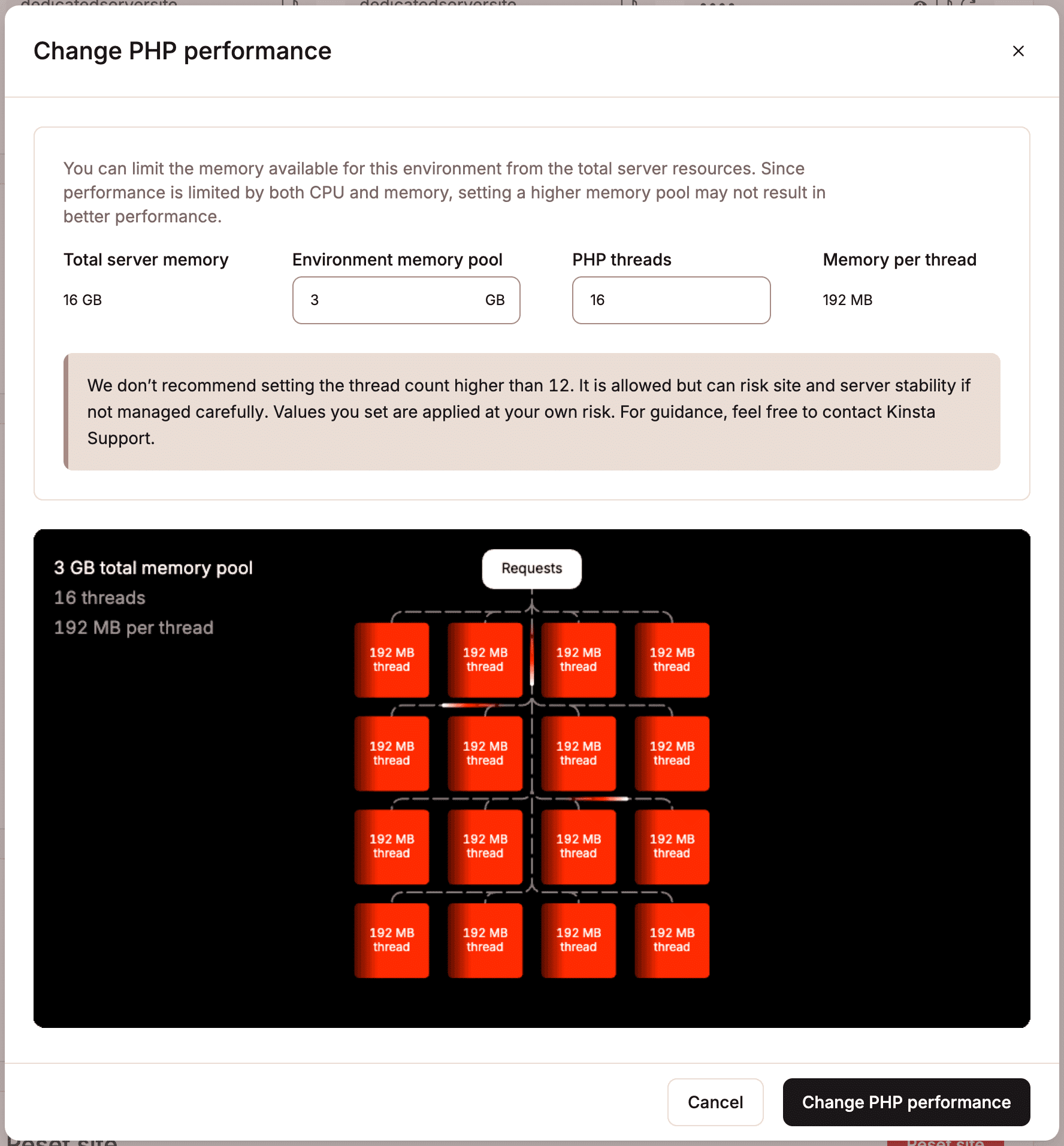
PHP performance settings define how much server capacity a site can use when processing PHP requests. For a dedicated server, these settings focus on four related limits:
- Total server memory: The total amount of memory available on the dedicated server. This is shared by all sites and environments hosted on that server.
- Environment memory pool: The maximum total amount of memory PHP can use for a specific environment (for example, live or staging). This acts as an upper boundary for PHP memory usage within that environment.
- PHP threads: The number of PHP requests a site can process at the same time. Each uncached request requires an available thread. When all threads are in use, additional requests must wait until a thread becomes free.
- Memory per thread: The maximum amount of memory a single PHP request can use while it runs. This affects how resource-intensive operations (such as imports or complex queries) are handled.
You can adjust these limits for a site within your dedicated server from Sites > sitename > Info > PHP performance > Change.
What happens when PHP limits are reached
When a site reaches its PHP limits, the outcome depends on which limit is hit:
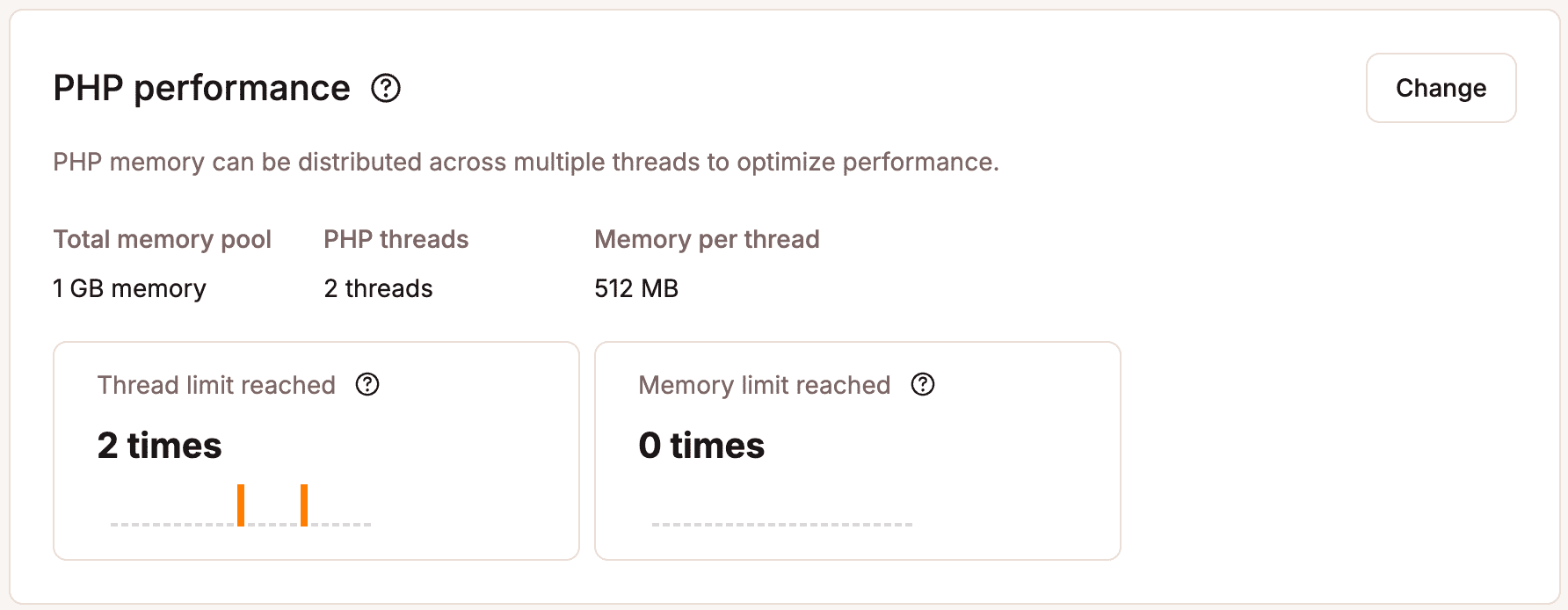
- If the PHP thread limit is reached, incoming requests are queued and must wait for an available thread.
- If the memory limit is reached, the request may fail with a PHP memory error unless the application handles it gracefully.
Just like on standard infrastructure, to understand whether a site on your dedicated server is approaching or hitting these limits, such as running out of available PHP threads or reaching its memory ceiling, you can view PHP performance information for each site in Sites > sitename > Info.
How PHP performance settings are intended to be used on dedicated servers
On dedicated servers, PHP performance settings are intended to fine-tune how your site uses the resources of a server sized for your expected workload.
Adjusting PHP threads or memory limits can help certain operations run more smoothly, but these settings do not increase the server’s total capacity. They are best used to manage how PHP workloads behave under specific conditions, rather than to handle sustained traffic growth or high concurrency.
If performance issues are caused by sustained traffic volume or high concurrency, adjusting PHP performance settings will not add capacity. In these cases, upgrading to a larger dedicated server and ensuring your hosting plan supports the expected traffic volume is the appropriate solution.
When adjusting PHP performance settings makes sense
Adjusting PHP performance settings on a dedicated server can be useful in specific situations where a site needs more flexibility to handle resource-intensive PHP operations. These adjustments are typically driven by how PHP requests behave (execution time, memory usage, and concurrency), rather than by traffic volume alone.
PHP memory requirements vary widely depending on plugins, code paths, and execution context, so memory limits are best adjusted based on observed behavior rather than calculated in advance.
PHP thread requirements are influenced by how long uncached PHP requests take to complete and how many of those requests arrive at the same time.
Common scenarios where adjusting these settings may help include:
- Resource-intensive admin tasks: Operations such as large imports or exports, bulk updates, migrations, or background processing can require more PHP memory or longer-running threads.
- WooCommerce, LMS, or membership sites: Sites with logged-in users, checkout flows, or dynamic content often generate uncached PHP requests that benefit from adjusted thread and memory limits.
- One high-priority site among multiple smaller sites:< On a dedicated server hosting multiple sites, adjusting PHP limits for a critical site (or lowering limits for less important sites) can help reduce contention during traffic surges.
- Occasional heavy workloads: Tasks that run infrequently but require more memory or threads (such as scheduled jobs or reporting) can complete more reliably with adjusted limits.
These adjustments are intended to help PHP handle demanding operations more smoothly. They are not designed to compensate for sustained traffic growth or high levels of concurrent visitors.
Single-site vs multi-site dedicated servers
How PHP performance settings affect your sites depends on whether your dedicated server hosts a single site or multiple separate sites.
Single-site dedicated servers
If your dedicated server hosts only one site, increasing PHP performance limits is generally low risk. Since the site already has access to the full capacity of the server, higher limits mainly allow PHP to make more effective use of available resources during demanding operations.
In this setup, traffic patterns and overall server capacity is the primary factors that determine performance, rather than the specific PHP limits themselves.
Multiple sites dedicated servers
When multiple sites share the same dedicated server, PHP performance settings play a more important role in balancing resource usage.
In this case:
- Increasing limits for one site can allow it to consume more resources under load, which may increase contention for other sites on the same server.
- Lowering limits on low-priority or low-traffic sites can help protect more important sites from resource contention.
- Removing limits entirely can increase the risk that a sudden spike on one site affects all sites on the server.
On dedicated servers hosting multiple sites, PHP performance settings are best used to control resource contention and limit cross-site impact, rather than to increase overall capacity.
How to use these settings safely
For most sites on dedicated servers, the default PHP performance settings provide a safe and effective baseline. Adjustments are optional and should be made with a clear goal in mind.
When changing PHP performance settings, consider the following best practices:
- Start with the defaults: Only make changes if you have identified a specific need, such as recurring PHP memory errors or resource-intensive operations.
- Make gradual changes: Large changes make it harder to understand cause and effect. Smaller adjustments reduce risk and make behavior easier to interpret over time.
- Expect delayed feedback: Changes to PHP limits often only become noticeable under load, such as during traffic spikes or peak usage periods, rather than immediately after applying them.
- Be cautious when lowering limits: Reducing PHP memory or thread limits below a site’s actual requirements can lead to slower responses or increased error rates.
If you are unsure which settings to adjust or how changes may affect other sites on the same server, contact Kinsta Support before making significant changes.