This page covers common issues you might encounter when adding, pointing, or verifying a domain in MyKinsta.
Find the section below that matches what you’re seeing, and follow the steps there. If you’re not sure what’s causing an issue, or it isn’t covered here, contact our Support Team, and we’ll help you investigate.
Pointing check suspended
If a domain has been pointing for 14 days or more, the pointing check process is automatically suspended. We recommend checking that the correct DNS records are in place, then clicking Restart pointing check to try again.
Pointing check suspended on your domain.
Verification suspended
If your domain has been verifying for 7 days or more, the verification process is automatically suspended. We recommend checking that the correct DNS records are in place, then clicking Restart verification to try again.
Verification suspended on your domain.
Domain resolution failed
If Kinsta’s monitoring service cannot resolve your domain, you’ll receive a Domain resolution failed email notification.
This error typically occurs for one of the following reasons:
Incorrect DNS records.
Misconfigured or incorrect nameservers.
A temporary DNS resolution issue.
To resolve this issue:
Verify that your domain’s DNS records are correctly configured and point to your Kinsta site.
Confirm that your domain is using the correct nameservers for your DNS provider.
If the DNS configuration appears correct, wait a few minutes and check again, as temporary DNS resolution issues can sometimes resolve on their own.
If the problem persists, contact your domain registrar or DNS provider to verify that your nameservers and DNS records are configured correctly.
Fix domain error
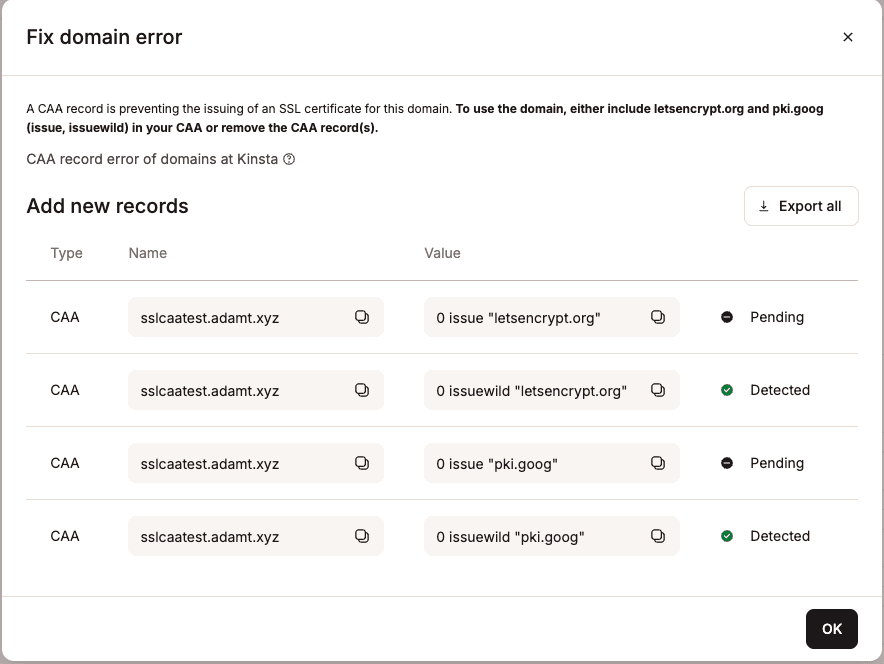
During the domain verification process, if a Fix domain error button appears next to the domain, this means a CAA record conflict is occurring.
A CAA record is an optional DNS record that lets you specify which certificate authorities (CAs) are allowed to issue SSL certificates for your domain. If a domain has no CAA records, any CA can generate an SSL certificate for it if requested. If a domain has a CAA record, only the CA(s) specified in the CA record can generate an SSL certificate for the domain.
To resolve this error, click the Fix domain error button, then visit your domain’s DNS provider to either add missing CAA records (marked as Pending) or, if you do not need a CAA record on your domain, remove existing records that are causing conflicts (marked as Detected).
Fix domain error showing conflicting CAA DNS records.
Troubleshoot Cloudflare domain pointing
If you have pointed your domain (allowing up to 24 hours for DNS to propagate) but you’re still seeing either of the following, there are a couple of places to check in your Cloudflare account:
a banner or warning that your site isn’t pointed to Kinsta and is subject to service interruption.
a status of “Confirming that you have pointed your domain to Kinsta.”
First, check the Page Rules in your Cloudflare account. If the root domain is redirected to the WWW domain or vice versa, the domain that is being redirected cannot be verified in MyKinsta. To resolve this issue, you’ll need to remove the redirect in Cloudflare Page Rules. This will allow the domain to be verified in MyKinsta. The redirect to the primary domain will now be handled at Kinsta.
Next, in your Security – Firewall rules, allow the user agent kinsta-bot and the IP addresses 35.194.36.163 and 34.135.149.39, so the firewall doesn’t block the bot that confirms your domain is verified and pointed to Kinsta.
Existing DNS zone record at Cloudflare
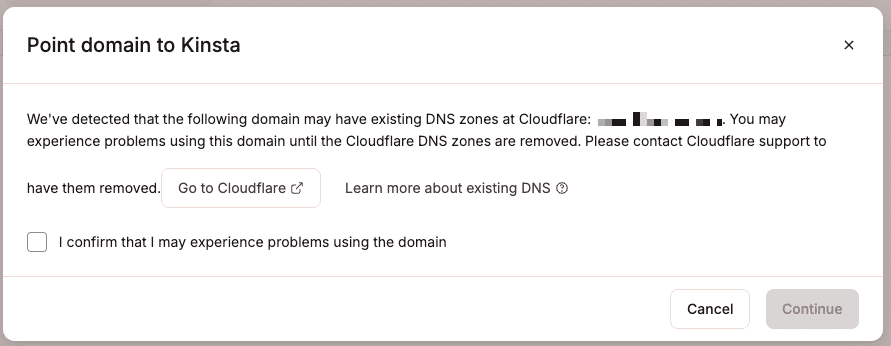
When adding and pointing a domain to your site in MyKinsta, under certain circumstances, you may see a warning that the domain has an existing zone record at Cloudflare, and continuing may cause your site to go offline.
Warning about existing DNS record at Cloudflare.
If you’re sure that you do not need to remove the existing zone record at Cloudflare, you can choose to continue without removing it. Select I confirm that I may experience problems using the domain, and click Continue.
If you do need to remove the existing zone record at Cloudflare, this is the message you can send to them, replacing YOURDOMAIN.com with your actual domain name.
Hi,
I am writing to you about the domain YOURDOMAIN.com.
My host, Kinsta, has detected an old, unused Cloudflare DNS zone for my domain. Would you please remove it from your system?
I confirm that I have access to DNS for the domain and am willing to add a TXT record to prove domain ownership. Please send the TXT record you would like me to use.
Thanks!
If you’re not sure whether or not you need to remove the existing zone record, contact our Support Team, and we will review your setup and let you know how to proceed.