Cancel a Migration Request

If you need to cancel a migration before it starts, you can do so from the Sites page in MyKinsta. Log in to MyKinsta, navigate to Sites > Migrations, click on the kebab (three-dot) menu, and select Cancel migration. You cannot cancel a migration once it is in progress. If you need to do so, contact our Support Team.
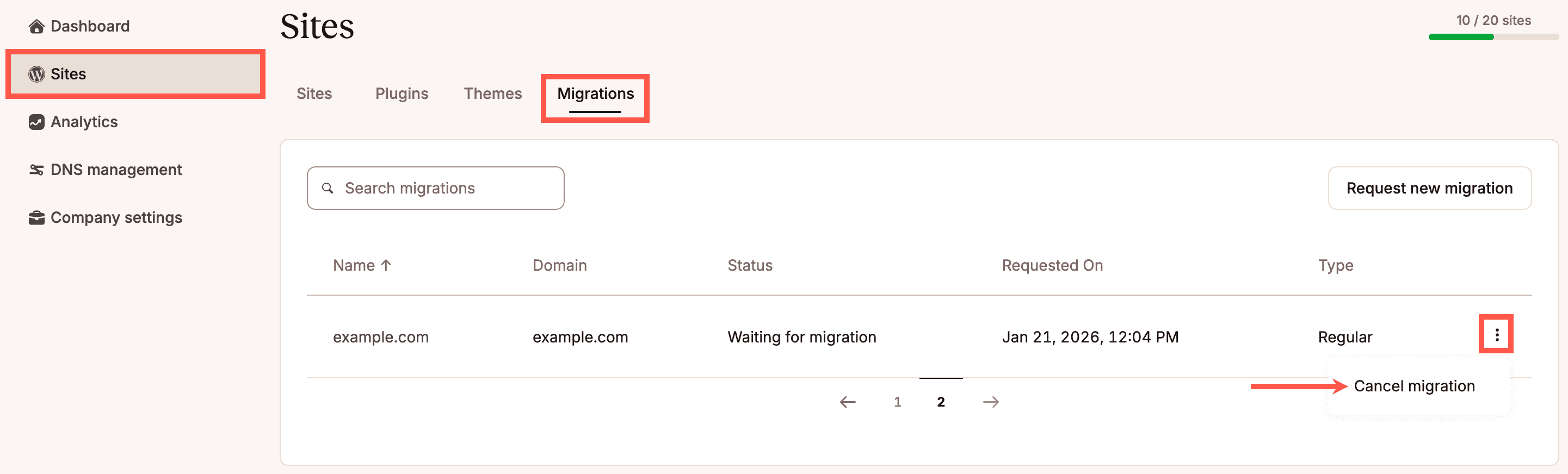
Cancel a site migration in MyKinsta.

In the modal/pop-up that appears, click Cancel migration to acknowledge that canceling this migration will revert any previous steps. If you want to resume the migration after canceling, you’ll need to start a new migration request from the beginning.

Confirm canceling a site migration in MyKinsta.

A notification will appear in the upper right corner, letting you know the migration has been canceled. The canceled migration will no longer be shown in the Migrations section of the Sites page.

Was this article helpful?

© 2013 - 2026 Kinsta Inc. All rights reserved. Kinsta®, MyKinsta®, DevKinsta®, and Sevalla® are trademarks owned by Kinsta Inc.The WordPress® trademark is the intellectual property of the WordPress Foundation, and the Woo® and WooCommerce® trademarks are the intellectual property of WooCommerce, Inc. Uses of the WordPress®, Woo®, and WooCommerce® names in this website are for identification purposes only and do not imply an endorsement by WordPress Foundation or WooCommerce, Inc. Kinsta is not endorsed or owned by, or affiliated with, the WordPress Foundation or WooCommerce, Inc. Legal information