Add Site
Here at Kinsta, we offer high-performance, enterprise-grade infrastructure to power every Managed WordPress site. Our platform is built on a global network of premium data centers. This means you have access to 30 data centers around the world when launching your WordPress site on Kinsta.
Add a new site
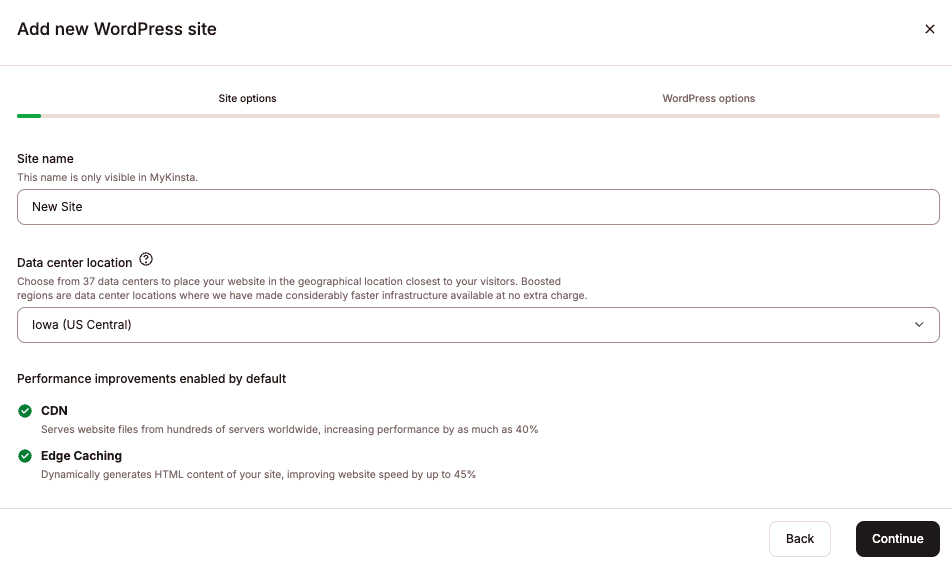
To add a new Kinsta site, go to Sites, then click Add site and Create new site.
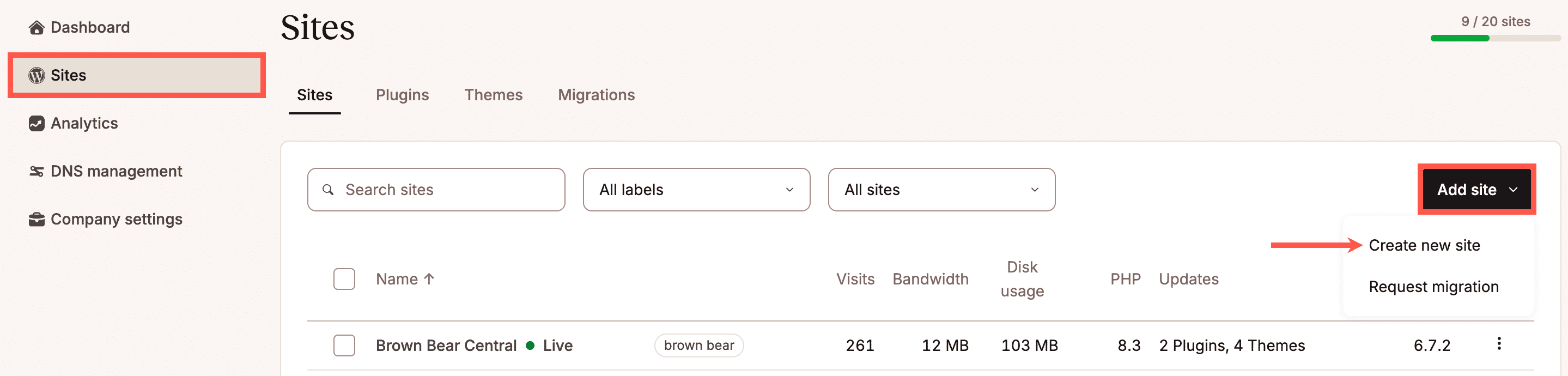
Select the type of site you want to create. There are three options.
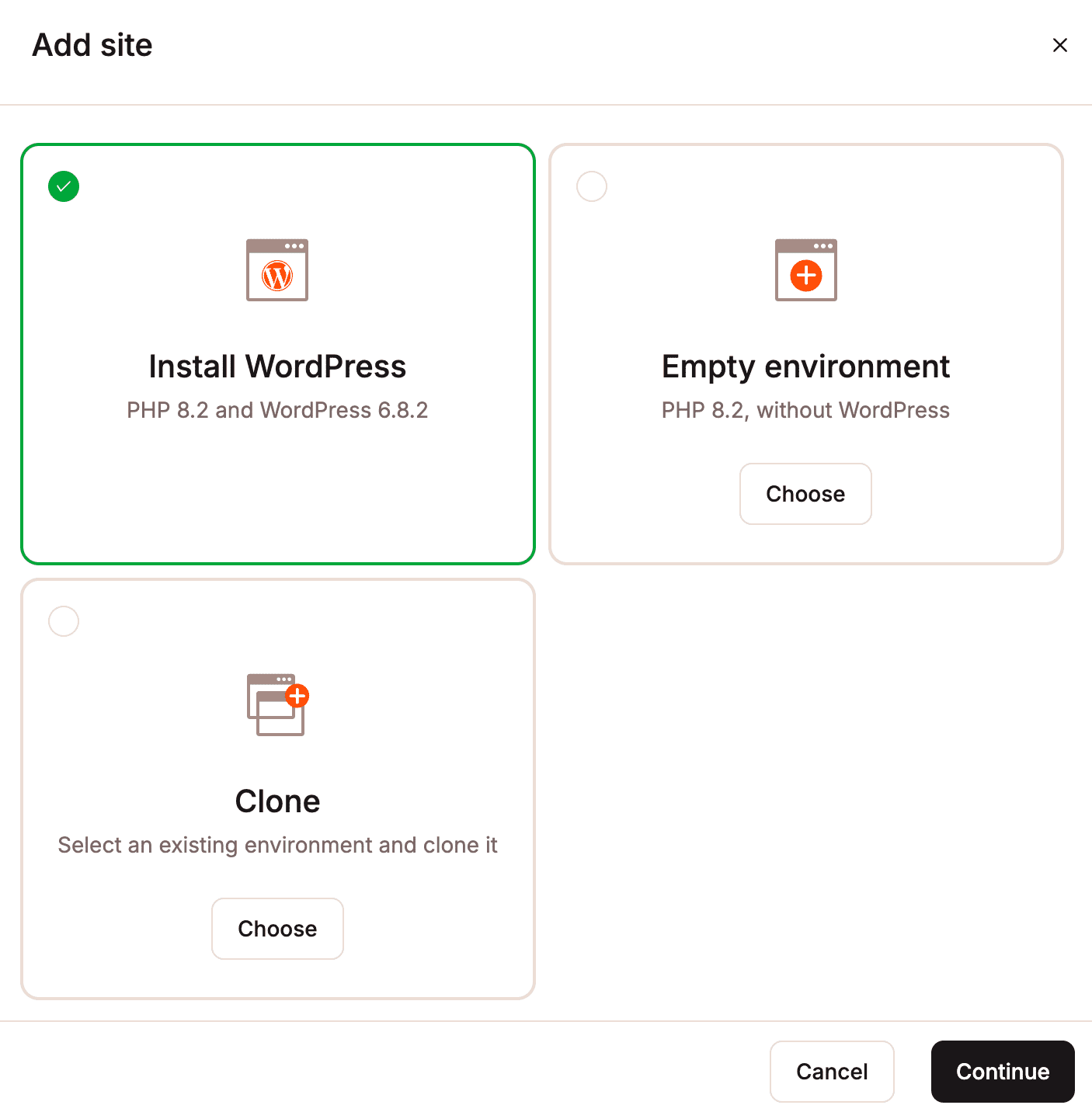
- Install WordPress: This option installs a fully functional WordPress site that is ready for you to use immediately.
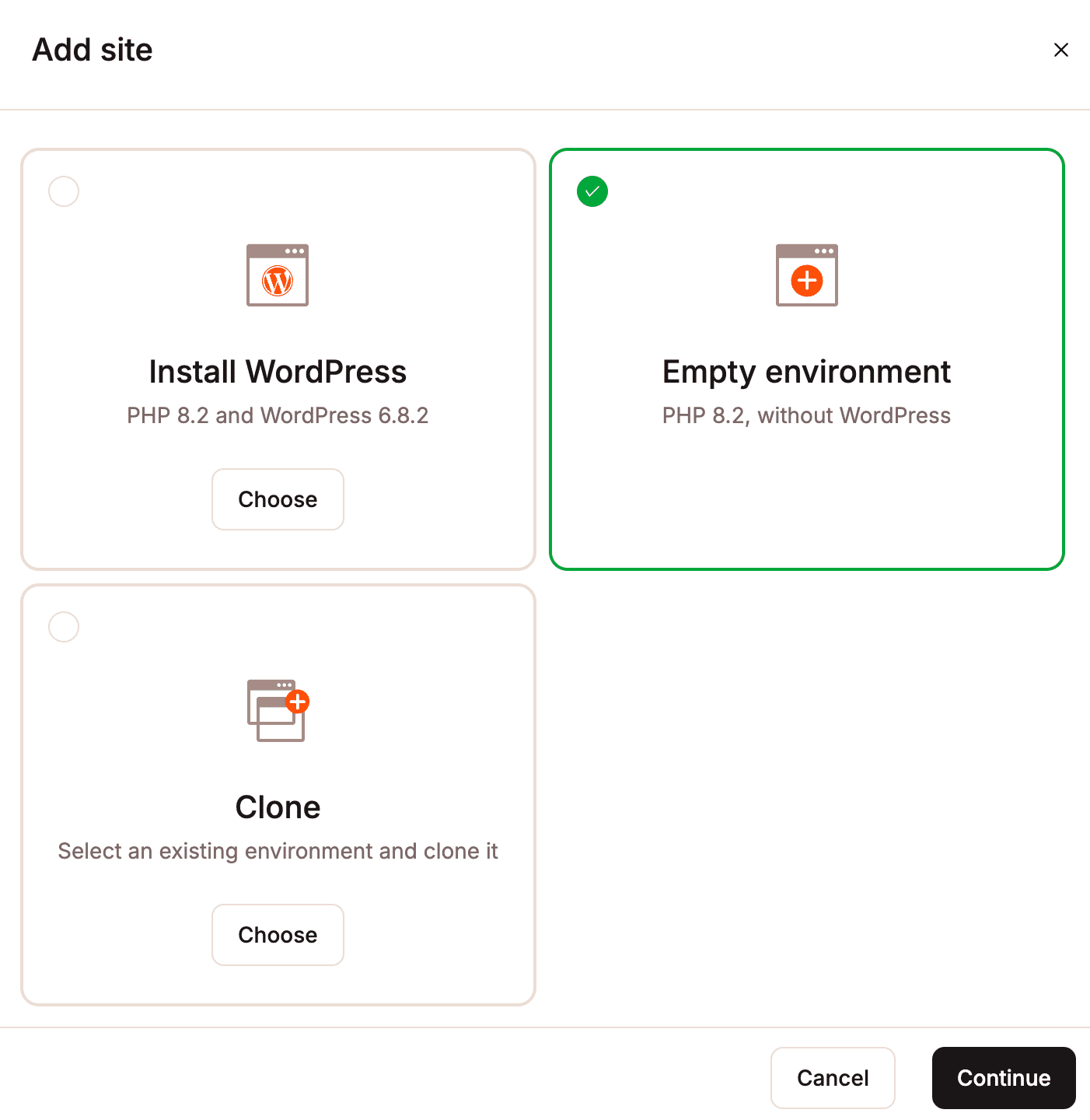
- Empty environment: This option installs all the necessary software to run a WordPress site (web server, PHP, MySQL, etc.) but does not install WordPress itself. This is a good option for users migrating to Kinsta with Duplicator or setting up a Bedrock/Trellis installation with a custom file structure.
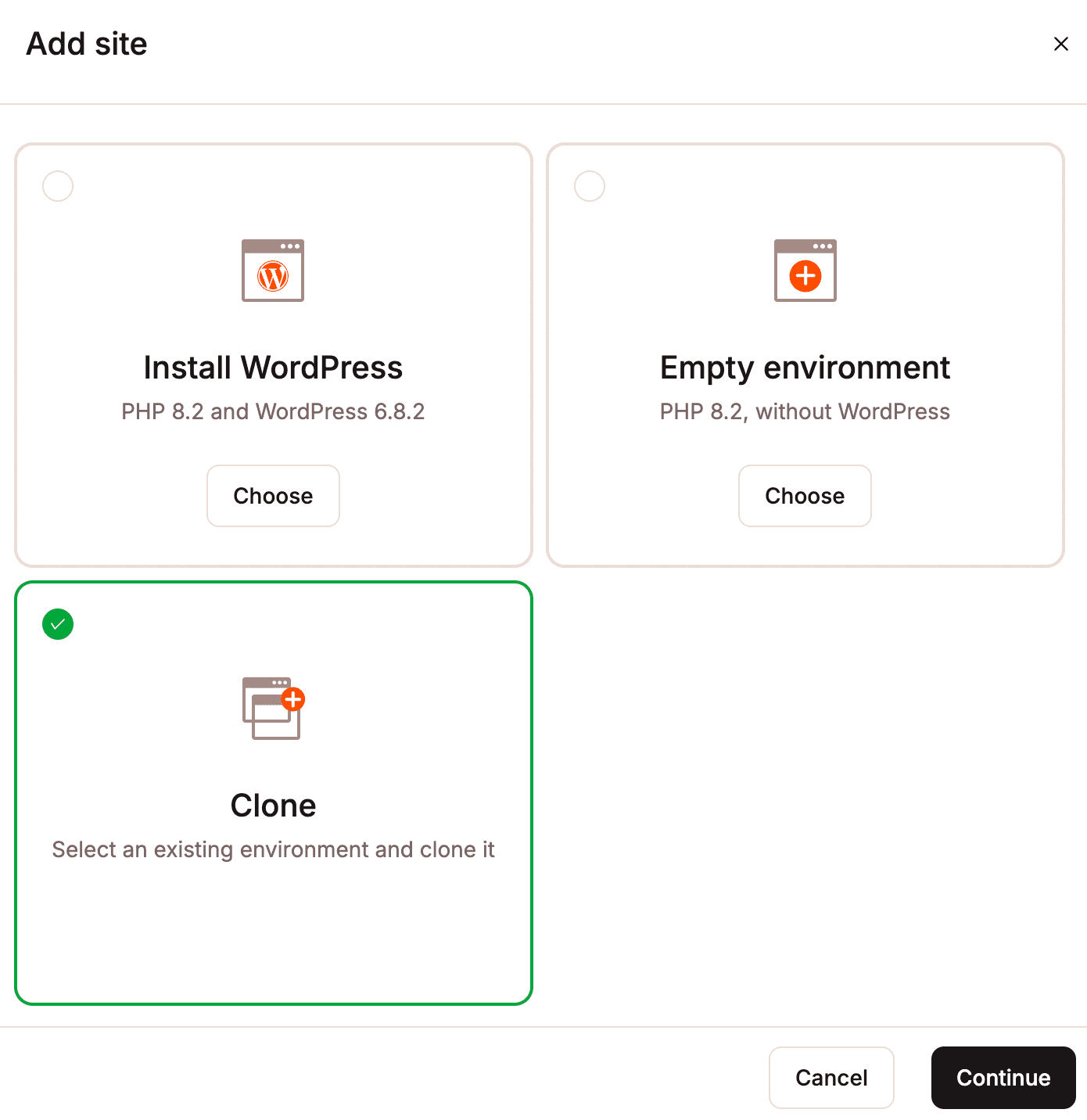
- Clone: This option allows you to clone an existing staging or live environment to the live environment of a new site.
Make your selection and click Continue.
Install WordPress
The Install WordPress option includes several fields to customize your site. Here is what you need to know about each field. Click Continue after you complete the fields in each modal.
Site name
The site name is shown in MyKinsta but isn’t visible to your site’s visitors. It’s also used for the first part of your site’s temporary domain (sitename.kinsta.cloud).
Data center location
You can select a data center for each of your sites. This is where your data is actually stored and served from. We support 30 locations and recommend choosing a location closest to your user base, as this will decrease latency, TTFB, and load times.
If you have a dedicated server, you can choose this from the list of data center locations.
Can’t find the region you’re looking for? If you’re an existing customer, contact our Account Management team. If you’re new to Kinsta or on a free trial, contact our Sales team.
WordPress admin email
WordPress uses this email address to send important notifications. It defaults to your Kinsta user’s email address, but you can change it.
WordPress admin username
You’ll use this to log in to WordPress, and you can add more users later. It defaults to the first part of your email address plus four random characters, but you can change it. For better security, we recommend not using “admin” as your username.
WordPress admin password
You’ll use this password to log in to WordPress. Strong passwords are enforced automatically. To generate a new one, click the reload icon. You can also change your WordPress password later.
WordPress site title
Depending on your theme, the site title appears in the browser tab and other places on your site. You can change it in your WordPress settings after the site is created.
Select a language
Choose the language for your WordPress dashboard. This doesn’t need to match the language of your site’s content.
Install WordPress multisite
Tick this box if you would like to create a WordPress Multisite installation. Once selected, you may choose between a Subdomain and Subdirectory install.
Empty environment (Without WordPress)
The Empty environment option is helpful for users who need a blank environment for Duplicator migration or custom Bedrock/Trellis installation purposes.
Site name
The name of the installation will be shown in MyKinsta but won’t be visible to your site’s visitors. This will also be used for the first part of your site’s temporary domain (sitename.kinsta.cloud).
Data center location
You can select a data center for each of your sites. This is where your data is actually stored and served from. We support 30 locations and recommend choosing a location closest to your user base, as this will decrease latency, TTFB, and load times.
If you have a dedicated server, you can choose this from the list of data center locations.
Can’t find the region you’re looking for? If you’re an existing customer, contact our Account Management team. If you’re new to Kinsta or on a free trial, contact our Sales team.
Clone
The Clone option allows you to clone a live or staging environment from an existing Kinsta site to a new site. This installation option lets you make a copy of a site without the need for complicated migration plugins.
Environment to clone
Choose an existing live or staging environment to clone.
Site name
The name of the installation will be shown in MyKinsta but won’t be visible to your site’s visitors. This will also be used for the first part of your site’s temporary domain (sitename.kinsta.cloud).
Data center location
The Data center location field is greyed out for this installation option because cloning is only possible within the same data center location. If you want to host your cloned site in a different data center, open a new chat with our Support team after the cloning process has finished, and we can move the site for you.
Completing the process
When you reach the final modal, click Continue. Creating the new site will take a few minutes, and you will receive a notification in MyKinsta when it is ready.
Add a new location
You can select a different location for each install/site you add. To do this, go to Sites, click Add site, and select the preferred data center in the Data center location field for your new install/site.
At this time, we have 30 global data center locations:
- Johannesburg, South Africa (af-johannesburg-1)
- Batam, Indonesia (ap-batam-1)
- Melbourne, Australia (ap-melbourne-1)
- Mumbai, India (ap-mumbai-1)
- Osaka, Japan (ap-osaka-1)
- Seoul, South Korea (ap-seoul-1)
- Singapore,Singapore (ap-singapore-1)
- Sydney, Australia (ap-sydney-1)
- Tokyo, Japan (ap-tokyo-1)
- Montreal, Canada (ca-montreal-1)
- Toronto, Canada (ca-toronto-1)
- Amsterdam, Netherlands (eu-amsterdam-1)
- Frankfurt, Germany (eu-frankfurt-1)
- Madrid, Spain (eu-madrid-1)
- Milan, Italy (eu-milan-1)
- Paris, France (eu-paris-1)
- Stockholm, Sweden (eu-stockholm-1)
- Zurich, Switzerland (eu-zurich-1)
- Jerusalem, Israel (il-jerusalem-1)
- Dubai, United Arab Emirates (me-dubai-1)
- Riyadh, Saudi Arabia (me-riyadh-1)
- Monterrey, Mexico (mx-monterrey-1)
- Bogota, Colombia (sa-bogota-1)
- Santiago, Chile (sa-santiago-1)
- Sao Paulo, Brazil (sa-saopaulo-1)
- London, United Kingdom (uk-london-1)
- Ashburn, VA (us-ashburn-1)
- Chicago, IL (us-chicago-1)
- Phoenix, AZ (us-phoenix-1)
- San Jose, CA (us-sanjose-1)